
The new client offers two ways to find documents: a keyword-based search across multiple file cabinets, and a dialog-based search within a single file cabinet. You can run several searches in parallel using tabs and act on full result lists with bulk actions such as exporting to .csv or sharing a results list link. The sections below cover both modes along with tabs, filtering, result list options, and index editing.
Working with search tabs
The new DocuWare client lets you run several searches at the same time using tabs, similar to browser tabs. Each tab holds one search, either a single file cabinet search or a multiple file cabinets search, and you can switch between tabs to compare results without re-running queries. Up to 50 tabs can be open at the same time.
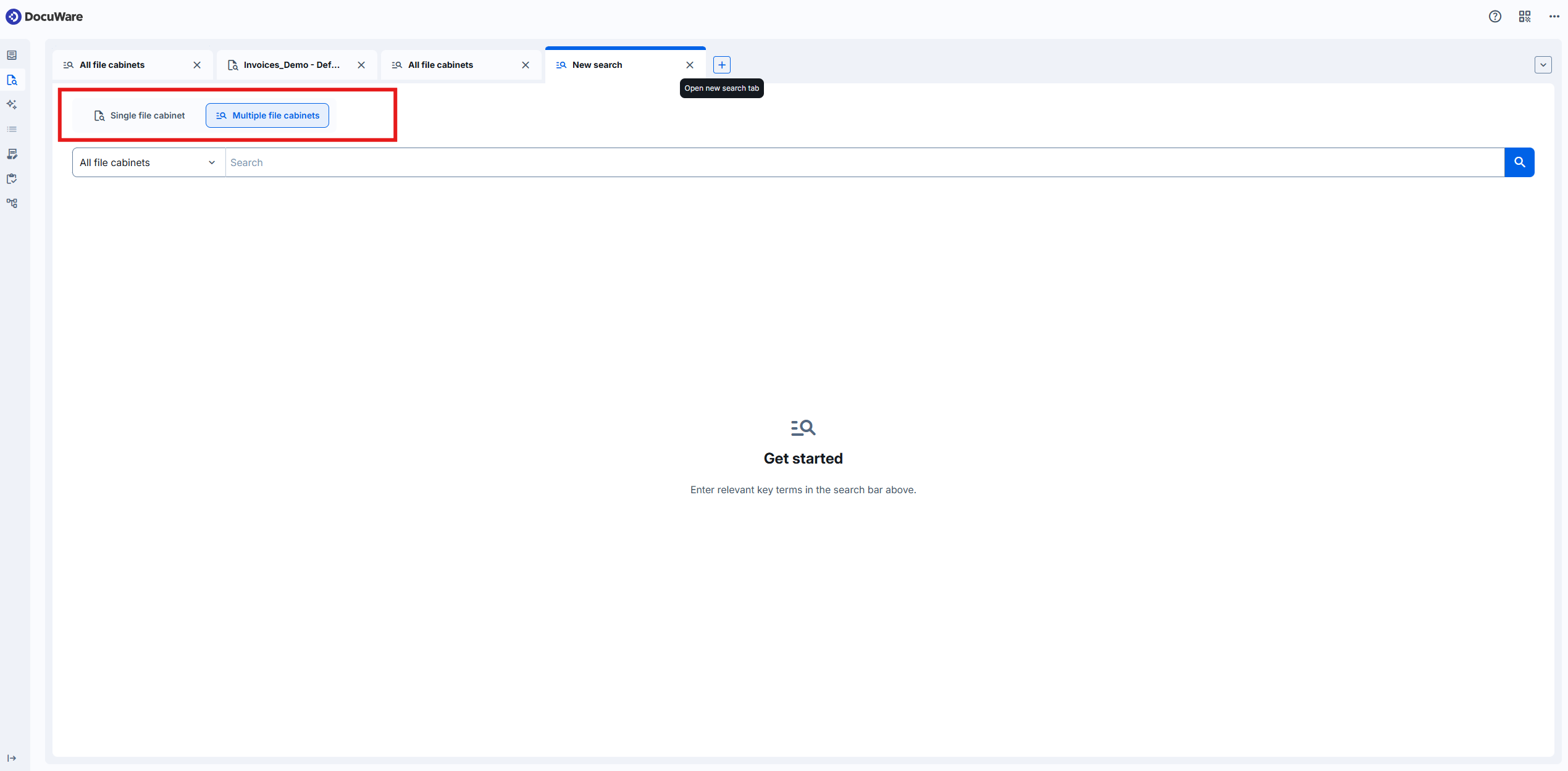
When you add a new tab, the first step is to choose the search type. Single and Multiple file cabinet searches are marked with distinct icons so you can tell tabs apart at a glance:
For a Single file cabinet search, the tab header shows the file cabinet and the search dialog you selected.
For a Multiple file cabinets search, the tab header shows the search term and the file cabinets included.
Each tab supports only one search type. To run the other type, open a new tab. The default search type for a new tab follows your previous selection; the very first tab in a session defaults to a Single file cabinet search.
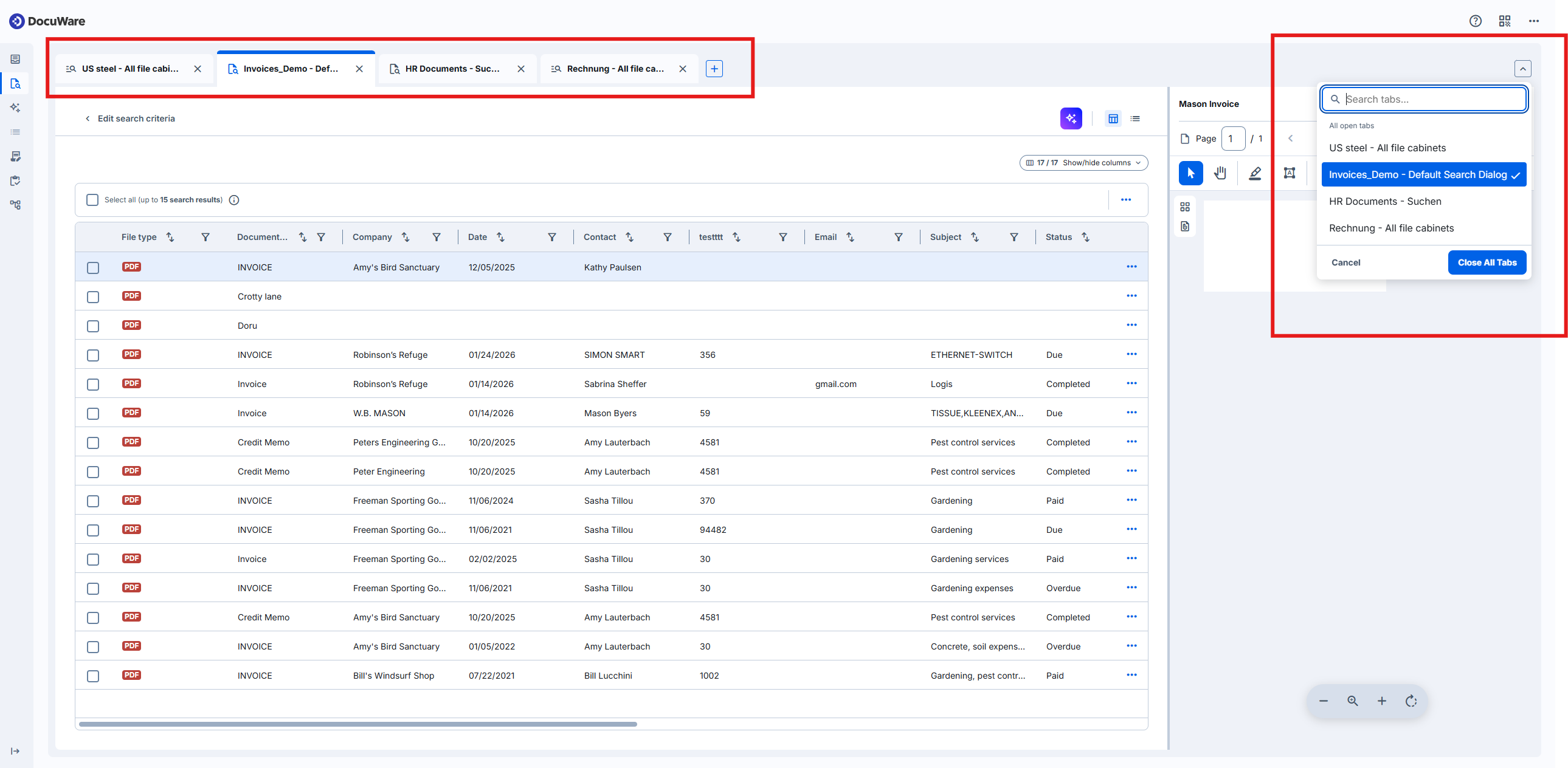
Close tabs individually with the close icon on each tab, or use the dropdown Close all the tabs to close them all at once. When all tabs are closed, an empty default tab remains open so you can start a new search.
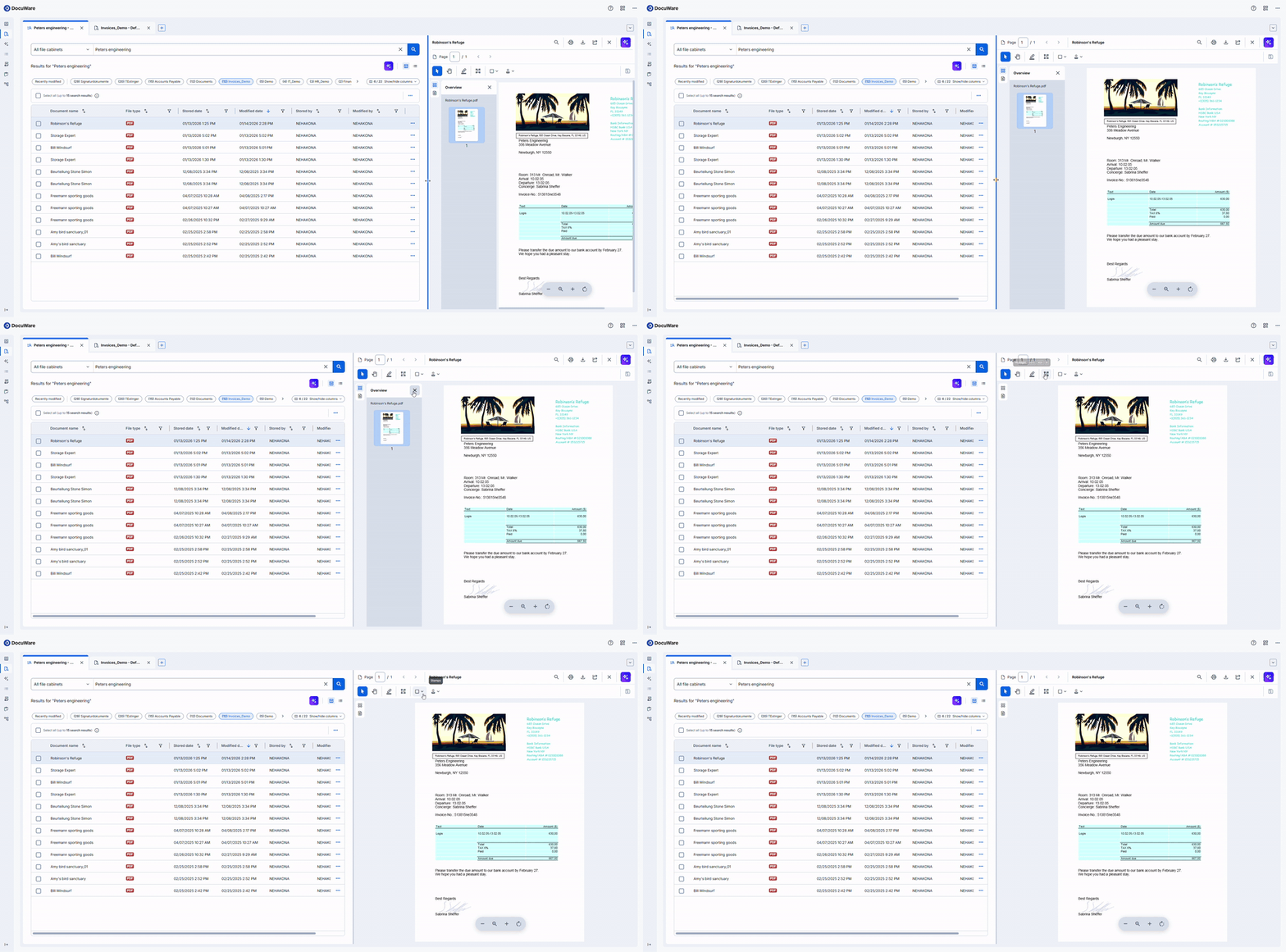
The result preview that previously appeared next to the search has been replaced by the full Viewer component. The Viewer in search is adjustable in width, exposes all Viewer tools (annotations, index editing, print, share), and can be closed when you need more space for the result list.
Quick start tips
Click the + icon next to the open tabs to add a new tab, then select the search type.
Drag the slider on the Viewer to resize it within the result list, or close the Viewer to focus on the results.
Selection of search mode inside of a tab and icons for Single file cabinet and Multiple file cabinets search
Search for tabs, close all the tabs or navigate to any specific tab from the list:
Search across multiple file cabinets
The multiple file cabinets search is intended for users who may not know which file cabinet contains a document. Instead of populating multiple index fields, you enter a keyword once. DocuWare searches every file cabinet you have access to, shows the most relevant hits first, and then offers filters to refine the list in a specific file cabinet.
The search runs a full-text query per default whenever a file cabinet is enabled for full-text; otherwise, it falls back to the document name. Results are aggregated across every file cabinet the user can access.
With the new approach, once file cabinet permissions are configured, you can search and work with documents immediately—no need to assign specific dialogs.
Results are organized as follows:
A "Recently Modified" chip shows up to 50 top-ranked results per file cabinet. A chip is a small, clickable label used to group or filter results.
Additional chips list the results per individual file cabinet.
Sorting: Primary criterion is text relevance; secondary key is last modified date.
Results use infinite scrolling, loading 15 documents per batch.
Security note: rely on permissions, not hidden fields
The new search works directly on the file cabinet and ignores dialog-level visibility settings. If a user has access to a document, its index values can be found, even when fields or menu options are hidden in dialogs or result lists. Sensitive information must therefore be secured through file-cabinet or document-level permissions. The concept and relevance of file cabinet permissions remain unchanged.
Current limitations
Operators in full-text search are not yet supported.
Quick start tips
Select Multiple locations and enter a search term:
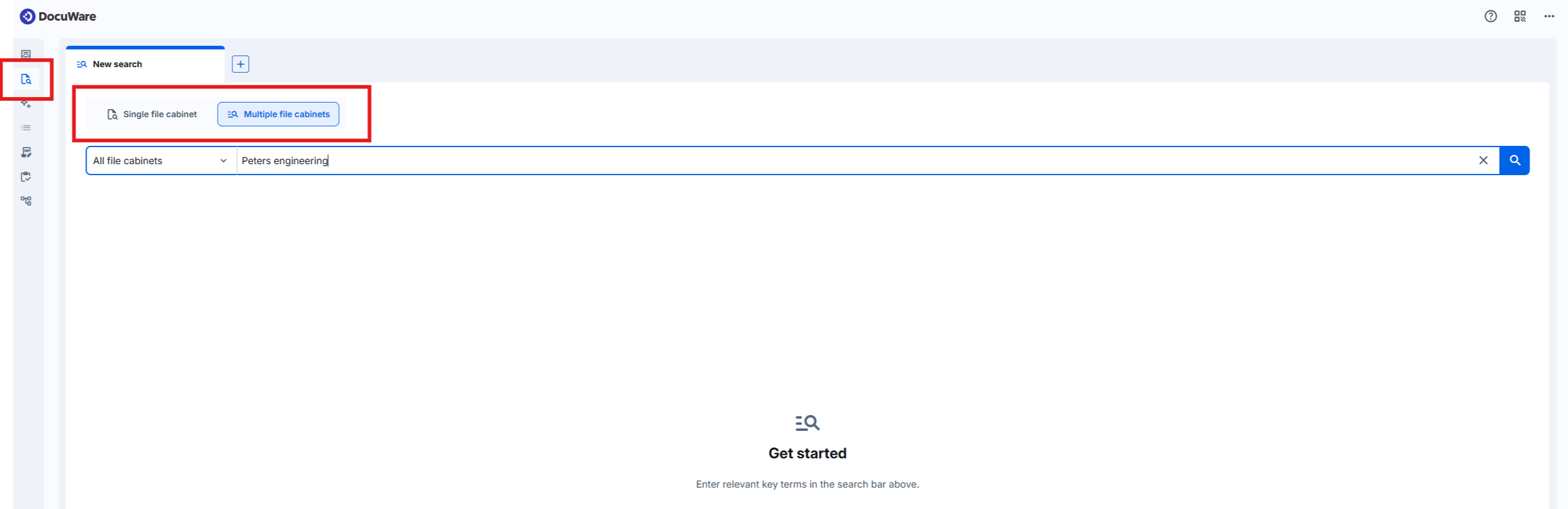
To search a specific file cabinet, click All locations and select the file cabinet:
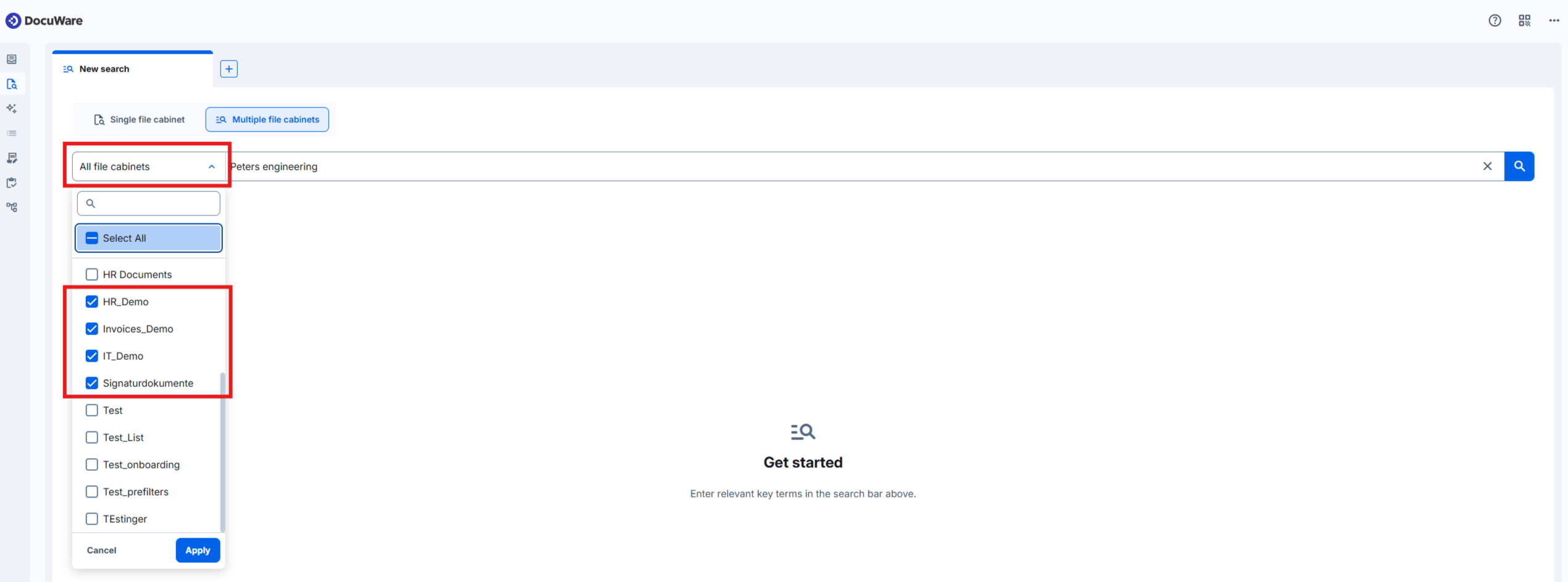
The result list opens in Table view by default. To access additional filters and sorting, select a file cabinet chip. A chip is a small, clickable label used to group or filter results. Sorting is available only in the result list of a specific file cabinet (not for Recently modified chip) with Table view activated:
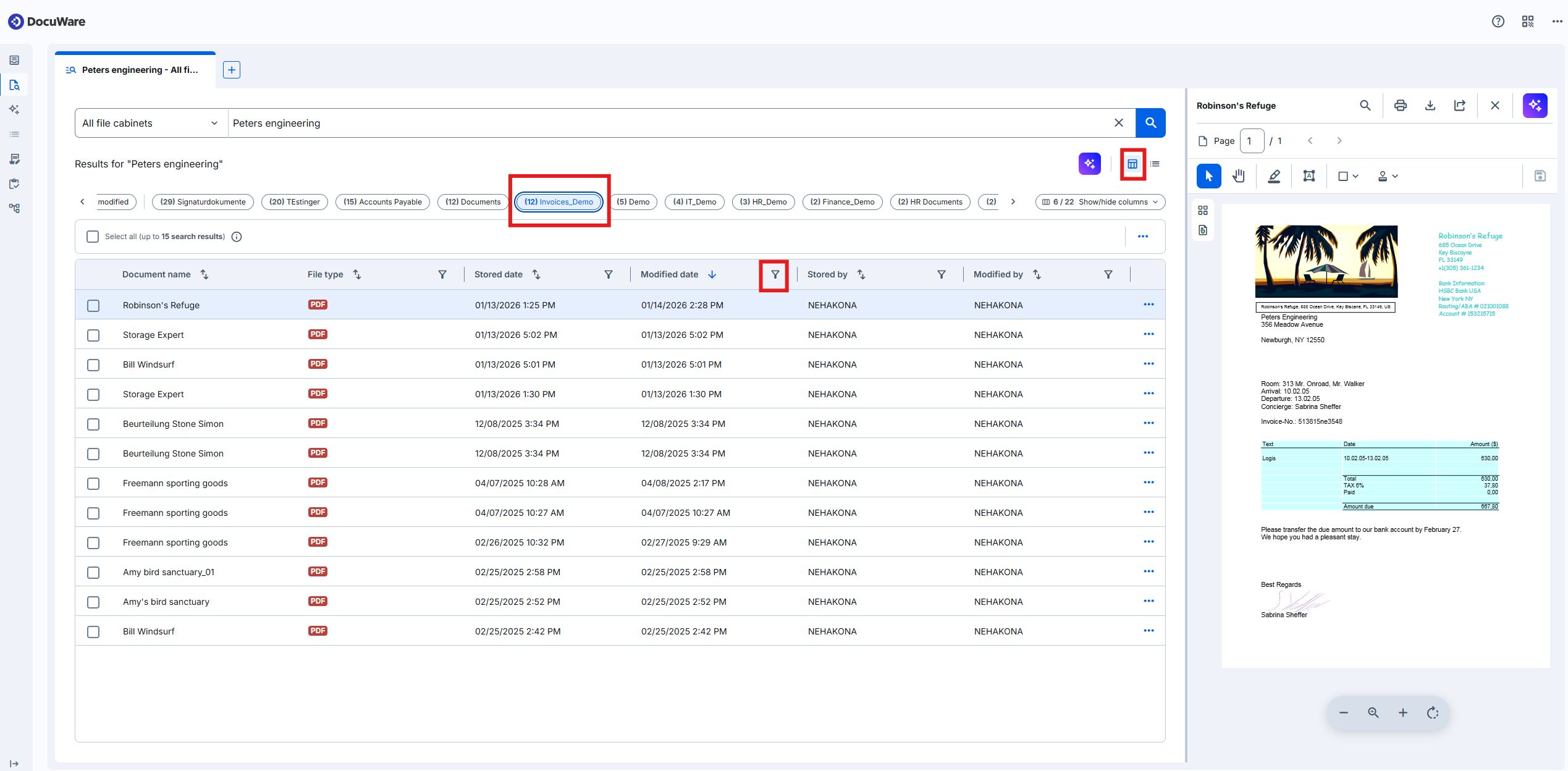
Use wild card search for partial matches: The asterisk (*) can be used as a wildcard at the beginning or end of the search term to broaden results:
Using "Peter*" retrieves results that begin with "Peter."
Using "*Peter" retrieves results that end with "Peter".
Read more about filtering in the next paragraph, "Combining filters".
Search within a single file cabinet
The single file cabinet search is intended for users who know where their documents are stored. It works the same way as the classic dialog-based search, with a redesigned interface. Select a file cabinet and a search dialog, fill in the configured index fields, and run the search.
Results follow the configured result dialog. You can show or hide index field columns, filter by multiple values at the same time, and edit search criteria directly in the result list.
Quick start tips
Open the left sidebar and select Search and choose Single file cabinet search:
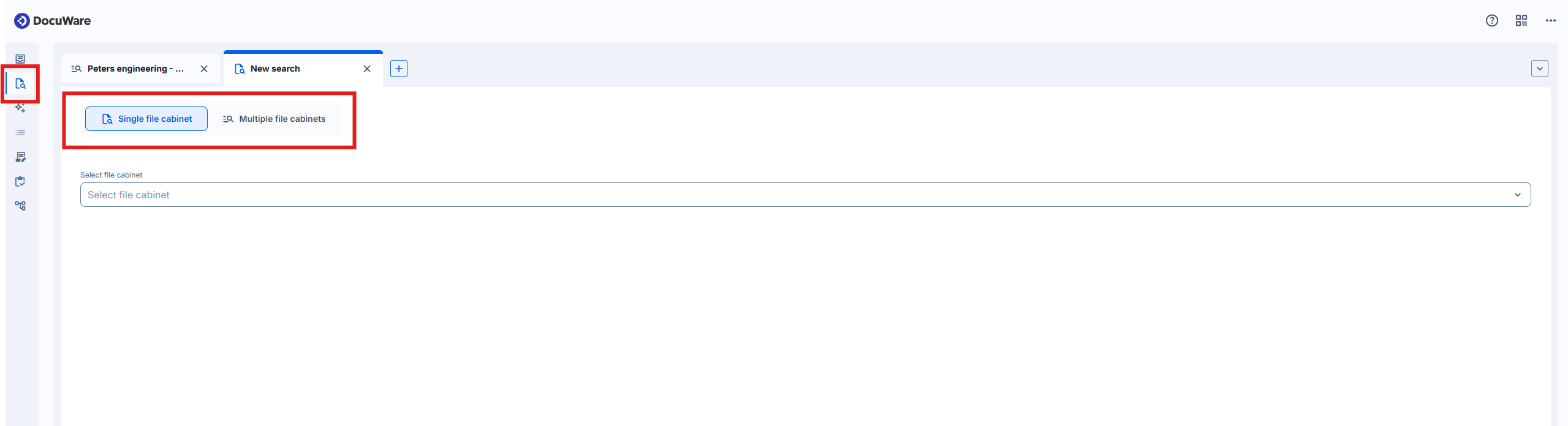
Select a file cabinet, search dialog, and fill in the index fields.
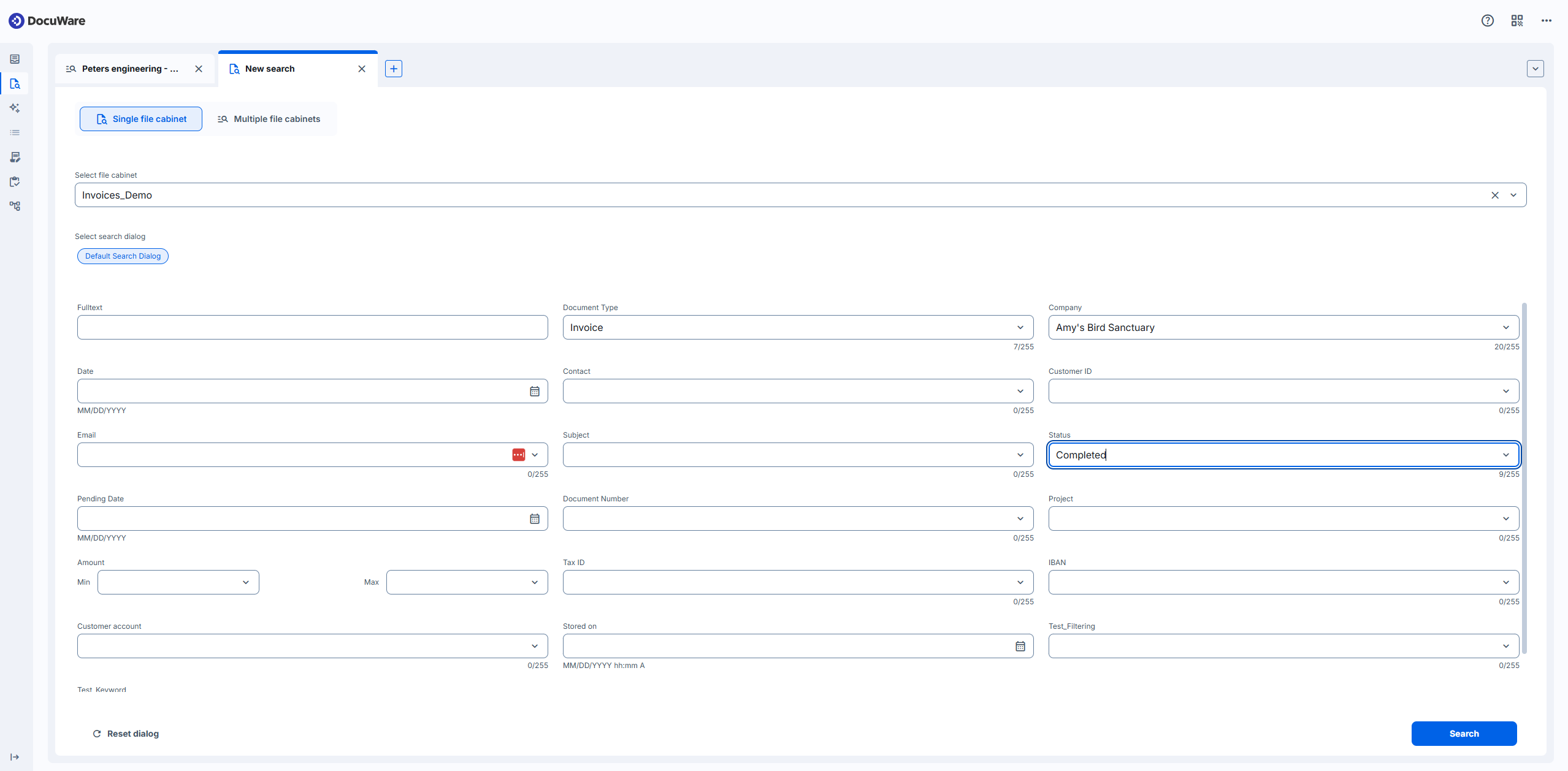
Run the search and see the results.
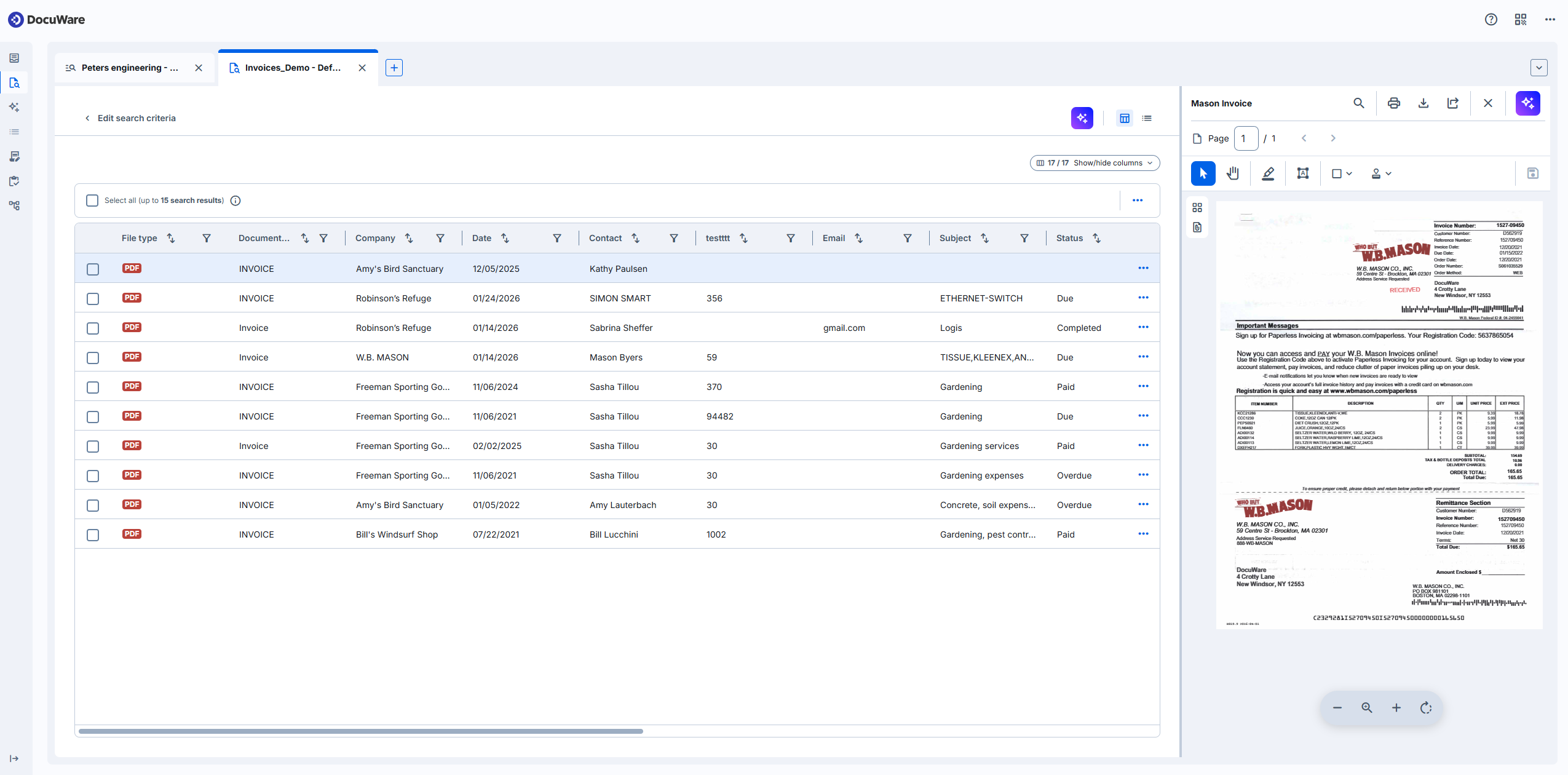
Combining multiple filters in the result list
In the Table view of a file cabinet chip, you can now combine several filter criteria to narrow down the results. Select field values, ranges, or dates, and DocuWare applies them all at once, leaving only matching documents in view.
Security note: rely on permissions, not hidden fields
The multiple file cabinet search works directly on the file cabinet and ignores dialog-level visibility settings. If a user has access to a document, its index values can be found, even when fields or menu options are hidden in dialogs or result lists. Sensitive information must therefore be secured through file-cabinet or document-level permissions. The concept and relevance of file cabinet permissions remain unchanged.
Current limitation
Filtering and sorting options are only available in specific file cabinet results in the Table view. Filtering and sorting are NOT available in the Recently modified chip, showing the search results across multiple locations.
Quick start tips
Select a file cabinet chip to enable additional filters and sorting.
In the Tab view of a file cabinet chip, you can sort entries, merge results, and show or hide columns.
Combine field, range, and date filters to trim large result sets. The small blue point next to the filter icon indicates that a filter is activated.
Filtering and sorting are not available for the aggregated result lists. Recently modified.
Filtering and sorting are only available in the tab view.
Result list menu options
The result list menu includes the following options. Additional result list functions are planned and will be delivered in upcoming updates:
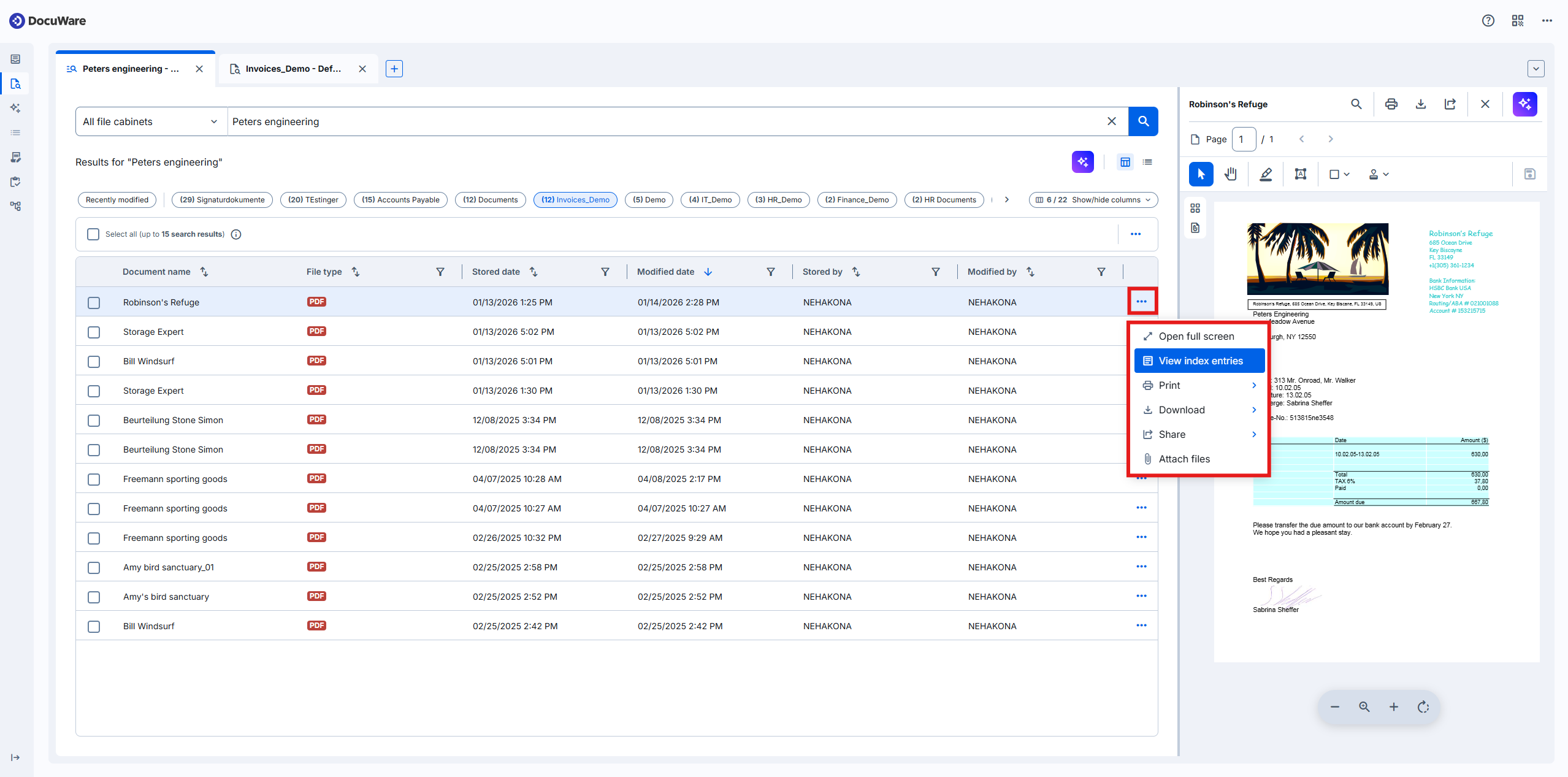
Open full screen
View index entries
Print - with annotations or without annotations
Download - in original format or with annotations
Share - via mail, via Teams and via link
Attach files
Delete
The Get document link action from the classic client is available under Share as Copy document link.
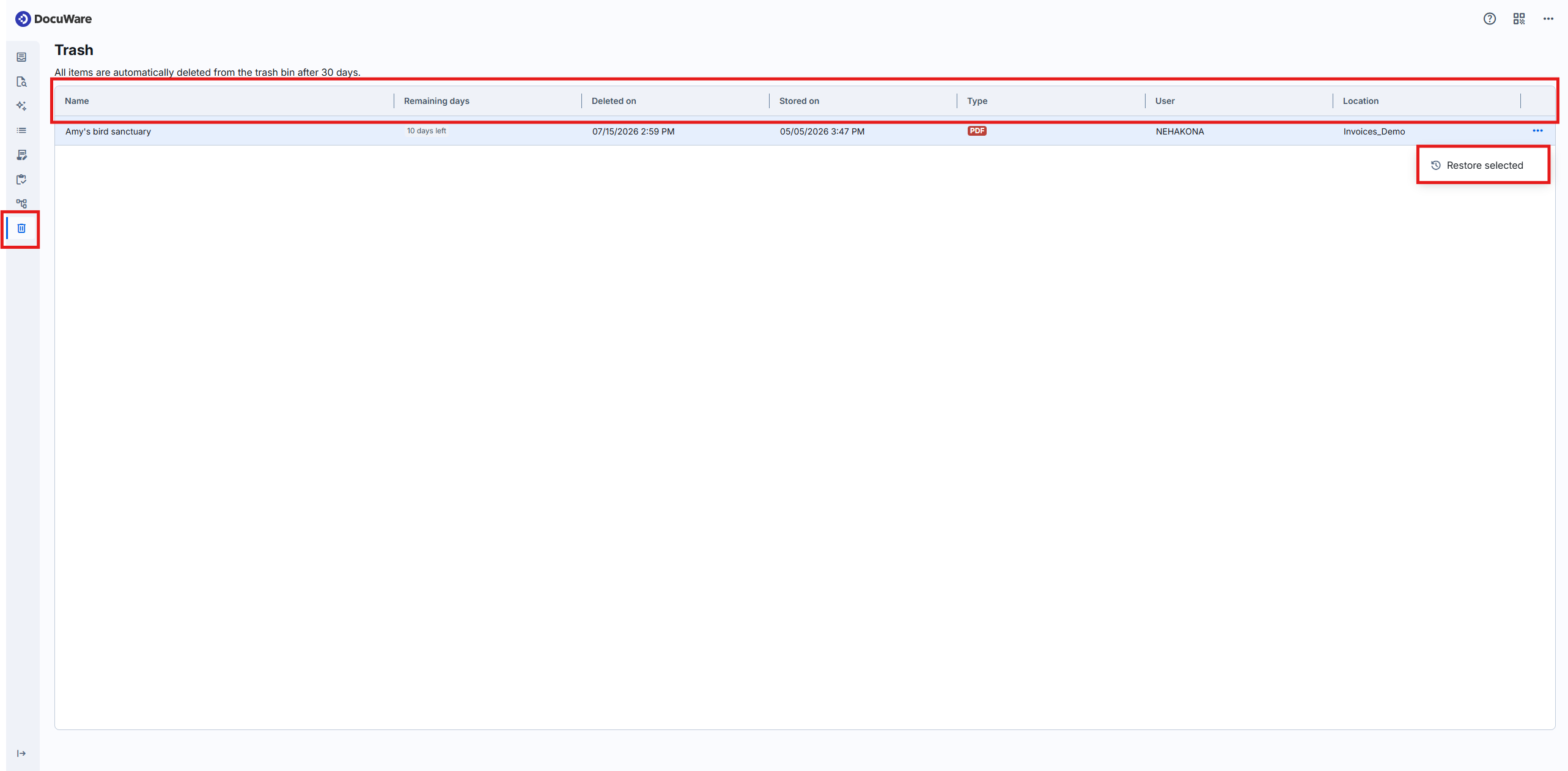
Use the Delete option to remove a selected document from the file cabinet directly from the result list. The option is available in the result lists of both the single file cabinet and the multiple file cabinets searches. Deleted documents are moved to the Trash Bin, from where they can be restored. No new configuration is required, and the delete permissions from classic DocuWare apply.
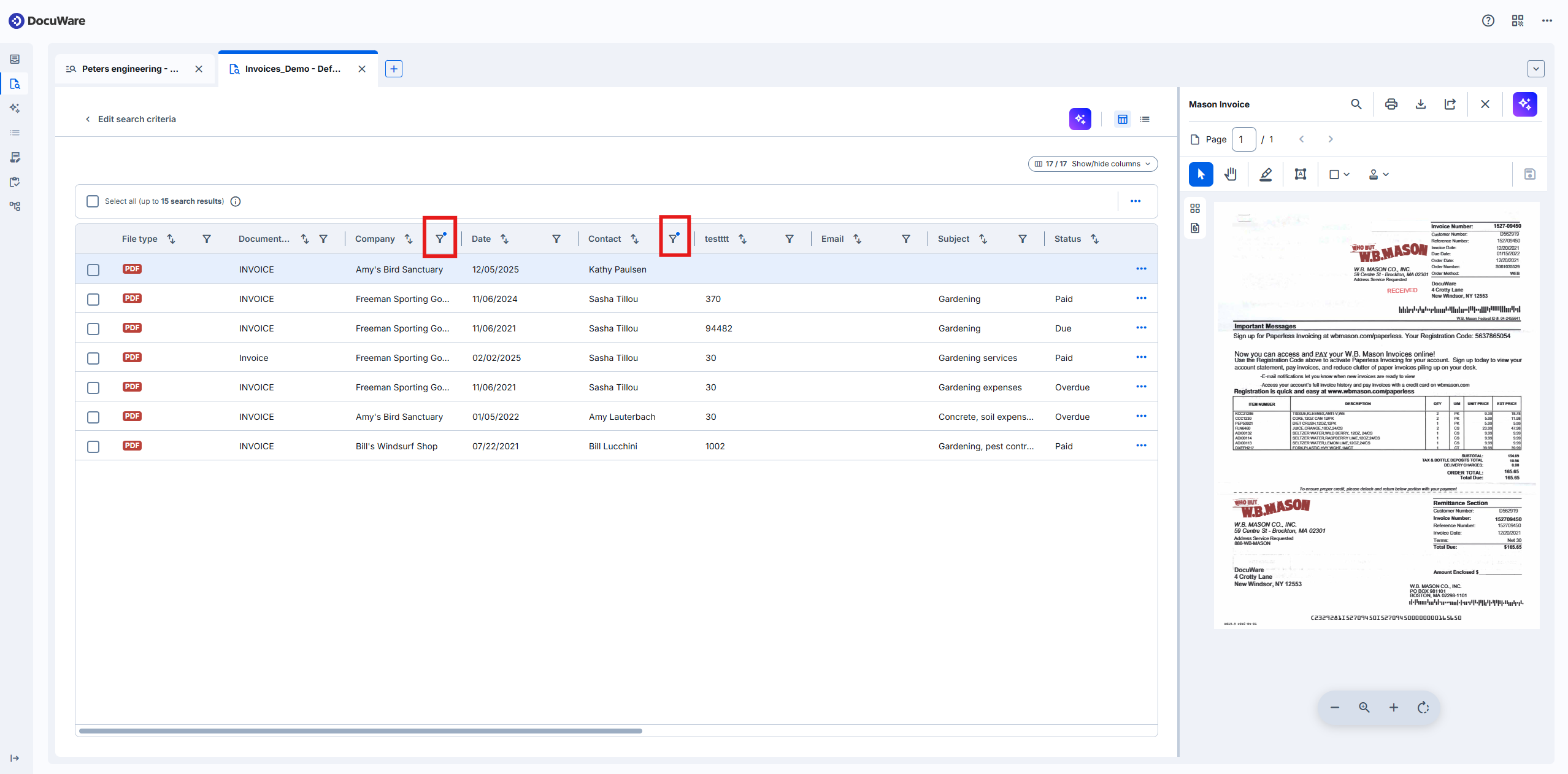
You can also act on a complete result list using the bulk actions in the result list context menu (three dots). The same actions are available in both the multiple file cabinets search and the single file cabinet search. When copying or sharing a results list link, any applied filters and sorting are included and shared via the link.
Export to .csv file — exports the result list, visualized as List or Table view, as a .csv file. You can export either the full list or only the filtered or sorted view, and choose which index fields to include in addition to the default system fields.
Copy results list link — copies a link to the current result list to the clipboard. Any active filters and sorting are included in the link, so anyone who opens it sees the same view.
Share results list link — sends the result list link by email. Active filters and sorting are included.
Quick start tips
In the result list, click the three dots on a document row to open the result list menu.
.png)
To Export .csv file, follow these steps:
1. Open a specific file cabinet result list and click the three-dot context menu above the list to access the bulk actions.
2. Select Export to .csv file and confirm.
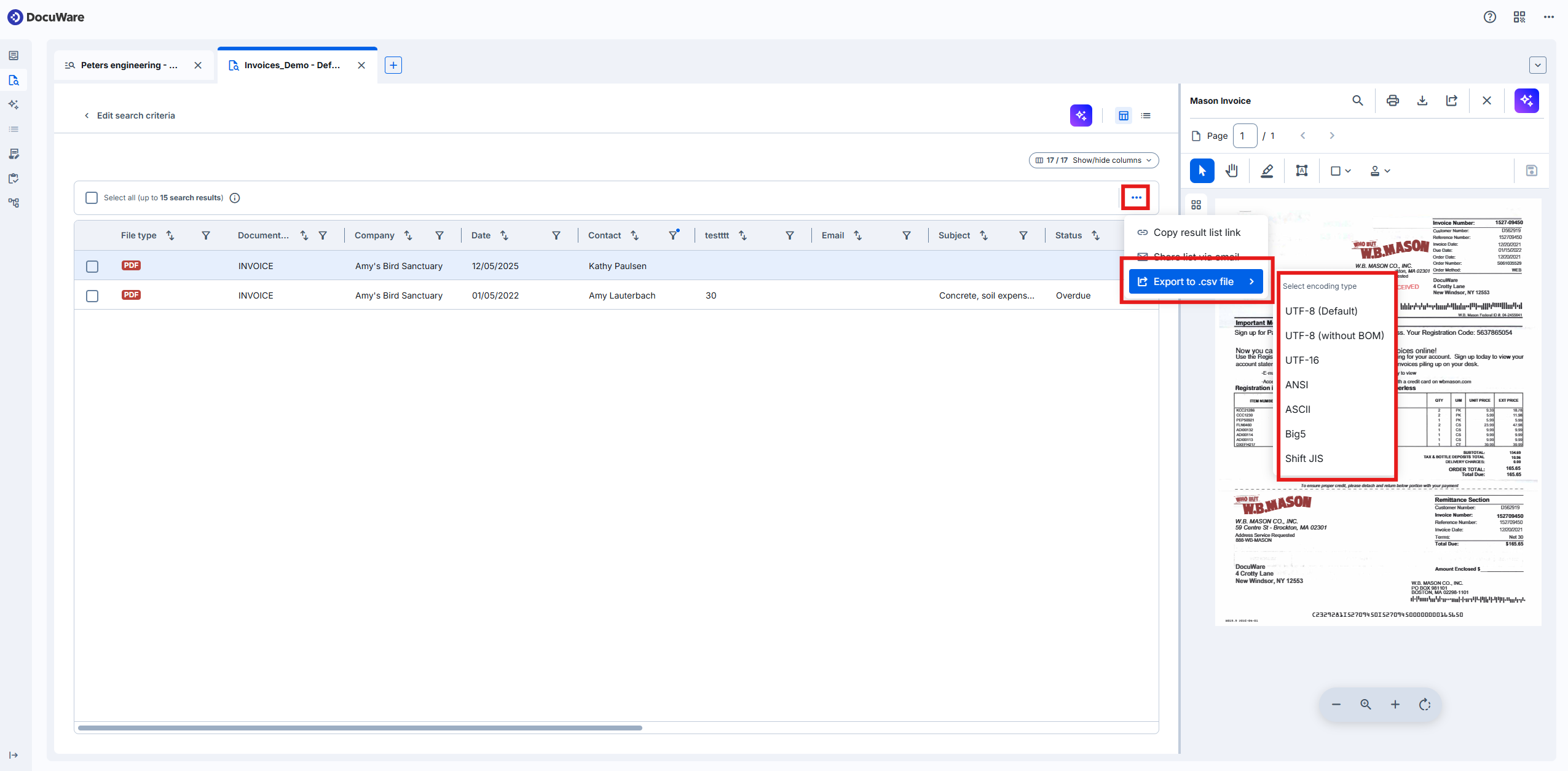
To share the current result list — Storing documents with New DocuWare, open the same bulk actions menu and choose Copy results list link or Share list via email. Active filters and sorting are carried over.
Restoring documents from the Trash Bin
The Trash Bin is available as a separate module in the left sidebar of the new DocuWare client. It lists your deleted documents in table view, with the same columns as in classic DocuWare. To restore a document that was deleted in error, select it and click Restore.
Restoring period
Deleted documents can be restored within 30 days.
Current limitations
Documents can only be deleted one at a time from the result list; deleting multiple selected documents at once is not yet available.
Documents can only be restored one at a time from the Trash Bin.
Documents cannot yet be permanently deleted from the Trash Bin.
The missing functions are planned for a later release.
Quick start tip
Open Trash Bin from the left sidebar to see your deleted documents. Select a document in the Trash Bin and click Restore:
Editing index entries
The new search no longer follows the classic sequence of search dialog, result list, and index dialog. To edit index entries for search results across multiple locations, users must explicitly select the index dialog to use. Index dialogs have no configured names, so the selection list displays the names of the corresponding result lists instead.
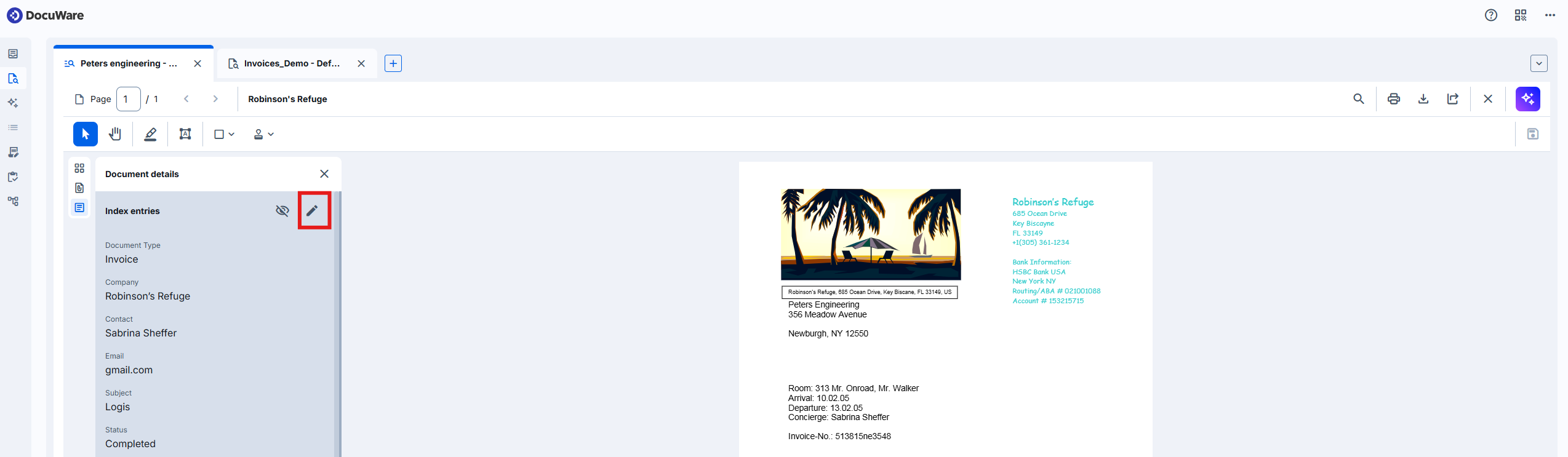
You may open the index dialog from the result list menu with the View index entries option, as in the classic DocuWare. The dialog starts in read-only mode and shows an Edit button when the user has appropriate permissions.
Empty fields are hidden by default but can be revealed on demand, and all configured field types - select lists, masks, and more - remain available during editing.
Current limitations
The filtering checkbox in the input field dropdown is not available in the index dialog.
By default, filtering is turned off for user-controlled fields. As a result, users may see unfiltered select lists.
Quick start tips
Click the three dots behind a document and View index entries to open the default index dialog:
The dialog starts in View mode; click Edit to change values:
The default dialog is derived from file cabinet settings, but can be switched.
Empty fields are hidden by default and can be shown on demand.