In a result list in the new DocuWare Client, you can not only view a single document but also work on it directly. You open it in the viewer, check its index entries, print, share, or delete it, without leaving your search results. These actions are available for every document in the same way, whether you searched one file cabinet or several.
Supported versions: DocuWare Cloud + new DocuWare client only
On this page
Coming from the classic DocuWare client?
In the classic client, open the new DocuWare client with the link Open new DocuWare. You reach the actions in the context menu of a document in a result list. If you know the document menu in the classic client, these are the differences.
Get document link is now Copy document link: You find it grouped under the Share option.
Clip is now Attach.
Unclip is Detach.
Manage pages is new: You add, rotate, reorder, and delete the pages of a PDF document.
Sharing without the Desktop Apps: You share a document with colleagues directly from the client. For someone outside your organization you still need the DocuWare Desktop Apps.
Deleting several documents at once is not possible yet. Documents are deleted one at a time.
Permissions apply also for the new DocuWare client. note that a dialog cannot restrict access. A setup that keeps documents out of reach by leaving a field out of a dialog, or by not assigning a search dialog, will fail in new DocuWare, as the document itself stays accessible to everyone who holds the permission for it. Such a document can still be reached via the multiple field cabinet search or DocuWare Aura. More about permissions and dialogs.
The new DocuWare client is available in DocuWare Cloud for now. On-premises systems continue to work with the classic client.
Opening a document
Select a document in the result list to open it in the viewer next to the list. All viewer functions are available there, so you can read the document, add annotations, and check its index entries without leaving your results.
The document menu
Right-click the document in the result list, or select the three dots at the end of its row, and the document menu opens: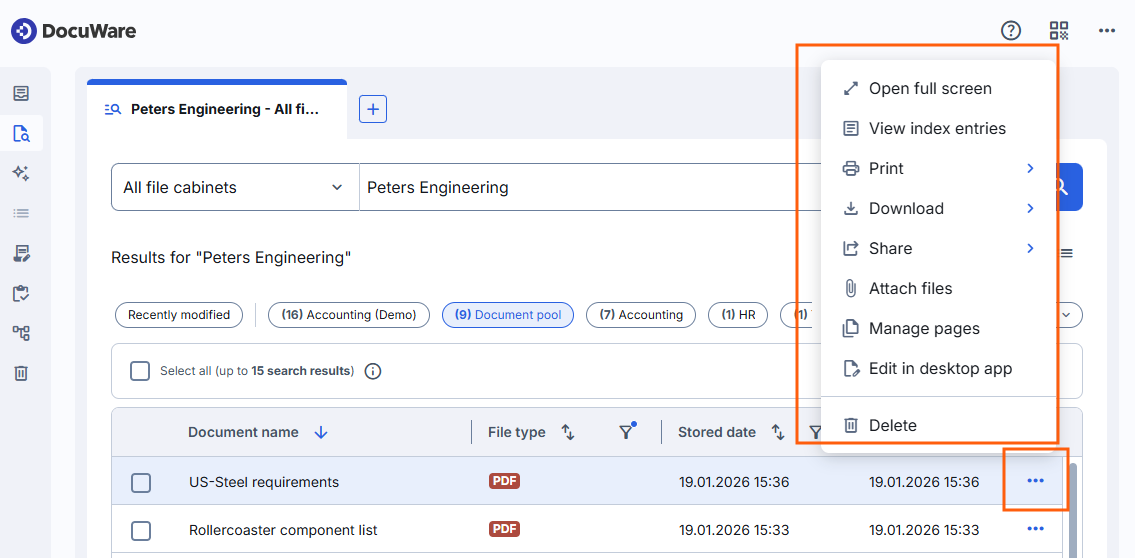
Open full screen: Opens the document in the viewer across the full window.
View index entries: Opens the index dialog. It starts in read-only mode and offers an Edit button if you have the permission to change index entries. See Viewing and editing index entries.
Print: Prints the document with or without its annotations.
Download: Downloads the document in its original format or PDF with or without its annotations.
Share: Shares the document by email to DocuWare or other users, through Microsoft Teams, or as a link with Copy document link.
Attach files: Groups this document with others into one set. Each file is preserved.
More about Attaching and merging documents
Manage pages: Adds, rotates, reorders, and deletes pages inside a PDF document. This option is not shown for files in other formats than PDF.
More about Managing pages of a document
Edit in desktop app: Opens the document in the program installed on your computer, so you can change the document itself. In a file cabinet with automatic version management, closing the document creates a new version.
Go to version overview: Lists all versions of the document with their author and date, and restores an earlier one. The entry appears for documents in a file cabinet with version management.
Delete: Moves the document from the tray to the trash bin.
To export or share the complete list instead of one document, see Filtering, sorting, and sharing search results.
If you don’t see a function contact your administrator for the respective permissions.
Notes for administrators
As in the classic DocuWare client, a result list is always tied to a search dialog, and it is configured in the same way as before in DocuWare Configurations > File cabinets > Dialogs > Result.
A search across multiple file cabinets is not tied to a single file cabinet and therefore has no single search dialog with a result list. The results are shown using the system fields of a document. Index fields cannot be added. Users can, however, hide the columns they do not need.
Only the file cabinet permissions decide which documents users can see. If you hide fields in a search dialog, users with access to a document can still find it by its index values. The search works directly on the file cabinet and ignores visibility settings in dialogs. In concrete terms: confidential information is protected through file cabinet and document permissions, not by hiding dialog fields.
More about permissions and dialogs in new DocuWare
The Result list functions that could be shown and hidden in the configurations are no longer evaluated. The actions for a document in the context menu of the result list depend solely on the permissions. Hiding such an action never restricted what a user could do, because each function has its own permission and can be used in other ways.
More about permissions and dialogs in new DocuWare