Every search in DocuWare produces a result list. It contains the documents that match your search terms, together with their index entries. In the result list, you narrow down the hits and then work with them.
You can sort and filter the list until it contains only the documents you need. You open a document in the viewer next to the list, and you run actions on a single document or on the whole list, for example printing, sharing, exporting, or deleting.
This article describes the result list of a single file cabinet. In a search across multiple file cabinets, select the chip of one file cabinet to get the list described here.
Supported versions: DocuWare Cloud + new DocuWare client only
On this page
Coming from the classic DocuWare client?
In the classic client, open the new DocuWare client with the link Open new DocuWare. To get a result list run a search. Your resuls lists are the same as in classic DocuWare. If you know result lists in the classic client, these are the differences.
The small preview beside the result list is gone. The document opens in the complete viewer, so annotations, index entries, printing, and sharing are available without leaving your results.
You can filter more than one column at once, and DocuWare applies all filters together.
Documents are always listed in a table. The index card view of the classic client is gone.
The new DocuWare client is available in DocuWare Cloud only for now. On-premises systems continue to work with the classic client.
Sorting and filtering the result list
The result list of a file cabinet starts with the system fields that every document has, such as the document name and the date it was stored. Use Show/hide columns above the list to add the index fields of that file cabinet, or to remove columns you do not need. The option also tells you how many of the available columns are displayed, for example 6 of 22.
In a search across several file cabinets, select the chip of one file cabinet first. Sorting and filtering are not available in Recently modified.
Select the arrows next to a column heading to sort the list by that index field.
Select the filter icon in a column heading to limit the list to certain values. Depending on the field, you select values from a list, a range, or a date.
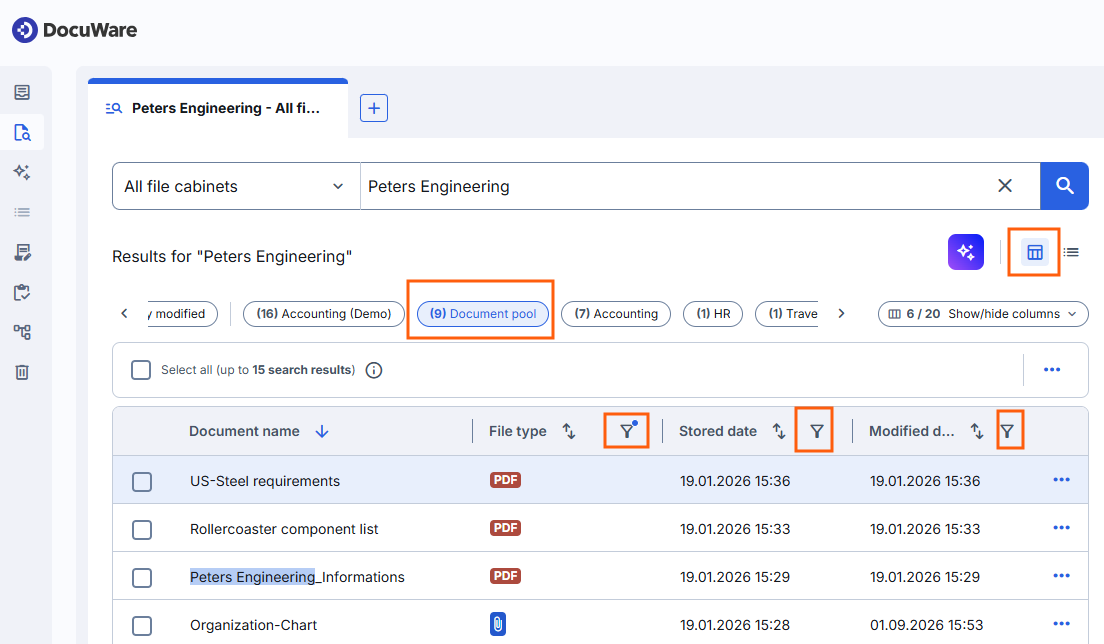
Select the chip of one file cabinet to sort and filter the result list.
You can filter several columns at the same time, and DocuWare applies all filters together, so only documents that match all of them remain in the list. A small blue dot next to the filter icon shows that a filter is active in that column.
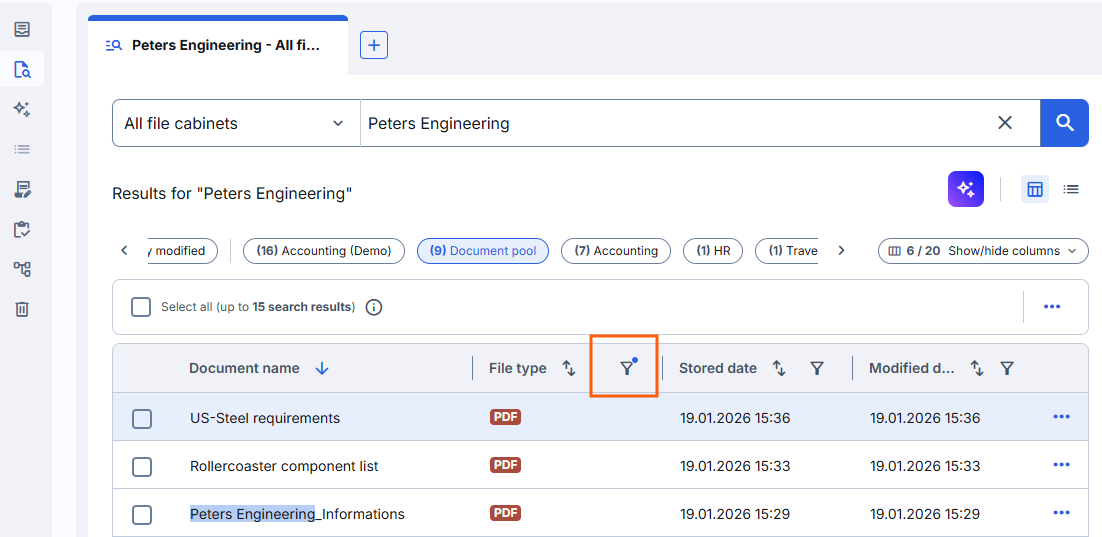
Look out for the blue dot: This column is filtered.
Viewing a document next to the result list
Select a document to open it in the viewer next to the result list, with all viewer functions available. This works in both search modes. Drag the divider between the list and the viewer to change its width, or close the viewer when you need the full width for the list: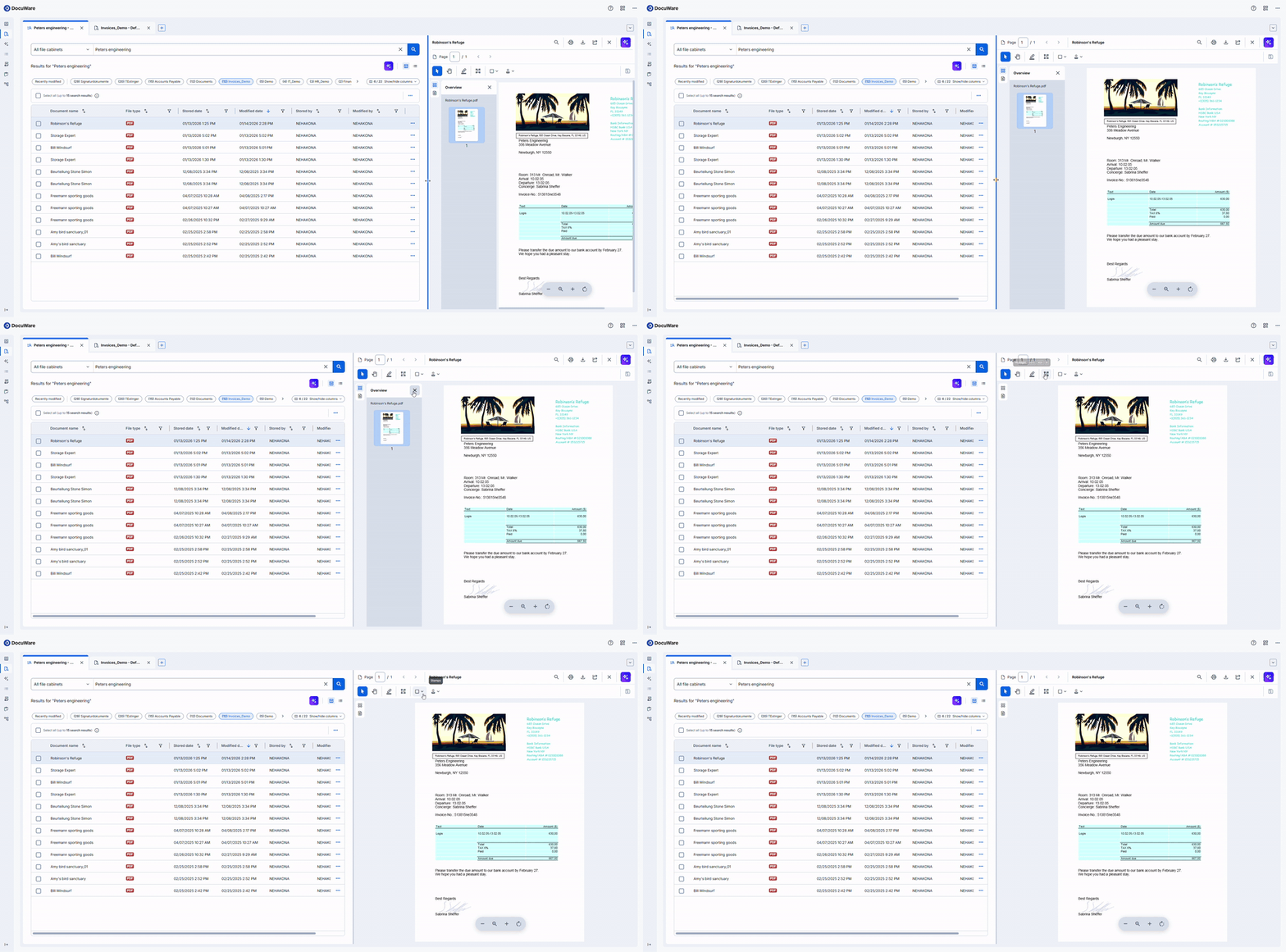
Actions for the whole result list
Select the three dots above the result list to act on the complete list instead of a single document. Active filters and sorting are part of what you export or share, so narrow the list down first and pass on exactly the view you want.
Export to CSV file: Exports the result list as a CSV file. You export either the complete list or only the filtered and sorted view, and you select which index fields the file contains in addition to the standard fields. You also select the character encoding, with UTF-8 as the default.
Copy results list link: Copies a link to the current result list to the clipboard.
Share list via email: Sends the link to the current result list by email.
Everyone who opens the link sees the same view of the list, with your filters and sorting applied.
These actions belong to the result list of one file cabinet. A search across multiple file cabinets offers no actions for the complete result.
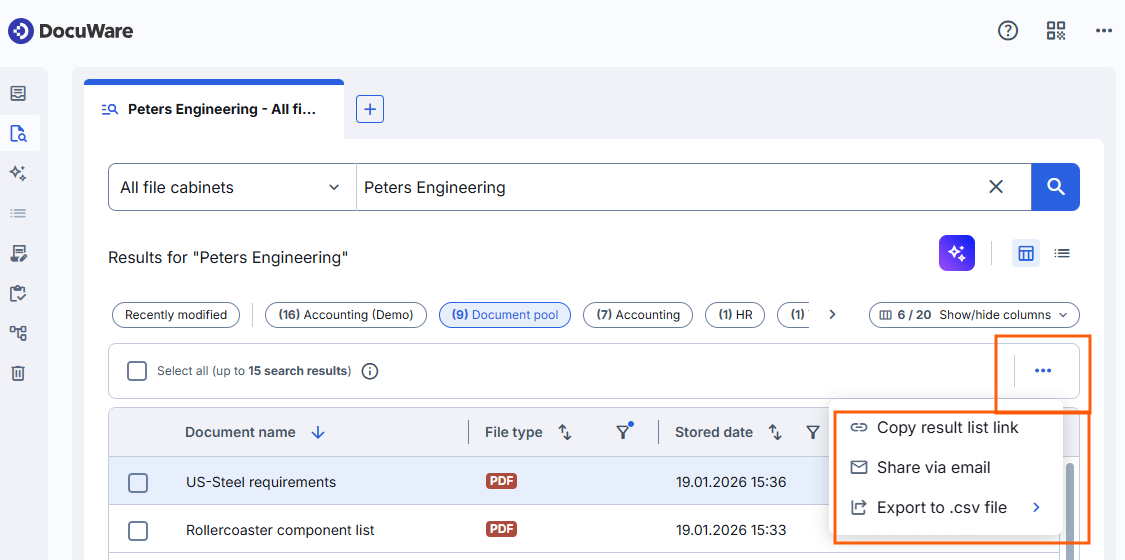
Click the three dot icon to apply actions on the whole result list.
What you can do with one document of the list is described in Actions for a single document.
Notes for administrators
As in the classic DocuWare client, a result list is always tied to a search dialog, and it is configured in the same way as before in DocuWare Configurations > File cabinets > Dialogs > Result.
A search across multiple file cabinets is not tied to a single file cabinet and therefore has no single search dialog with a result list. The results are shown using the system fields of a document. Index fields cannot be added. Users can, however, hide the columns they do not need.
Only the file cabinet permissions decide which documents users can see. If you hide fields in a search dialog, users with access to a document can still find it by its index values. The search works directly on the file cabinet and ignores visibility settings in dialogs. In concrete terms: confidential information is protected through file cabinet and document permissions, not by hiding dialog fields.
More about permissions and dialogs in new DocuWare
The Result list functions that could be shown and hidden in the configurations are no longer evaluated. The actions for a document in the context menu of the result list depend solely on the permissions. Hiding such an action never restricted what a user could do, because each function has its own permission and can be used in other ways.
More about permissions and dialogs in new DocuWare