In a file cabinet with automatic version management, every change to a document is kept as a version. You open the document, change it, and close it, and DocuWare stores the result as the new current version. The previous one stays in the file cabinet, marked as out of date, so you can always see what a document looked like before.
Nothing has to be checked out or checked in. Whether a file cabinet works this way is decided in its configuration.
Supported versions: DocuWare Cloud + new DocuWare client only
On this page
Coming from the classic DocuWare client?
In the classic client, open the new DocuWare client with the link Open new DocuWare. Nothing has to be set up again: Your automatic version management works as before. These are the differences.
When you go back to an earlier version, you choose whether the index entries of that version come back with the document, or only the document.
Only automatic version management is available: Version management with check-out and check-in is not supported yet.
The new DocuWare client is available in DocuWare Cloud for now. On-premises systems continue to work with the classic client.
Creating a new version
Right-click the document in a result list and select Edit. The document opens in the program your computer uses for that file type, for example a Word document in Microsoft Word. Make your changes and close the document: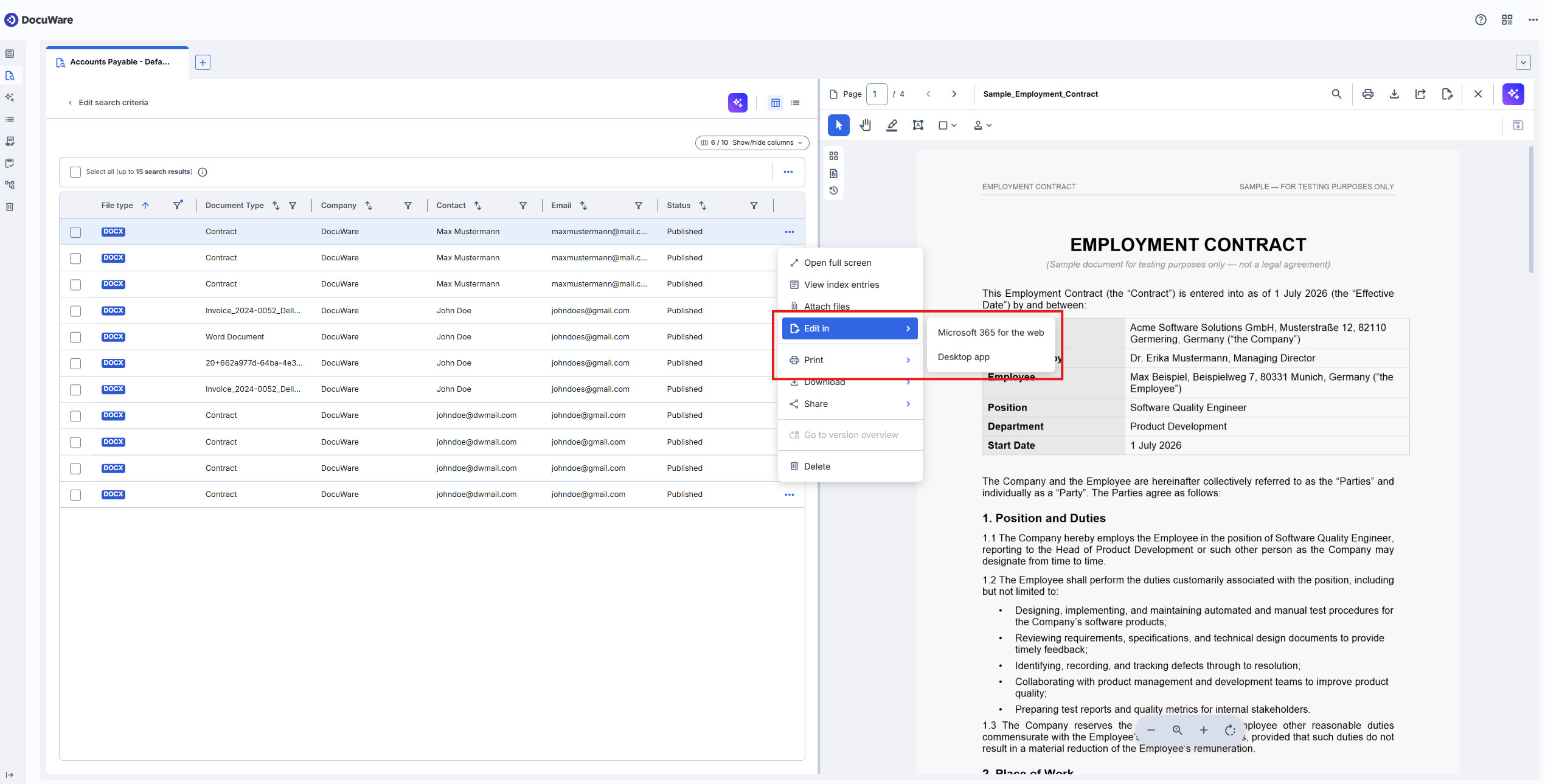
In a desktop app, closing the document creates the version. Saving while the document stays open does not, and a document you close without changing it does not become a new version either.
In Microsoft 365 for the web, DocuWare creates a version about every 30 seconds while you work. You do not have to close the document for your changes to be kept, and a longer editing session can leave several versions in the history.
The new version becomes the current version, and the one before it is marked Out of date. Its change comment reads "Automatic version management", because no one typed one.
Important: finish your changes within 48 hours
While you edit, the document lies as a copy on your computer and is connected to DocuWare by a link that is valid for 48 hours. Changes you make after that are not stored back. For a document you work on over several days, close it and open it again from DocuWare within that time.
Edit is not offered for database records, or for documents that carry a signature stamp.
Looking at the version history
Right-click the document and select Go to version overview. Every version of the document is listed with:
the file type and the version number,
the version status, Current version or Out of date,
who changed the document and when,
who created the version and when,
the change comment.
This answers the question why a document looks different from last week: you see who worked on it, and you open the earlier version in the viewer to compare.
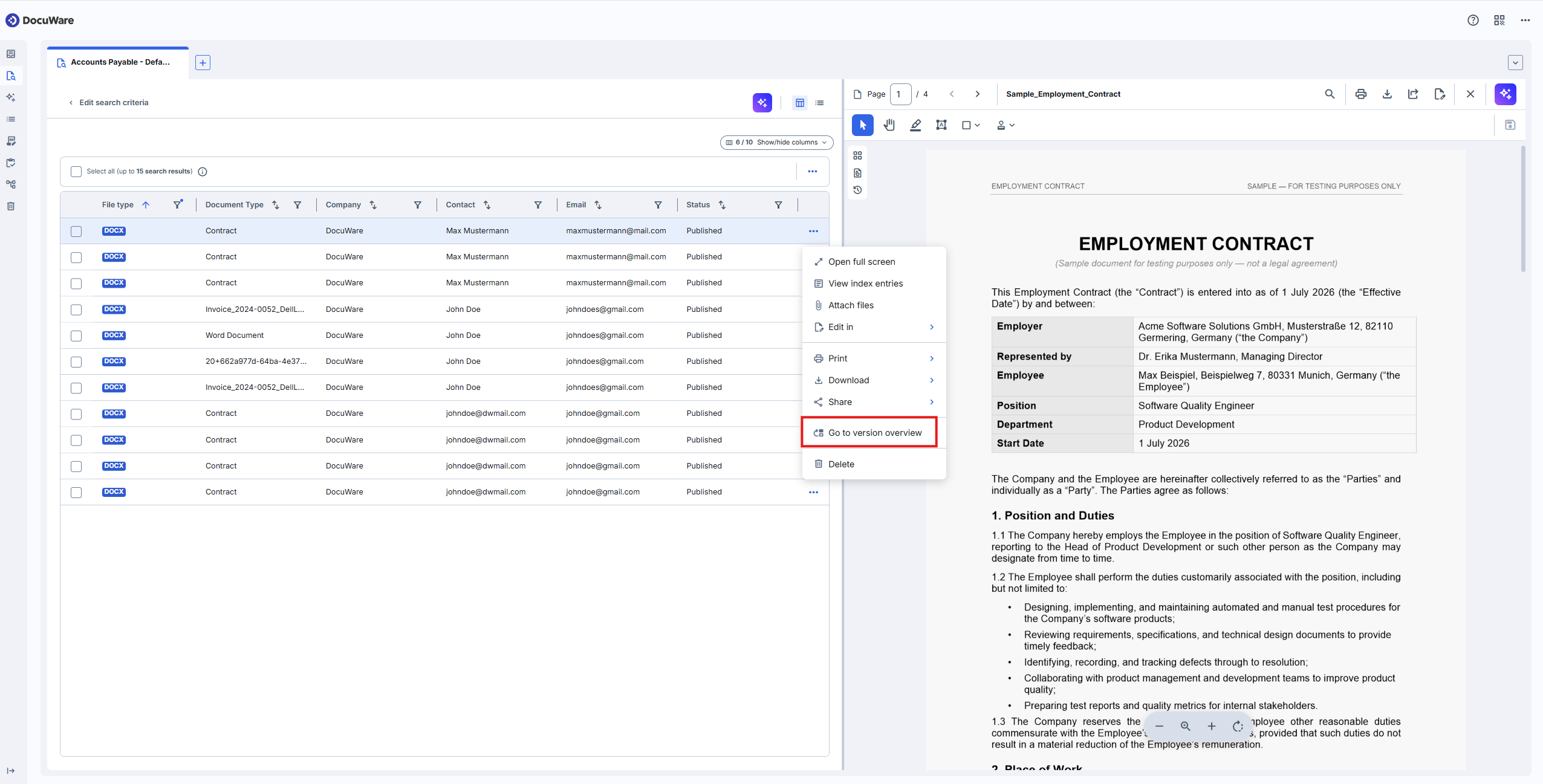
Access the version history of a document via its result list menu
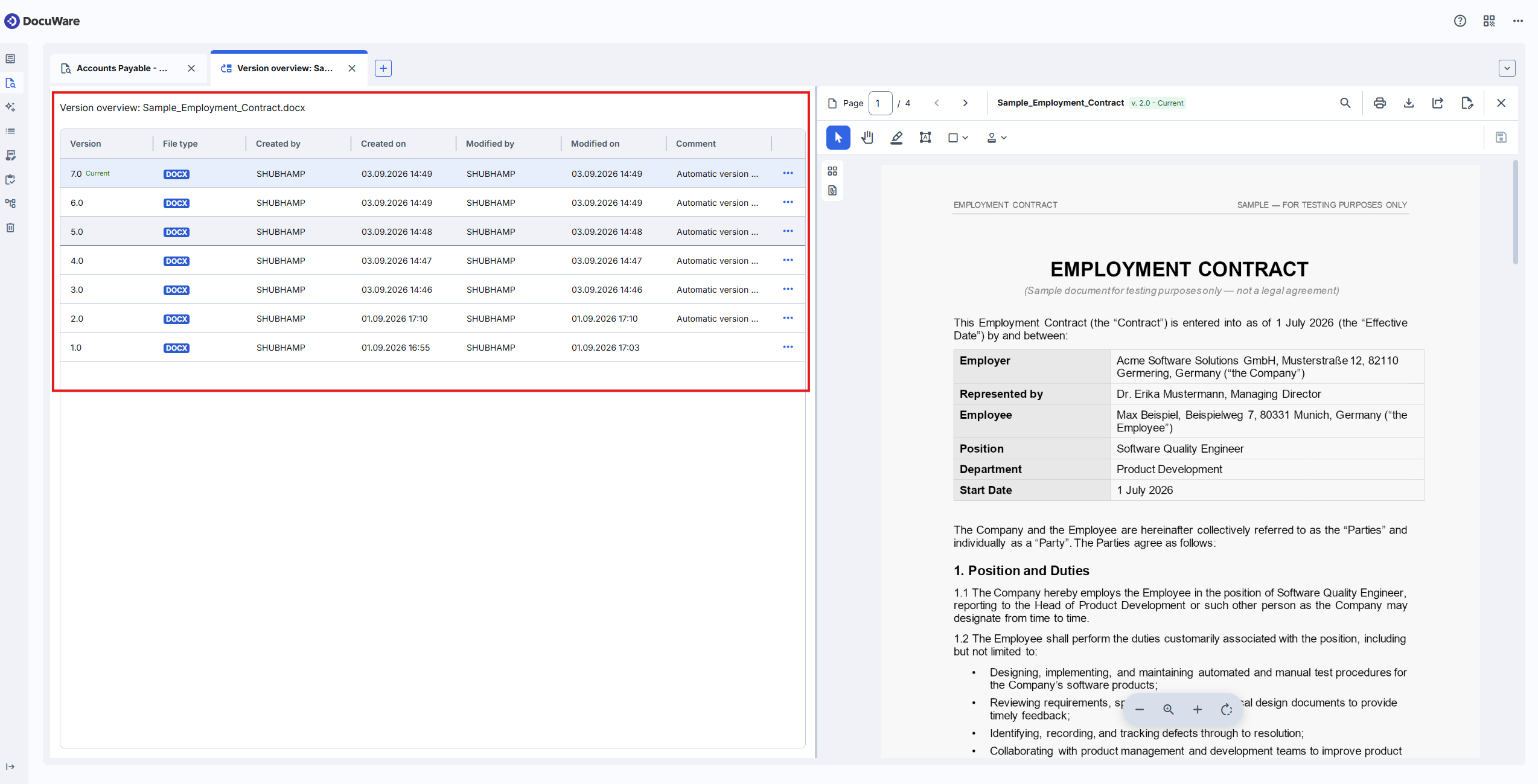
Version overview shows all automated created version of a documents for now
Going back to an earlier version
In the version overview, right-click the version you want back and select Restore version. That version becomes the current version, and the versions in between stay in the history.
You choose what comes back with it:
the document together with the index entries it had at the time, or
Restore document only, which keeps the index entries the document has now.
The second option is the one you need when only the file was wrong, for example after a colleague replaced the content by mistake, while the index entries have been corrected since.
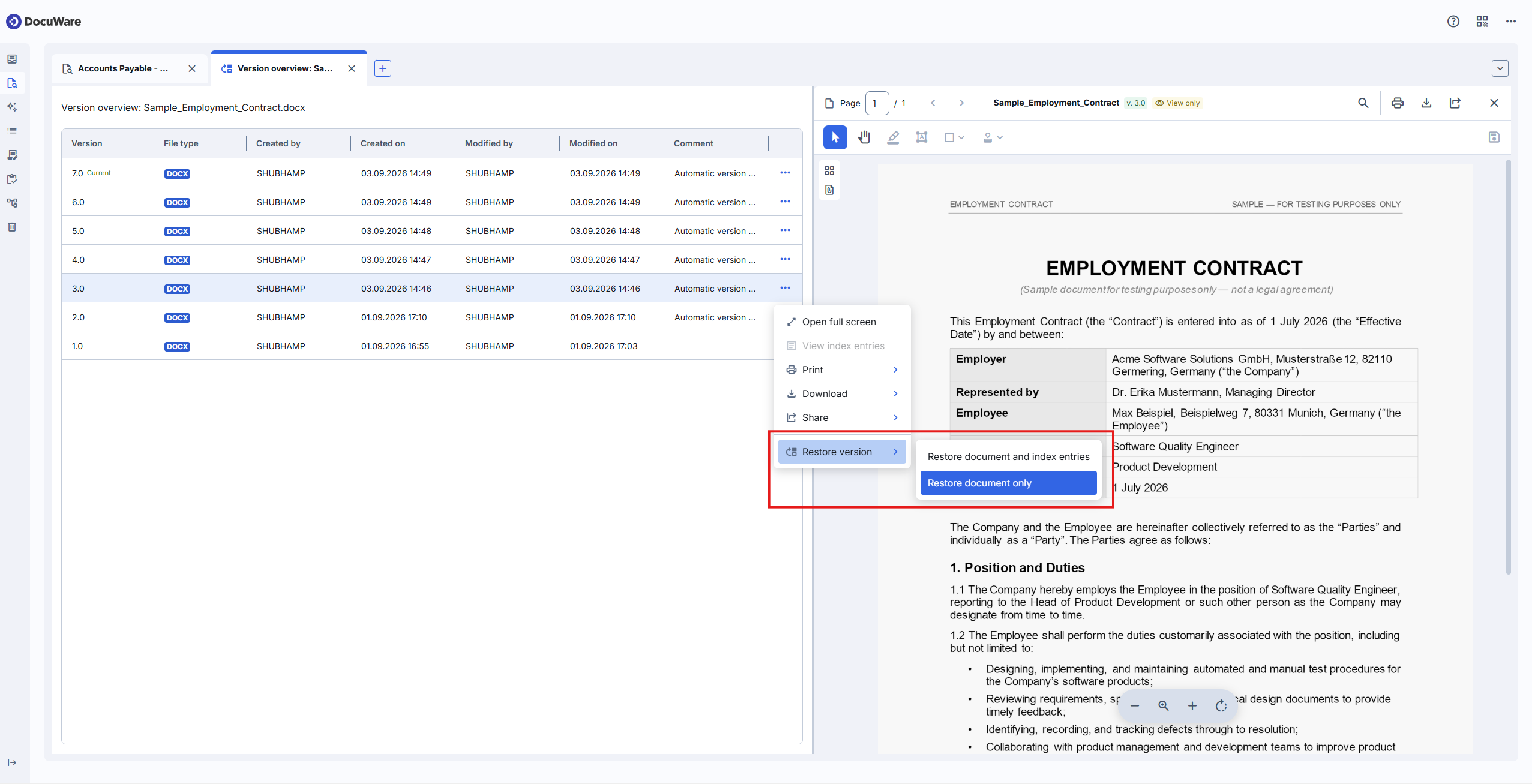
Use the option “Restore document only”, if the content was reaplaced by mistake, while the index entries have been altered since.
Notes for administrators
Version management is configured in the same way as in classic DocuWare in DocuWare Configurations > File Cabinets > General > More options. A file cabinet with acitvated automatic version management works the same way in the new DocuWare client, and nothing has to be set up again.
Creating and restoring versions requires the Edit documents permission for that file cabinet. More about file cabinet permissions.
To edit a document on the user's computer it is opened in the program installed there. For this DocuWare Desktop is required.