Index entries are the field values a document is stored with, for example company, document type, invoice date, or status. Index entries determine whether a document can be found again later. They are also used to feed a document into a workflow, for example.
Most index entries are set when the document is stored, manually or automatically. You edit them afterwards when something has changed or was never correct: a status moves from open to paid, a document was indexed with the wrong company, a field stayed empty. The change applies to the stored document, so everyone finds it under the new values from then on.
Index entries always open in read-only mode. If you have the permission to change them, the dialog offers an Edit button. To reach them you need a document, so open Search in the left sidebar of the DocuWare client and run a search.
Supported versions: DocuWare Cloud + new DocuWare client only
On this page
Coming from the classic DocuWare client?
In the classic client, open the new DocuWare client with the link Open new DocuWare. Nothing has to be set up again: Your index dialogs are the same as in classic DocuWare. If you know the index dialog there, these are the differences.
One Click Indexing cannot fill table fields yet, and the highlighting of the text you select is limited.
Filtering values in a select list is not possible yet in an index dialog. The checkbox for filtering in a field dropdown is missing, so a select list can offer values that do not match your other entries.
The index dialog no longer follows your search: In the classic client it came from the search dialog and result list. A search across multiple file cabinets has no such single path, so the new DocuWare client starts with the default index dialog of the file cabinet and you can select another index dialog in the dialog Edit index entries.
Dialogs are named after result lists. Index dialogs have no names of their own, so the selection list shows the names of the matching result lists, for example Default Result List.
The new DocuWare client is available in DocuWare Cloud for now. On-premises systems continue to work with the classic client.
Opening the index entries of a document
There are two ways to open the index entries of a document:
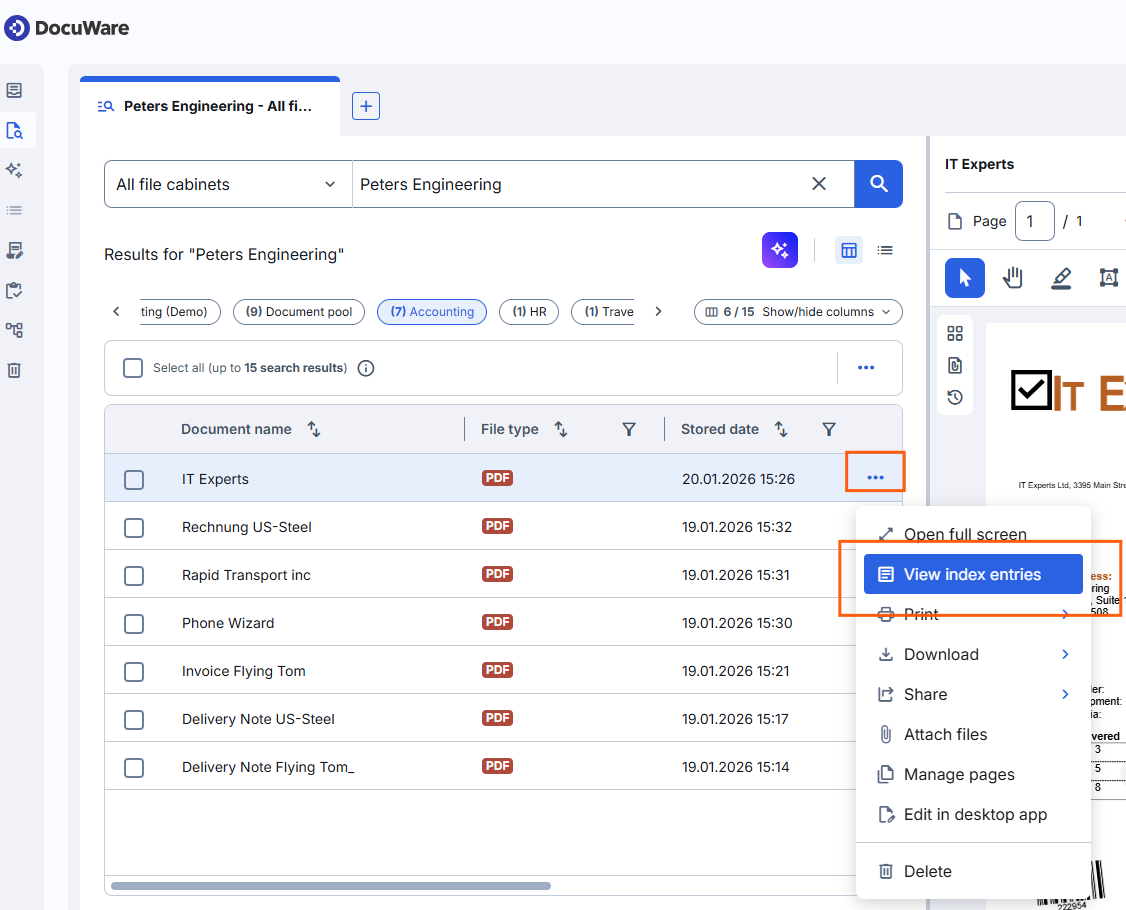
In a result list, select the three dots at the end of the document row and then View index entries. This works the same way as in classic DocuWare.
In the viewer, use the function Edit index entries.
Editing index entries
The index dialog opens in view mode. If you have the permission to change index entries, it offers an Edit button.
All field types configured for the file cabinet remain available while you edit, for example select lists and input masks.
Empty fields are hidden by default, so you only see the values a document actually has. Use the eye icon next to Index entries to show them, for example when you want to complete a field that has never been filled.
Index entries belong to the stored document, not to your view of it. Everyone with access to the document sees your changes, and documents are found through the new values from then on.
Taking index entries from the document
Much of what belongs in the index fields is already printed on the document, and the document is open right next to the dialog. With One Click Indexing you take the values from the page instead of typing them again.
Select Edit. The One Click Indexing icon appears next to Index entries, and it is only there in edit mode.
Click the icon to switch One Click Indexing on.
Select the index field that should receive the value.
Select the text in the document, or drag across it to take a longer passage.
Selecting the index dialog
Which fields you see depends on the index dialog. Every document starts with the default index dialog of its file cabinet, and you switch to another dialog when you need different fields.
Index dialogs have no names of their own, so the selection list shows the names of the matching result lists, for example Default Result List.
Note for administrators
The index dialog is configured in the same way as in classic DocuWare in DocuWare Configurations > File cabinets > Result > Index.