A document you delete in the DocuWare client is not removed from the system straight away. It is moved to the Trash Bin in the left sidebar and stays there for 30 days. Within that period you can restore it yourself, without asking an administrator.
Every user has a personal Trash Bin. It collects what you deleted from file cabinets and from your document trays.
Supported versions: DocuWare Cloud + new DocuWare client only
On this page
Coming from the classic DocuWare client?
In the classic client, open the new DocuWare client with the link Open new DocuWare. If you know the trash bin there, these are the differences.
It is called Trash Bin now: In the classic client the same view is called Recently deleted.
Deleting several documents at once: Not possible yet. In the new DocuWare client you delete one document at a time from a result list.
Restoring several documents at once: Not possible yet.
Deleting permanently is not possible yet in the new DocuWare client. Documents leave the trash bin automatically after 30 days. Use the classic client if you need to empty the trash bin yourself, for example to free storage.
Viewer is not available for documents in the trash bin yet, coming soon.
Sorting and filtering the list is not possible yet. The classic client sorts and filters the trash bin by every column.
The new DocuWare client is available only in DocuWare Cloud for now. On-premises systems continue to work with the classic client.
More about All current limitations of the new DocuWare client
Deleting a document
You delete a document from a result list or a document tray. Select the three dots at the end of the document row and then Delete. The option is available in the results of a single file cabinet search and of a search across several file cabinets.
If you do not have the permission to delete documents in that file cabinet, the option is not offered.
Every step is recorded in the document history: moving a document to the Trash Bin, restoring it, and deleting it permanently: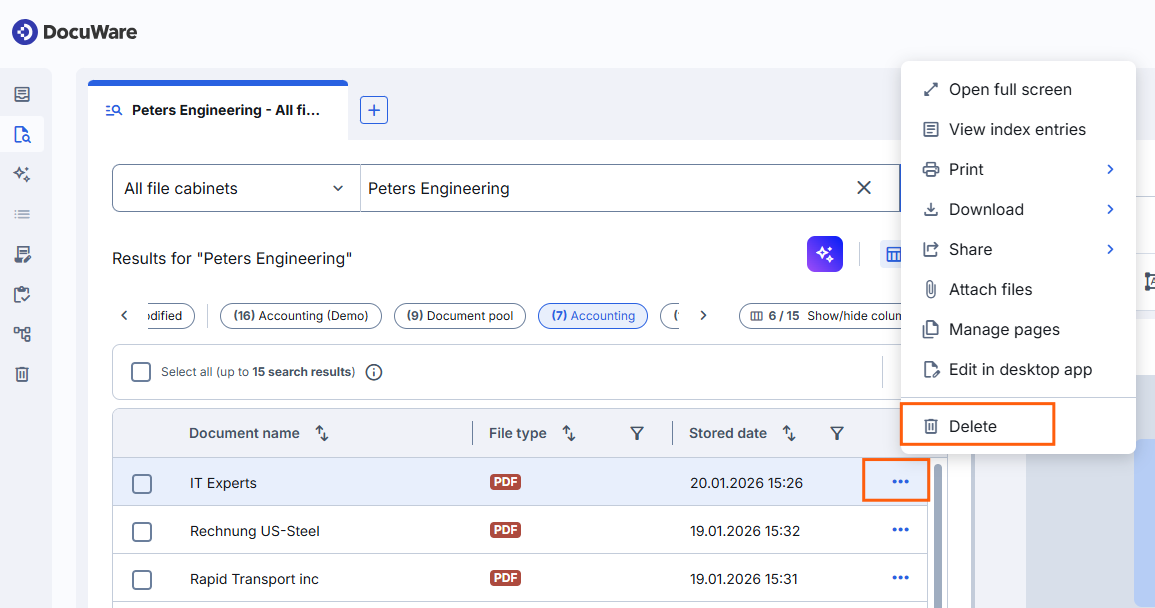
Restoring and deleting a document from the Trash Bin
Open Trash Bin in the left sidebar. Your deleted documents are listed in a table with the document name, the remaining days, the date it was deleted, the date it was created, the file type, who deleted it, and its location. Select the documents you want back and select Restore selected. To restore all documents from the Trash Bin at once, select Restore all above the list.
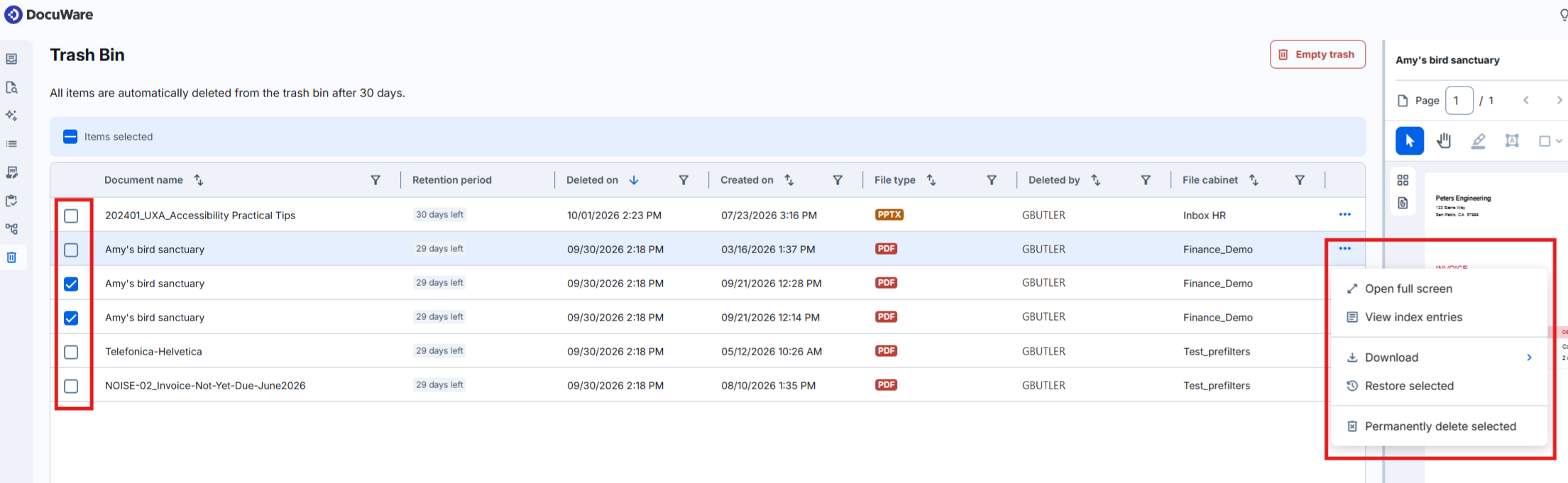
The columns show system data that every document has, whatever it was deleted from. User means “deleted by”. Index entries of a file cabinet are not among them.
The document returns to the file cabinet or document tray it was deleted from, with the index entries, annotations, and stamps it had. Restoring is not the same as storing a new document: it does not trigger workflows, automations, or notifications.
You see the documents you deleted yourself. The owner of a file cabinet sees everything that was deleted from it, whoever deleted it. If you expect a document and it is not listed, see the permissions below.
Restore all and Empty trash always apply to the complete Trash Bin, even while a filter or sorting is active. To restore or delete some of the documents, select them and use Restore selected or Permanently delete selected.
A permanently deleted document cannot be recovered by you or by an administrator. Right after the deletion, Undo lets you take it back for a moment. If a deletion fails, you can retry it.
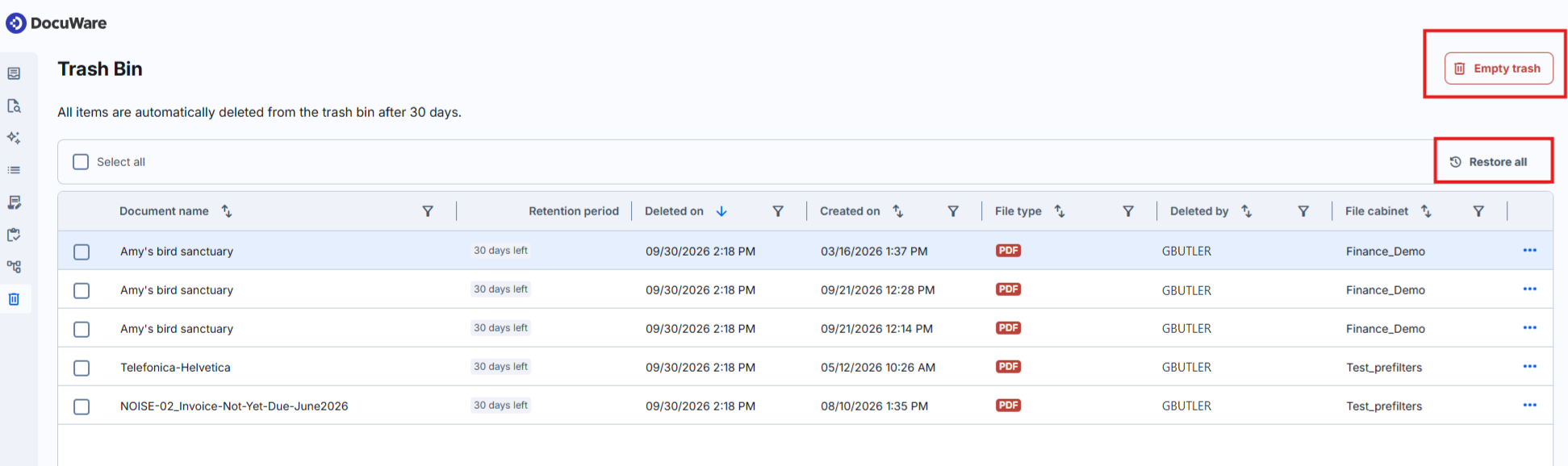
Important: the restore period ends after 30 days
Documents are removed from the Trash Bin automatically 30 days after they were deleted. After that they cannot be restored. Use the Retention period column to see how much time is left for a document.
Viewing a deleted document
A document deleted from a file cabinet that you own can be visualized before you decide what action to take. In the Trash Bin, select a document in the list to open it in the adjustable viewer for a preview, or select Open full screen in its menu. The document opens read-only, allowing you to view its pages, annotations, and stamps, but you cannot make changes. View index entries shows its index entries, also read-only.
Sort and filter the list by any column, as in a result list. For example, filter the File cabinet column to see where documents were removed from it, or sort by Deleted on to find the latest deletions. Drag a column border to resize the column, and drag a column header to change the order of the columns.
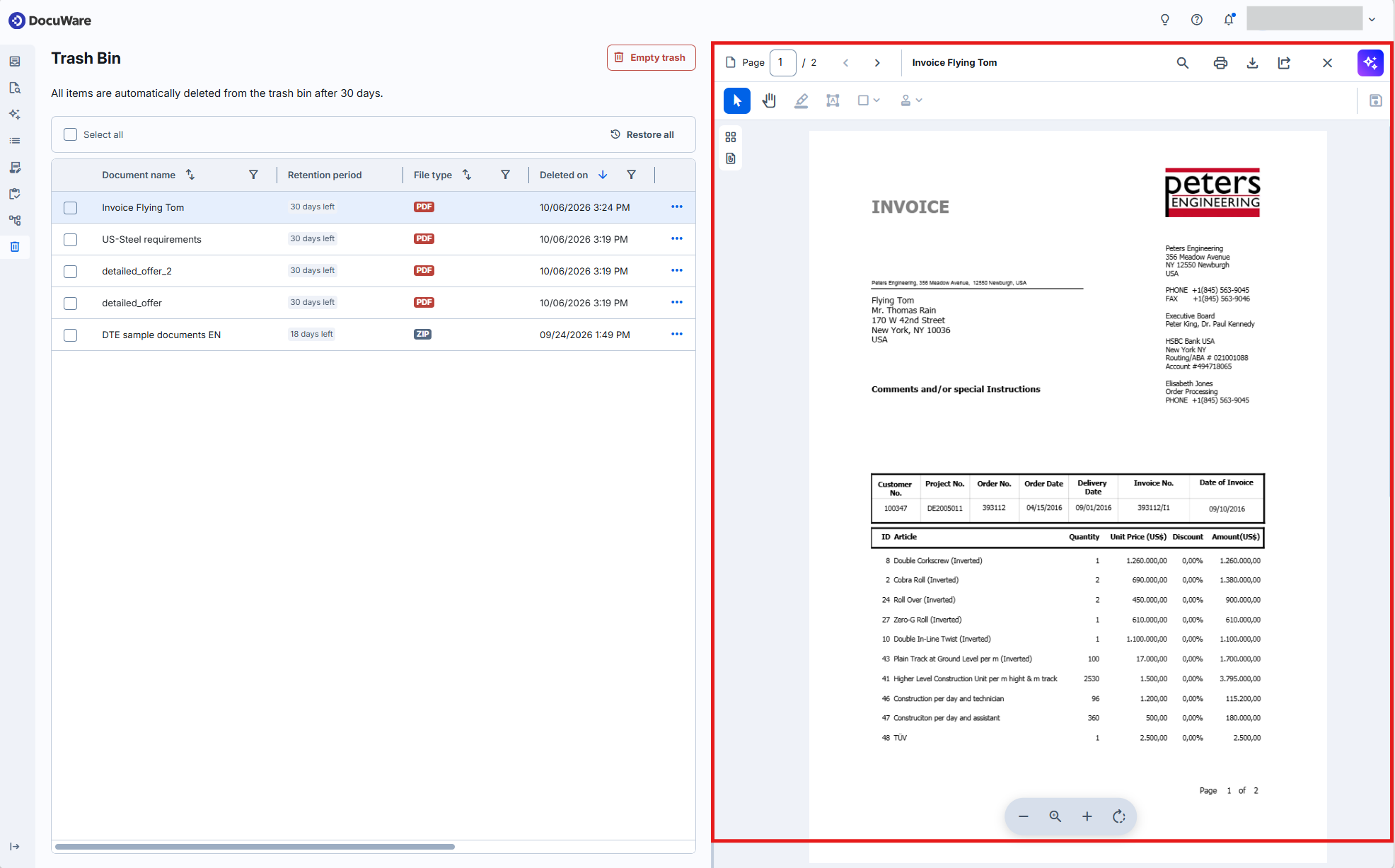
Documents deleted from a document tray or a file cabinet you do not own cannot be viewed. For these, the viewer stays empty.
Downloading a deleted document
Sometimes a document should stay deleted, but someone needs a copy of it, for example, an auditor. For documents deleted from a document tray or file cabinet that you own, select Download in the menu of the document and choose the original format or PDF, with or without annotations. The document stays in the Trash Bin. Documents that cannot be opened, as described in the previous section, cannot be downloaded either.
Notes for administrators
The Trash bin works generally in the same way as in classic DocuWare. Nothing has to be set up again for the new DocuWare client.
The Trash Bin itself needs no configuration, and no separate permission has to be assigned for it. What it contains, and who sees what in it, follows from settings that are made elsewhere in DocuWare.
The Trash Bin collects documents from all of these operations:
Documents a user deleted in a result list, a list, a document tray, or a task list.
Documents removed by an automated process, for example, a deletion policy or a workflow.
Documents deleted by a program that uses DocuWare as an interface, for example, a tool built on the Platform Service.
The DocuWare permission system applies to documents in the Trash Bin as well, on two levels. The permissions decide which deleted documents are listed for a user, and what that user can do with them. The permission to delete documents is granted in the permissions of the file cabinet, in DocuWare Configurations > File Cabinets.
Document sources and | Permissions for documents in the Trash Bin | |
|---|---|---|
User sees | User may | |
File cabinets | ||
File cabinet owner | All deleted documents of the file cabinet | Restore, view in the viewer, download, and delete permanently |
File cabinet user (assigned to a file cabinet profile) | Only the documents that the user has deleted | Restore |
User does not have permission for a file cabinet | Nothing from that file cabinet | Nothing |
Document trays | ||
document tray user | All documents deleted from this document tray | Restore |
User does not have permission for the document tray | Nothing from that document tray | Nothing |
In the classic client, the roles above can also delete documents from the trash bin permanently. The new DocuWare client does not offer that yet.
Retention period and storage: Documents stay in the Trash Bin for 30 days and count against the organization's storage quota for that whole period. The space is released only once a document has been deleted for good, and it can take a while before that shows up as an actual storage reduction.
An organization that deletes a lot of documents and never empties its trash bin therefore fills up its quota.
The new DocuWare client cannot empty the trash bin yet, so this is done in the classic client, or through the DocuWare interfaces when large numbers are involved regularly.Check the options to clean your trash bin.