A workflow task asks you for a decision and, often, for information: an amount, a date, a cost center, or the name of the colleague who should check next the next step. The workflow author decides which fields the task displays and what they accept. This article explains the kinds of fields you meet in the Process this task section of a task and how to fill them in, whether you work in the side panel or on the details page.
How to open and complete a task is described in Tasks: completing workflow tasks.
Supported versions: DocuWare Cloud + new DocuWare client only
On this page
Coming from the classic DocuWare client?
In the classic client, open the new DocuWare client with the link Open new DocuWare. The fields of a task are the same in both clients, because the workflow defines them. These are the differences.
Decisions are now process options.
Missing or invalid entries are listed in a summary at the top of the form, with a link to each field.
User fields show people by their real name when the workflow is set up that way; in the classic client this works since DocuWare 7.15 as well.
The new DocuWare client is available in DocuWare Cloud only for now. On-premises systems continue to work with the classic client.
How a task form is built
Every task form has the following structure:
Task overview: The workflow name, the due date, the assignees, and the key data of the document.
Process this task: For example, Approve or Reject. The task fields, such as an amount, a date, a cost center, or the name of the colleague, are displayed based on the options defined in the workflow.
Submit completes the task.
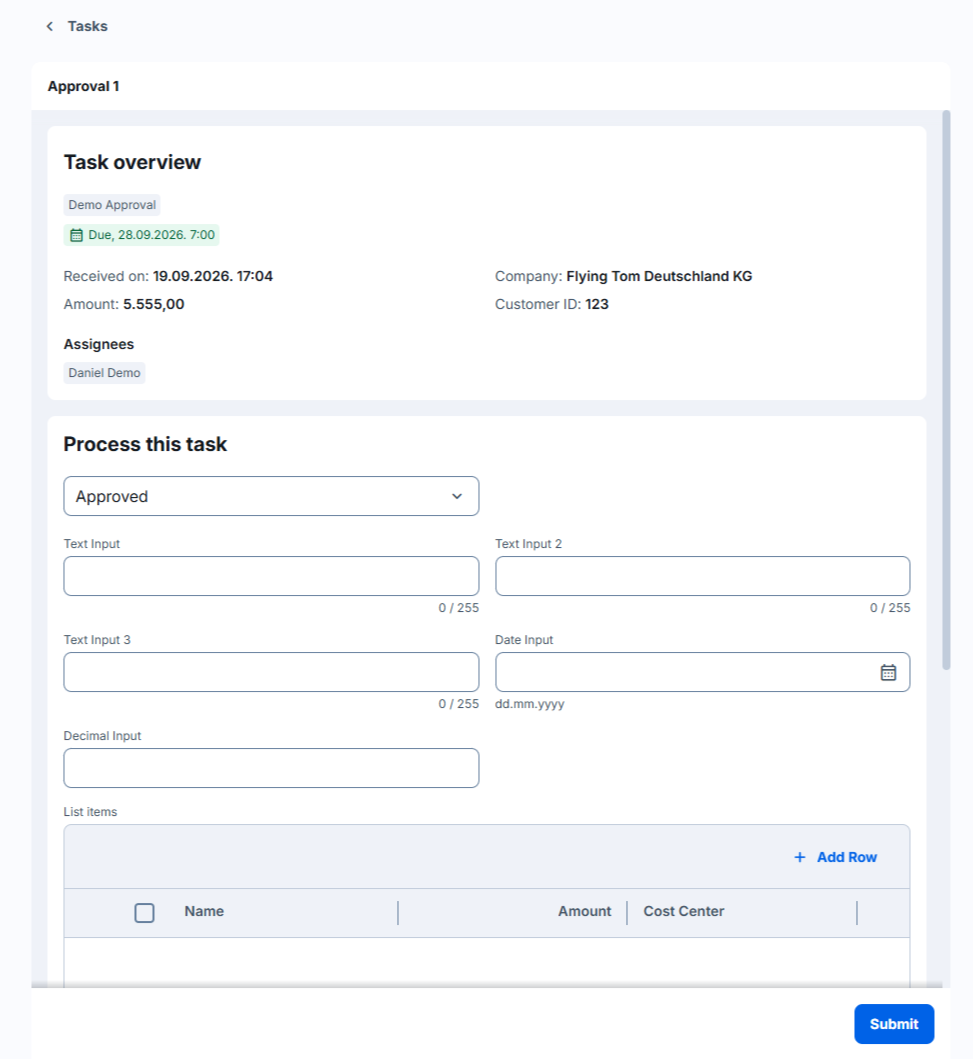
Fields marked with an asterisk are required. Fields that you cannot type into are read-only, the author uses them to show you information. For example. the invoice amount or the current status.
What applies to every field
Prefilled values: Many fields already contain a value when the task opens, taken from the document, from an earlier step, or from a fixed default. You can change it unless the field is read-only.
Select lists: Some fields offer a list of values; in this case, you must select an option from the list.
Field masks and limits: A text field can require a certain pattern, for example, an order number with a fixed format, or limit the number of characters. The form tells you when an entry does not fit.
Entries on the stamp: When you complete a task with a stamp, the author can show your entries on the stamp, so they stay visible on the document. See Completing a task with a stamp.
Field types
The workflow author chooses one of the following types for each field. The type decides what you can enter.
Text and keyword fields
You type text. A keyword field takes several values; enter one value, confirm it, and add the next. Both can have a character limit, a field mask, and a select list.
Integer and decimal fields
You enter a whole number or a number with decimal places. Decimal and thousands separators of your regional settings are applied.
Date and date-time fields
You pick a date, or a date with a time, from a calendar, or you type it in the format of your regional settings.
User, role, and substitution rule fields
You choose a person, a role, or a substitution rule from a list, for example the colleague who should check the document next. The list shows people by their real name, as Meyer, Anna or Anna Meyer, or by their login name, depending on how the workflow was set up. Type part of a name to find a person; the search matches any part of the displayed name. If two people share the same name, their login names are added in parentheses.
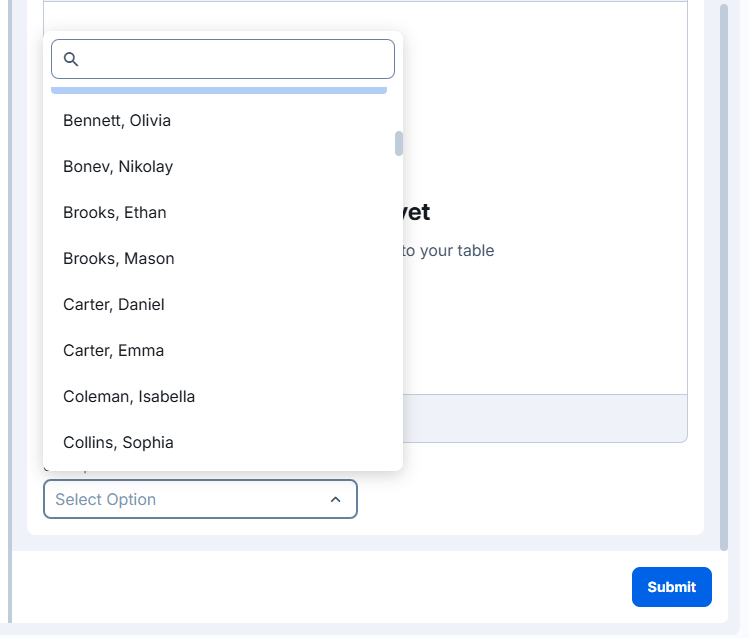
People in a user field, listed as last name, first name.
Link and description fields
A link field holds a link, for example, to a ticket in another system; select it to open the target.
Table fields
A table field shows the rows of an index table of the document, for example the line items of an invoice with cost center and amount per line. You edit the cells the author left editable; each column behaves like the field type it is based on, so a date column opens a calendar and a select-list column offers values. Columns the author hid are not shown. A table can also be read-only.
Notes for administrators
The fields of a task form are defined in the Workflow Designer under Task > Decision > Dialog; the available types and their options are described in Creating tasks for decision makers. Nothing has to be set up again for the new DocuWare client.
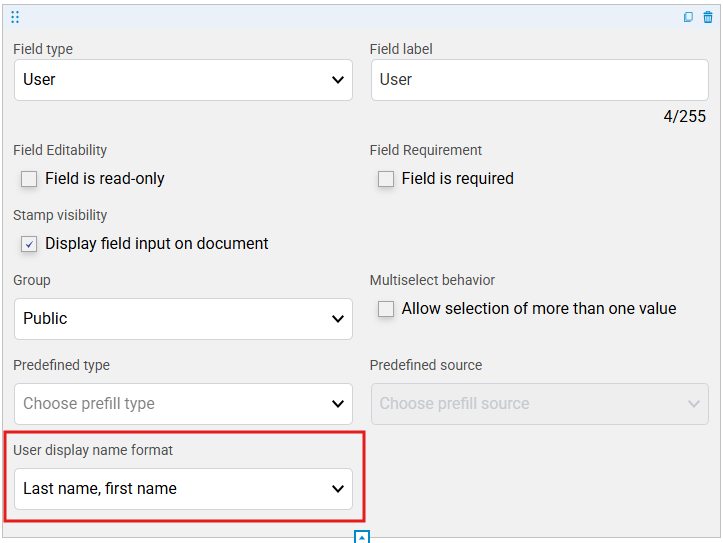
User display name format in the Workflow Designer now applies in the new DocuWare client as well. For a User-type field in a task dialog, it decides whether the user picker shows the login name, first name and last name, or last name and first name. Select the Task activity, open its dialog configuration, select the User-type field, and set the format; then publish the workflow. The default is the login name. The field still stores the login name, so later workflow steps, reports, and integrations see the same value as before.
Users without a first and last name in user management are shown by their login name. With a real-name format, searching by login name finds nothing in the new client. If a user reports that a colleague "cannot be found anymore", check the format set on the field.
Whether a changed prefilled value reaches the index entries of the document depends on the Data assignment of the decision.
Validation rules and their error messages are defined under Decision > Validation.