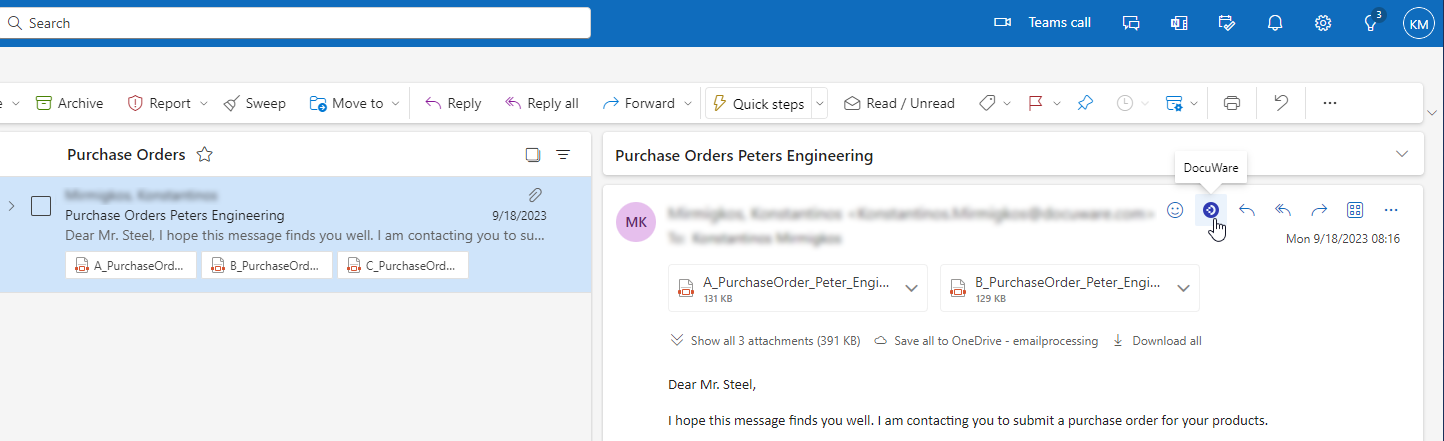
To store an email and its attachments to DocuWare, open the email in Microsoft Outlook and click the Options button with the three dots.
Or click the DocuWare icon directly, if you have created a shortcut for the add-in.
When you first log in to DocuWare for Outlook, a landing page prompts you to choose your preferred storage method: selecting from Select from existing configurations or Select location and format, which enables you to choose manually each time you store an email. This page refers exclusively to the scenario where the user selects the "Select location and format" option.
.png)
Storing emails in a document tray
Automated processing is available only for storing emails in the file cabinet.
Choose the tab Document tray to store your email and attachments in one of the available document trays.
After the import is complete, you may view, sort, or store the emails in the DocuWare Client.
Use the following settings to configure the import:
Email content
Specify whether you want to import the email text and/or the attachments. You can also select individual attachments for import.
Separation
The email text and the attachments can be stored individually or as one clipped document.
Store individually: This option is activated by default.
Store as one clipped document: You can enable this option if the selected email contains one or more attachments.
If the email text should be imported along with the attachments, specify whether the email text or the attachments should be displayed first for the clipped document in the document tray.
Choose storage location
All document trays assigned to you are shown in this section.
When DocuWare for Outlook is launched for the first time, the default document tray is shown as the first option. The default document tray is marked with an asterisk in the Web client.
On each subsequent launch, the document tray used during the last import will be preselected for the next import.
The user can change the sorting order and visibility of the document trays by accessing the app settings and navigating to the Storage locations.
If users have activated the Send and store option in settings, a list of the available document trays appears as a possible storage location while composing an email. In this case, the Email content section is available, where you can select what to store in DocuWare.
If Store all email automatically is also activated in the settings, no further settings are required for storage. However, users can access the add-on and change storage options at any time.
Storing emails in a file cabinet
After choosing the Select location and format option at the beginning of the setup, select the File cabinet tab to specify how the emails are stored in a file cabinet.
Use the following settings to configure the import:
Email content
Specify whether you want to store the email text and/or the attachments. You can also select individual attachments to be stored.
Separation
The email text and the attachments can be stored individually or as one clipped document.
Store individually: This option is activated by default.
Store as one clipped document: You can enable this option if the selected email contains one or more attachments.
If the email text is stored along with the attachments, specify whether the email text or the attachments should be displayed first for the clipped document in the file cabinet.
Automated processing
Automated email processing is available only when emails are stored directly in a file cabinet, not in document trays. You can only process automatically the emails including e-invoicing attachments in XML or PDF format.
When Automated processing is enabled, you are no longer selecting the target storage location. In contrast, you simply select the document processing configuration you want to use to store your emails and attachments automatically. The target storage location is already predefined in the document processing configuration level, and your email will be stored there. Storing as a single clipped document is not supported.
Such a configuration is created under DocuWare Configurations > Document Processing.
All Document Processing folder-type configurations that are configured to process attached e-invoices (in XML and/or PDF format) are supported when the Automated processing toggle is enabled.
The Automated processing toggle is not available if the format of the email attachments is not supported (non-PDF or non-XML attachments).
A document processing configuration will store each attachment separately in the file cabinet, even if they are attached to one email.
UBL, CII, and ebInterface are supported as XML formats for e-invoices.
A document processing configuration is always set up for one specific XML format.
Example: If you use an XML/UBL configuration to process an email with one attachment in XML/UBL and the other in XML/CII, only the XML/UBL attachment will be stored in the file cabinet. The XML/CII attachment can be stored manually through the store dialog.
Select storage location
The File cabinet > Select Storage Location section is shown when the automated processing is disabled and emails are stored manually.
In this section, you can see all the file cabinets for which you have the required permissions.
When DocuWare for Outlook is launched for the first time, the default file cabinet is shown as the first option. After that, the file cabinet, that was used during the last import, will be preselected for the next import.
The user can change the sorting order and visibility of the file cabinets by accessing the app settings and navigating to the Storage locations.After you have selected a file cabinet as your storage location, click the Continue button to open the DocuWare index dialog.
You can fill in the index fields either by typing your text manually or by marking a word in the document, so that it is copied automatically into the selected index field.
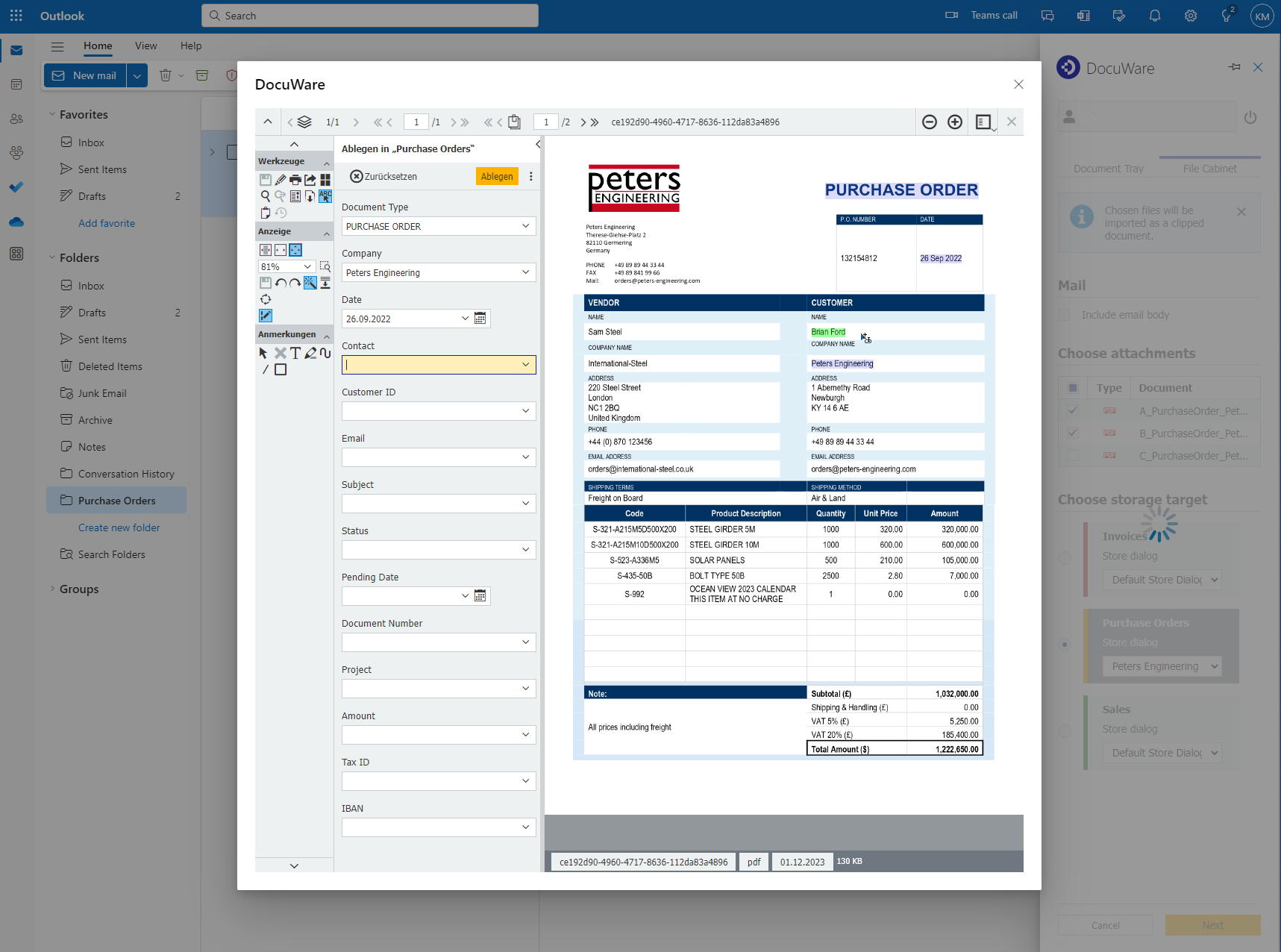
After storing, you can switch via the Go to DocuWare link to the document stored in your DocuWare organization.
When you store email text and attachments as separate files, a new section called Document storage process is shown next to the store dialog. There you will find the total number of documents currently being processed, status information for each file being processed, and the option to skip a specific attachment during archiving.
The imported email remains in the Microsoft Outlook inbox and will be marked with the DocuWare flag. For a shared mailbox: If an email has been saved at least once, it is marked with the DocuWare flag. The flag is visible to all users who have access to the shared mailbox.
