DocuWare for Outlook can be added to your organization’s Microsoft Outlook in three ways. Depending on your DocuWare system type, you can proceed with one of the following options:
Roll out for the entire organization - DocuWare cloud systems: A Microsoft organization administrator deploys the add-in through Microsoft Admin Center. This method requires the administrator to select an add-in from the Microsoft Store and allows the deployment either to all employees or to specific users within the organization.
Roll out for the entire organization - DocuWare on-premises systems: A Microsoft organization administrator deploys the add-in through Microsoft Admin Center, and is the only possible deployment process for on-premises systems. This method requires the administrator to upload the customized Manifest file created throughout the Setting up DocuWare for Outlook on-premises guide and allows the deployment either to all employees or to specific users within the organization.
1. Rolling out for the entire organization - DocuWare cloud systems
To deploy DocuWare for Outlook in the organization, the add-in is loaded to the users' accounts via the Microsoft Admin Center.
As a Microsoft organization administrator, sign in to the Microsoft portal with your administrator account.
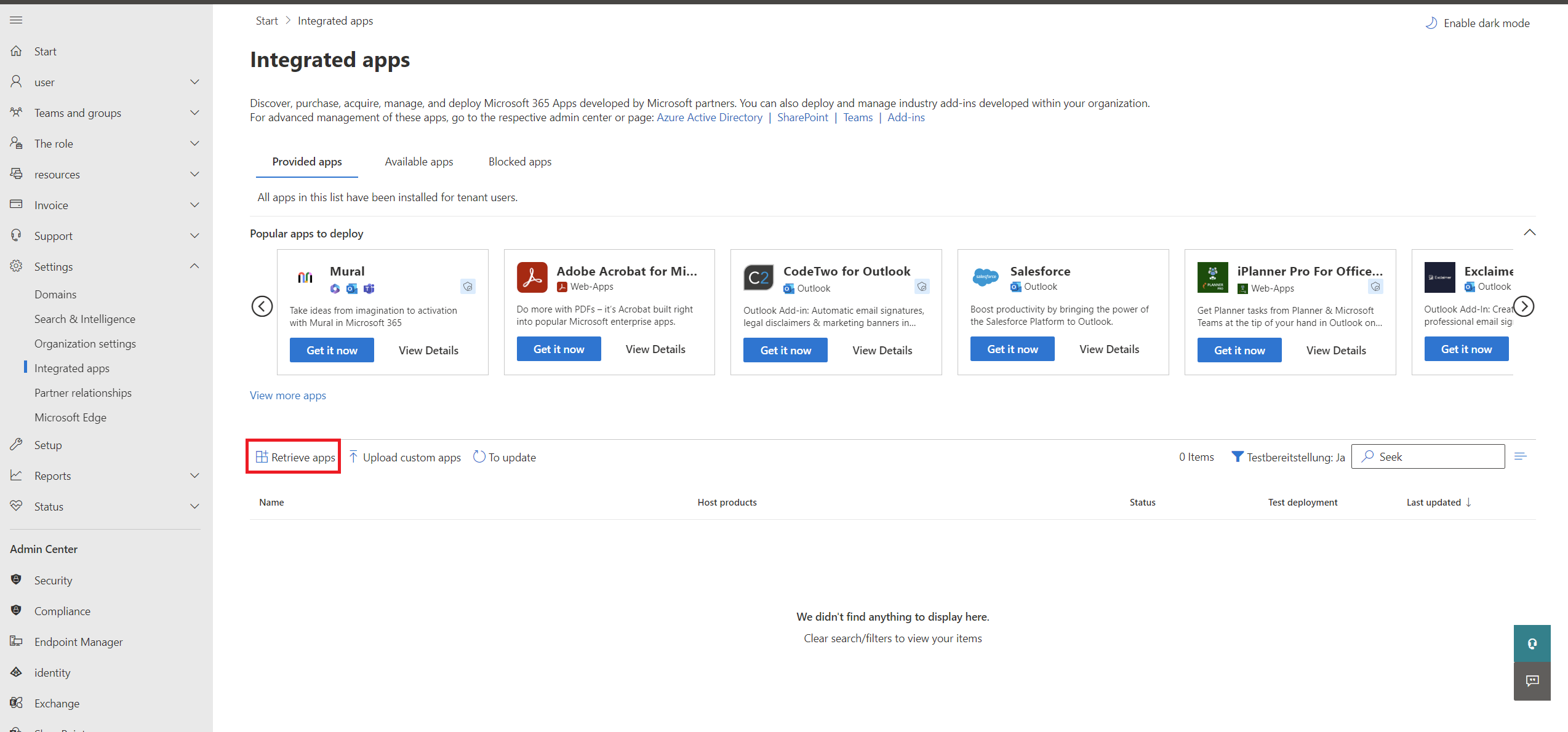
From the menu, navigate to the area Settings > Integrated apps and click on Retrieve apps. In some Office versions, the button is named Get apps.
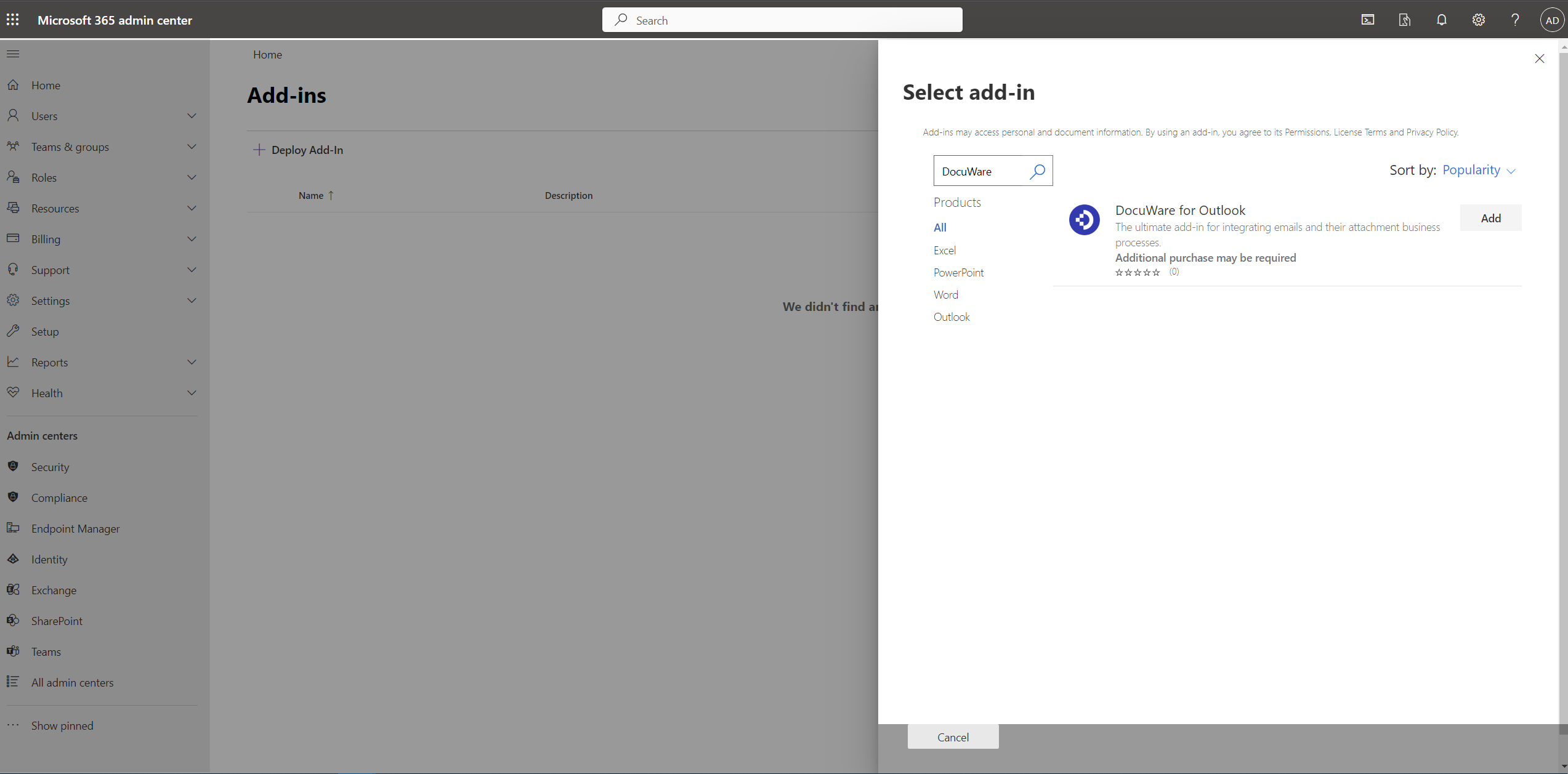
In the next window, click on + Deploy Add-in and Choose from the Store to access the list of applications in the Microsoft Store.
Search for the app “DocuWare for Outlook” and click on the Add button.
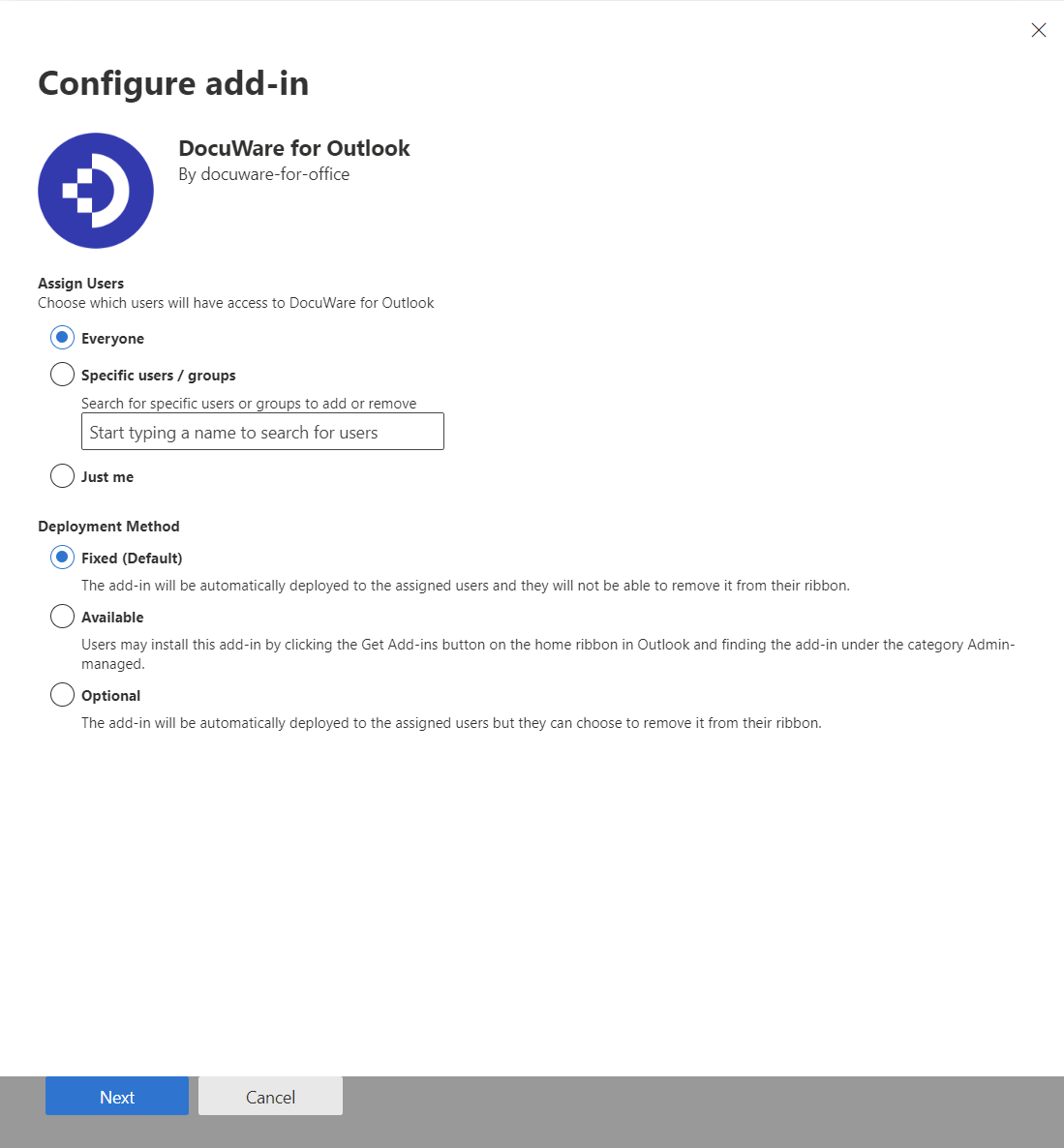
Define which users will have access to DocuWare for Outlook and select Deployment Method > Fixed (Default).
 0
0Review the Privacy Policy and Terms of Use, and confirm with Save.
A message will inform you, when the deployment process is complete.
With Next the add-in is available to your organization.
It can take up to 12 hours for DocuWare for Outlook to appear on the user's ribbon. Users may need to refresh their Microsoft Outlook.
2. Rolling out for the entire organization - DocuWare on-premises systems
To deploy DocuWare for Outlook in the organization, the add-in is loaded to the users' accounts via the Microsoft Admin Center.
As a Microsoft organization administrator, sign in to the Microsoft portal with your administrator account.
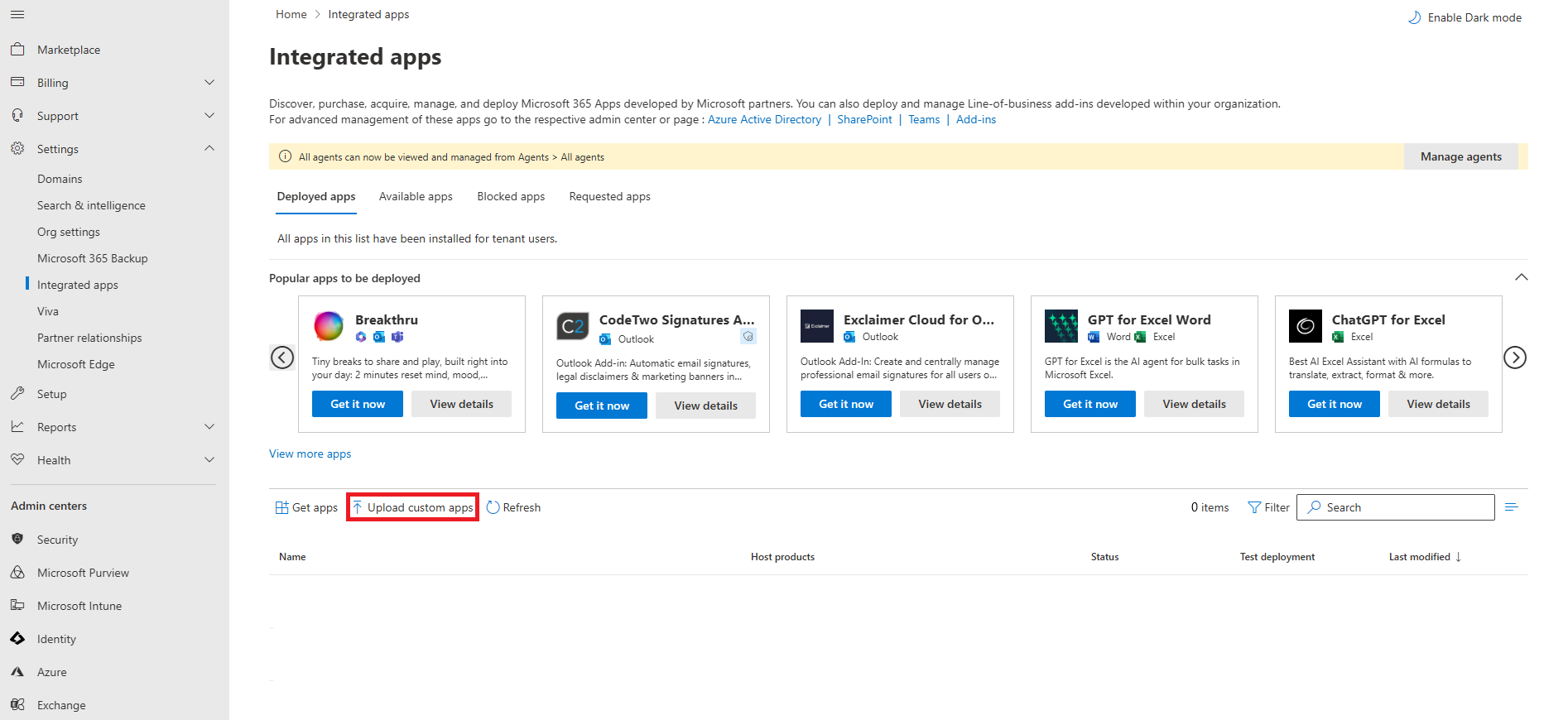
From the menu, navigate to Settings > Integrated apps, then click Upload custom apps.
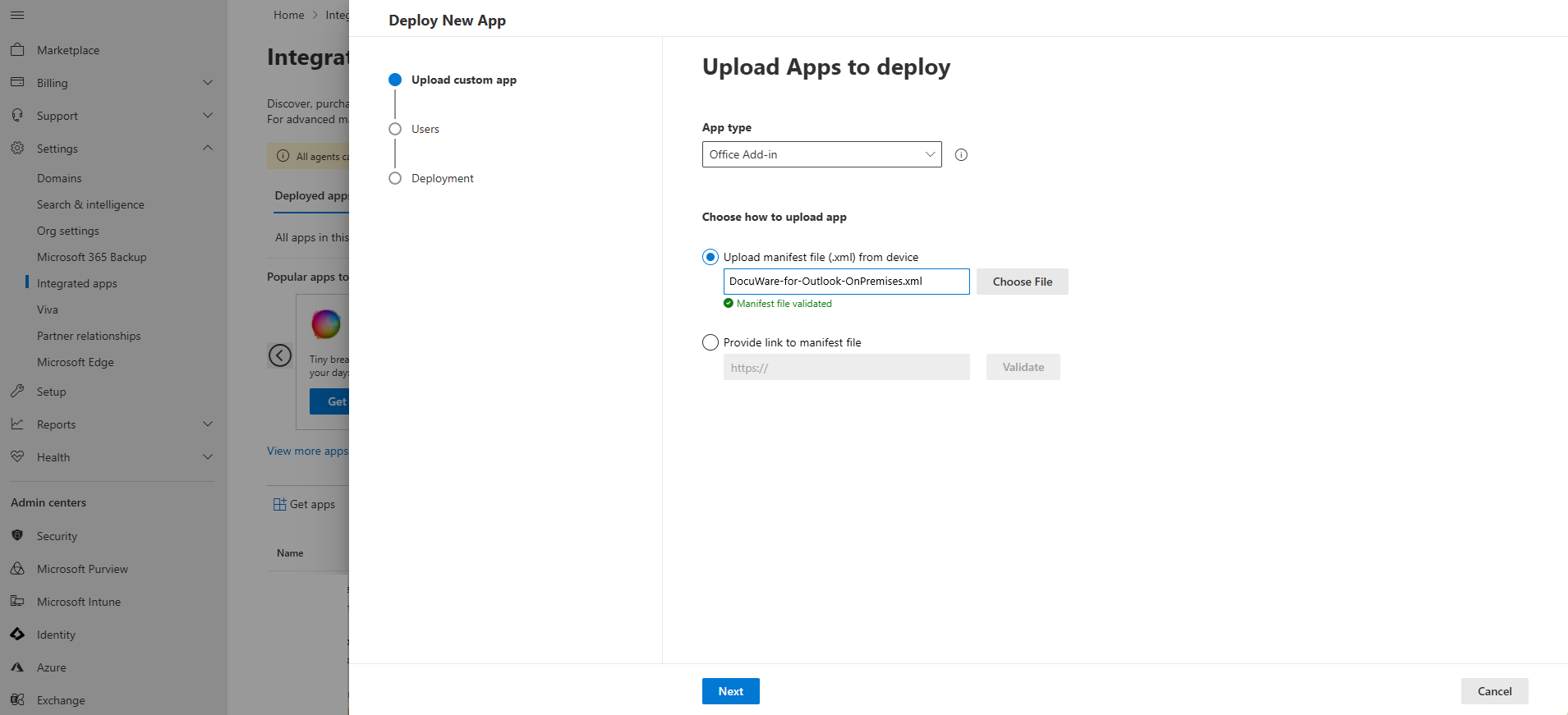
In the next screen starts the deployment process of the new App. In the App type section, select the “Office Add-in” option, in case it is not preselected; then select Upload manifest file (.xml) from device and upload the manifest file that was created with the Setting up DocuWare for Outlook on-premises guide.
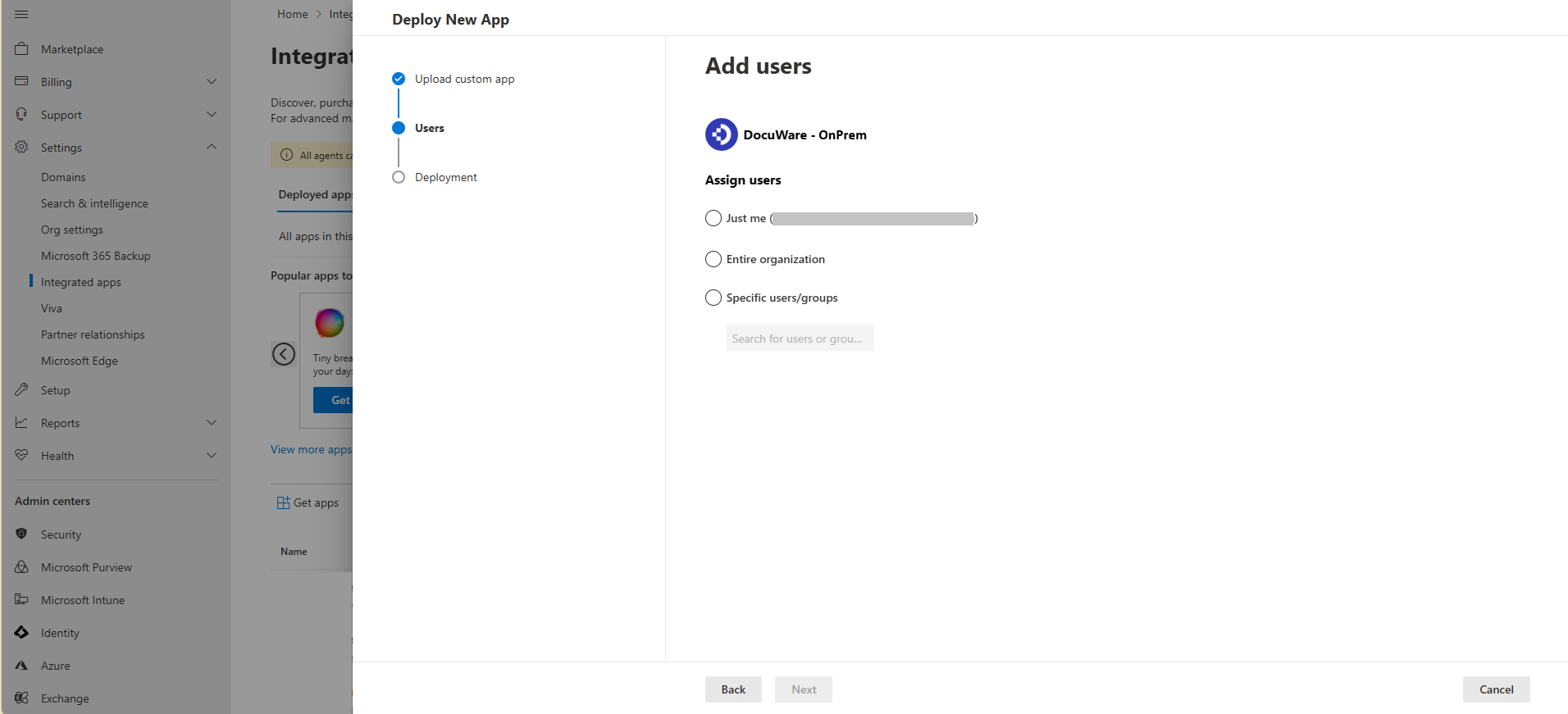
Define which users will have access to DocuWare for Outlook on-premises version.
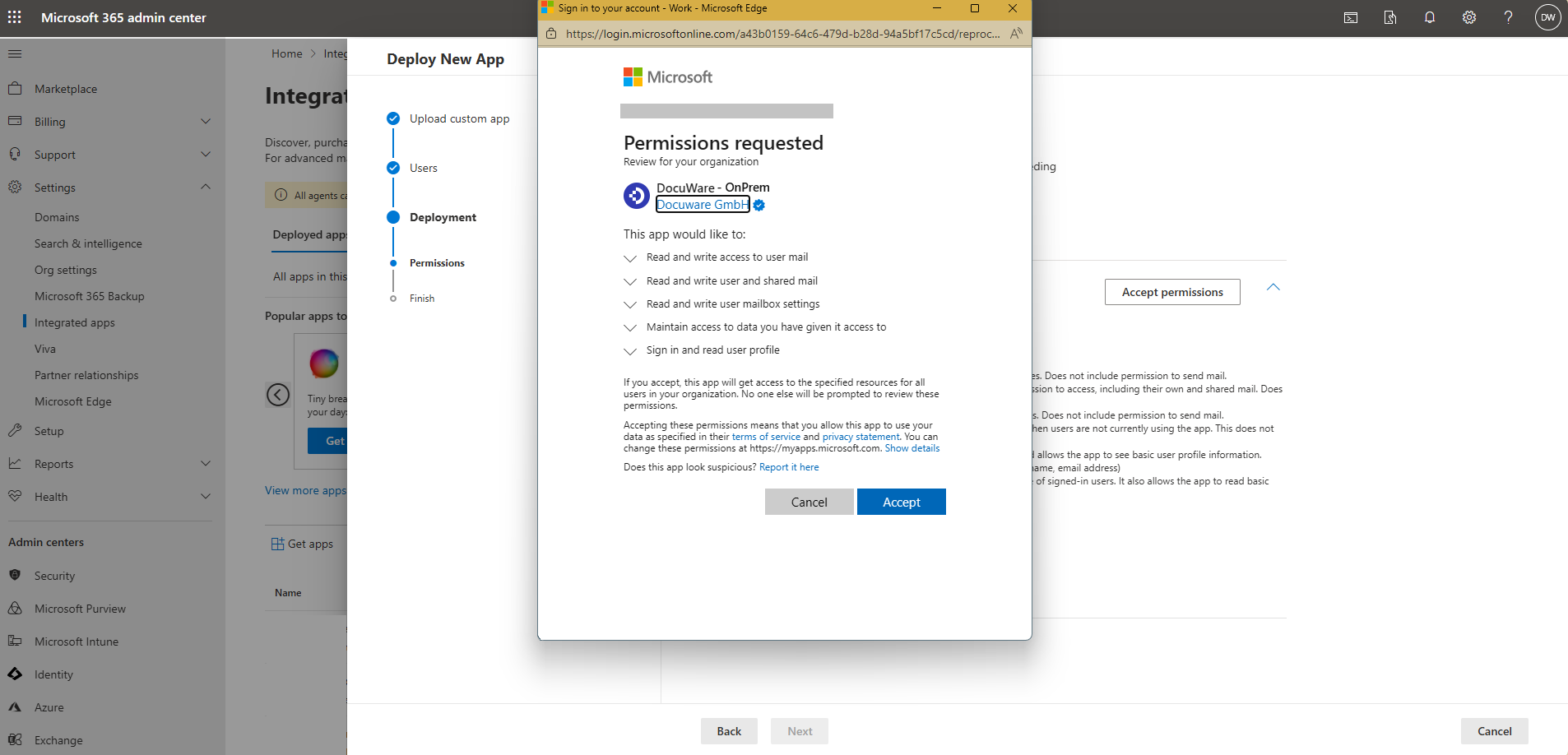
Review the Permissions of the application, and click the Accept permissions button to proceed.
.png)
After clicking the Accept permissions button, a pop-up window will appear, where you should review the requested permissions and then click the Accept button.
Click Next to finish the deployment process. You will be informed with a message when the deployment process is complete.
It can take up to 12 hours for DocuWare for Outlook to appear on the user's ribbon. Users may need to refresh their Microsoft Outlook.
Manually installing as a user - DocuWare cloud system
Users can see DocuWare for Outlook in the Microsoft App Store and add it to their Microsoft Outlook. But they will only be able to use it after the organization administrator has approved the app.
Rolling out DocuWare for outlook for entire organization
As outlined in Section 1 of this article, it is recommended that the organization administrator manages the rollout for all employees, making installation easy and consistent for everyone.
If you want to install DocuWare for Outlook as a user, these steps are required:
Open Microsoft Outlook.
Switch to the Home tab.
Click on Get add-ins or Store (depending on your Outlook version) to open the Microsoft Store.
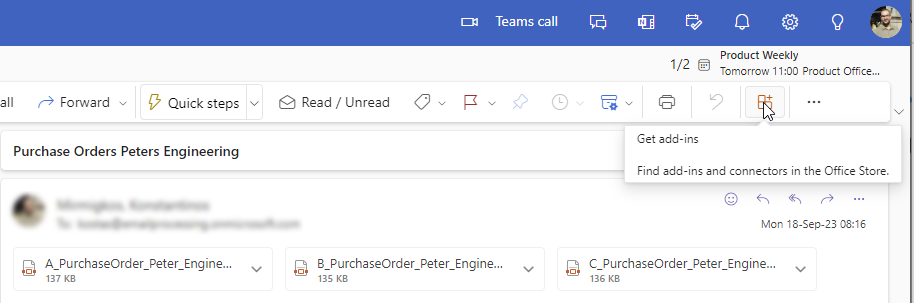
Search for "DocuWare for Outlook"
In the search results, switch to “DocuWare for Outlook” and click Add.
Once DocuWare for Outlook is installed, the app will be displayed in the add-in section of the Outlook toolbar.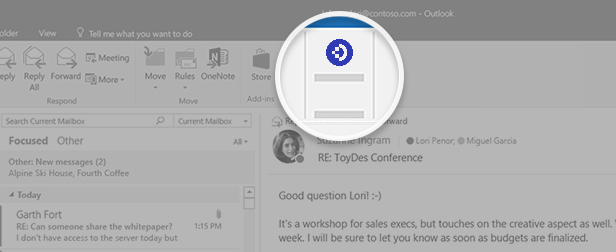
If the approval of the organization administrator is still pending or has not been granted, the error message Access denied will be displayed. In this case, you should contact your administrator to request approval.
Approval of the app by the organization administrator after a user has installed it.
To approve the use of DocuWare for Outlook for one or more employees, the administrator logs into the Microsoft Admin Center as a Microsoft global administrator using the organization's business account.
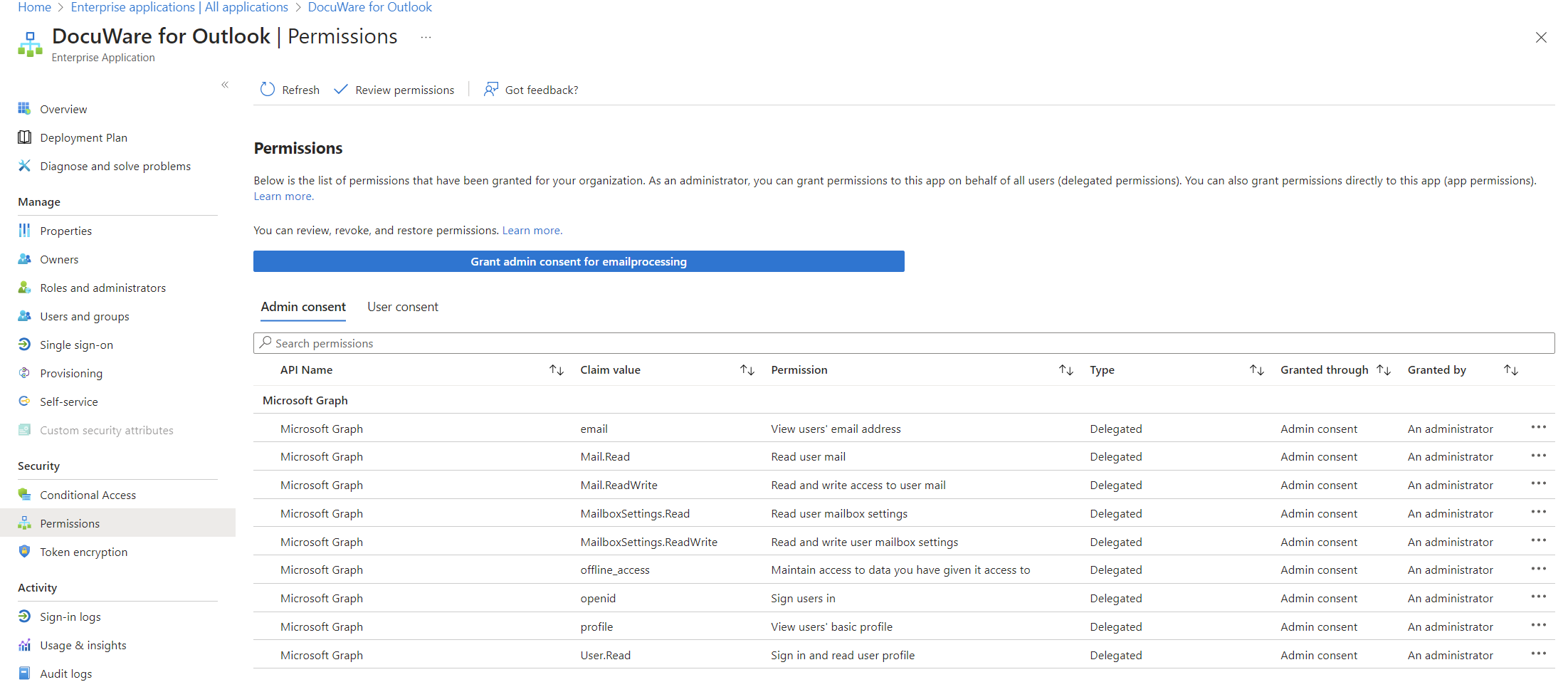
Go to Applications > Enterprise applications and select DocuWare for Outlook.
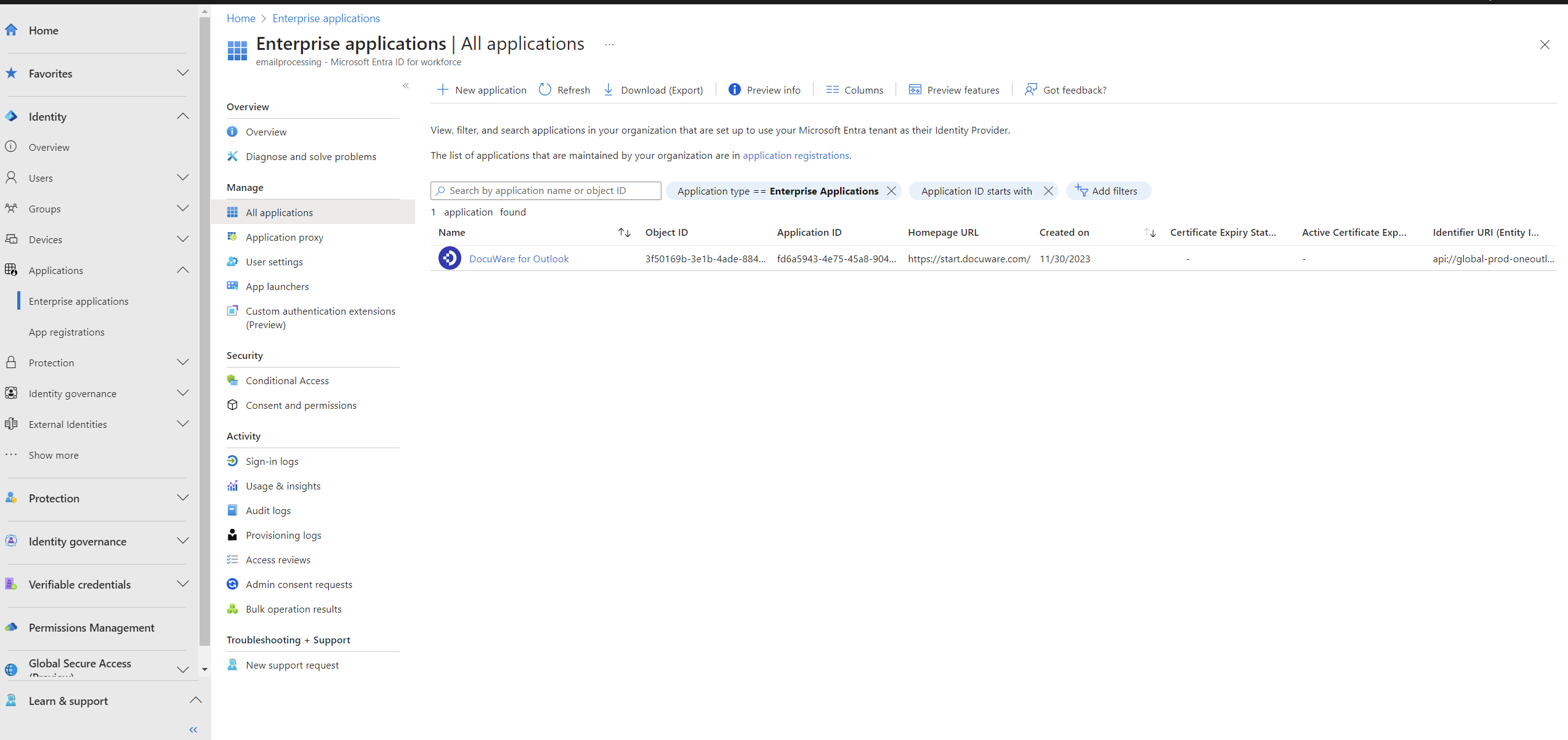
Select Permissions and Grant admin consent for your organization.
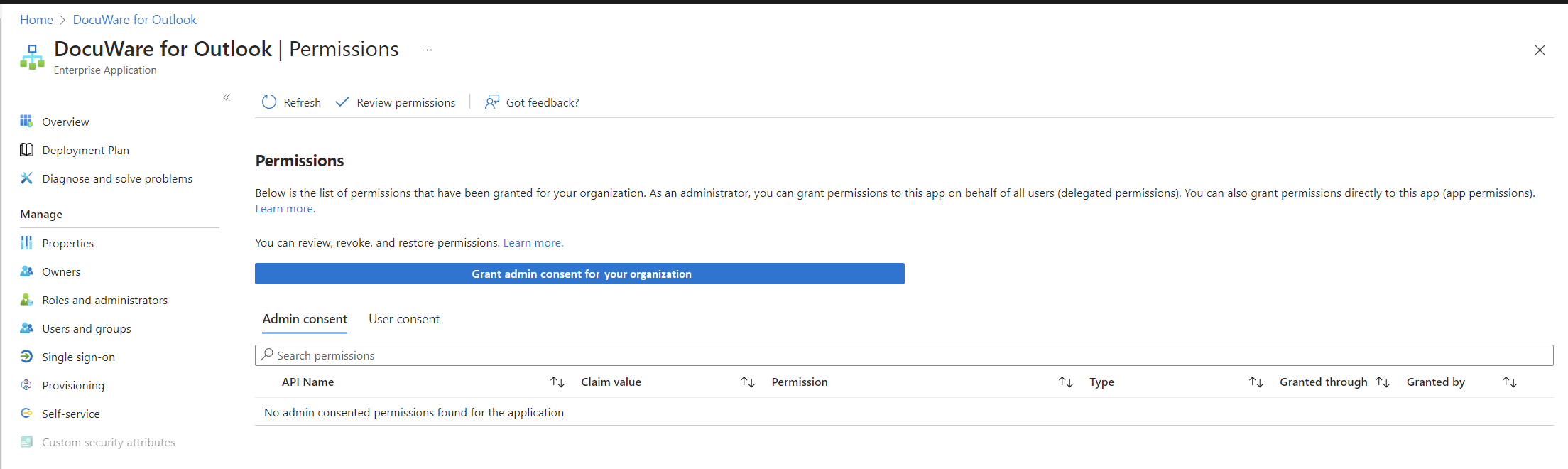
Now login again into Microsoft Admin Center. This time use the organization admin account.
Review the requested permissions and accept the usage of the add-in. After that, users will be able to log in and use DocuWare for Outlook.
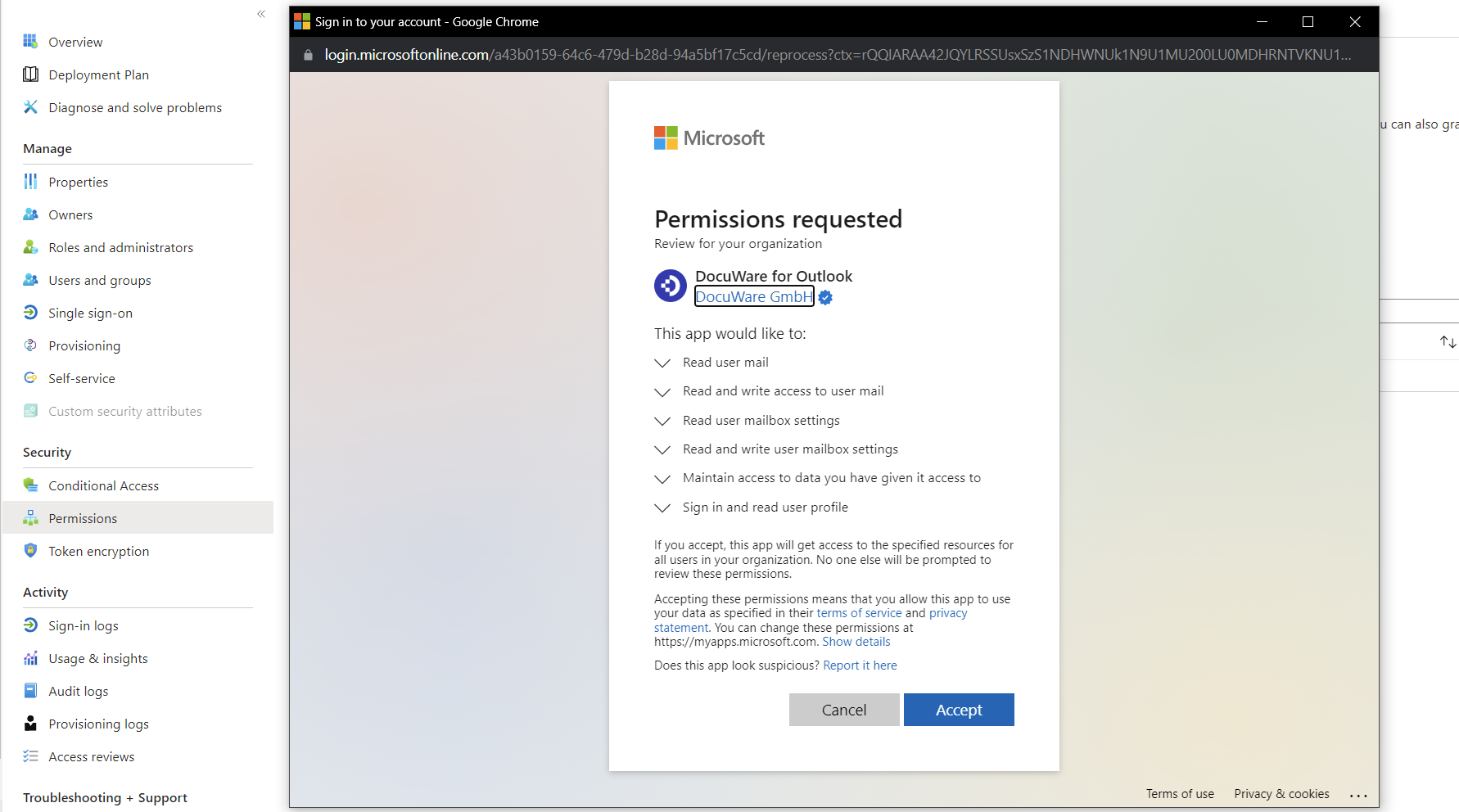
At this point, the admin can check the permissions to which he consented in the Application area (step 2).
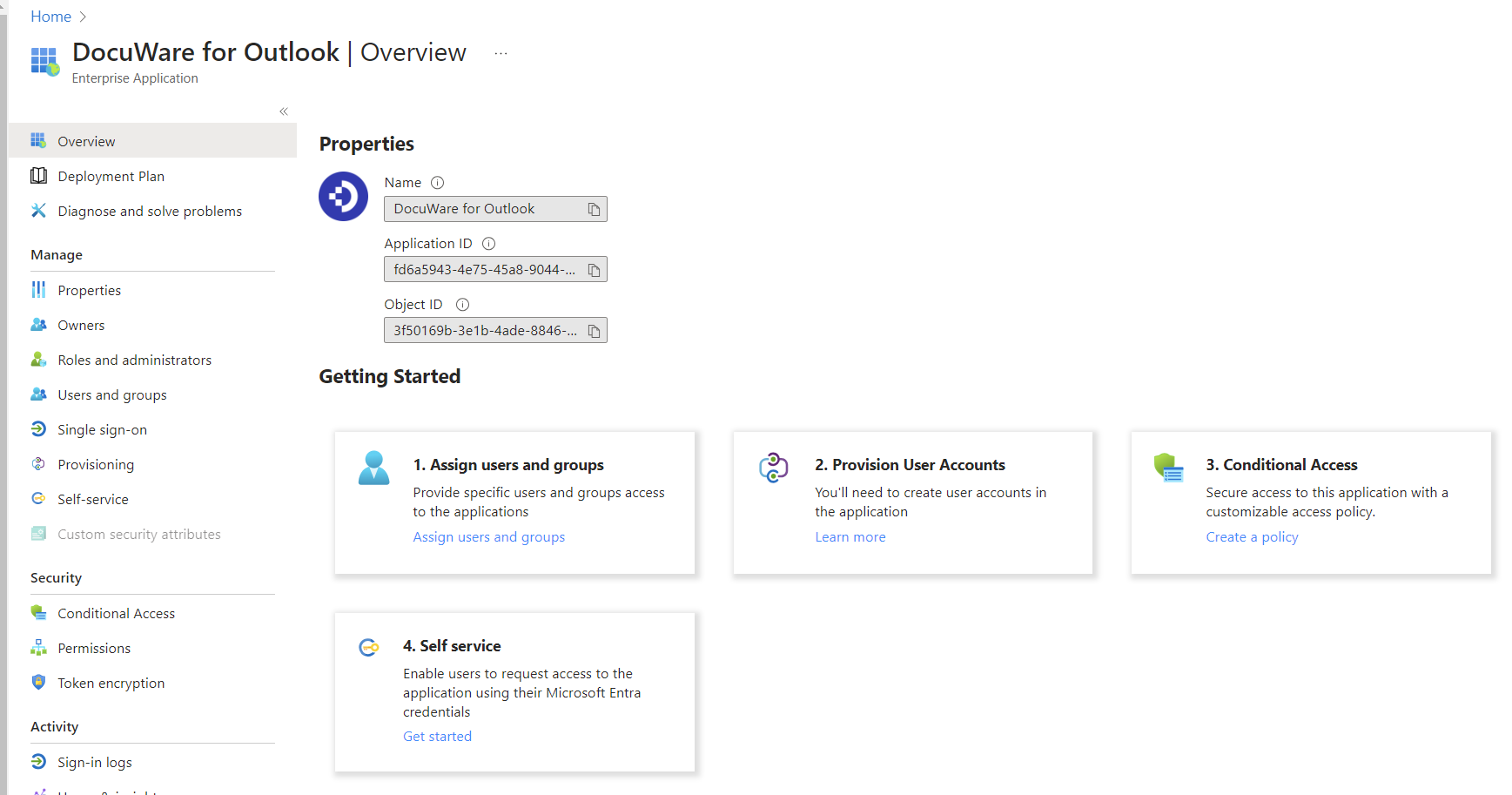
In the App Overview area, the admin assigns the app to specific users or groups in his organization by clicking on the Assign users and groups option on the left-hand side menu.
Additional information on deploying the DocuWare for Outlook add-in
To ensure a smooth rollout of the DocuWare for Outlook add-in, please refer to the latest instructions from Microsoft. The settings in the Office 365 Admin Center and Exchange Admin Center can be very detailed and may change over time. Here are some helpful links for organization administrators to follow the latest instructions: