Some changes cannot be made on the document itself in DocuWare. A price in a spreadsheet or a paragraph in a contract has to be changed in the program the document was made with.
DocuWare opens such a document in its native application, either in Microsoft 365 for the web or in a program installed on your computer. Your changes come back into DocuWare when you save, and while you work on the document it is locked for your colleagues.
Supported versions: DocuWare Cloud + new DocuWare client only
On this page
Coming from the classic DocuWare client?
In the classic client, open the new DocuWare client with the link Open new DocuWare. Editing in a native application works as it does there: nothing has to be set up again, your permissions are the same, and you still choose between Microsoft 365 for the web and the program on your computer. Only a label is new for documents you cannot change: View only.
The new DocuWare client is available in DocuWare Cloud for now. On-premises systems continue to work with the classic client.
Opening a document for editing
You open a document for editing from the viewer header, or from the context menu of the document in a result list or a document tray. Which option you see depends on the file type.
Microsoft Office documents: you can choose between Edit in desktop app and Edit in Microsoft for web.
All other documents, for example PDF files: only Edit in desktop app is offered.
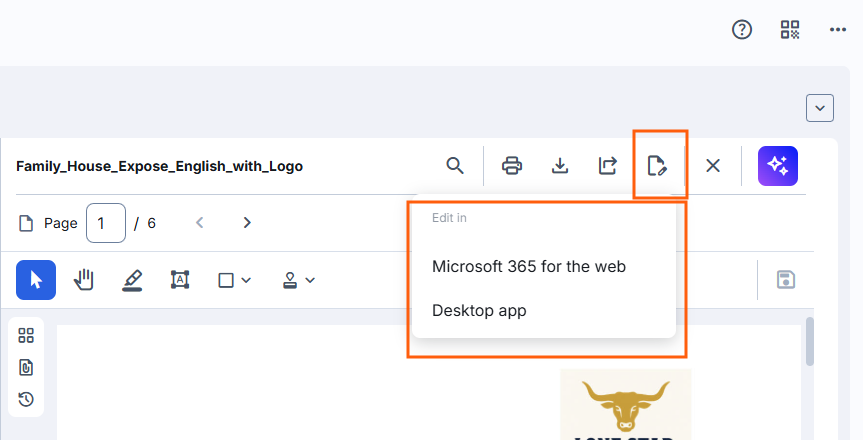
The two options differ in where the editing happens:
Edit in Microsoft for web opens the document in the matching Microsoft 365 web application. Nothing has to be installed on your computer, and you do not need a Microsoft 365 license of your own.
Edit in desktop app opens the document in the application installed on your computer: the Microsoft Office application for an Office document, and for every other supported file type the program your computer uses for that file type by default.
The desktop route needs the Edit & Send desktop app installed and running. If it is missing or not running, a message tells you so and the document is not opened.
Saving your changes
Your changes reach DocuWare when you save in the native application. What happens to the stored document depends on the file cabinet. With automatic version management, a new version is created and the previous one is kept. Without it, the changed document replaces the stored one.
When you edit in a desktop app, the new version is created only after you close the document. Saving while the document stays open does not create a version, so close the document when you are finished.
While you edit a document, it is locked for other users, for a maximum of 48 hours. Colleagues see it as View only during that time.
When a document cannot be edited
A document that must not be changed carries a View only label next to its name in the viewer. Point at the label to see the reason:
A signature stamp has been applied to the document.
You are looking at a past version of the document, not at the current one.
Another user is editing the document at the moment.
You do not have the permission to edit document content in that file cabinet.
Notes for administrators
No configuration needed: as in the classic client, editing in a native application requires no specific configuration. What decides whether a user can use it are the file cabinet permissions, the license, and the software on the user's computer.
Edit & Send: this desktop app is required on the user's computer for editing in a locally installed program, for Microsoft Office as well as for other file types. Editing in Microsoft 365 for the web needs neither the desktop app nor a Microsoft 365 license for the user.
Whether an edit creates a new version or overwrites the document depends on the automatic version management of the file cabinet. With a desktop app, the version is written when the user closes the document, not when they save.
An open document is locked for other users for up to 48 hours. A user who leaves a document open therefore blocks it for the rest of the team until the lock expires.