The viewer shows a document in the DocuWare client. It opens right next to your search results, in a document tray, and in a workflow task. This way, you can read a document without leaving what you are working on.
Beyond reading, the viewer is also where you work on the document itself: you search its text, copy from it, add annotations, print it, and share it with colleagues.
Supported versions: DocuWare Cloud + new DocuWare client only
On this page
Coming from the classic DocuWare client?
In the classic client, open the new DocuWare client with the link Open new DocuWare. To open a document in the viewer, run a search to get a result list. Select a document from the result list to open it in the viewer. If you know the viewer in the classic client, these are the differences.
Drag across the text and copy it as usual. You no longer have to hold a key before selecting.
A small toolbar appears at the annotation you just created, where you set font, size, color, and transparency. You stay on the same view instead of moving through dialogs.
A cross and a check mark were added for quick reviews.
Documents are shared with other DocuWare users straight from the viewer. Sharing with someone outside your organization still needs the DocuWare Desktop Apps.
The new DocuWare client is available in DocuWare Cloud only for now. On-premises systems continue to work with the classic client.
More about all current limitations of the new DocuWare client
Reading a document
Move through a document with the page field and the arrows in the header, or simply keep scrolling. Long documents are loaded page by page while you scroll, so you can start reading before the whole document has arrived.
PDF documents are rendered in your browser. Text and images stay sharp at every zoom level, so you can enlarge small print without it becoming blurred.
The Overview panel on the left shows the pages of the document as thumbnails, which is the fastest way to jump through a long document. The Document details panel shows the index entries of the document.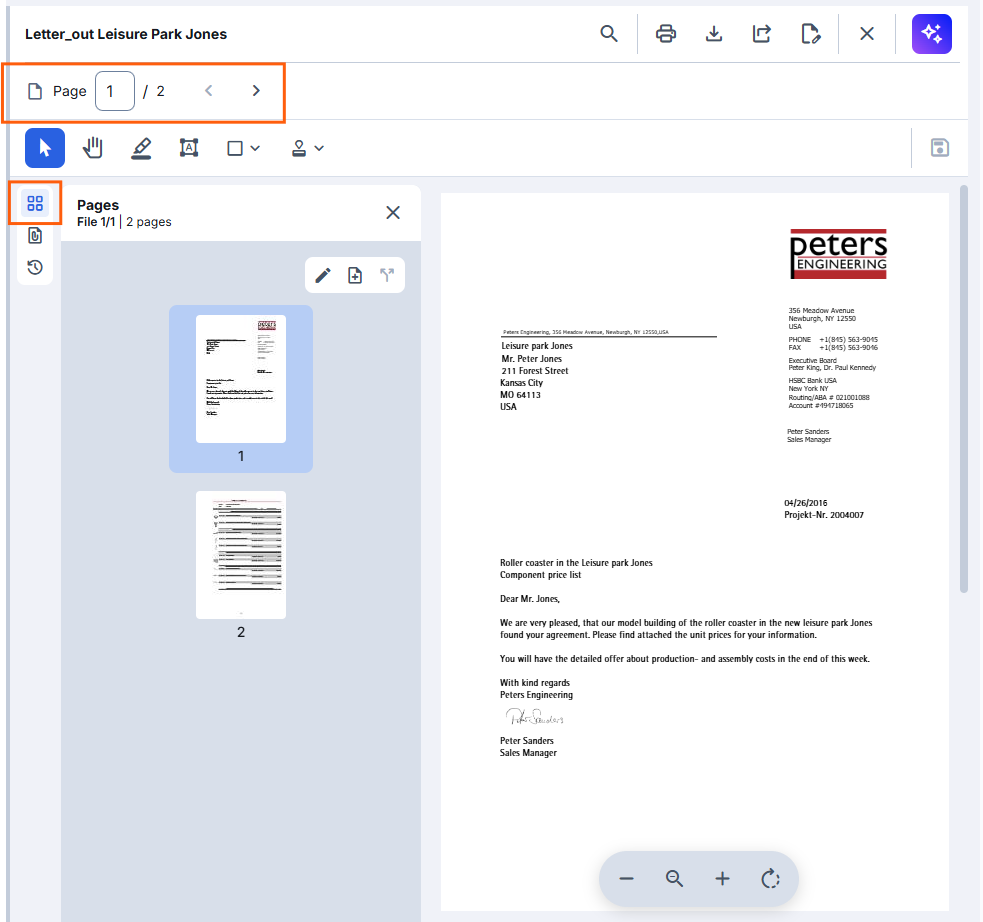
Adjusting the viewer to your screen
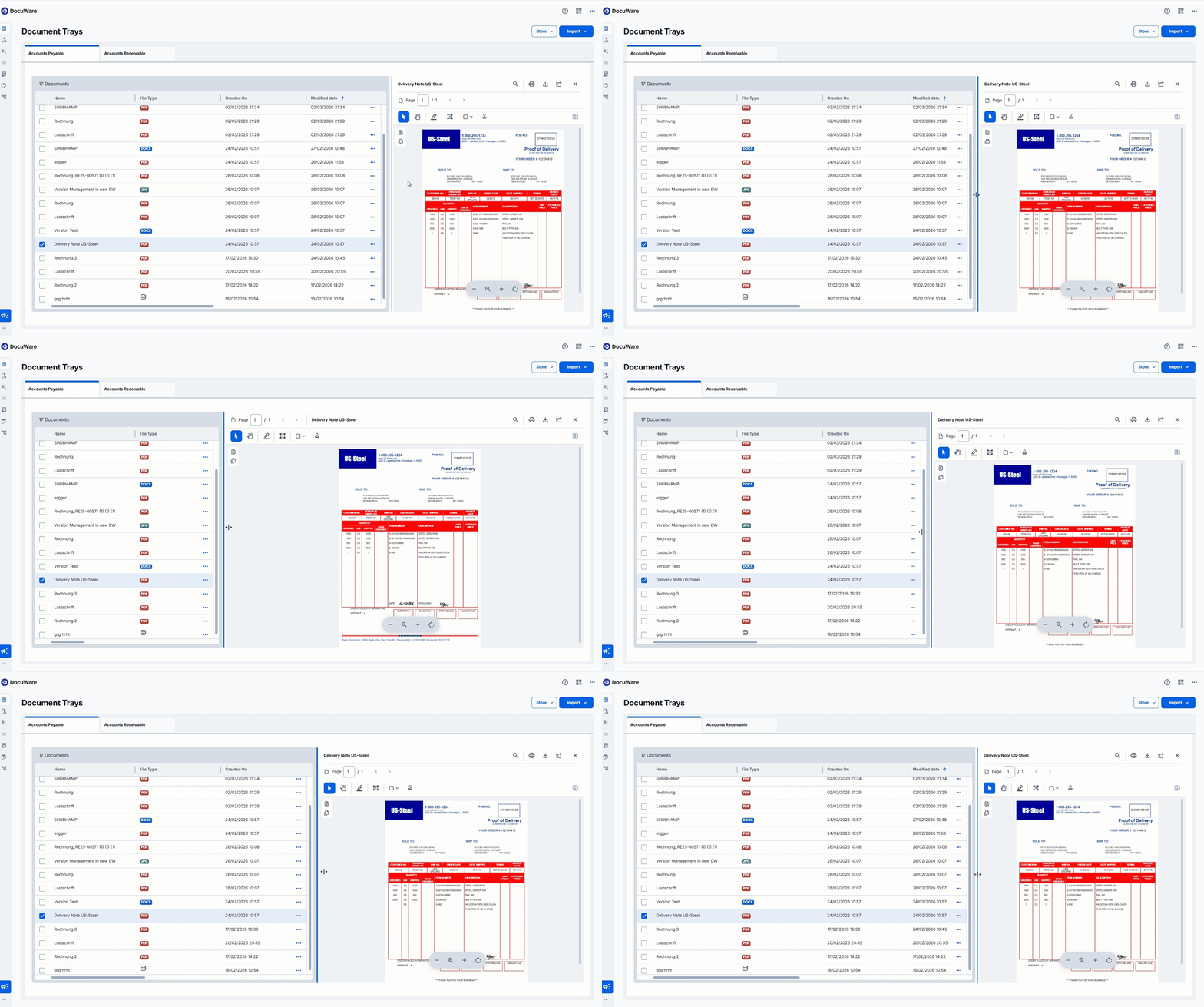
Drag the divider at the left edge of the viewer to make it wider or narrower. The layout adapts while you drag, so you can balance the document against the list or task beside it.
Searching in a document
Select the magnifier in the viewer header to search inside the open document. The viewer shows how many matches your term has as soon as the results appear, so you can tell straight away whether the document is the one you need.
Using the text of a document
To copy text, drag across it to select it and copy it as usual. You can also copy text by holding the [Shift] key and drag over the text to select text faster.
Links inside a document are active. Select the link text and press [Ctrl] and click to open it.
Annotating a document
Annotations are your remarks on a document: a highlight, a note, a mark that something has been checked. They are stored with the document, so your colleagues see them too, and they can be left out when the document is printed or downloaded. Annotations can applied to any document format.
Select an annotation tool in the toolbar above the document and draw or type on the page. A toolbar appears at the annotation itself, where you set the properties of what you just created, for example font, size, color, and transparency. Store the annotation manually.
.png)
To find out who left an annotation and when, point at it. The viewer shows the author and the time stamp.
.png)
Predefined marks such as "Approved" are not annotations but stamps, and they can do more than mark the page.
Printing and sharing a document
Print the document from the viewer header. You decide whether the annotations are printed with the document. You can also share the document with other DocuWare users directly from the viewer. A desktop application is no longer needed for this.
Notes for administrators
As in the classic client, the viewer is available by default and has no configuration of its own.
What a user can do in the viewer comes from the file cabinet permissions and from the function rights of the dialogs. You grant both in the permissions of the file cabinet.
The Edit permission is the prerequisite for Annotations, Stamps, Manage Pages, Attach files, and for editing a document in the desktop app or in Microsoft for the web.