The following configuration entries of workflow activities can now be duplicated and reordered:
Decision
Data assignment
Conditional output
Task dialog view
This applies wherever these configuration entries occur – some of them appear in several activities.
A duplicate carries the same configuration and is added at the bottom, so you can adjust the copy instead of rebuilding the entry. After publishing, the configuration entries are evaluated and executed in the order you defined.
Component: Web-based Workflow Designer
Applications
An approval workflow lists decisions in a fixed priority order. The process owner drags the most critical decision to the top so it is evaluated first.
A workflow needs several similar output conditions. The configurator duplicates an existing condition and edits the copy instead of rebuilding it.
A configurator adds a decision to a workflow that is already in use. The new decision is created at the end of the list and then dragged to the position where it has to be evaluated.
Benefits
You build and adjust workflows faster because you reuse existing configurations
You control the execution order without deleting and re-adding entries
Here's how
Drag an entry by the grab handle in front of it, or use the duplicate button next to the delete button to add a copy at the bottom of the list.
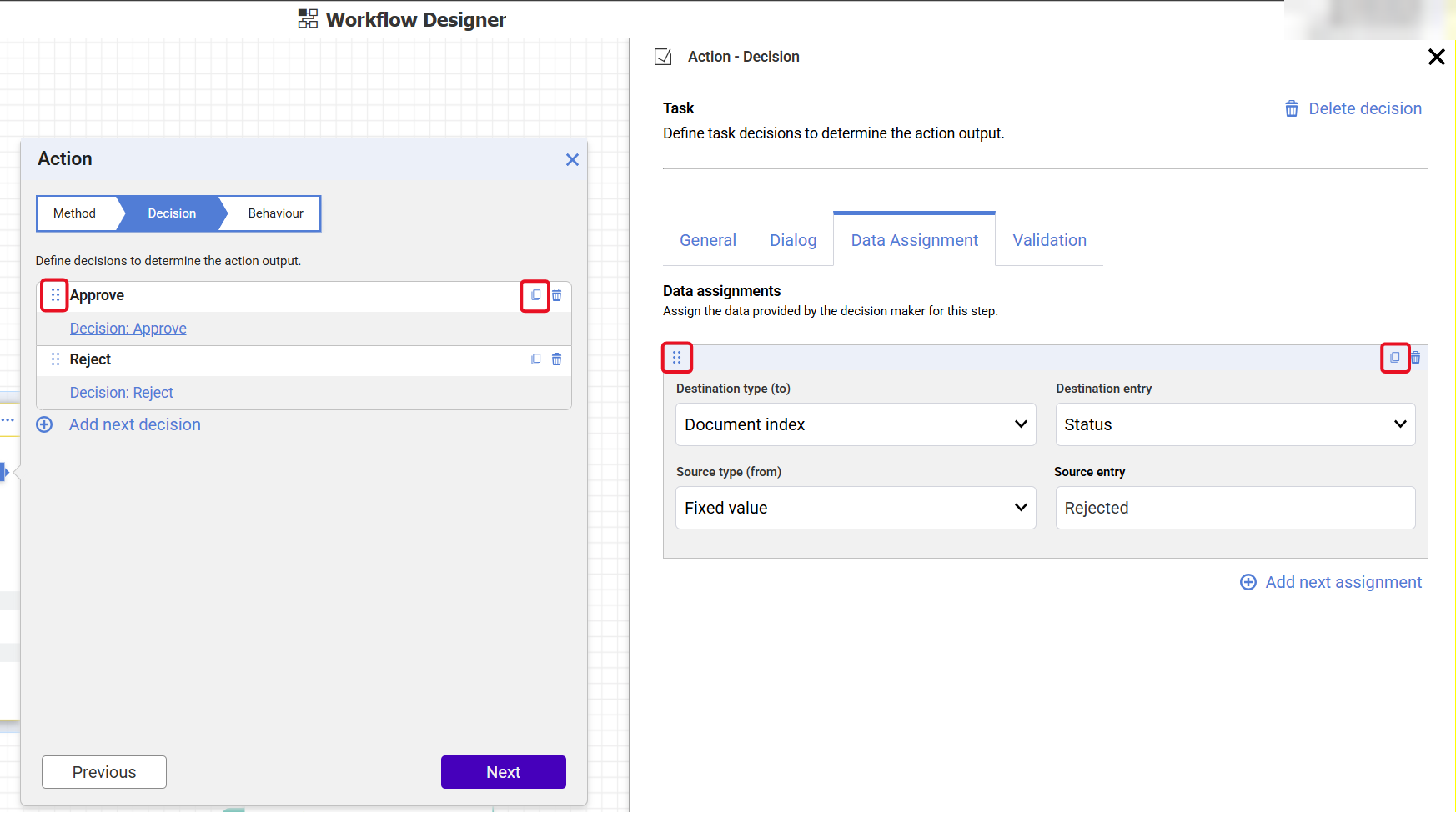
The grab handle sits in front of each entry, and the duplicate button beside the delete button.
Data assignments and dialog fields of the type table are exceptions, because their destination entry or file cabinet field can be used only once.
More about Routing documents with conditions and Assigning data in a workflow.