Two changes speed up work in the dialog fields view of a task dialog:.
When you add a dialog field, the cursor is placed in the Field label input automatically. You can type the label straight away.
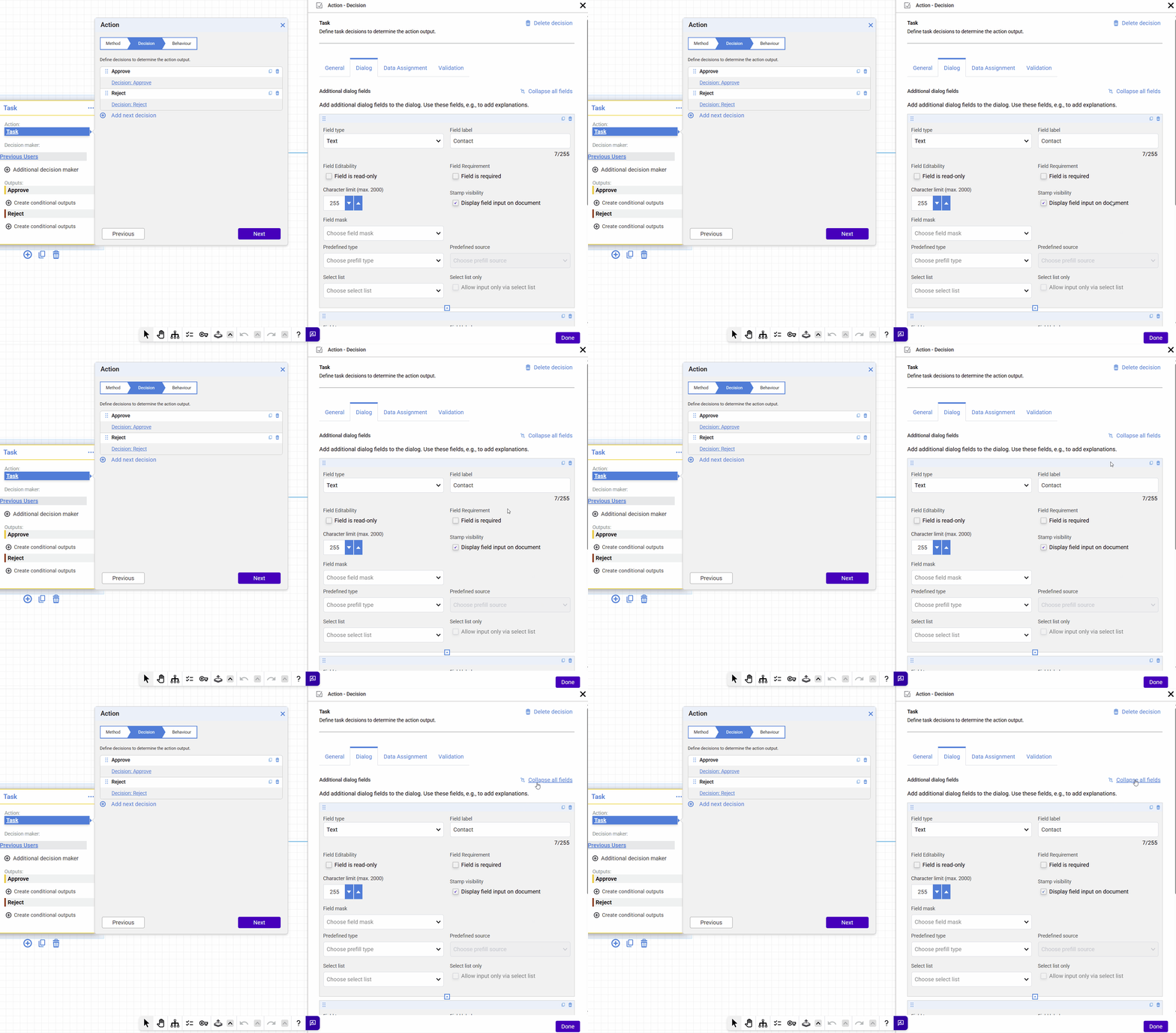
The control Collapse all fields above the dialog fields collapses or expands all fields at once. You can still collapse and expand single fields.
Component: Web-based Workflow Designer
Applications
You are adding a high number of fields to a task dialog and want to type each label straight away.
You are reviewing a long task dialog and want every field name visible at once.
Benefits
Fewer clicks when building a dialog
A long dialog stays surveyable
Here's how
In the web-based Workflow Designer, open a Task activity.
Switch to the settings of a dialog view.
When you add a dialog field, the cursor is placed in the Field label input automatically. You can type the label straight away.
See in the screenshot below the control Collapse all fields on the right side:
More about creating tasks for decision makers.