Each notification of a task activity has an enable checkbox: Task Notification, Reminder, and Overdue Escalation. Until now, clearing the checkbox deleted sender, recipients, subject, and body, and reset them to the defaults. These settings are now kept and are available again unchanged when you re-select the checkbox.
Component: Web-based Workflow Designer
Applications
You test a workflow without sending emails to real people, then switch the notification back on for production without re-entering recipients, subject and body.
You pause a reminder while you adjust a running process, and re-enable it later with the original schedule and message text intact.
Benefits
Turning a notification off and on again costs one click in each direction, with no reconfiguration
Carefully worded notification text survives being switched off
Here's how
Clear the enable checkbox of a notification in the settings of the task activity. The fields below it are greyed out but keep everything you entered. Select the checkbox again and the notification is active with all of its settings restored.
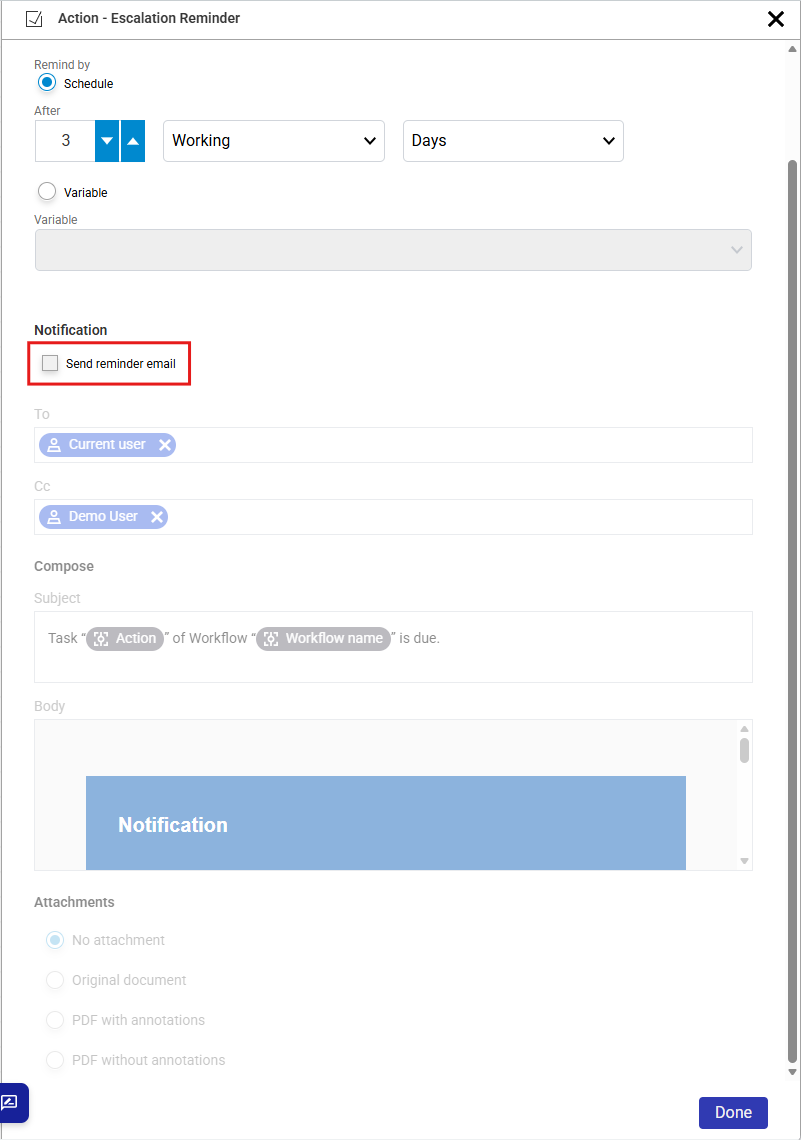
With the notification switched off, the recipients, subject and body are greyed out but keep their content.
The settings are stored in the workflow definition, so they survive saving the workflow and reopening it in a later session.
The new behavior applies from DocuWare 7.15 onwards. If you disabled a notification before the update, its settings were already cleared at that point, so re-enabling it now gives you the default sender, recipients, subject, and body rather than the text you originally wrote.