In DocuWare IDP, you extract data from documents using an extraction model. It defines model-specific data fields that are created in IDP and their relationships. Documents provide the raw content; during annotation, when the AI learns to recognize and interpret each data field, relevant text snippets in the document are manually assigned to the predefined fields, creating the training data for the model. During training, the model learns how to locate and interpret each field, and at runtime it populates these fields on new documents.
This is especially important for complex documents where information is interdependent, repeats in line-item tables, or spans multiple pages - such as invoices, account statements, and delivery notes.
Each piece of information - such as product descriptions, prices, or taxes - belongs to a specific context within the document. Correctly identifying these relationships ensures that the extraction model captures the document structure accurately.
This section explains how to train a Custom Extraction model in DocuWare IDP to handle such complex document types. You will learn how to define data fields, configure their relationships, and create a model that reflects the structure and logic of your documents.
Article scope
This article covers the DocuWare IDP platform and its features. DocuWare configurations are not covered here.
Getting started
Log in to your account on IDP platform and go to the IDP Workflow Overview section.
Click the Train Your Own Model Now button.
.png)
Select the IDP extraction workflow: All available DocuWare IDP Custom AI workflows are listed on this page. For creating a extraction model, select Create Custom Extraction.
.png)
Since a completely new Custom Extraction is to be created, select Create Fully New Extraction. To learn the difference, you can request an explanation via the Do you need help? button:
.png)
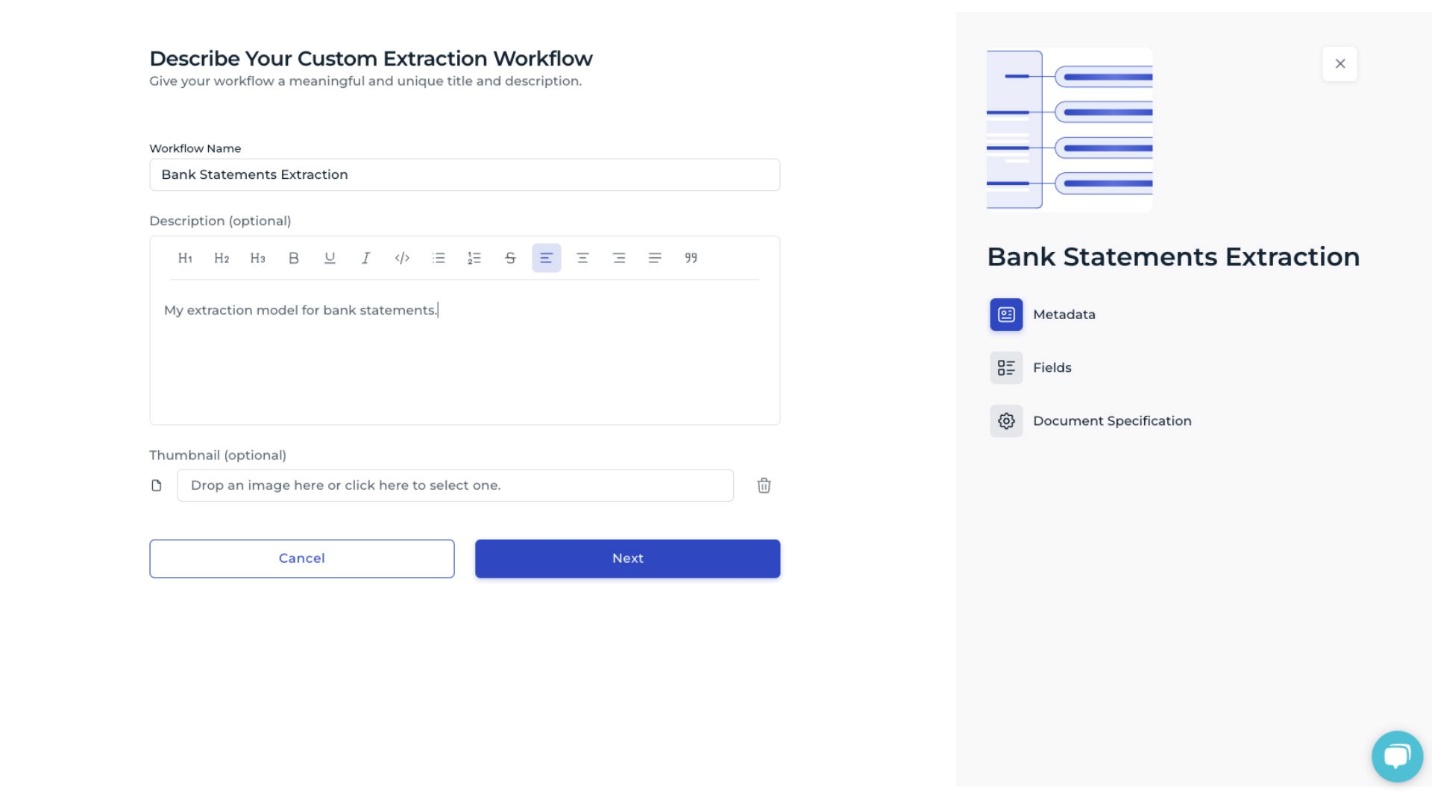
Specify the basic details of the extraction model: assign a name, provide a description, and optionally include an image. These elements help identify the model and clarify its purpose within the data extraction process.
Define the data fields
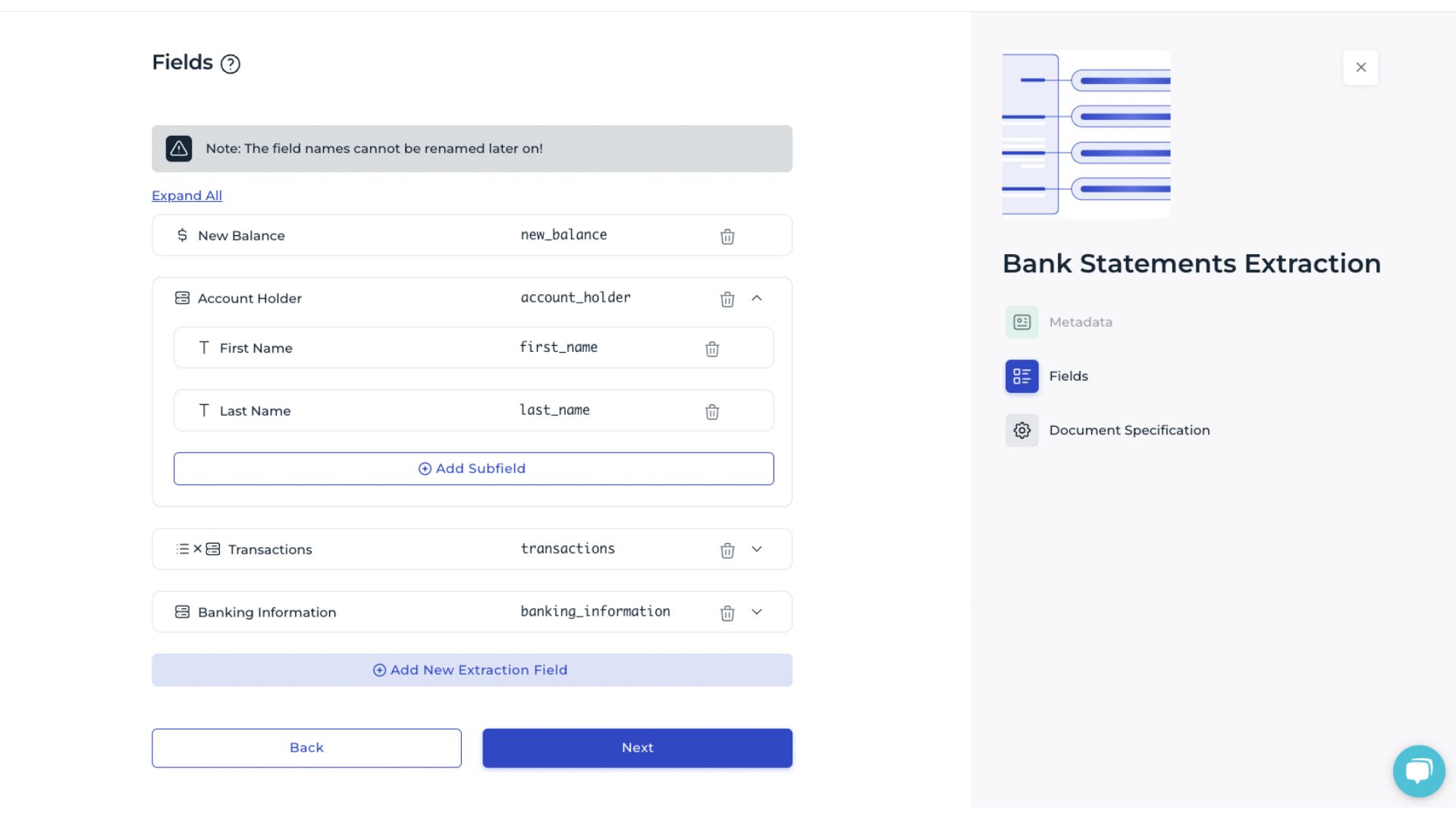
Specify the data fields to be extracted. Basic types include text, number, date, and identifier, while advanced types allow grouping multiple fields to reflect structured or hierarchical data. Proper field definition ensures that the extraction model interprets document content accurately.
Below, the creation of data fields suitable for bank statements is demonstrated. A mix of the field types listed below is used to capture the various data elements typically found in such documents.
Basic types
Basic types define the type of each data field. They indicate whether the content is text (e.g., name), number (e.g., age), date (e.g., date of birth), or an identifier (e.g., IBAN). Each individual field must be assigned a basic type.
Advanced types
Advanced types group multiple data fields. Whenever there is a relationship or association between several fields, an advanced type can be selected. The corresponding basic types are then assigned to the subfields within the advanced type.
Combined: Combined types are used to create hierarchical groupings of multiple fields. For example, a combined type called “Total amounts” could include subfields for Gross amount, Net amount, Tax amount, and Tax rate, each assigned the basic type Number.
List: Lists are used to extract multiple elements instead of individual values. A list can contain basic types (e.g., multiple order numbers in a document) or combined types (e.g., several bank details, each including IBAN and BIC).
Table: Tables group tabular data. For example, multiple line items in an invoice can be extracted using a table called “Article”, which consists of a combined type with fields for Description, Quantity, Price, etc., all based on basic types.
Notes
A list of combined types can also be used instead of a table, as both structures are equivalent.
Data field names cannot be changed after creation. Therefore, the data field structure should be clearly defined and finalized before setting up the fields to avoid later adjustments.
Define the data to extract and uploading documents
A template organizes the training data for documents that share a common layout or issuer. A template acts as a training “bucket” where representative documents are collected. For example, separate templates can be created for each bank or vendor. The platform then guides annotation on a template-by-template basis, allowing the model to learn layout-specific placements and relationships.
To train the model on the documents, the training data is uploaded in the next step. The training data refers to the information that should be extracted from the documents.
Documents can be uploaded either individually per template or mixed together. A template defines the layout of a document. For example, if bank statements from two different banks are provided, a separate template can be created for each bank.
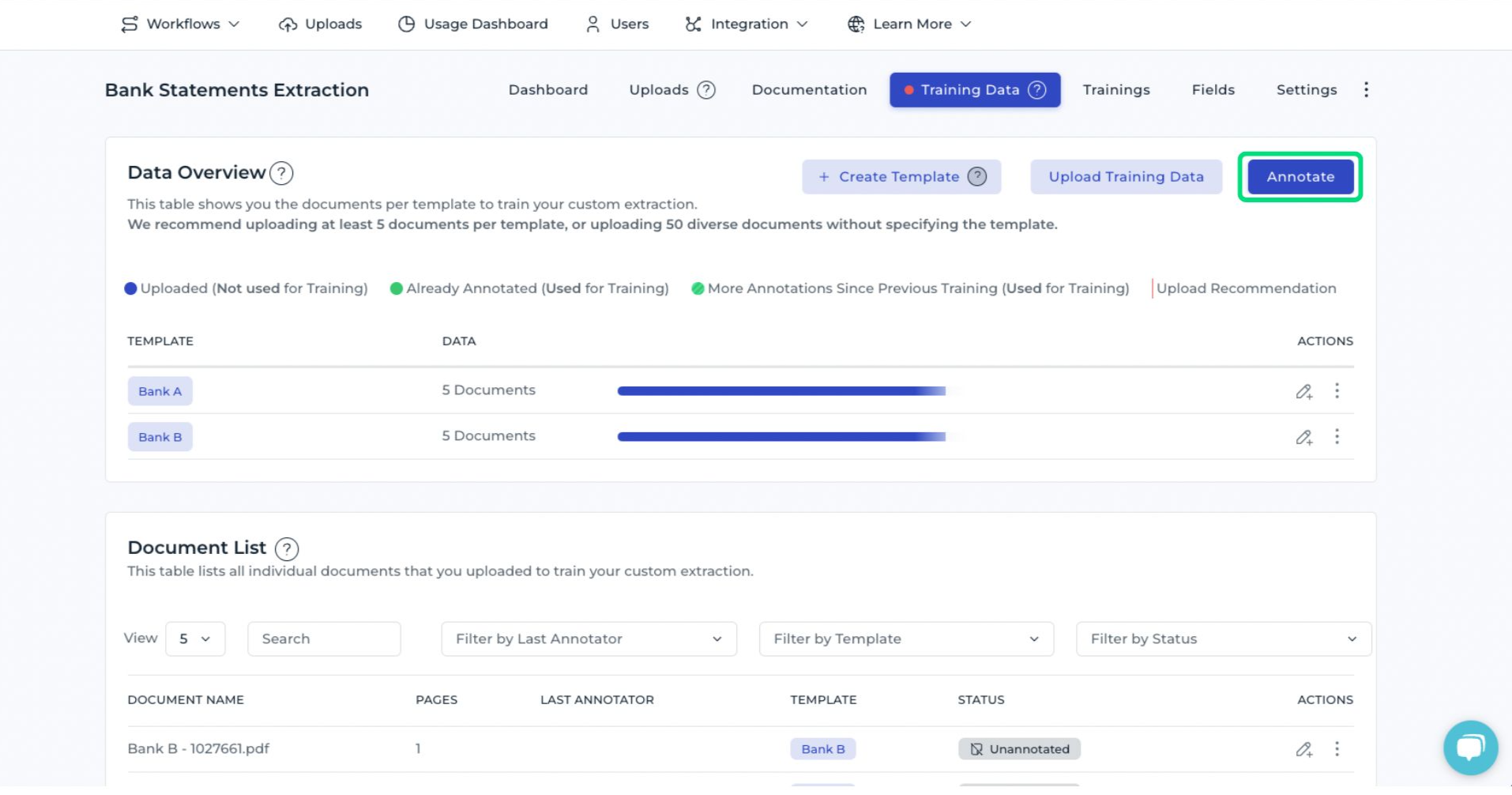
It is recommended to upload at least five documents per template to provide sufficient data for training the AI.
The quality of the documents should be sufficient to clearly recognize the content. Anything that can be read by a person can also be processed by the AI. Supported formats include PDF files as well as common image formats (JPEG, PNG, GIF, TIFF, WEBP). A resolution of 220 dpi is recommended, which corresponds to dimensions of 2600 × 1800 pixels for an A4 document. For documents smaller than A4, the cropping feature can be used to adjust the content.
Annotate documents for training IDP
Accurate annotation is essential for training the extraction model in DocuWare IDP. By annotating documents, the AI learns to recognize and interpret each data field. This process converts unprocessed (raw) document content into structured information that the can be recognized and use for further automation and searches. The quality of the model depends directly on the quality of this annotation process.
The platform guides the process template by template. To annotate a document:
Select a data field from the left-hand panel.
Highlight the corresponding text in the document.
After all fields for a category are annotated, group them as needed (the platform suggests groupings automatically).
This video explains the individual steps required for successful annotation.
Once annotation is complete, save the document using the Save and go to the next document button in the toolbar to proceed to the next document.
Read more about annotating in DocuWare IDP
Start the AI training process
After all documents have been annotated, initiate the training process to create the extraction model. The model will learn from the annotated data and begin to interpret documents according to the defined fields and relationships:
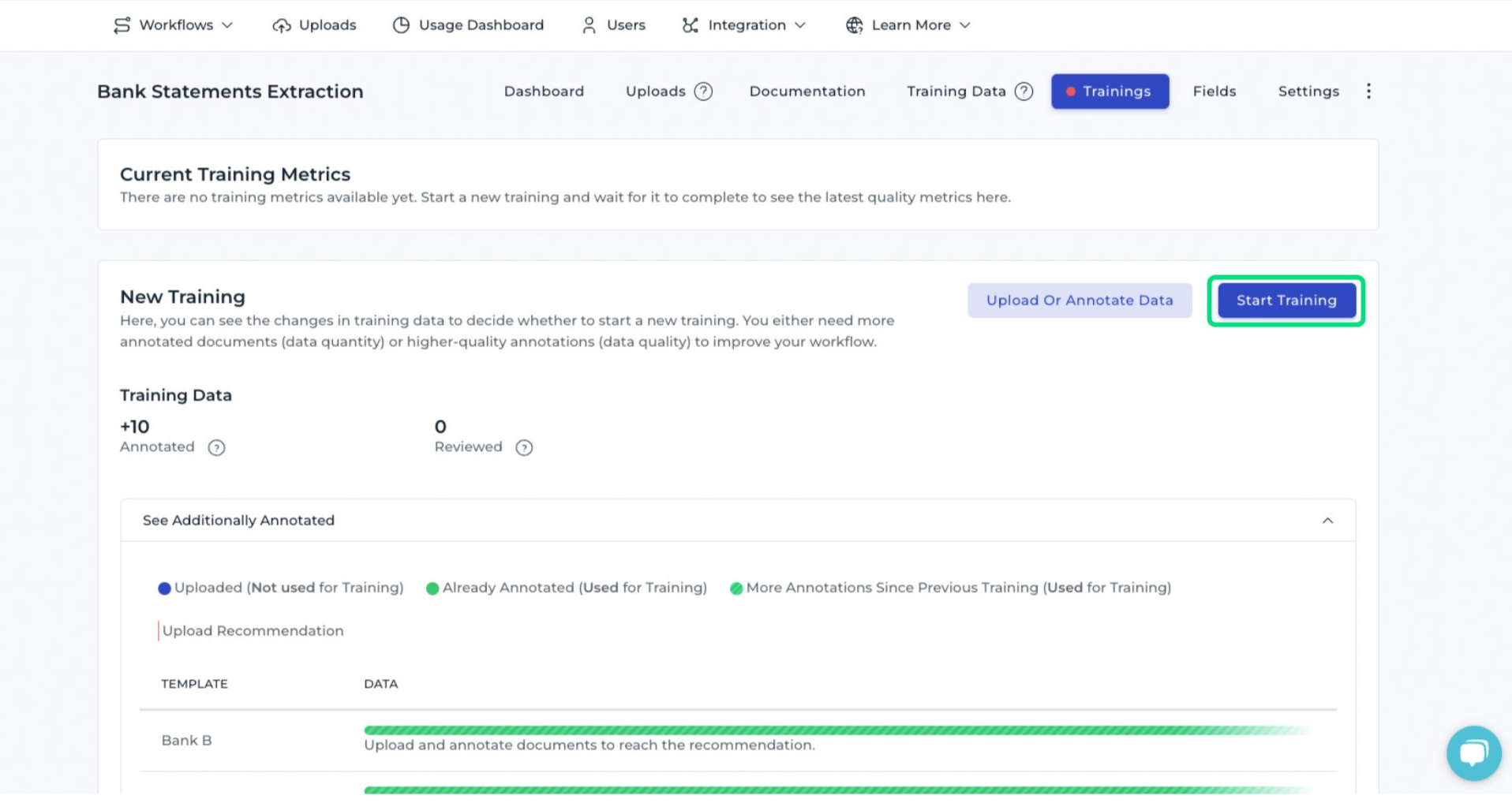
After training, the extraction model is ready to be used within your IDP workflow.
Integrating the DocuWare IDP extraction API
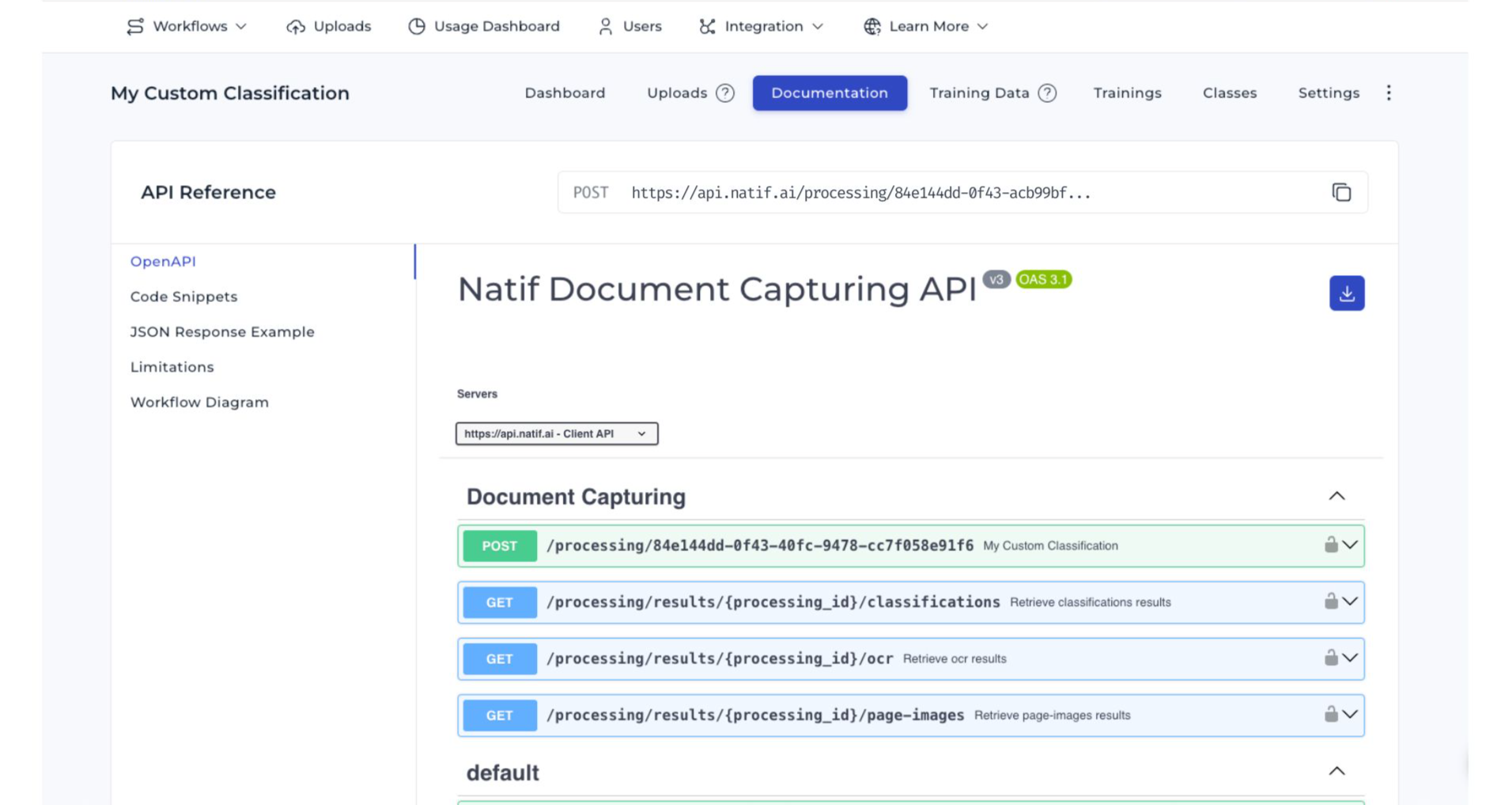
You can integrate the DocuWare IDP extraction API at any time. Detailed information, including code examples and JSON response formats, is provided in the Documentation section of the IDP site - see the screenshot below.
The API is updated automatically once training is finished. Training metrics provide information about the accuracy and performance of the DocuWare IDP AI workflow.