Custom Classification in DocuWare IDP is an AI-based document classification capability that enables organizations to automatically categorize documents according to their specific business needs. Instead of relying on predefined document types or manual sorting, Custom Classification allows users to train an individual model that recognizes and assigns documents to custom-defined classes based on their content.
This approach is particularly useful in environments where large volumes of heterogeneous documents are processed on a daily basis, such as invoices, receipts, contracts, delivery notes, or correspondence. By learning from example documents provided during training, the AI model becomes capable of identifying document types that are unique to a company or department, even when layouts, formats, or structures vary.
The following sections outline how to create a custom classification model in the DocuWare IDP platform. It covers the entire process, including preparing and uploading documents, defining classes, annotating training data, initiating training, and validating the results. It also explains how the trained model can be used within an IDP Classification Workflow to assign documents to the defined classes.
Article scope
This article covers the DocuWare IDP platform and its features. DocuWare configurations are not covered here.
Getting started
Log in to your account on IDP platform and go to the IDP Workflow Overview section.
Click the Train Your Own Model Now button.
.png)
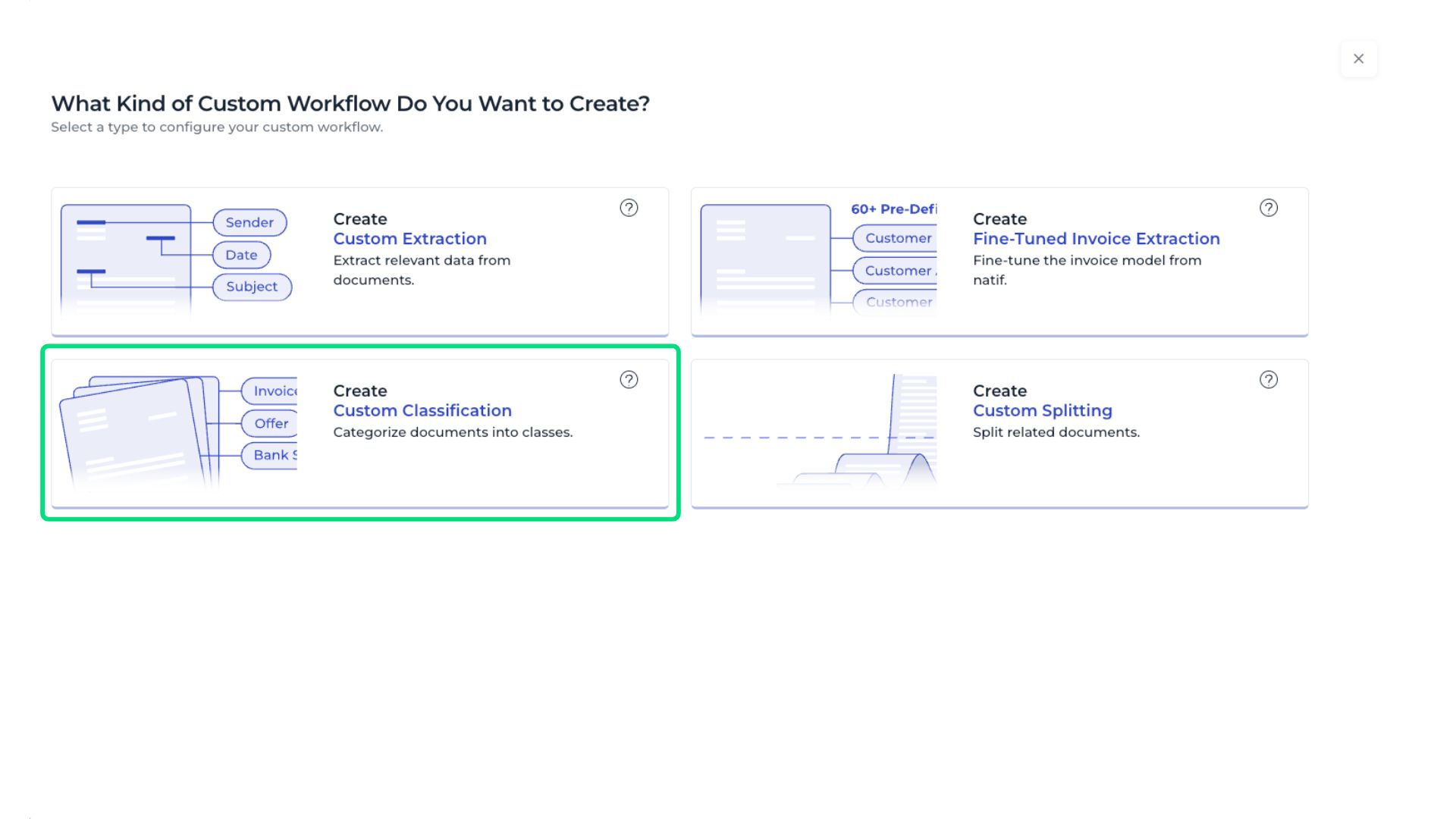
All available DocuWare IDP custom AI workflows are listed on this page. For creating a classification model, select Create Custom Classification:
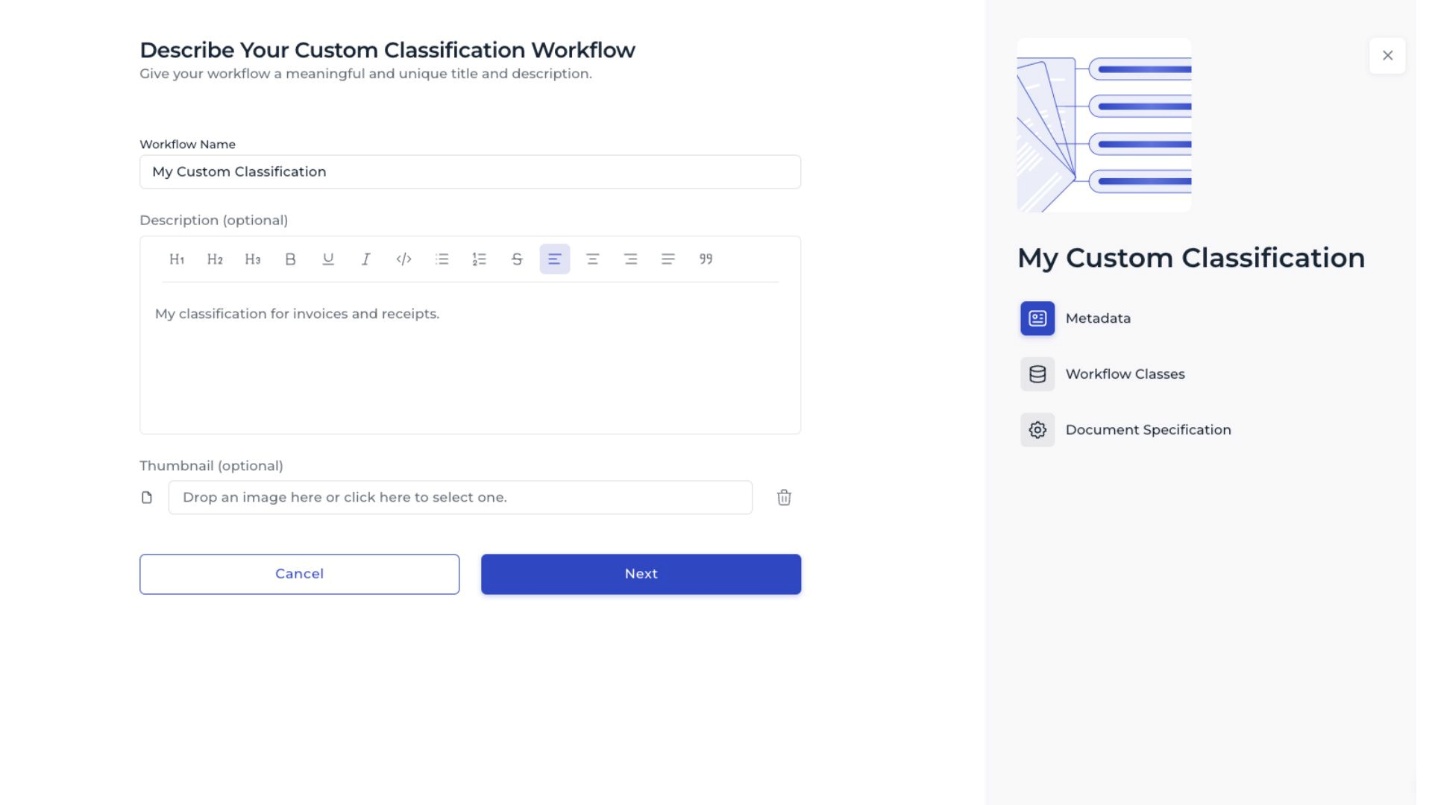
Provide a name and a short description for the model. An optional image can be added. These details help distinguish this classification model from others in your DocuWare IDP account.
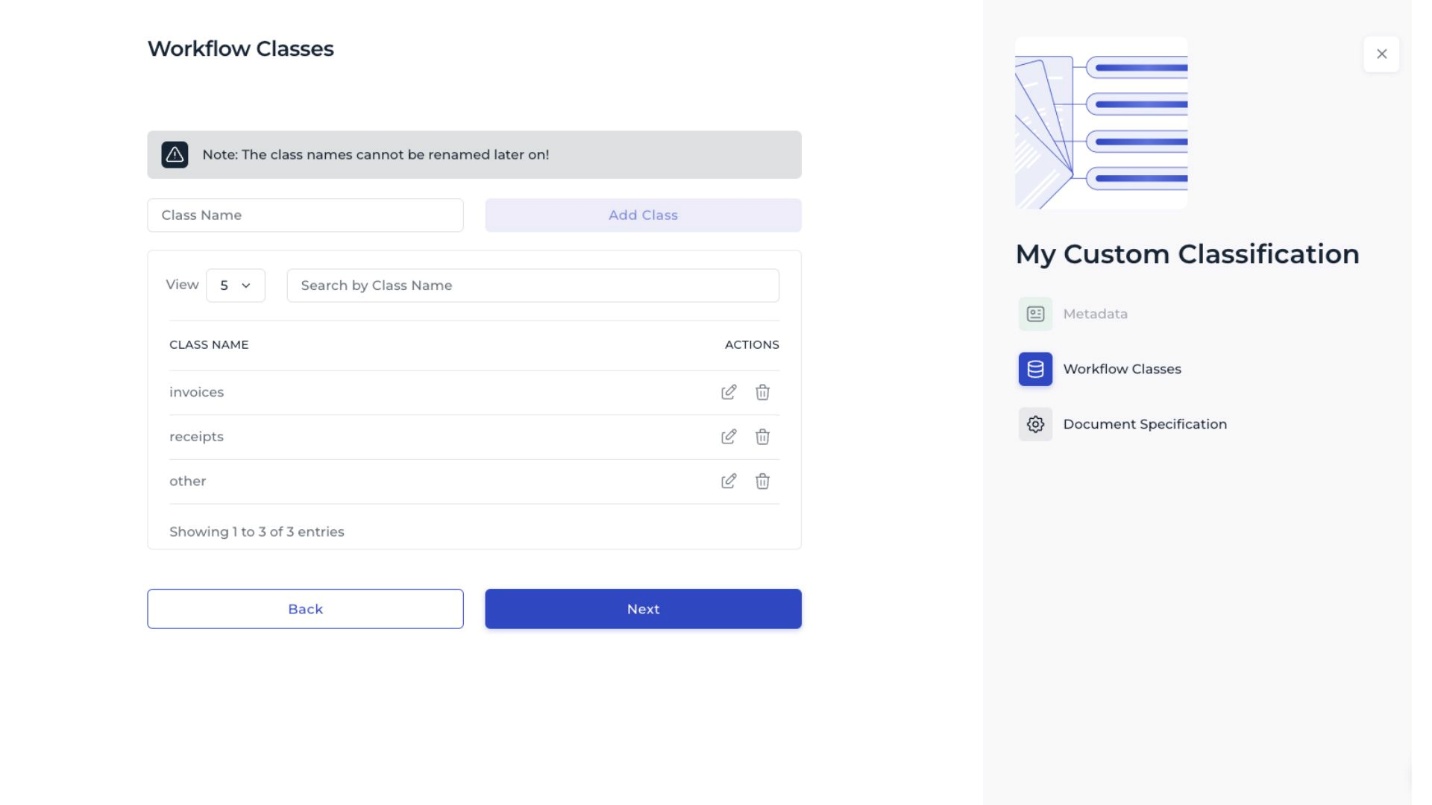
Define the classes for the model
Specify the classes that the model should recognize by assigning a name to each class. In this example, the classes include Invoices and Receipts. Additionally, you may also select the option other to cover any document types that do not fit into the primary classes.
Specify documents
Provide information about the documents to ensure the AI can handle them correctly. Supplying these details also improves the accuracy.
For Custom Classification, the following information is typically required:
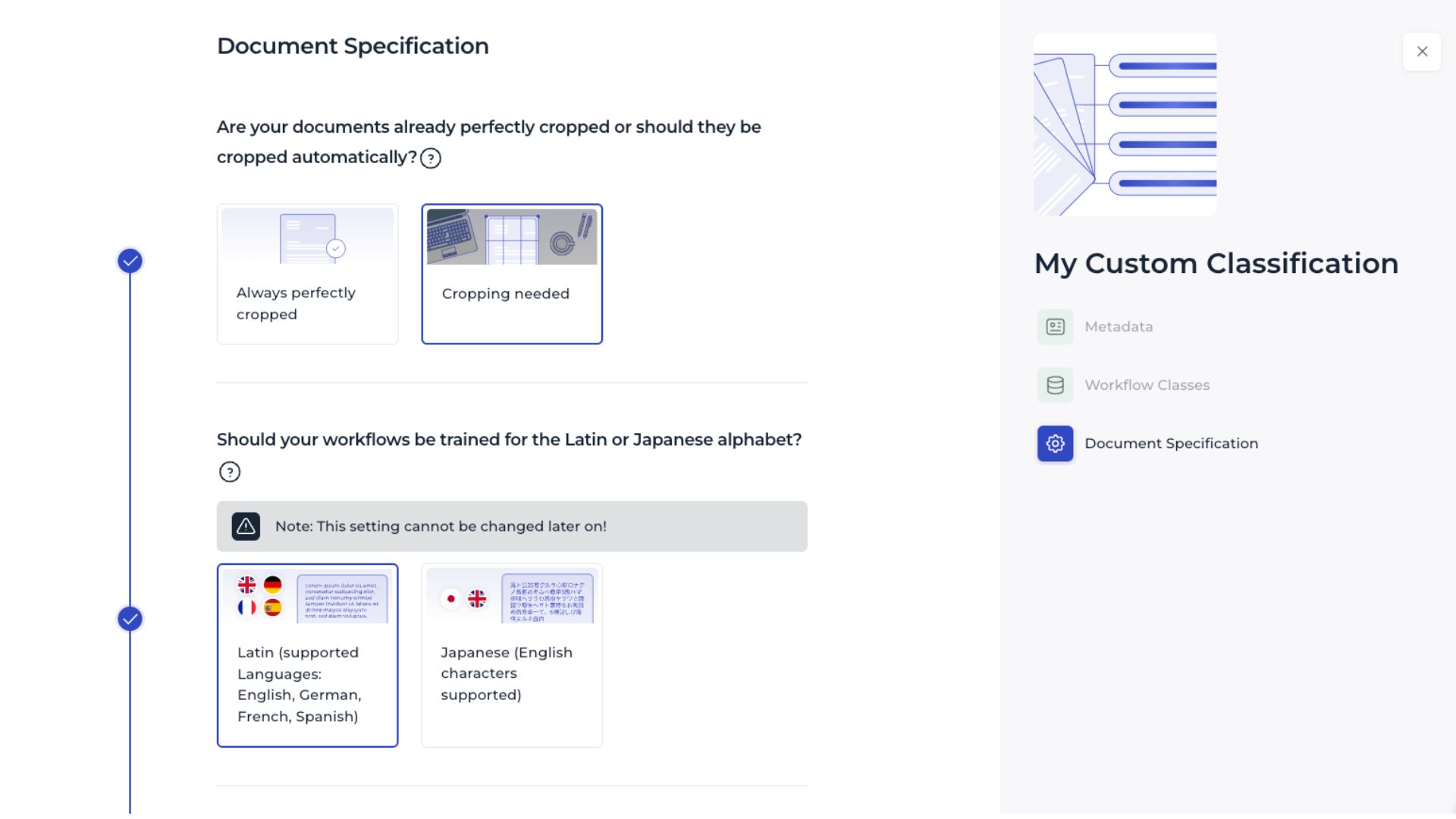
Are the documents already properly cropped, or should cropping be performed as part of the process?
Is the document text in the Latin or Japanese alphabet?
Is the text printed, handwritten, or can it be both?
Which pages are relevant for categorizing the documents?
After that, the model is created.
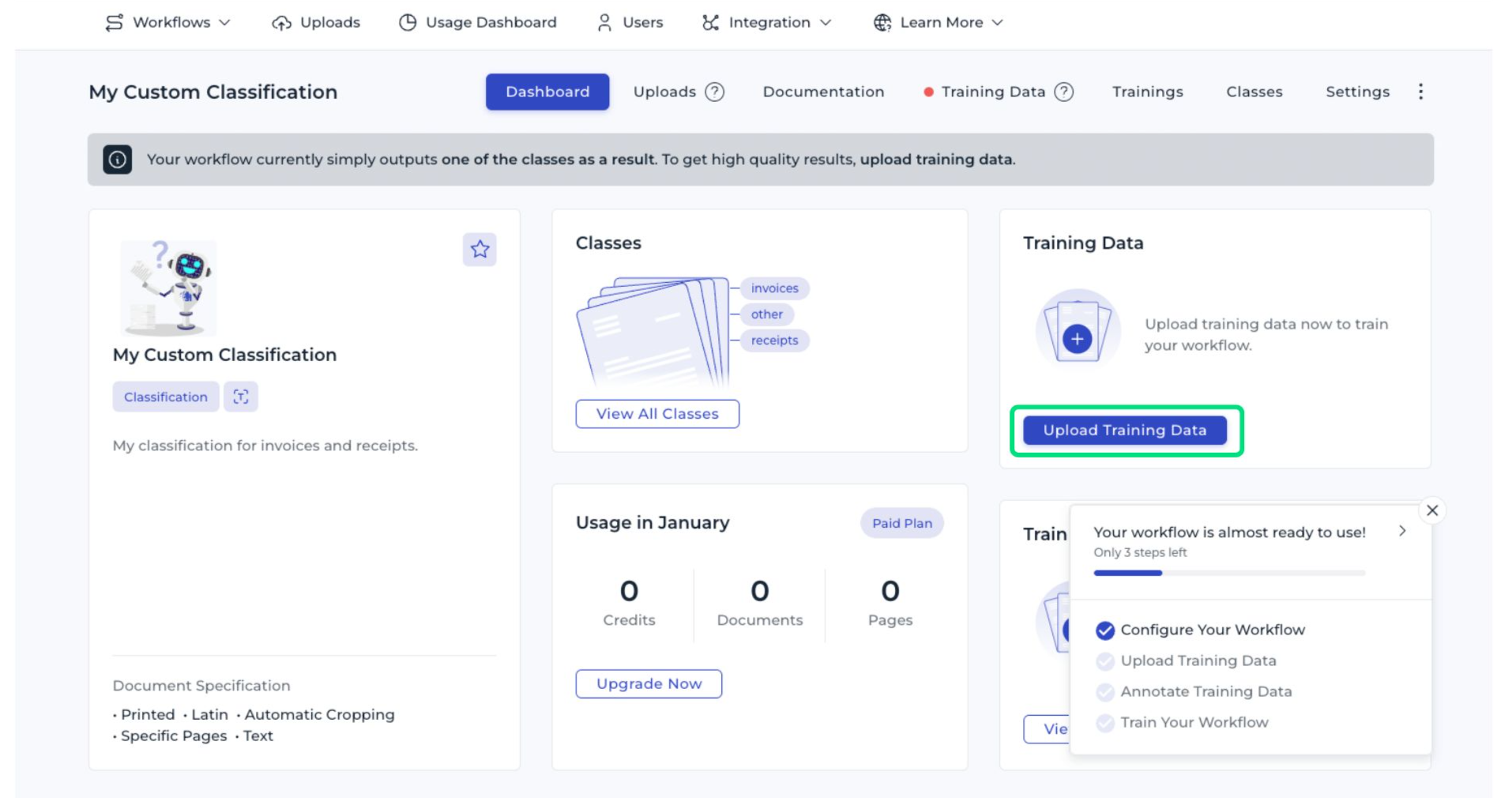
Upload training data
Provide representative documents to train the model on your layouts and content, ensuring outputs are tailored to the document types in scope.
If the training documents are already sorted into classes or if class labels can be obtained from existing databases, provide these files directly for training.
Click the Upload Training Data button:
Select the class name.
Then upload the corresponding documents.
It is important to provide a sufficient amount of training data. Recommendations for the required number of documents for each process are shown in the interface. Select documents that closely resemble the document types the model will process later. This ensures that the AI can learn effectively and achieve high accuracy.
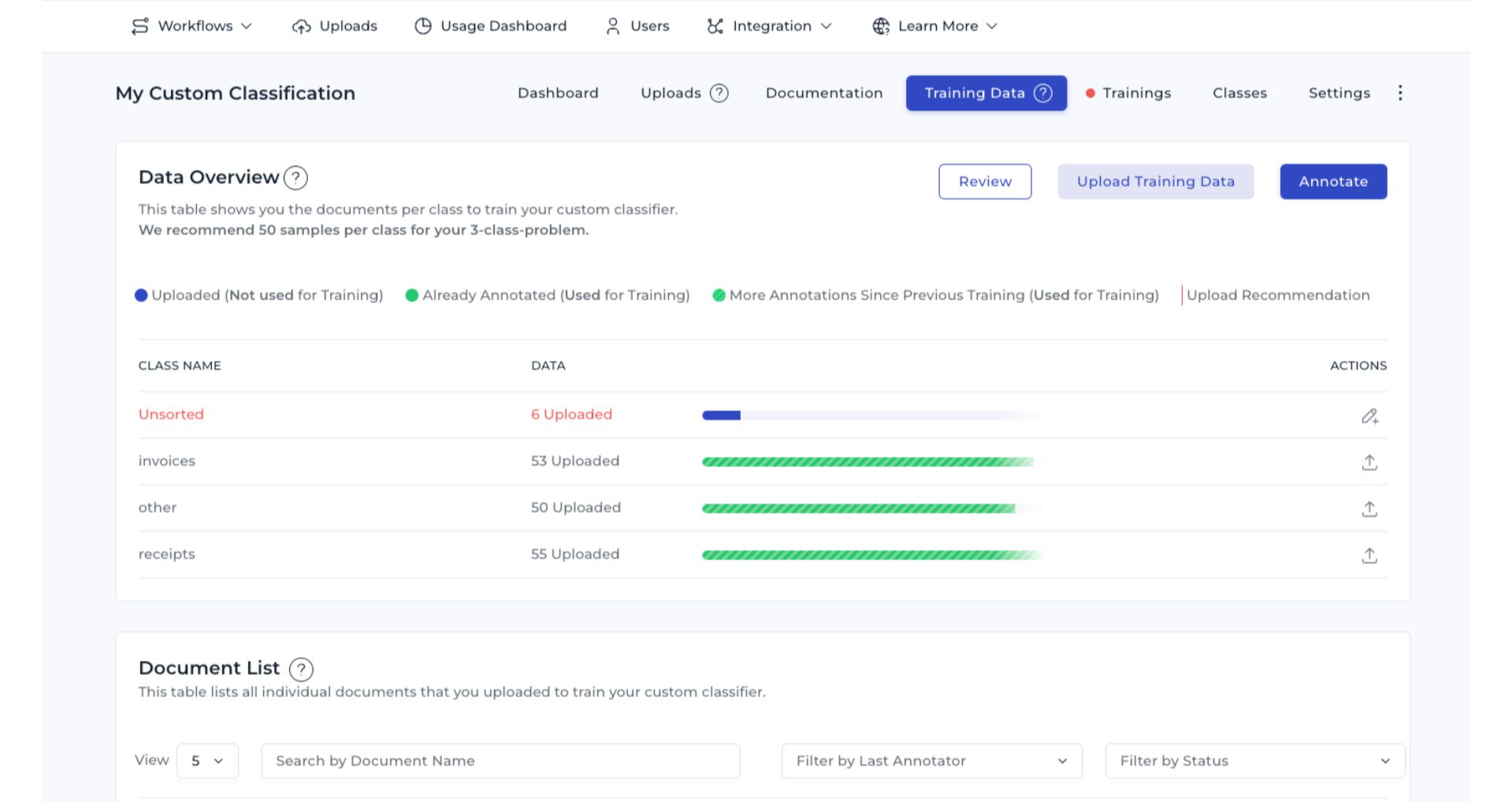
If documents are uploaded already sorted into classes, annotation is not required, as DocuWare IDP can determine the class automatically.
If documents are uploaded unsorted, they must be annotated to indicate the correct class for each document - see the next chapter.
Annotate training documents
For unsorted documents, each uploaded document is displayed alongside the defined classes. Select the appropriate class for the document. These annotations will be used by the model during training.
By annotating documents, the AI learns to recognize and interpret each data field. The quality of the model depends directly on the quality of this annotation process.
The screenshot below shows the interface for annotating training documents:
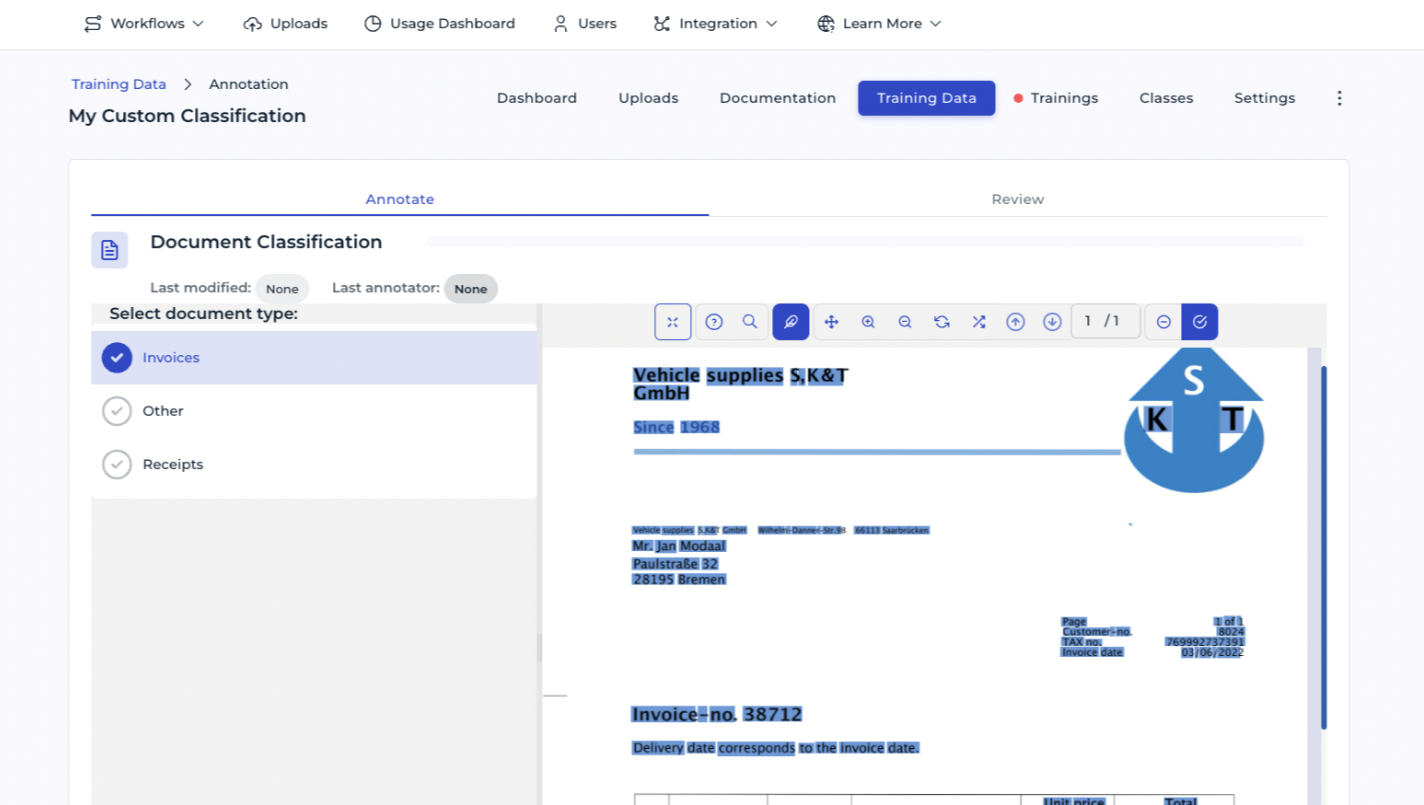
Repeat this process for each uploaded document to ensure all training data is correctly classified.
Read more about annotating in DocuWare IDP
Start the AI training process
After all documents have been annotated, initiate the training process. DocuWare IDP will learn to process the documents based on the provided annotations.
Training typically concludes within 24 hours; an email notification will be sent upon completion.
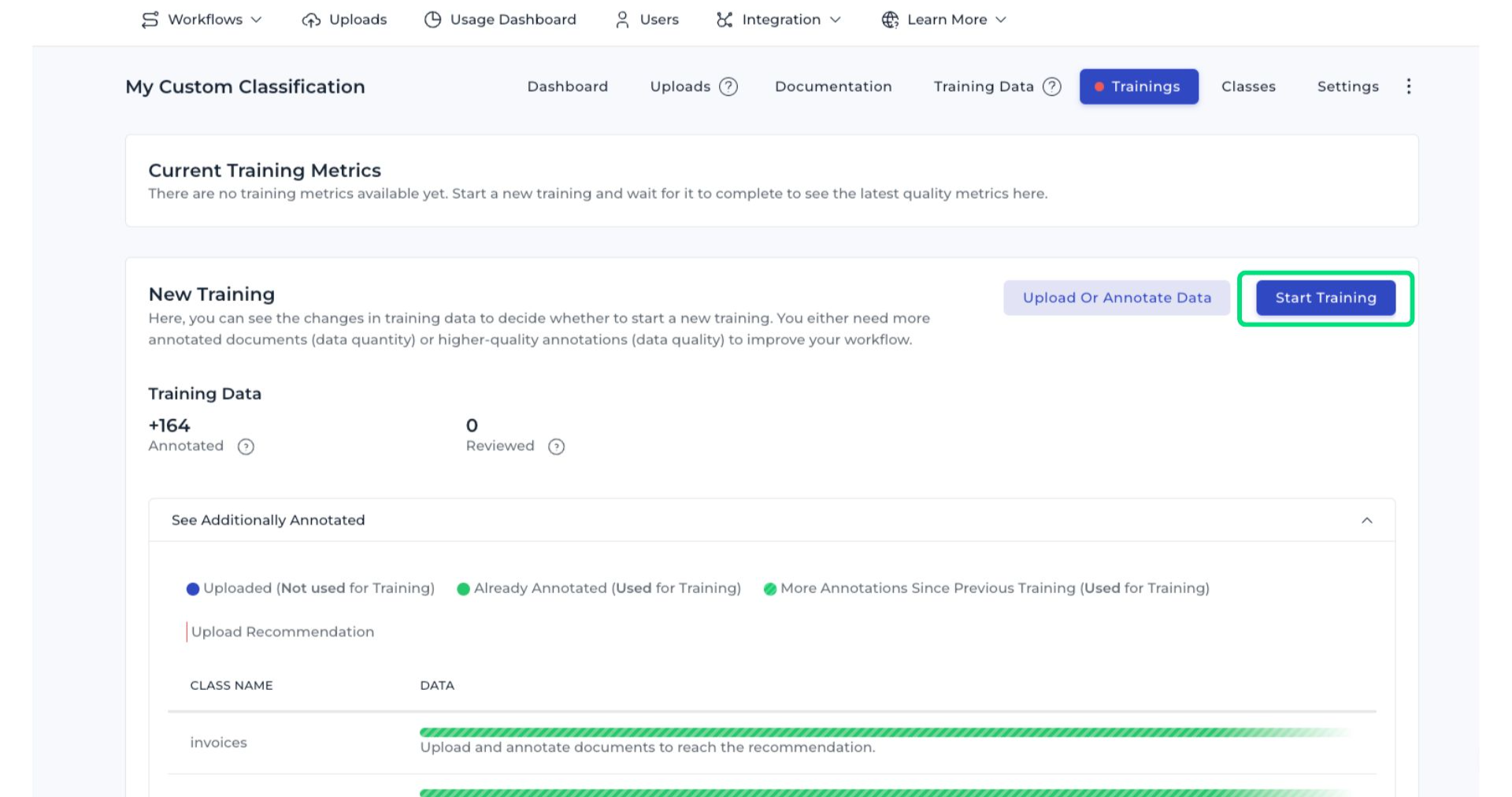
After training, the classification model is ready to be used within your IDP workflow.
Integrating the DocuWare IDP classification API
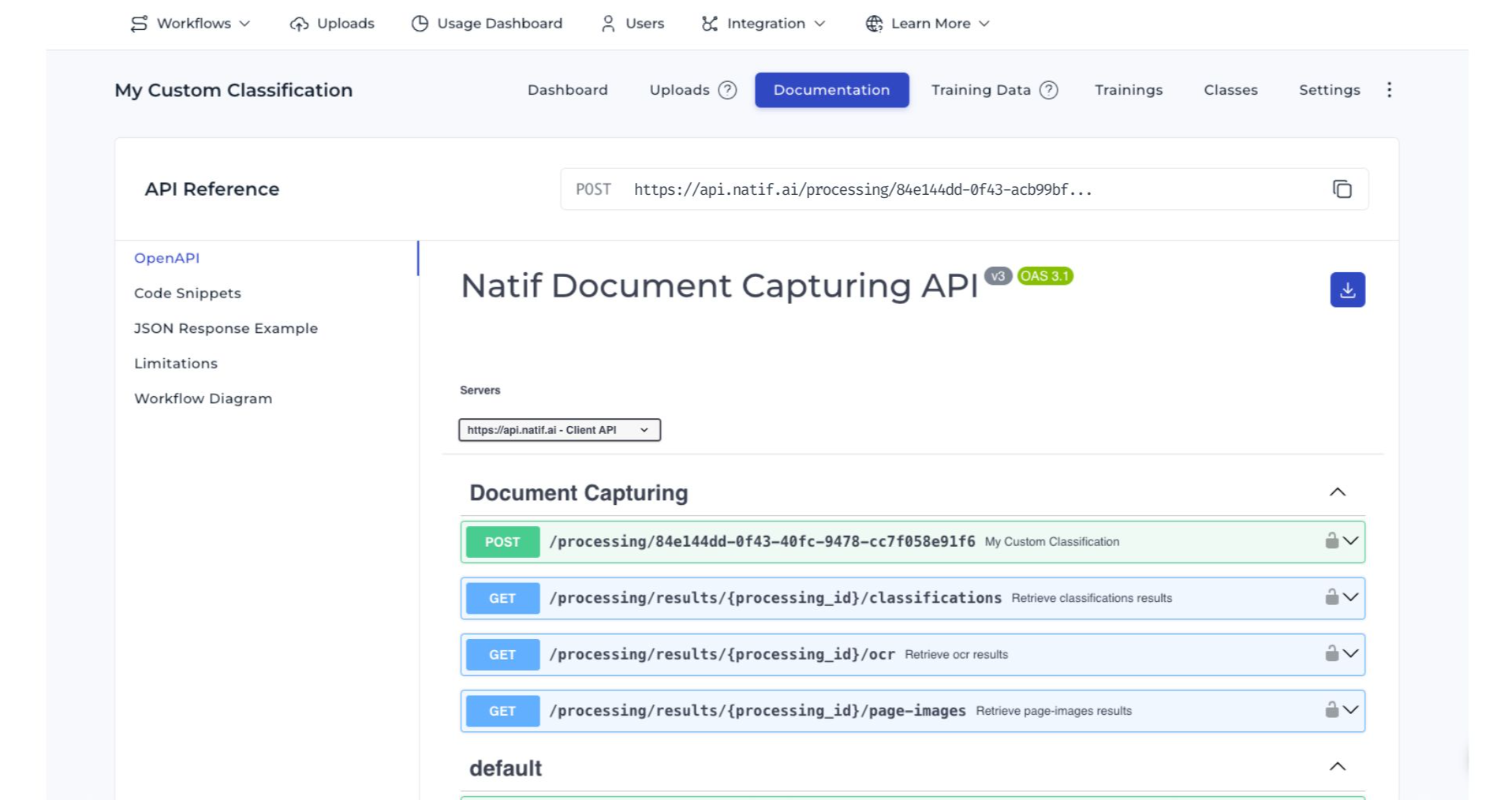
You can integrate the DocuWare IDP classification API at any time. Detailed information, including code examples and JSON response formats, is provided in the Documentation section of the IDP site - see the screenshot below.
The API is updated automatically once training is finished. Training metrics provide information about the accuracy and performance of the DocuWare IDP AI workflow.