Annotation is the training step that enables Intelligent Document Processing (IDP) to recognize and extract key information from documents. IDP detects candidate values in the document and proposes links from those values to the corresponding data fields in the DocuWare IDP extraction model. Correcting these proposals during annotation is essential to reduce model errors and improve extraction accuracy later.
In this example, a prebuilt invoice extraction model is used, so many data fields are already pre-populated. The task is to review and correct IDP’s annotation suggestions so the model learns from clean labels and can identify the same content accurately in future documents.
Article scope
This article covers the DocuWare IDP platform and its features. DocuWare configurations are not covered here.
DocuWare IDP annotations - quick reference:
Value: Detected values in the document like text, number or date; stored in an IDP data field and linked to an annotation box.
Data field: Technical container in IDP for a document value, typed as text, number, date, etc. Editable on review.
Type: Semantic label (e.g., IBAN, Address Line, Tax Number) in IDP; each document value has one Type; each Type belongs to one Attribute.
Attribute: Category that groups related Types (e.g., Customer: Name, Address, VAT ID, IBAN); defined in IDP configuration.
Grouping: Document-level link between Data Fields that belong together (e.g., IBAN+BIC; discount rate+deadline; line-item fields).
Getting started
The annotation process begins after the data fields for extraction have been defined and the documents have been uploaded.The uploaded invoices are displayed one after another. The prebuilt invoice extraction model highlights potential fields for extraction, making it easier to review and adjust the suggested content.
Find several important functions for annotating in the Types/Groupings and OCR sections. Use the View Mode dropdown to switch:
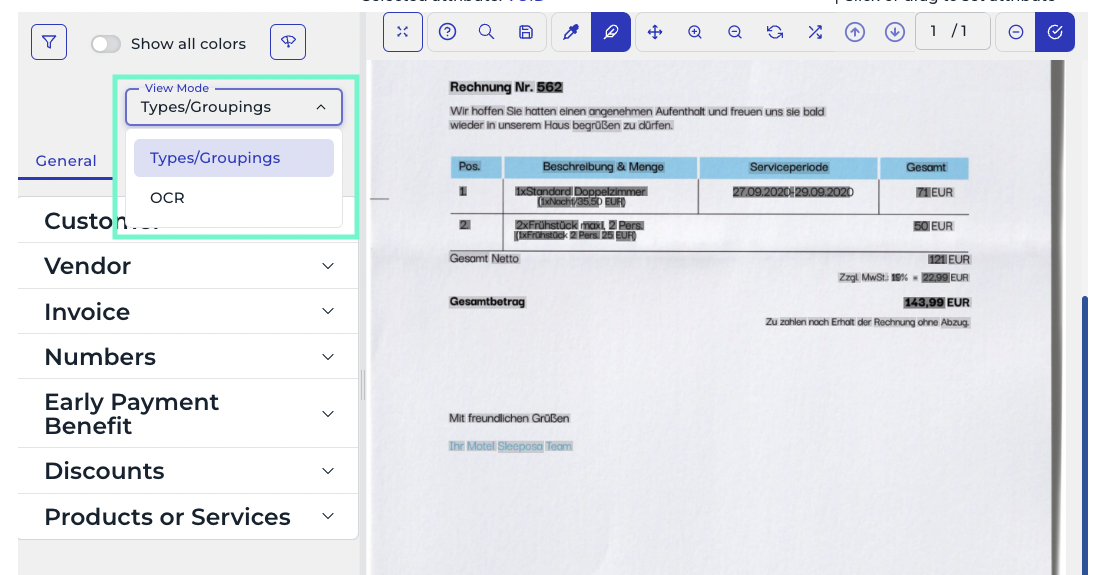
Types and groupings
The Types/Groupings > General section displays the contents of the invoice organized by attributes. For example, under Customer, the first attribute, all related values such as name, address, or bank details are grouped together.
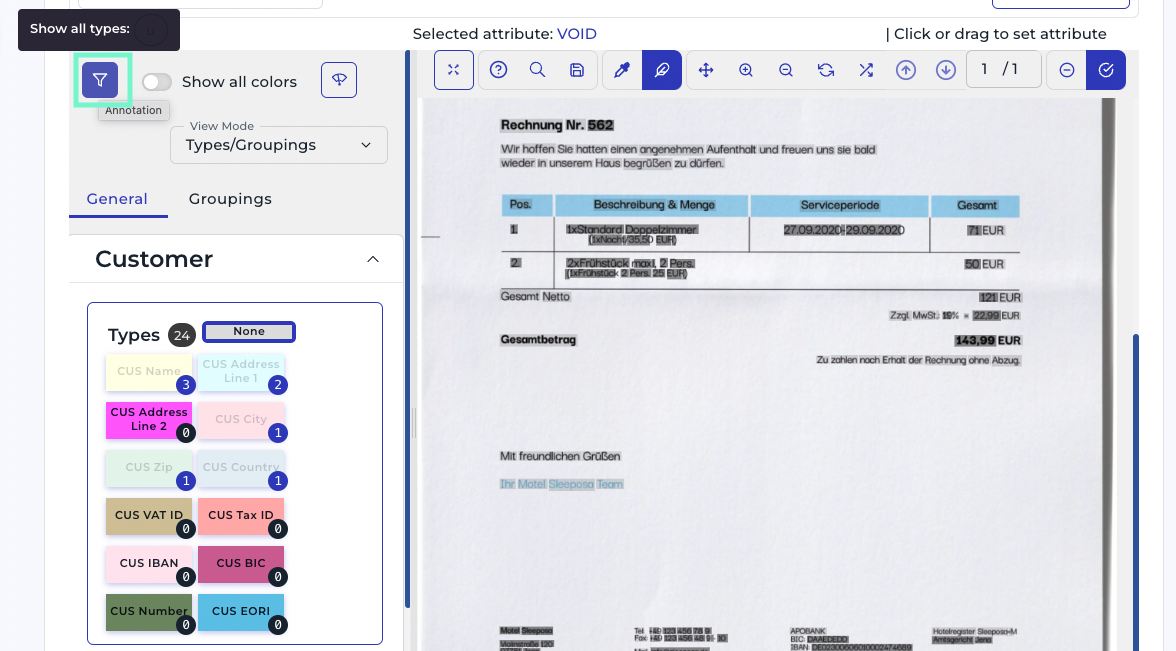
To display values that have not yet been assigned to a type, click the Annotation filter icon in the top-left area of the left:
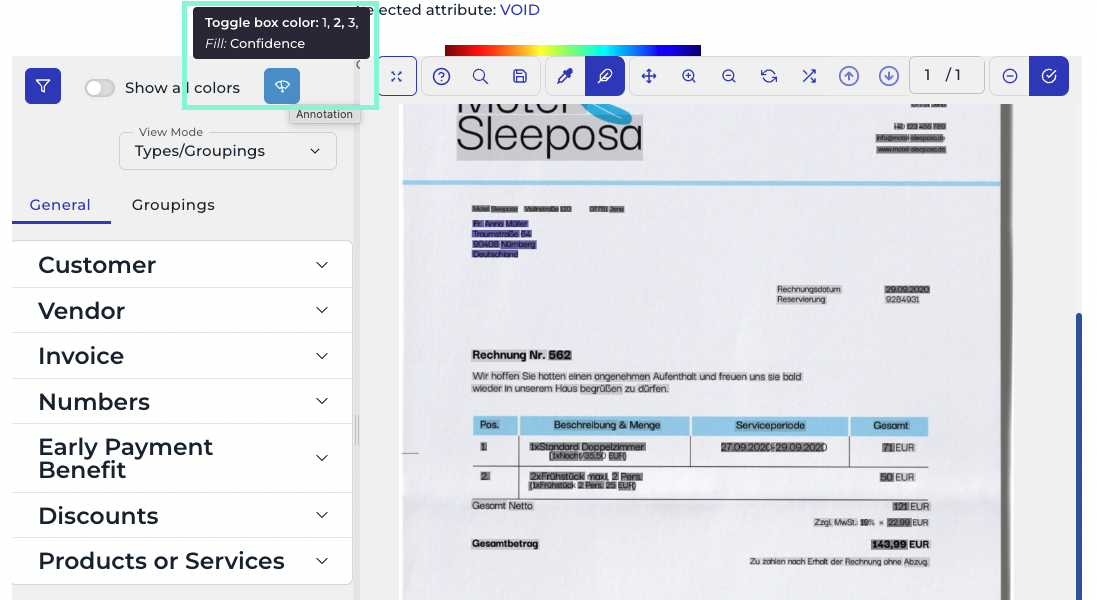
Clicking the screen button in the top-right area of the left menu cycles through three viewing options for the annotation:
Clicking once displays the attributes.
Clicking twice displays the confidence level of the AI for each annotation box.
Clicking three times displays both: The box’s fill indicates the attribute and the border indicates the confidence level.
If a text box has been assigned to an incorrect attribute or value, it can be corrected by selecting the appropriate attribute. The color coding helps to quickly identify which content belongs to which attribute.
In the Type/Groupings > Groupings section, relationships between two or more types are defined. Grouped fields and text snippets from the document are connected, which is highlighted by the same color:
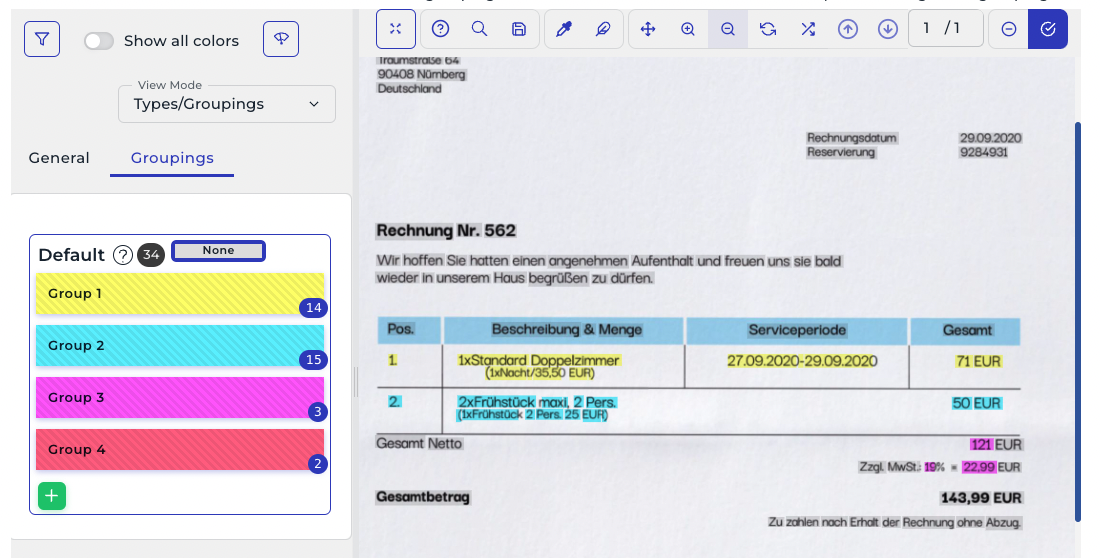
Use the green plus button to create additional groupings or remove a grouping suggested by the AI.
Here is a list of recommended invoice groupings:
IBAN & BIC: On invoices with multiple accounts, group each IBAN with its corresponding BIC to keep payment details together.
Discount: Group all discount-related data (e.g., rate, amount, deadline).
Line items: Group each item/service line separately.
Numbers: Group related numeric values (tax rate, tax amount, net amount, total).
Commercial register: Group the register number with the corresponding city/court.
OCR
Optical Character Recognition (OCR) allows the AI to read the content of the invoices. In this section, it is possible to:
Adjust the size of the text boxes
Add new text boxes
Delete existing text boxes
After completing all three steps, save the document and proceed with annotating the next document