In DocuWare IDP, annotation is the process of marking and categorizing document content to turn raw data, which means unprocessed data, into structured information. This enables the platform’s AI to identify patterns and relationships within documents.
This article provides guidance for annotating challenging document content in DocuWare IDP, for example, covering complete versus partial dates, checkbox-to-text associations, multi-level hierarchies, and more. It clarifies when to use Date or Free Text, Lists, Combined fields, and grouping so the trained model captures the intended data reliably.
Annotation takes place in the DocuWare IDP platform, where users mark and categorize data within documents during the preparation of a model for AI extraction.
Article scope
This article covers the DocuWare IDP platform and its features. DocuWare configurations are not covered here.
Extracting dates
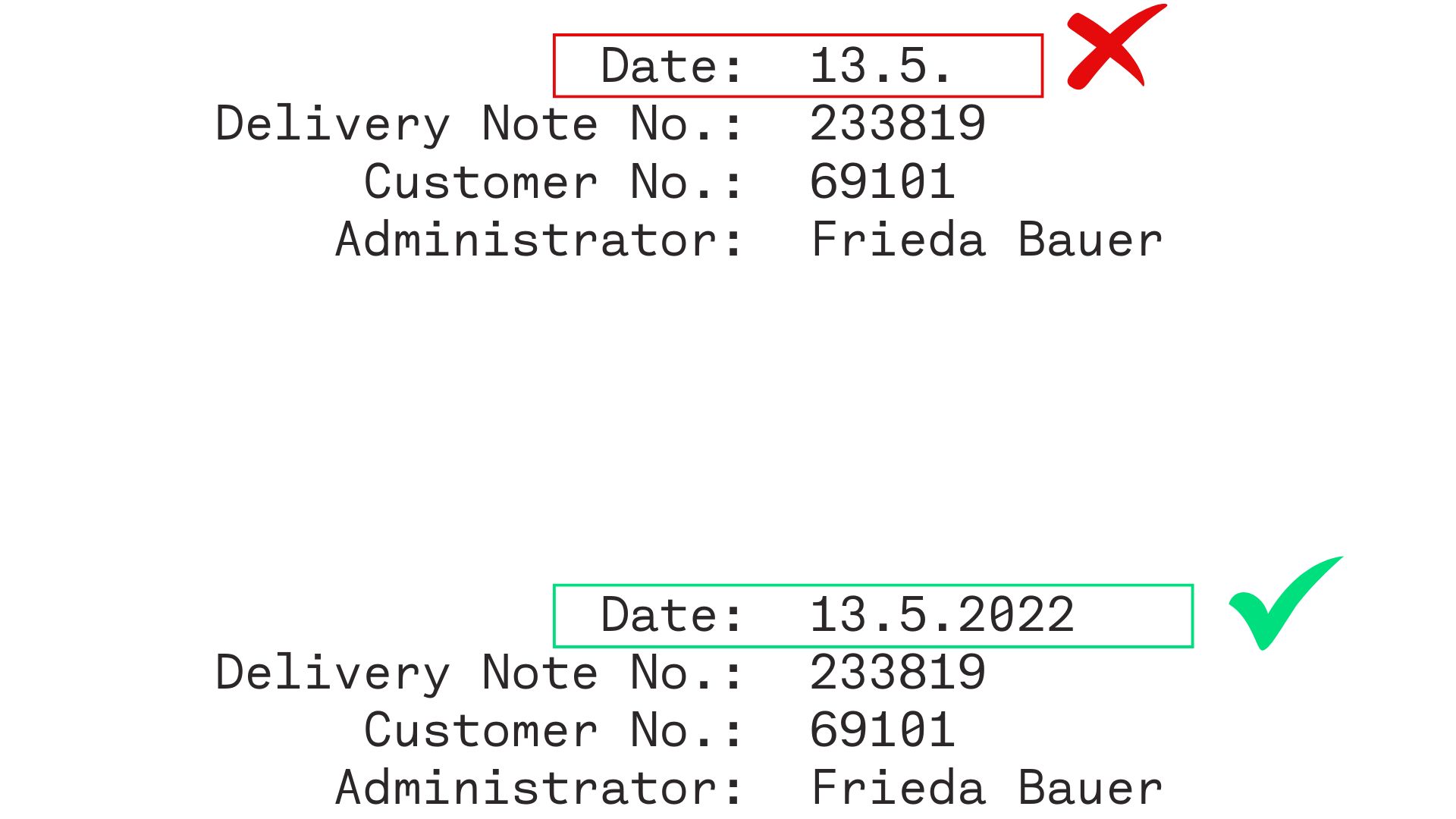
When extracting dates from documents, capture complete dates - including day, month, and year or use a Free Text field.
Challenge
Partial dates (e.g., March 2024) cannot be processed using the standard Date field because it requires complete dates.
Solution
Partial or unconventional date formats must be captured using the Free Text field and processed on system level.
How-to
Use the Date field exclusively for complete dates (day, month, year).
For partial dates or unconventional formats, use the Free Text field and handle parsing externally.
Maintain consistent date formatting across documents to support accurate IDP workflow learning and extraction.
Extracting calendar weeks
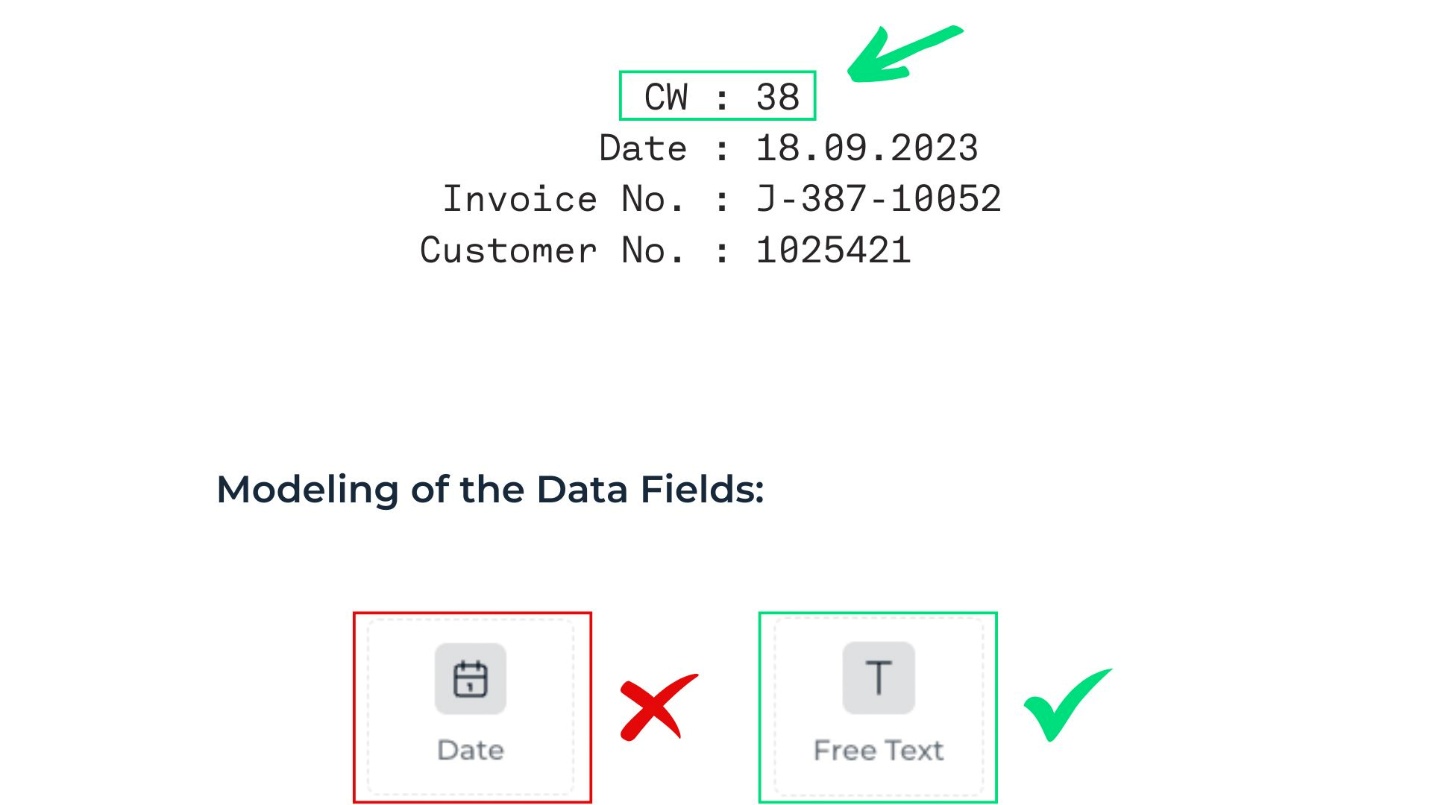
In some documents, time periods are not provided as full dates but as calendar weeks (e.g., Week 12).
Challenge
Calendar weeks (e.g., Week 12) cannot be extracted using a dedicated field.
Solution
While a dedicated calendar weeks data field is unavailable, the Free Text field can capture this data.
 How-to
Use the Free Text field to capture calendar week information.
Annotate the calendar week in the relevant documents.
Process the extracted data in your system as needed.
Extracting checkboxes
Extract checkboxes along with their associated text.
Challenge
The association between checkboxes and their corresponding text is often unclear, leading to incorrect or incomplete extraction.
Solution
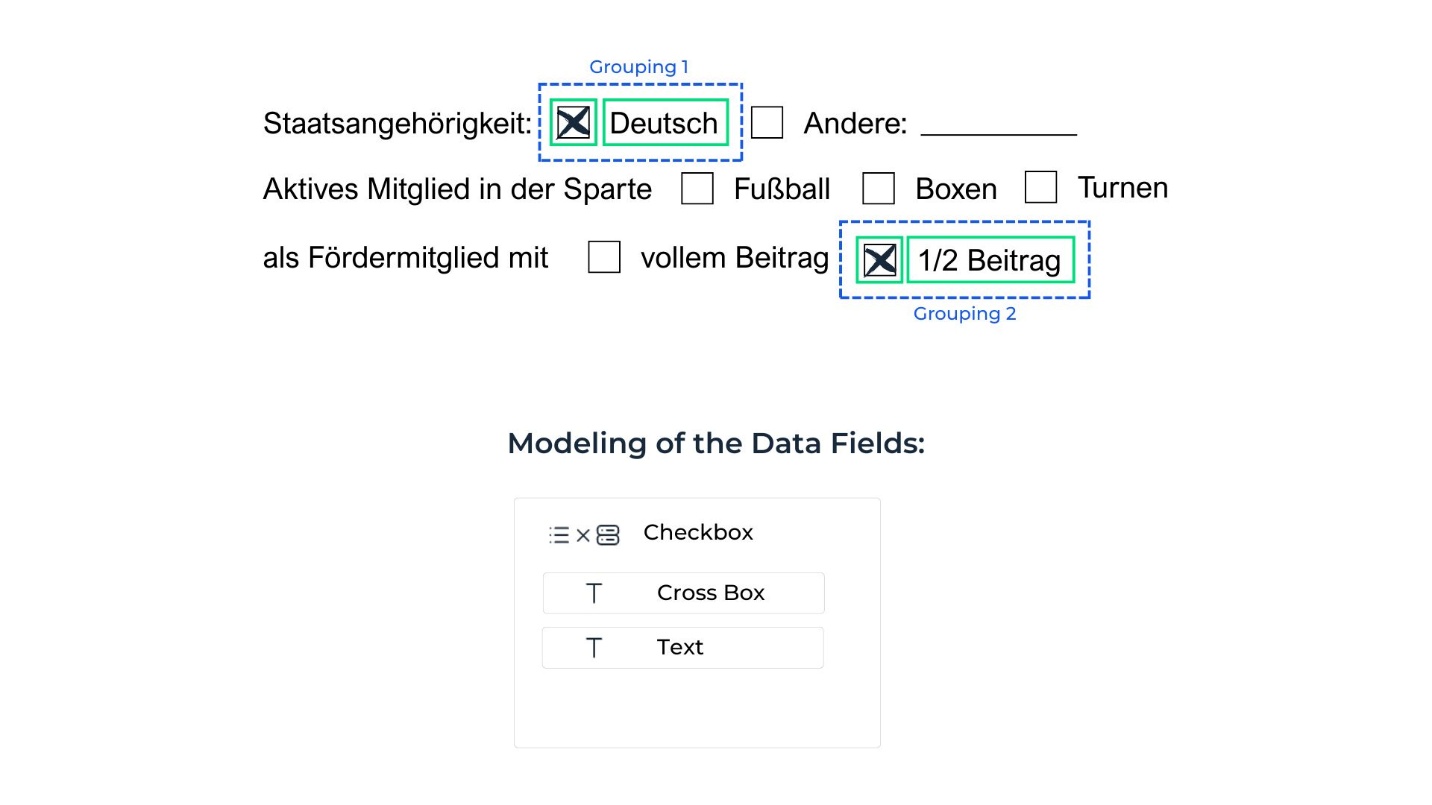
Checkboxes need to be annotated in combination with the text they relate to for accurate extraction.
How-to
Create a combined field consisting of two elements.
Annotate both the checkbox and the corresponding text. Only annotate checkboxes that are selected.
Group each checkbox-text pair to train the AI on their relationship.
Note: Only selected checkboxes should be annotated to ensure accurate extraction.
Modeling multiple hierarchy levels
In many documents, information is organized in multiple nested levels that need to be captured accurately.
Challenge
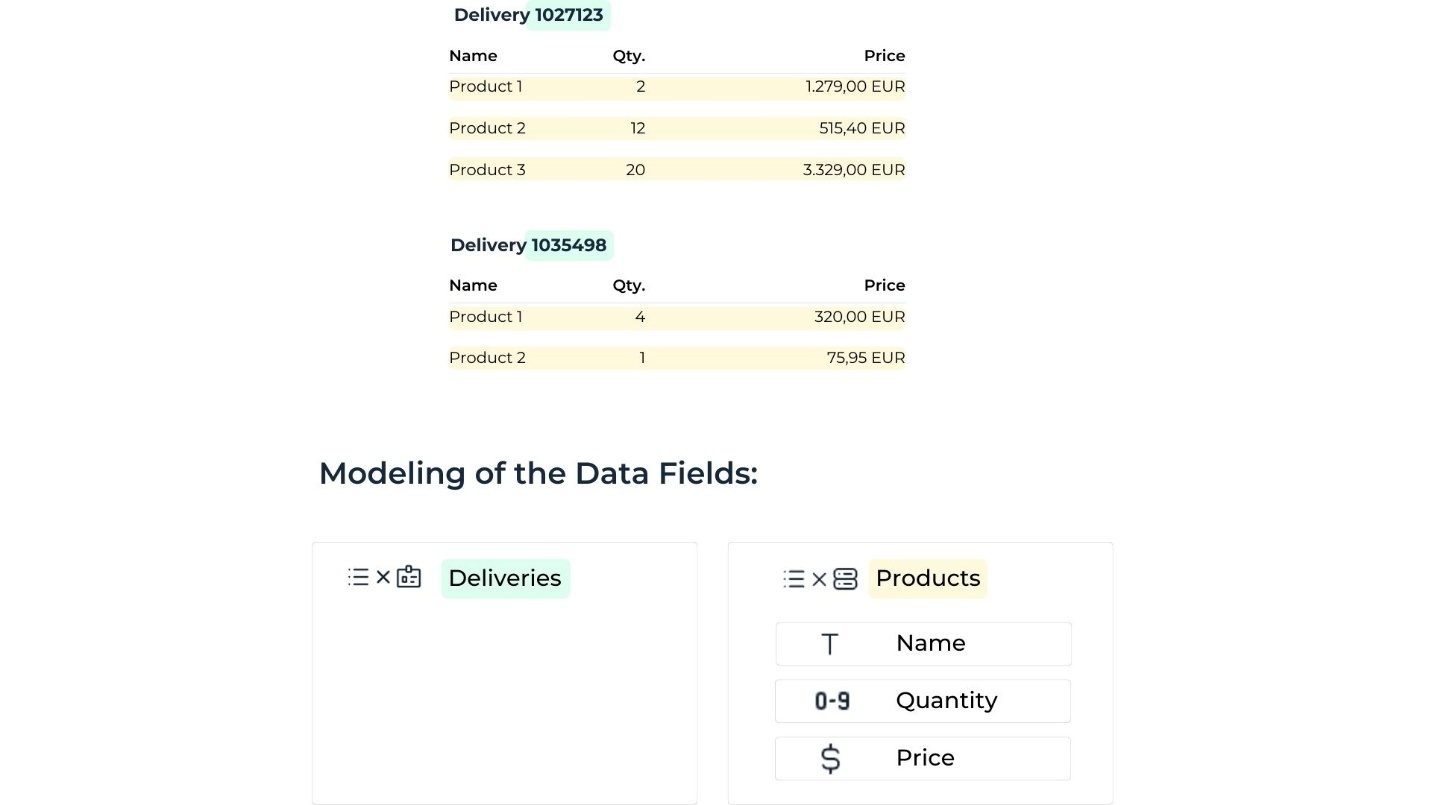
There may be several hierarchical levels, for example, invoices with multiple deliveries and associated products.
Solution
Lists provide a structured way to represent hierarchical data.
How-to
Create separate lists for each hierarchy level. Example:
List 1: Deliveries
List 2: Products
Annotate each data element within its respective list.
If needed, merge the lists externally using document coordinates or system logic.
Hint: Clearly define the relationships between hierarchy levels to ensure accurate and consistent data extraction.
Handling excessive space between words
Some documents display words with unusually large or inconsistent spacing.
Challenge
Excessive spacing between words may cause the AI to select only one word, even when all words should be extracted from the field.
Solution
Create a combined data field containing a text element to group all words that belong together in a single field.
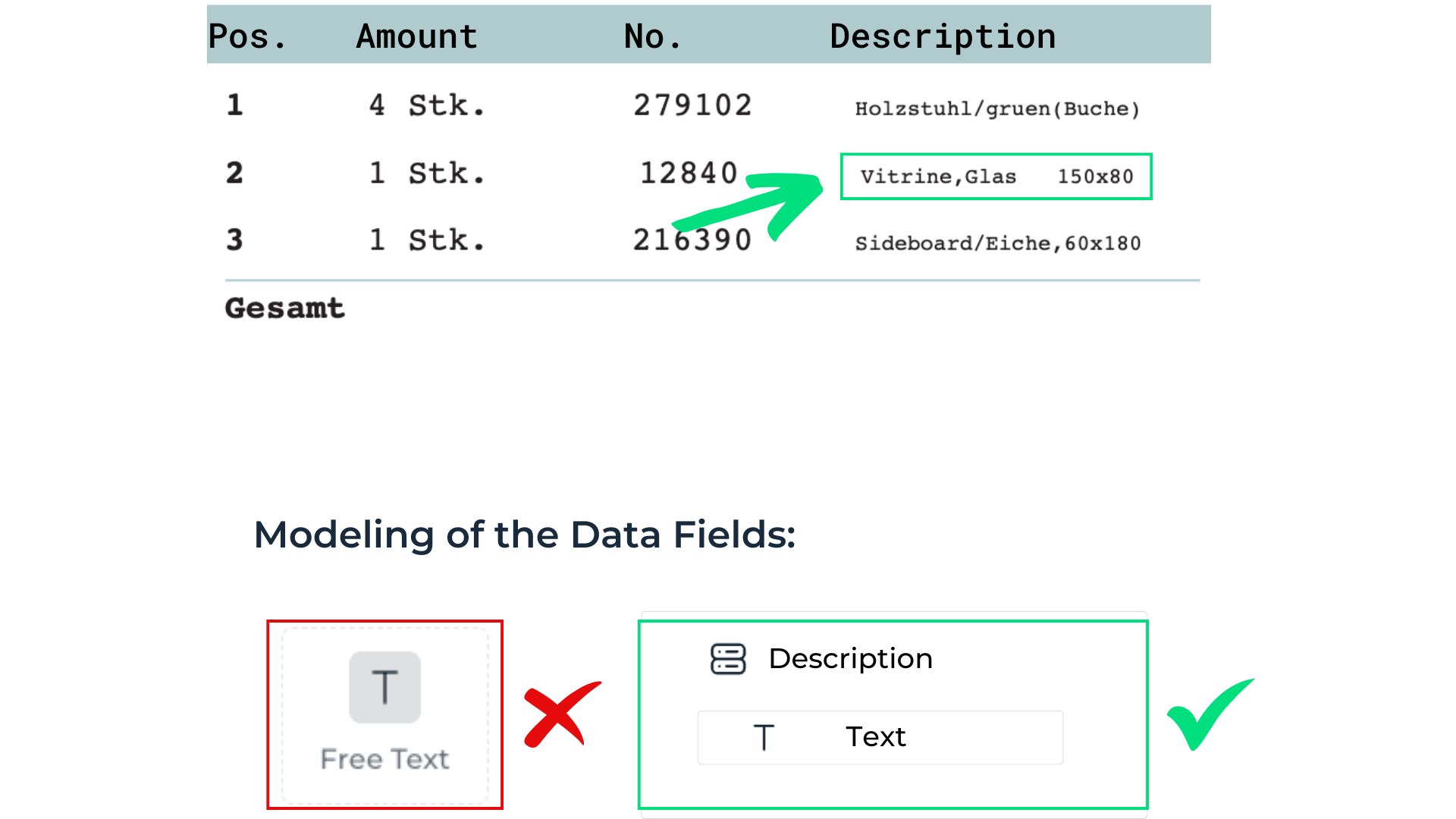
How-to
Select Add new extraction field.
Choose Combined as the field type.
Add a Free Text element to the combined field.
Annotating repeated data fields
A data field occurs multiple times in each document.
Challenge
Inconsistent selection can cause the AI to extract different values for the same field.
Solution
Annotate a single occurrence of the field to ensure consistent extraction across documents:
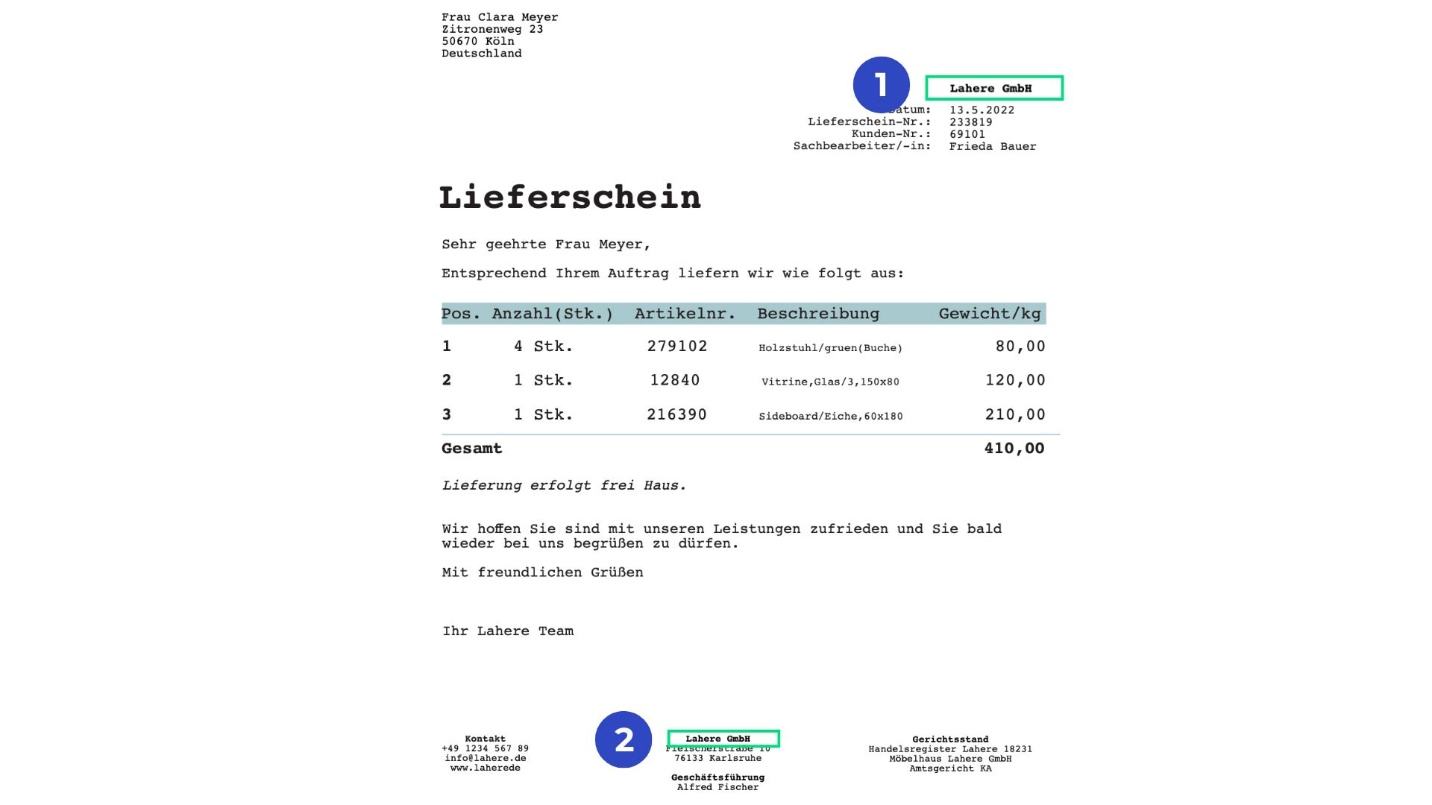
How-to
Select one instance of the repeated field for annotation.
To capture multiple occurrences, create separate fields (e.g., Vendor Name and Imprint Name).
Hint: Always annotate the same instance across documents to improve AI consistency.
Annotating fields with variable occurrences
A field appears in varying locations or inconsistently across documents.
Challenge
This can make it difficult for the AI to capture all relevant instances reliably.
Solution
Use lists to systematically annotate all occurrences of the field:
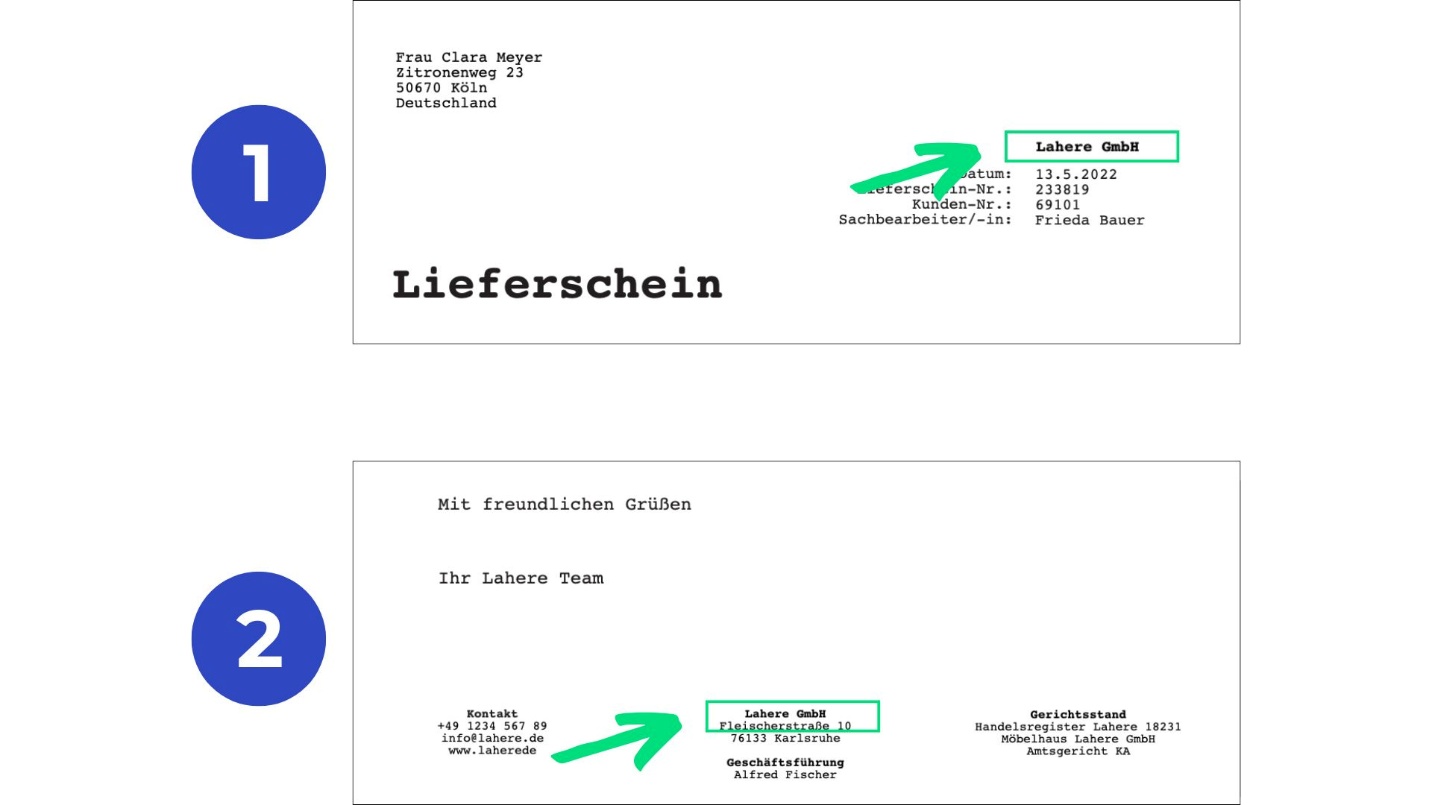
How-to
Create a list of text fields.
Annotate each occurrence within the list and group them accordingly.
The list collects all relevant instances to ensure consistent extraction results.
Assigning table rows to categories
Rows within a table can be assigned to different categories for structured extraction.
Challenge
Without proper organization, the AI may fail to extract structured data accurately.
Solution
Using separate lists enables the categorization of individual table rows:
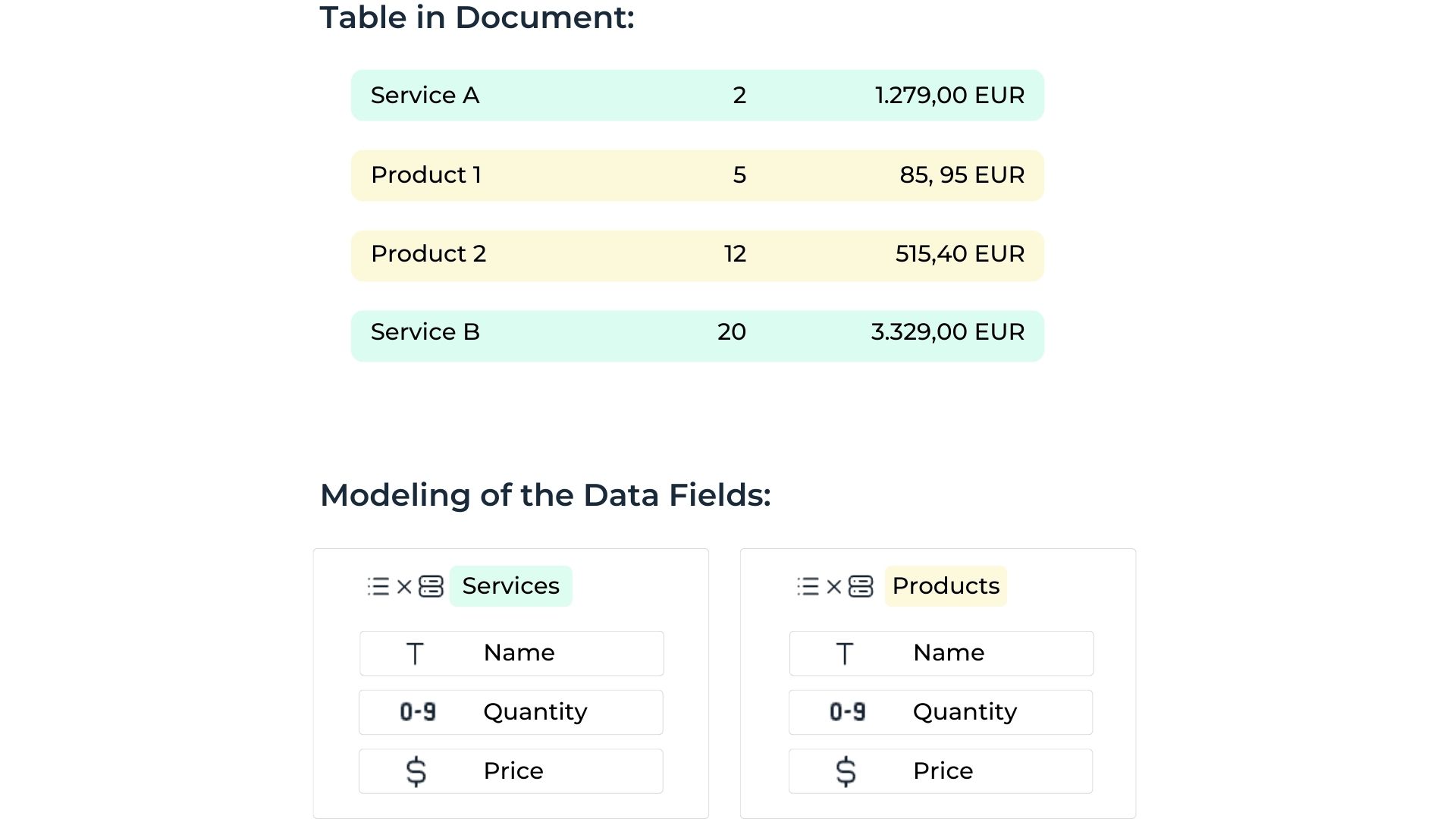 How-to
Create a separate list for each table row that requires categorization.
Annotate the data fields of each row within its corresponding list.
Include any shared fields (e.g., Price) in each list as necessary.
Annotating a file containing multiple documents
Documents that include multiple individual files, with only certain sections requiring annotation.
Challenge
Some documents may be identical.
Solution
Divide the documents for easier processing, or mark sections that do not require annotation as None:
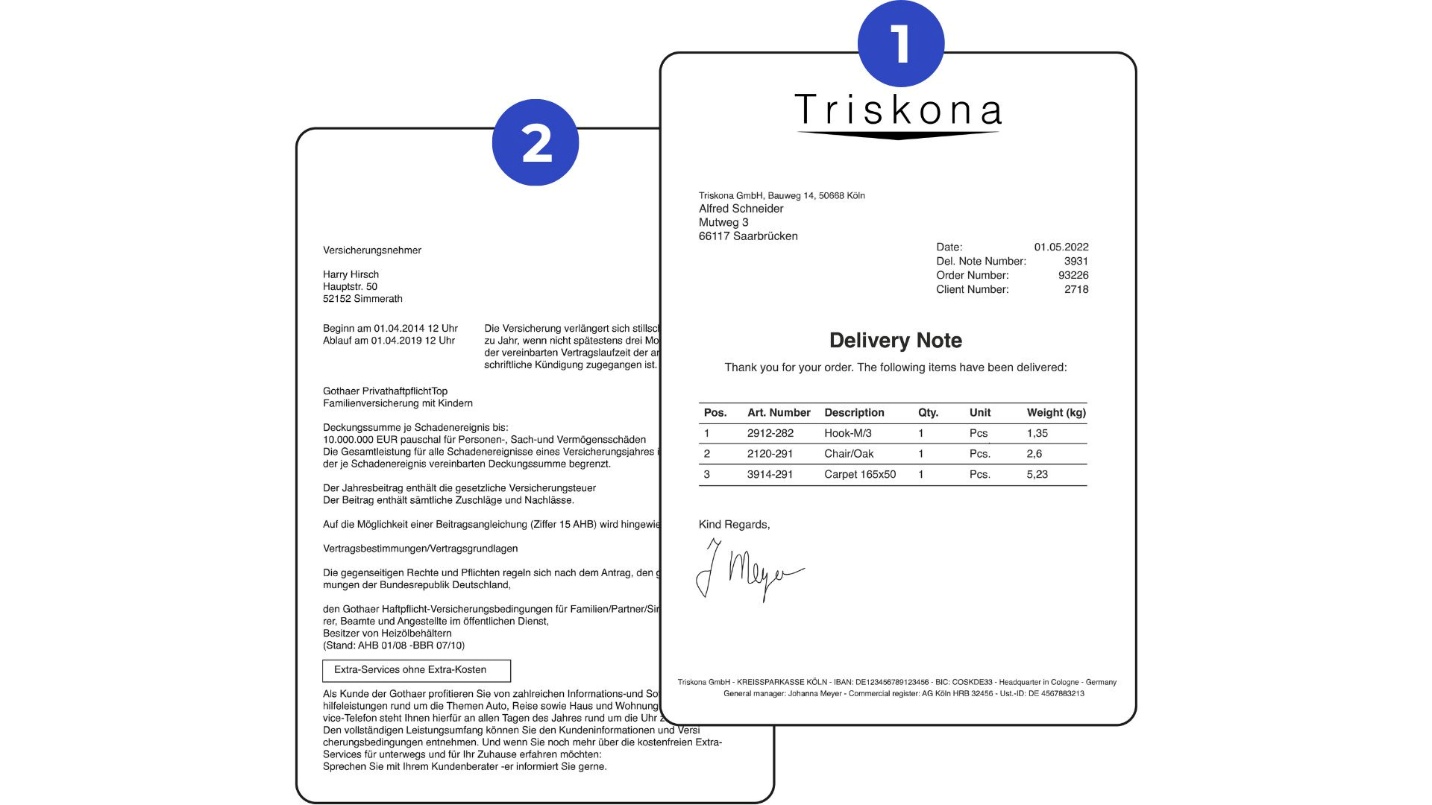
How-to
Use the IDP Splitting Workflow to separate documents in mixed-document files.
If splitting is not required, mark irrelevant pages with None so they are ignored during annotation.
Hint: For files containing identical documents (e.g., multiple invoices), annotate each document individually to ensure accurate extraction./
Best practices
Maintain consistency: Annotate the same fields in a uniform manner across documents to support accurate AI learning.
Apply Lists when needed: Lists offer flexibility and organization when field locations vary.
Review annotations regularly: Check annotations to ensure they align with the desired output.
Refine through iteration: Update annotations as the AI is trained to handle edge cases or inconsistencies.