DocuWare IDP’s custom splitting enables you to create AI-based splitting rules tailored to specific requirements, while generic splitting simplifies this process by automatically splitting large PDF documents into logically separated documents. Custom splitting is particularly useful when the preparation of page separations or barcodes is required.
With custom splitting, the model learns from commented documents to accurately and efficiently separate bulk document streams into individual files. This splitting workflow can be configured to handle different document types and varying levels of complexity within a document stream.
The following sections describe how to train a custom splitting model with DocuWare IDP, define splitting rules, and validate the results to ensure precise and reliable document separation.
Article scope
This article covers the DocuWare IDP platform and its features. DocuWare configurations are not covered here.
Getting started
Log in to your account on IDP platform and go to the IDP Workflow Overview section.
Click the Train Your Own Model Now button.
.png)
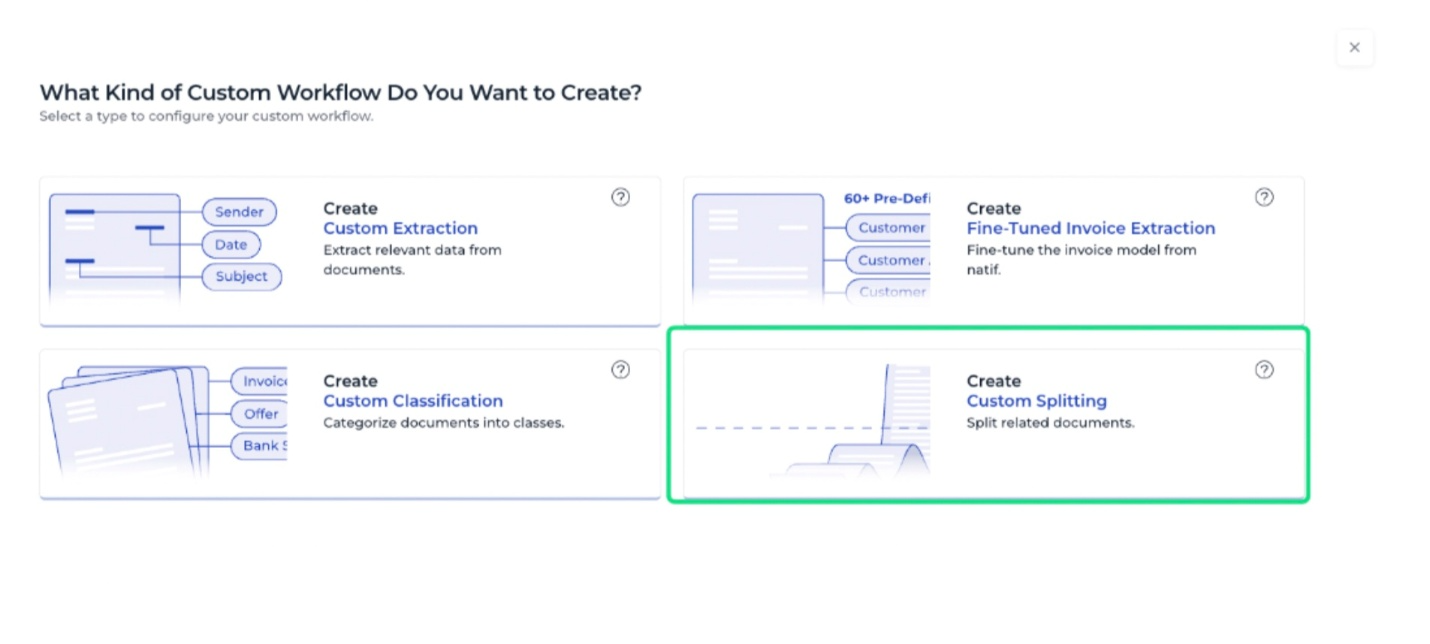
3. All available DocuWare IDP custom AI workflows are listed on this page. For creating a splitting model, select Create Custom Splitting:
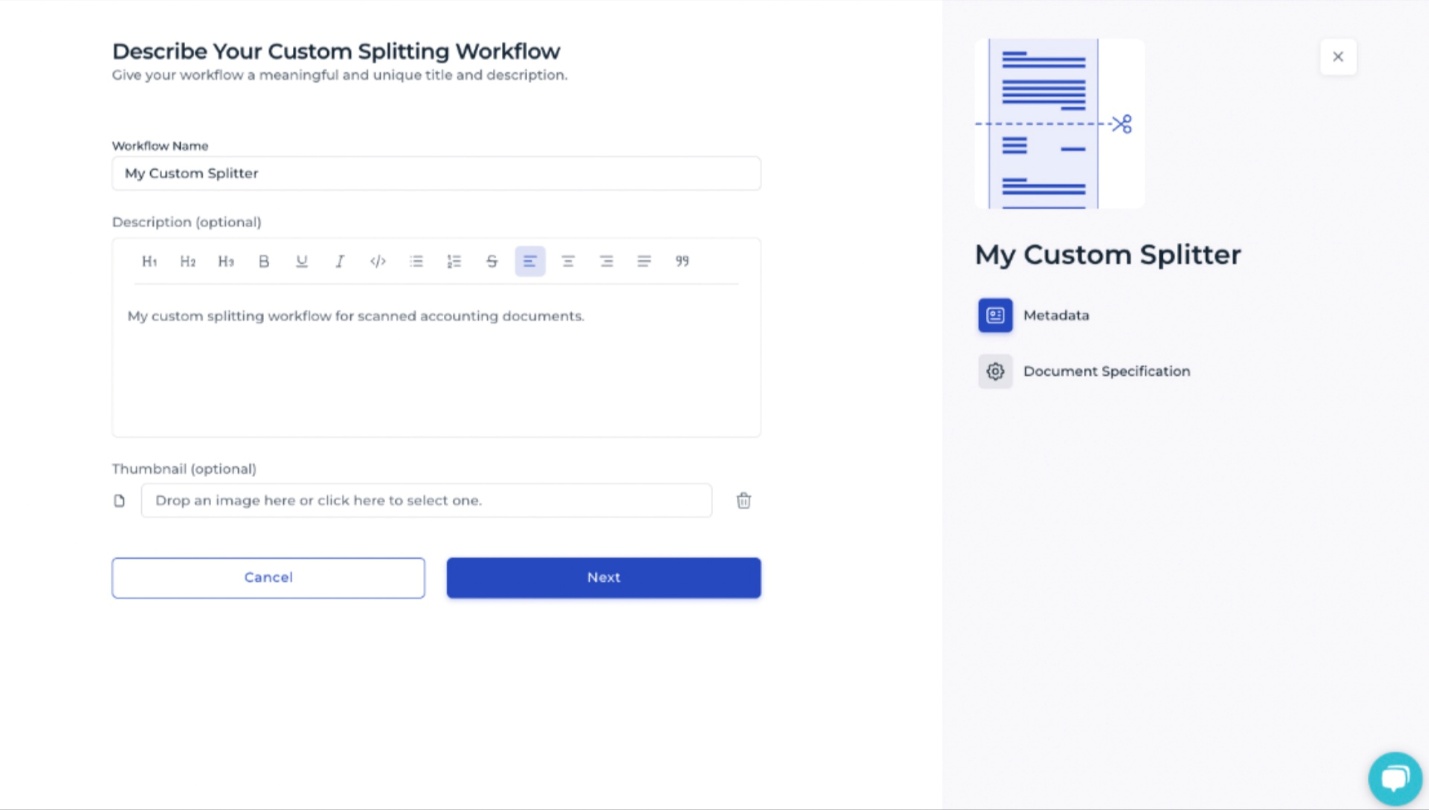
4. Provide a name and a short description of the model. An optional image can be added. These details help distinguish this classification model from others in your IDP platform account.
Specifying documents characteristics
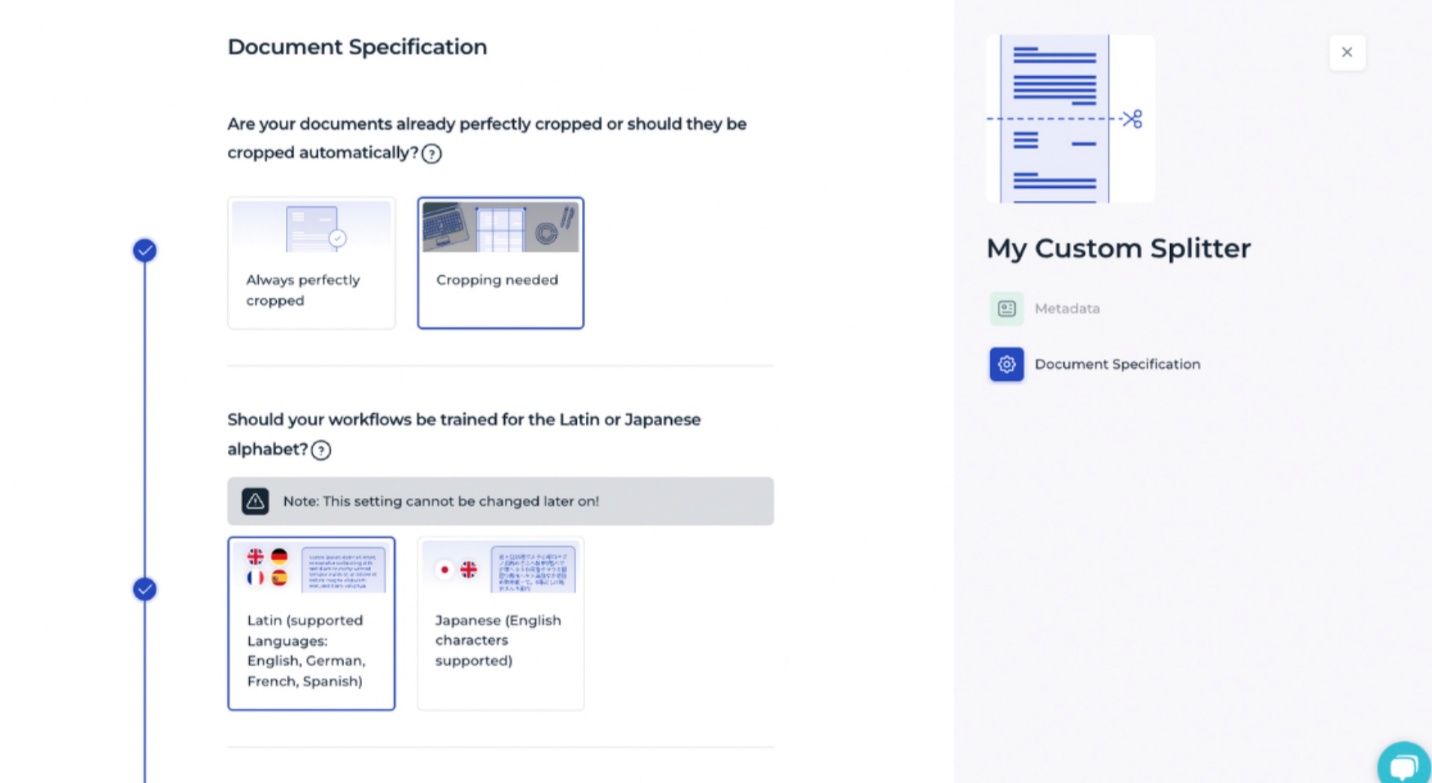
The next step is to provide information about the documents so the AI can understand the tasks required. Supplying these details also improves the accuracy of the outcomes of the splitting workflow when it is applied in your live system to split documents.
For custom splitting, the following information is typically needed:
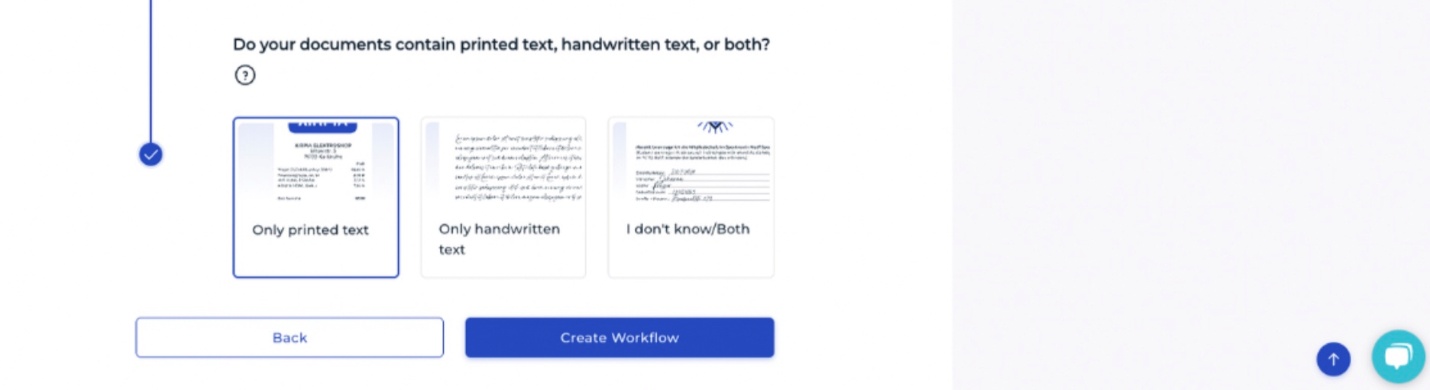
Are the documents already properly cropped, or should cropping be performed as part of the splitting process?
Is the document text in the Latin or Japanese alphabet?
Is the text printed, handwritten, or can it be both?
After you define the documents characteristics and select Create Workflow, the creation of the model is completed.
Uploading training data
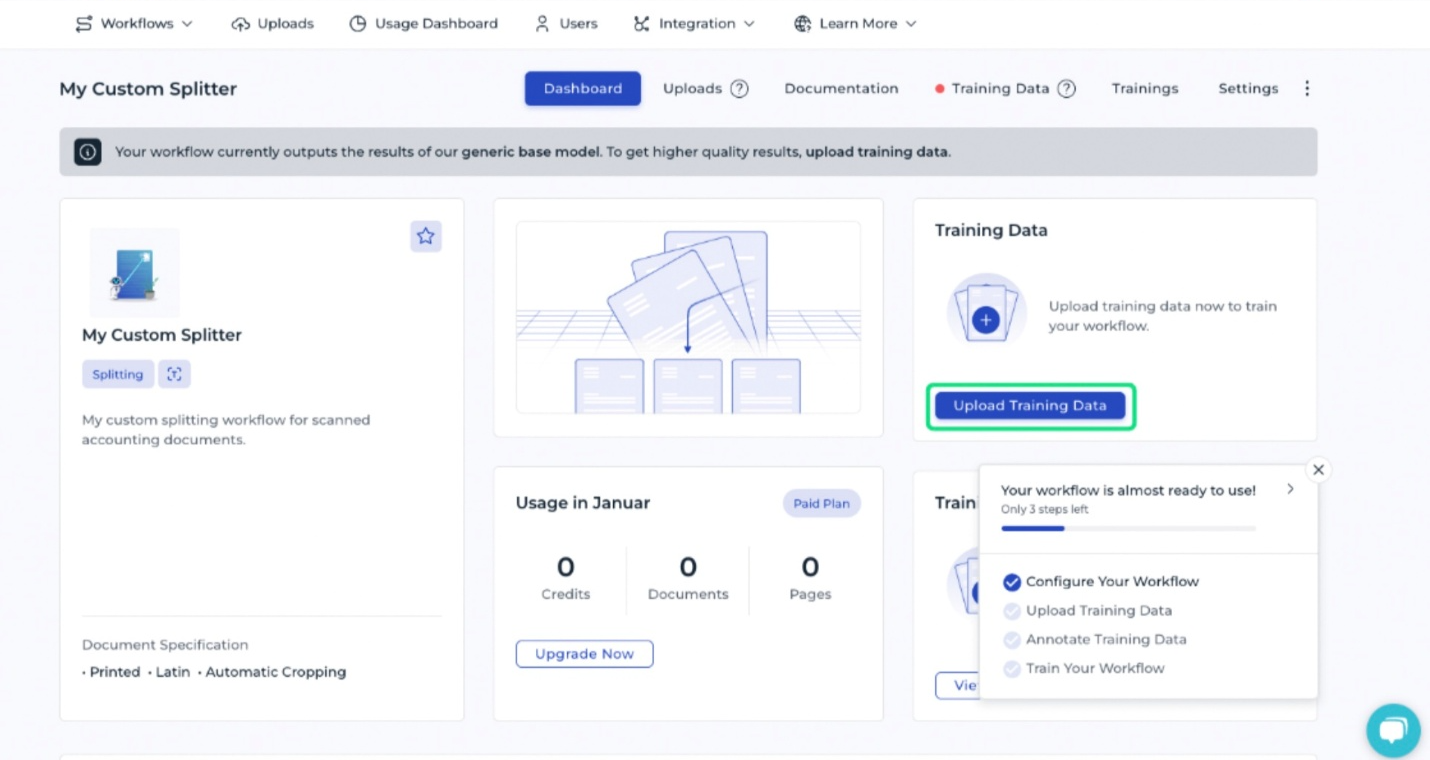
As soon as you create the splitting model, you can test it on existing documents. However, the results may be limited due to its generic knowledge. For documents with unique characteristics, additional training is required.
To provide training data, select Upload Training Data.
Organizing training data
The documents can be assigned to a collection to organize your training, such as all salary statements or accounting documents. This helps you to annotate your documents more consistently as you can annotate collection by collection. Here you can choose whether to upload the documents in a split form or merged together.
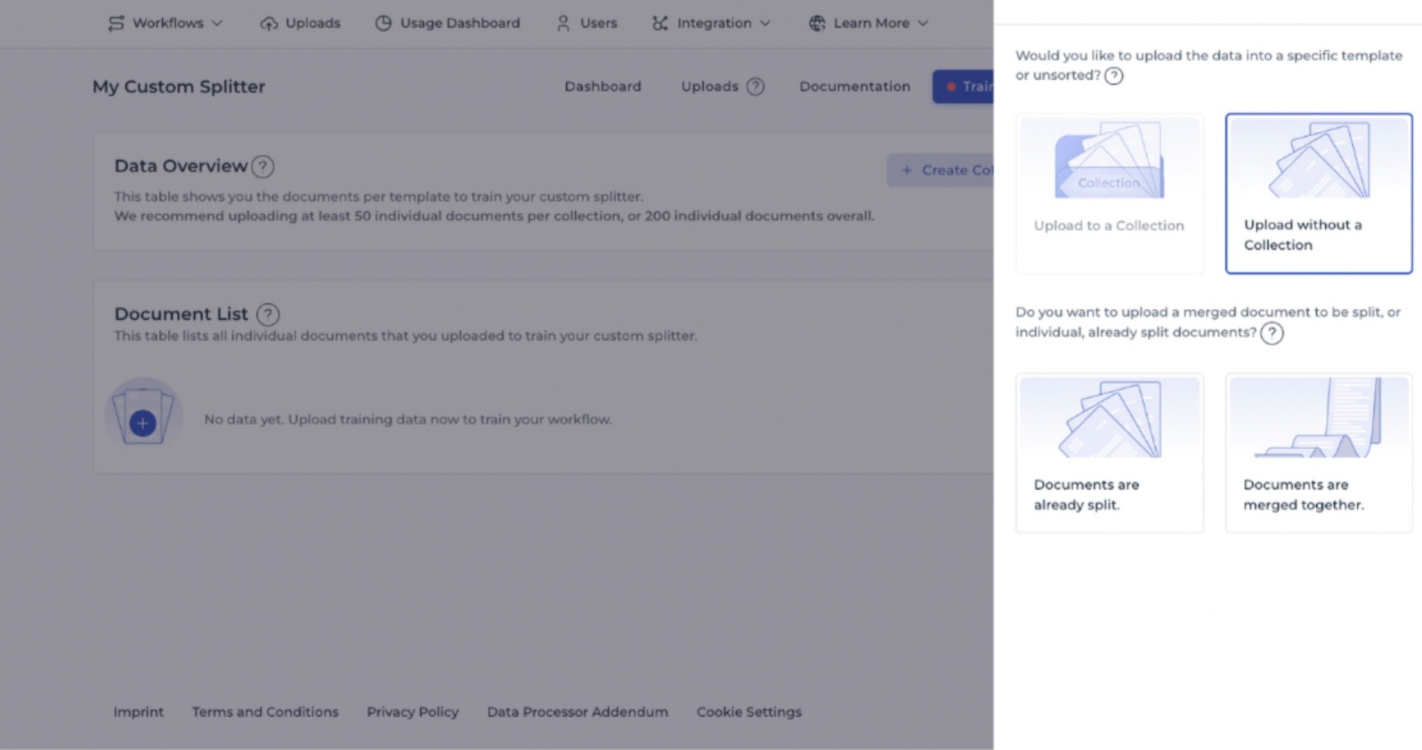
It is recommended to upload a minimum of 200 individual documents in total, or 50 per collection. Select documents that closely resemble the types of documents the model will process later, as this ensures the IDP workflow can learn effectively and achieve high accuracy.
If documents are uploaded already split (one document per file), annotation is not required because the document boundaries are already defined.
If documents are uploaded as merged files containing multiple documents, annotation is required to mark where each document starts.
Annotating training documents
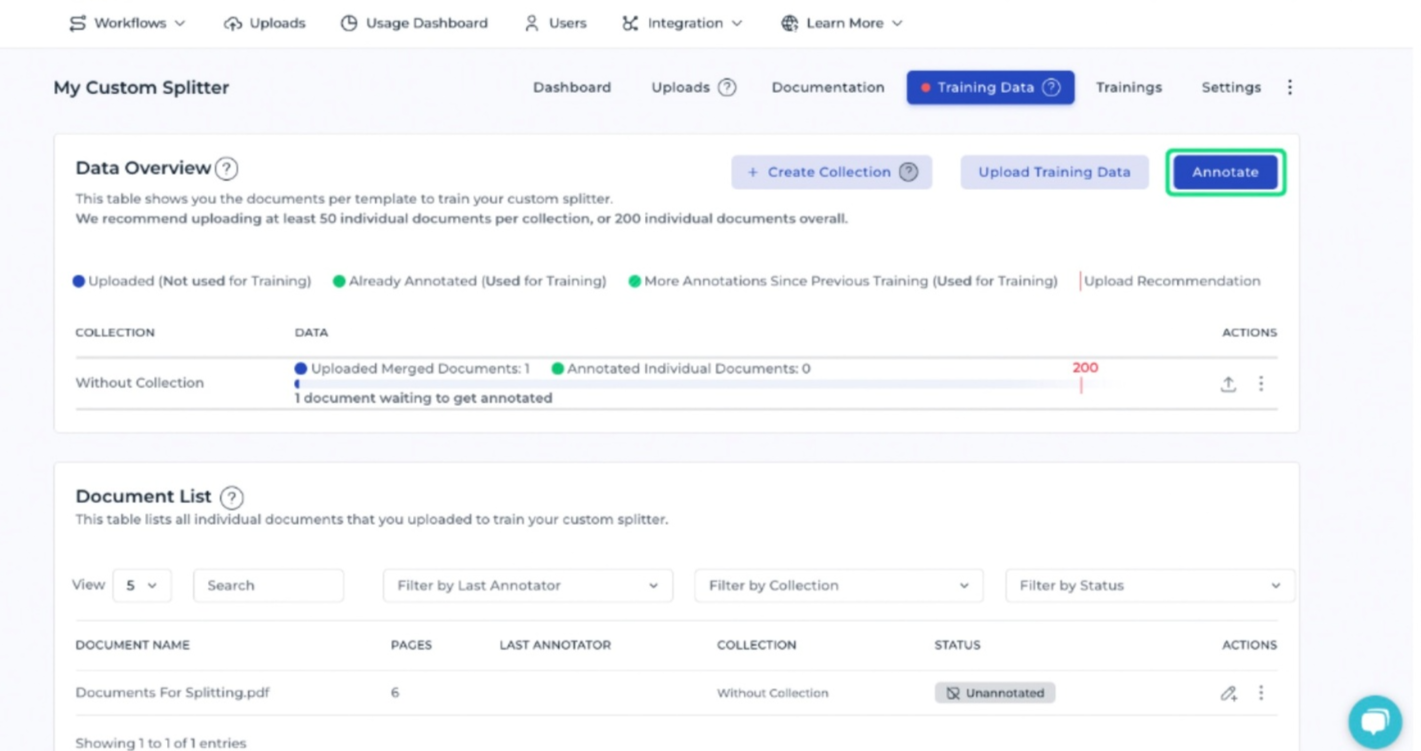
By annotating documents, the AI learns to recognize and interpret each data field. The quality of the model depends directly on the quality of this annotation process.
When annotating merged documents, the uploaded files are displayed with the split points calculated by the generic model, which separate the documents from each other. If the model is incorrect, the documents can be easily split or merged using the buttons on the left. These corrections are used as training data when the training process starts, allowing the model to learn the correct split positions.
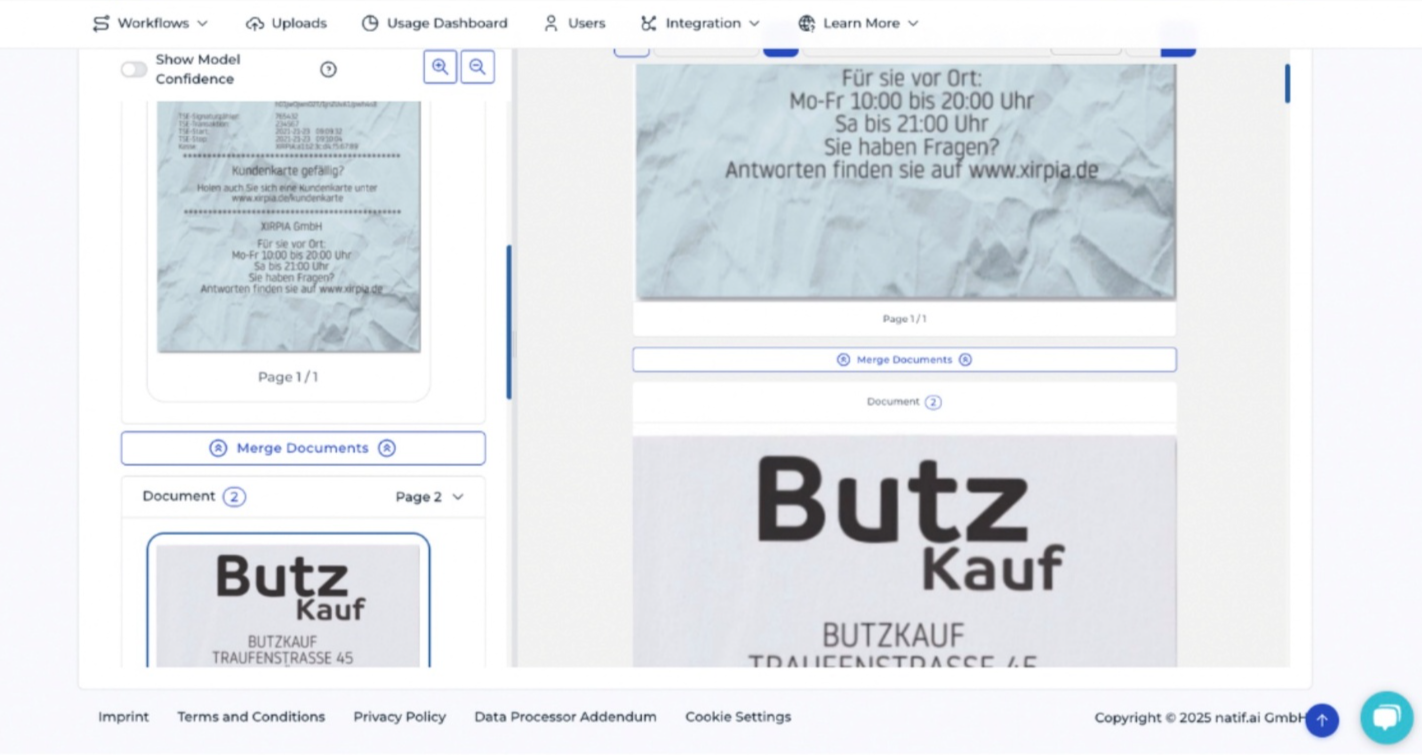
Repeat the annotation process for each uploaded document to ensure that all training data is correctly prepared for the model.
Read more about annotating in DocuWare IDP.
Starting the AI training process
After all documents have been annotated, you can initiate the training process. The IDP workflow will learn how to process the documents based on the provided annotations.
A notification email is sent upon completion of the training, which typically occurs within 24 hours.
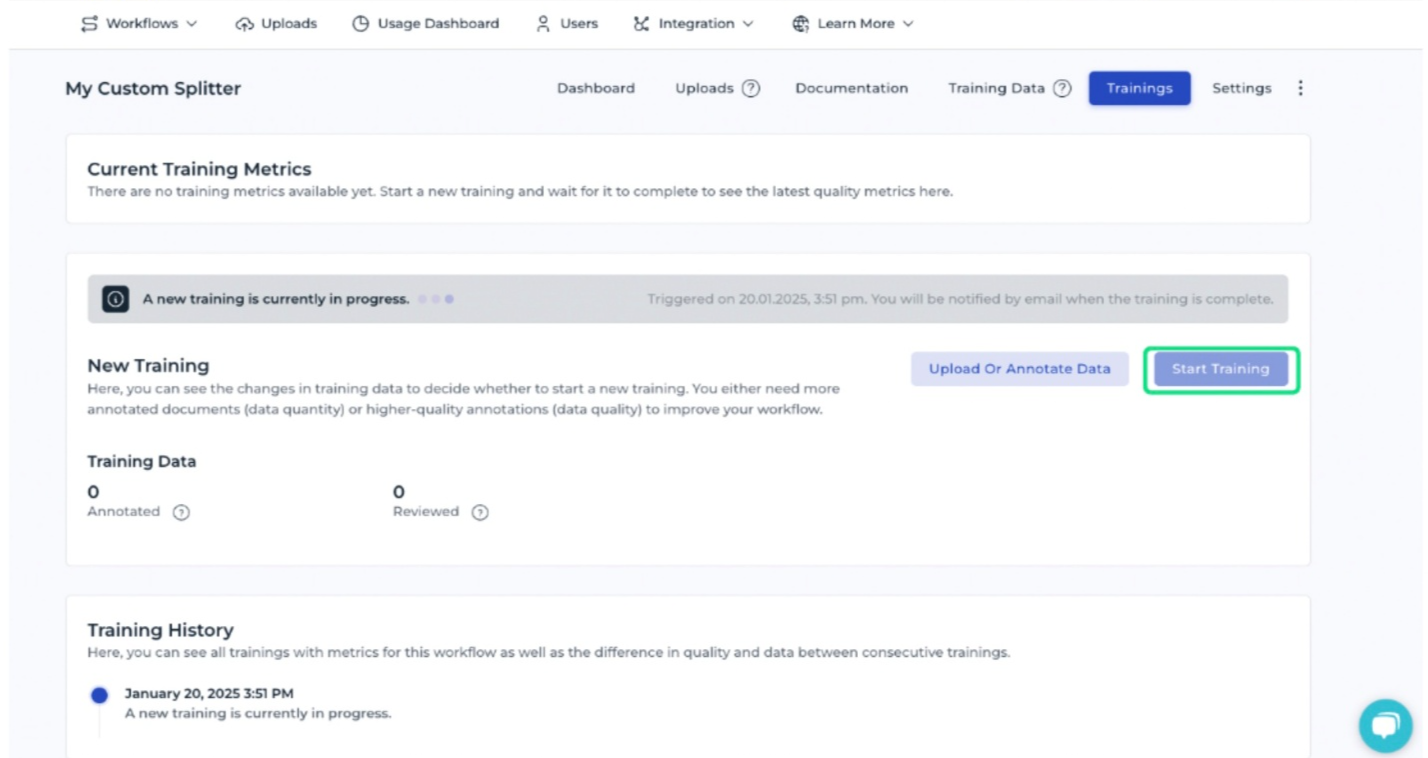
After training, the extraction model is ready to be used within your IDP workflow.
Integrating the DocuWare IDP classification API
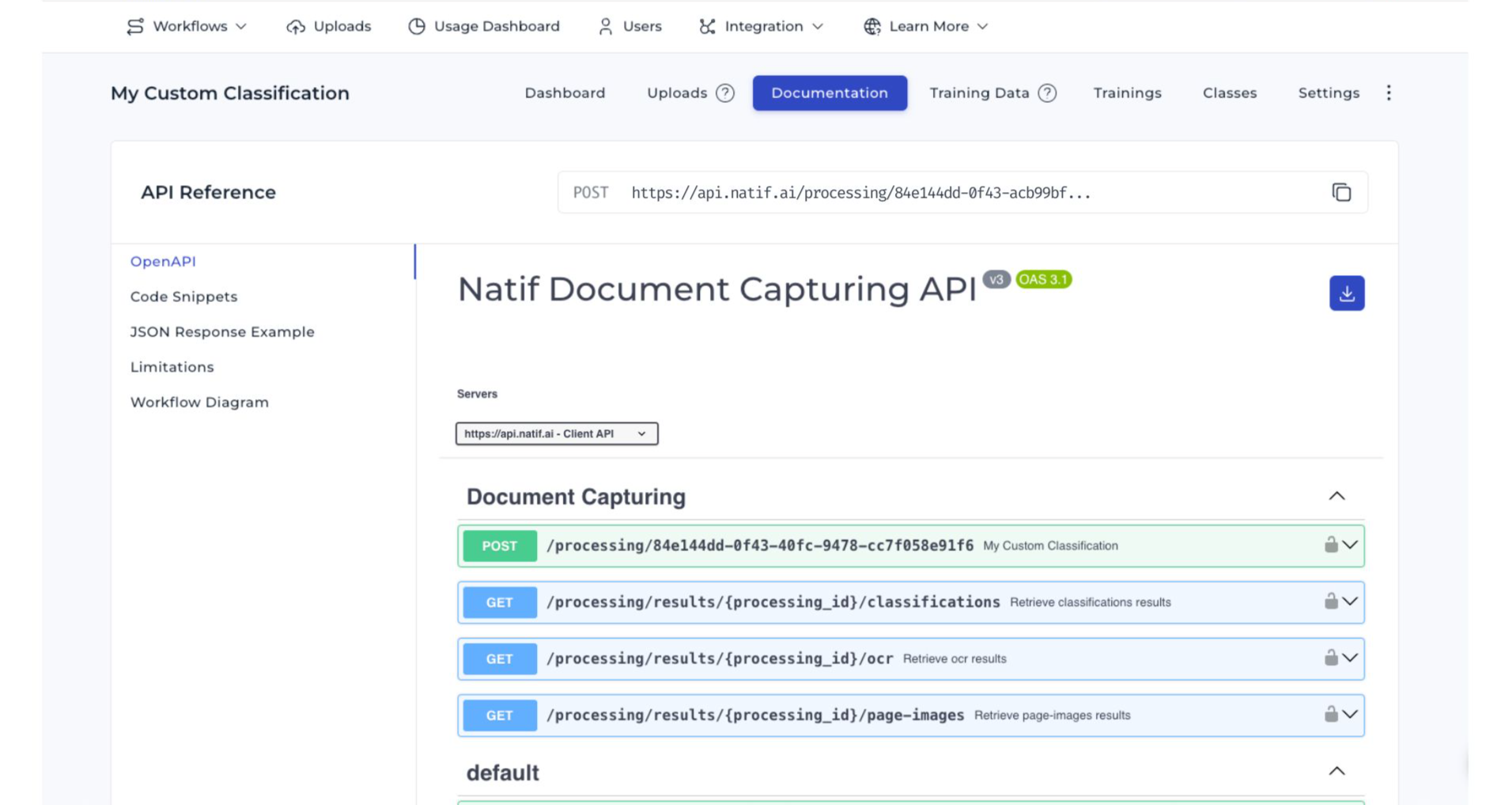
You can integrate the DocuWare IDP splitting API at any time. Detailed information, including code examples and JSON response formats, is provided in the Documentation section of the IDP site - see the screenshot below.
The API is updated automatically once training is finished. Training metrics provide information about the accuracy and performance of the DocuWare IDP AI workflow.