Use grouping to express relationships between data fields during annotation in DocuWare IDP. Grouping captures how values belong together, so the model preserves context within each document. DocuWare IDP extracts content into model-defined data fields; in the annotation, relevant content is boxed and mapped to these fields to create training examples.
For invoices, grouping is critical—for example, tying item descriptions to quantities, unit prices, and line totals—to enable structured extraction and consistent results across layouts.
Assign repeated or common field types to the appropriate groups to maintain consistency and accuracy.
Article scope
This article covers the DocuWare IDP platform and its features. DocuWare configurations are not covered here.
Getting started
Follow the steps to create your own Extraction Workflow as described in the Custom Extraction tutorial. The grouping is only possible when the data field definition is available.
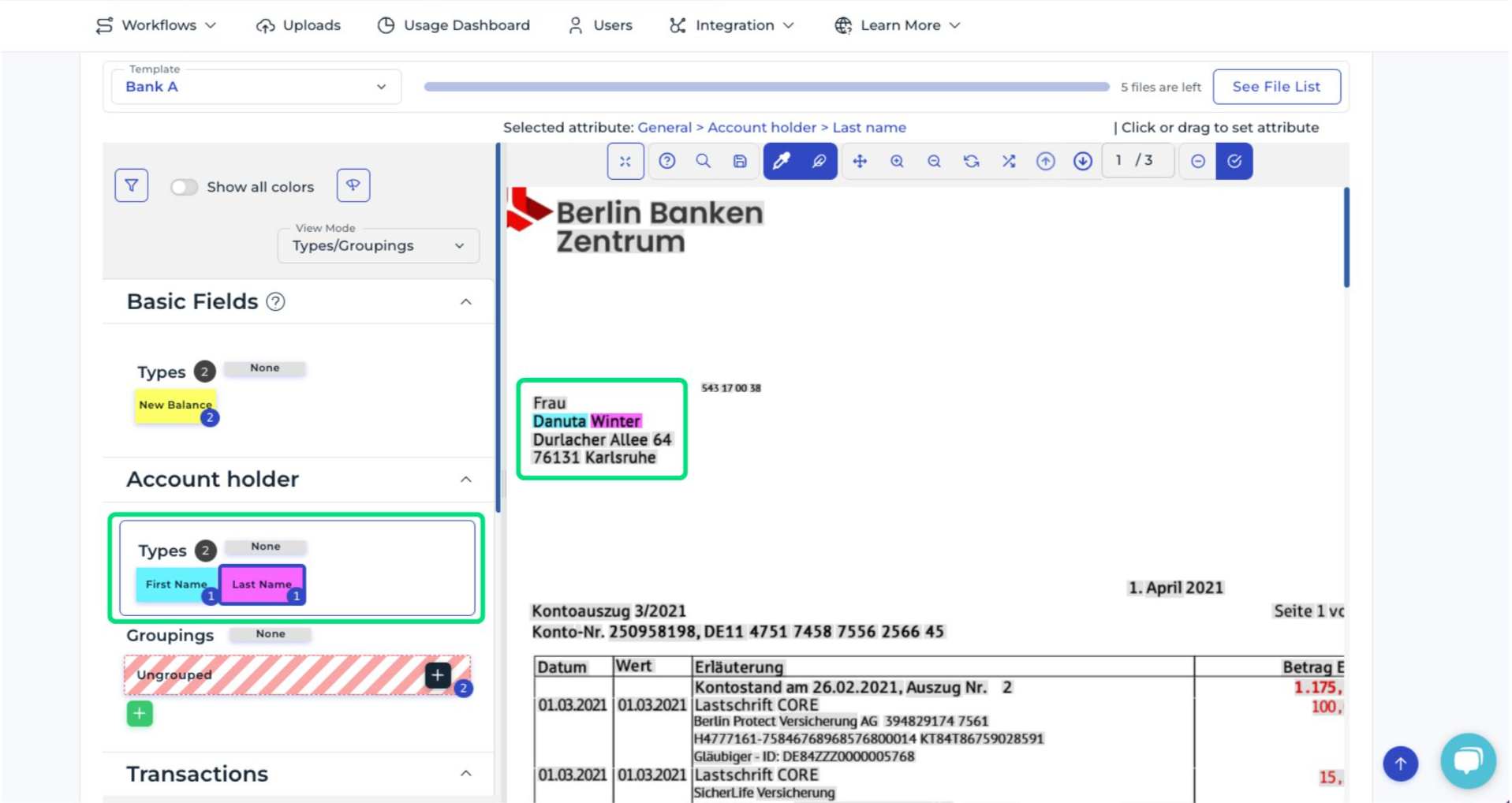
Once you reach the annotation step, you have the option to assign your previously defined data fields from the IDP workflow setup to the fields in the document. To do this, select a data field from the list and then click on the corresponding text in the document. The color coding shows which fields are linked to which text boxes.
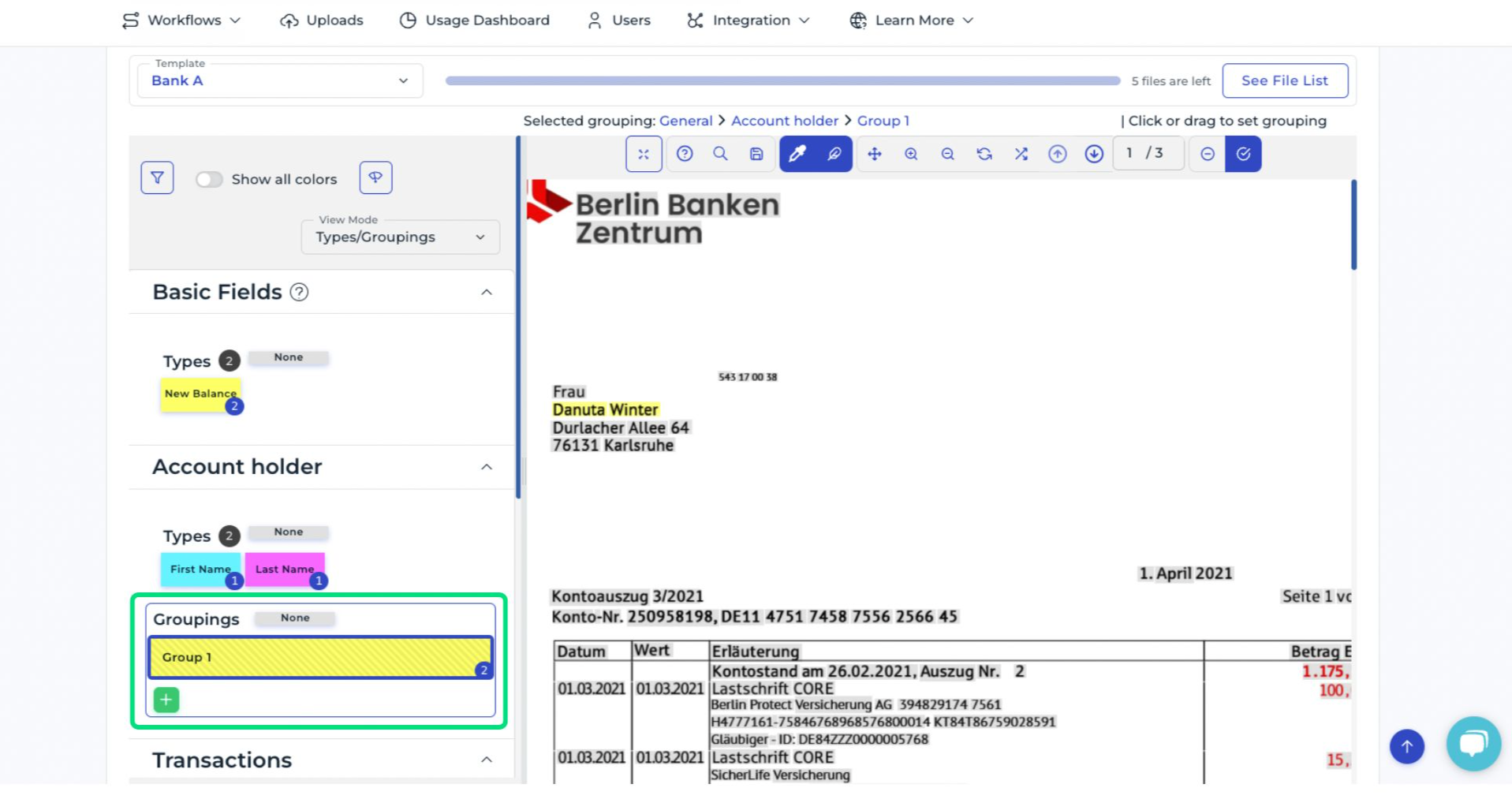
Data fields that belong together – for example, the account holder shown in the screenshot – must be grouped. Click the black button with the plus sign under Groupings, and the fields will automatically be highlighted in the same color afterwards.
There are many other ways to use grouping. The examples below show recommended groupings.
Line item data fields
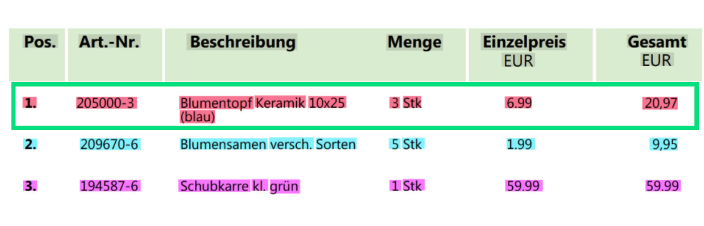
Group all line item data fields per row to preserve row-level context and prevent values from different items being mixed. Typically, group these data fields together:
Item Number
Item Description
Quantity
Unit Price
Total Price
Tax data fields
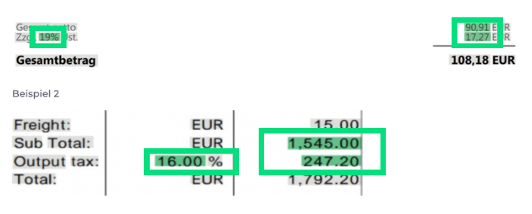
Group tax-related fields to capture their calculation relationships and avoid mismatching amounts from other sections. Typically, group Net Amount, Tax Rate, Tax Amount, so the model learns these values belong together and can extract them consistently.
Net Amount
Tax Rate
Tax Amount
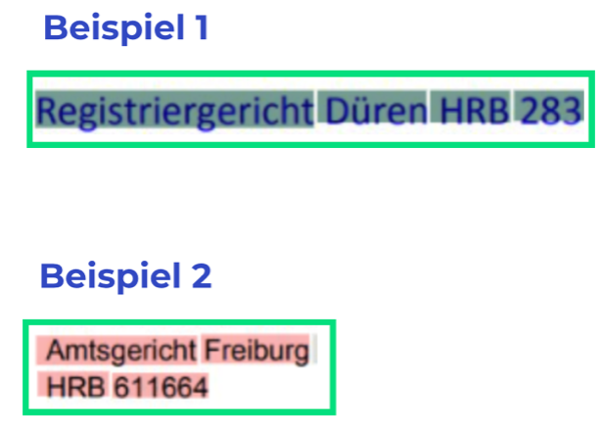
Commercial register details
Group commercial register fields to keep legal-entity identifiers together and avoid confusion with address or billing details. Typically, these fields together so the model treats them as one legal reference block.
Register ID
Competent Court
Place
Payment information
Group payment-related fields to keep terms and account details coherent and avoid mixing amounts from other sections.
These typically include:
Discount Rate
Discount Amount
Discount Period/Date

Bank details per account such as IBAN & BIC/SWIFT must also be grouped.
