Setting up DocuWare for Outlook on-premises

Prev Next

DocuWare for Outlook on-premises is an add-in that connects your local DocuWare installation with Microsoft Outlook.

To enable this integration, you begin by registering and configuring the Microsoft Entra app, followed by a series of setup processes to establish a secure connection between DocuWare and Outlook.

In sequence, configure the DocuWare server to conclude the preparation of your environment.

Once these steps are accomplished, users can easily file emails and attachments directly to their on-premises DocuWare trays or file cabinets, streamlining document management within their organization.

Prerequisites

  • A DocuWare Connect to Outlook license is required to access and use the add-in.

  • DocuWare setup was installed without any errors.

  • HTTPS Certificate is created and assigned to the website in IIS, so that the entire DocuWare is accessible via https://{{YOUR_DOMAIN}}/DocuWare

Make sure the call to https://{{YOUR_DOMAIN}}/DocuWare/Outlook succeeds

Limitations

  • Storing emails from a shared mailbox is not supported in the desktop (classic) version of Microsoft Outlook.

  • The in-app feedback feature is unavailable, as DocuWare for Outlook on-premises cannot connect to DocuWare Cloud to submit feedback.

Microsoft Entra OAuth app registration

Begin by creating an OAuth app registration in Microsoft Entra at  Microsoft Entra App. For example:
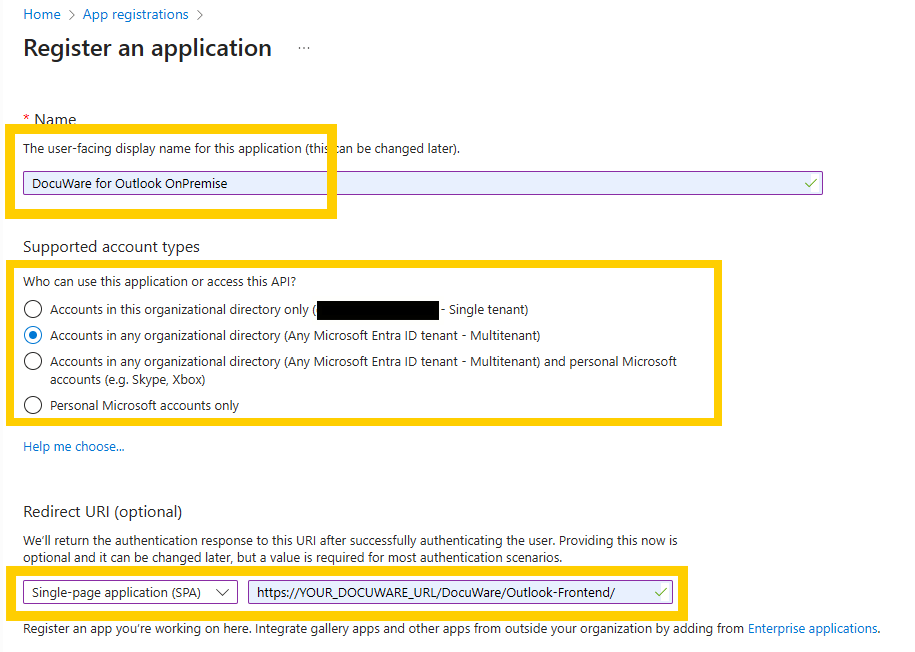
Now the app is created. In the next steps, you will configure the app.

Ensuring correct SSO URL casing

DocuWare for Outlook, use the exact casing configured during setup. Any uppercase or lowercase mismatch can cause SSO sign-in to fail.

1. Exposing an API

First, open Expose an API to add a new application ID URI here.

In the right panel, add your DocuWare URL to the application ID URI and Save.

Next, add the access_as_user scope and fill the data in the right pane, for example:

  • Scope name: add “access_as_user”.

  • Who can consent: choose the option “Admins and users”.

  • Admin consent display name: fill with “Read-only access to user emails and profiles”.

  • Admin consent description: use the description “Allow DocuWare for Outlook to have read-only access to users’ emails and profiles”.

  • User consent display name: fill with “Read-only access to your emails and profile”.

  • User consent description: use the description “Allow DocuWare for Outlook to have read-only access to your emails and profiles”.

  • State: choose the option “Enabled”.

Click Add a client application and enter the following ID to pre-authorize all Microsoft Office application endpoints.

ea5a67f6-b6f3-4338-b240-c655ddc3cc8e

This ID is valid for all Microsoft application endpoints.

2. Authentication

Redirecting Uris

Switch to the Authentication tab and add the following redirect URIs to the OAuth application registration.

https://YOUR_DOCUWARE_URL/DocuWare/Outlook-Frontend/
        https://YOUR_DOCUWARE_URL/DocuWare/Outlook-Frontend/auth
        https://YOUR_DOCUWARE_URL/DocuWare/Outlook-Frontend/login
        https://YOUR_DOCUWARE_URL/DocuWare/Outlook-Frontend/adminConsentResult.html
        brk-multihub://YOUR_DOCUWARE_URL

Note: entering a link without HTTPS

Depending on the administrator’s Microsoft version and region, the Authentication tab in Azure might show a different view. In the new default view it's not possible to add the brk-multihub://<Your_DocuWare_URL>. In this case, use the link To switch to the old experience, please click here to enter the brk-multihub://<Your_DocuWare_URL> URL in the previous interface.  

Implicit grant and hybrid flows

In the same page, switch to Settings section and make sure that Access Tokens and ID Tokens are activated.

3. Creating a client secret

For secure connection to your Office 365 account, DocuWare for Outlook requires a secret that will also be required in a later step.

4. API Scopes

4.1 Configuring Microsoft APIs

Switch to the API permissions tab to define the API permissions required by DocuWare for Outlook. Those are all to be added as Microsoft Graph API permissions.

  • email

  • offline_access

  • openid

  • profile

  • Contacts.Read

  • Contacts.Read.Shared

  • MailboxSettings.Read

  • MailboxSettings.ReadWrite

  • Mail.Read

  • Mail.ReadWrite

  • Mail.ReadWrite.Shared

  • User.Read

4.2 APIs your organization uses

Click again on Add a permission, switch to APIs my organization uses, type in the name of the OAuth app you are currently creating, for example “DocuWare for Outlook on-premises”. Then click on the entry in the result list.

Finally, check access_as_user and click on Add permission.

5. Granting admin consent to the OAuth app

Make sure to record the following values, generated in the beginning of the set up, when you created the OAuth app registration for the DocuWare on-premises system in Microsoft Entra. You will need them in the next steps:

  • Microsoft Tenant ID (tenantid)

  • Application Client ID (clientid)  

  • Application Client Secret  

Completing this action finalizes the admin-consent process. After granting consent, you should see a confirmation screen like the one shown below.

This step has to be made by the Microsoft Azure AD Global Admin.

On the DocuWare Server

1. Extending dwmachine.config

Switch to the server where DocuWare is installed and open a PowerShell terminal with administrative rights on the folder where DocuWare.Setup.Server.Cmd.exe is located (i.e., C:\Program Files (x86)\DocuWare\Setup Components).

Execute these commands to add required values to your server’s dwmachine.config file.

./DocuWare.Setup.Server.Cmd.exe configureMachine --key="D4O.TenantId" --value="theTenantGuid"
./DocuWare.Setup.Server.Cmd.exe configureMachine --key="D4O.OfficeClientId" --value="theClientId"
./DocuWare.Setup.Server.Cmd.exe configureMachine --key="D4O.OfficeClientSecret" --value="theClientSecret" --encrypted

2. Enabling HTTPS for LocalWebServices and AuthorityAddress

As Outlook requires having your application hosted via https, it's crucial to have the URL working & stated as HTTPS.

 <Setting Key="LocalWebServices" Value="<https://{{YOUR_DOCUWARE_URL}}/DocuWare/>" Encrypted="false" />

 <Setting Key="AuthorityAddress" Value="<https://{{YOUR_DOCUWARE_URL}}/DocuWare/>" Encrypted="false" />

3. Creating Outlook Manifest.xml file

Access the Outlook manifest.xml file (available in the expandable section below) and copy the XML text into a local file on your desktop. In the next step, you should replace some placeholder values and prepare the XML for later upload.

Replace the placeholder values in the Outlook manifest.xml file with the actual values from your DocuWare system. More specifically, you should search for:

  • {{GENERATE_A_UNIQUE_ID}} and replace it with any GUID as the application GUID

  • {{YOUR_DOCUWARE_URL}} and replace it with the URL of your DocuWare system

  • {{YOUR_CLIENTID}} and replace it with your OAuth application client ID

Find instructions to create a new GUID using PowerShell

If you need to generate a unique GUID, you can find step-by-step instructions on the Microsoft documentation portal.

Expand this option to access the Outlook manifest.xml file.

<?xml version="1.0" encoding="UTF-8"?>

                    <OfficeApp
                    xmlns="http://schemas.microsoft.com/office/appforoffice/1.1"
                    xmlns:xsi="http://www.w3.org/2001/XMLSchema-instance"
                    xmlns:bt="http://schemas.microsoft.com/office/officeappbasictypes/1.0"
                    xmlns:mailappor="http://schemas.microsoft.com/office/mailappversionoverrides/1.0"
                    xsi:type="MailApp">
                    <Id>{{GENERATE_A_UNIQUE_ID}}</Id>

                    <Version>3.0</Version>
                    <ProviderName>DocuWare</ProviderName>
                    <DefaultLocale>en-US</DefaultLocale>
                    <DisplayName DefaultValue="DocuWare" />
                    <Description DefaultValue="DocuWare for Outlook" />
                    <IconUrl DefaultValue="https://{{YOUR_DOCUWARE_URL}}/DocuWare/Outlook-Frontend/assets/docuware-64.png" />
                    <HighResolutionIconUrl DefaultValue="https://{{YOUR_DOCUWARE_URL}}/DocuWare/Outlook-Frontend/assets/docuware-128.png" />
                    <SupportUrl DefaultValue="https://support.docuware.com/en-US/" />

                    <AppDomains>
                    <AppDomain>https://{{YOUR_DOCUWARE_URL}}/DocuWare/Outlook-Frontend</AppDomain>
                    <AppDomain>https://login.microsoftonline.com</AppDomain>
                    </AppDomains>

                    <Hosts>
                    <Host Name="Mailbox" />
                    </Hosts>
                    <Requirements>
                    <Sets>
                    <Set Name="Mailbox" MinVersion="1.1" />
                    </Sets>
                    </Requirements>
                    <FormSettings>
                    <Form xsi:type="ItemRead">
                    <DesktopSettings>
                    <SourceLocation DefaultValue="https://{{YOUR_DOCUWARE_URL}}/DocuWare/Outlook-Frontend/" />
                    <RequestedHeight>250</RequestedHeight>
                    </DesktopSettings>
                    </Form>
                    </FormSettings>

                    <Permissions>ReadWriteMailbox</Permissions>
                    <Rule xsi:type="RuleCollection" Mode="Or">
                    <Rule xsi:type="ItemIs" ItemType="Message" FormType="Read" />
                    </Rule>
                    <DisableEntityHighlighting>false</DisableEntityHighlighting>

                    <VersionOverrides xmlns="http://schemas.microsoft.com/office/mailappversionoverrides" xsi:type="VersionOverridesV1_0">
                    <VersionOverrides xmlns="http://schemas.microsoft.com/office/mailappversionoverrides/1.1"
                    xsi:type="VersionOverridesV1_1">
                    <Requirements>
                    <bt:Sets DefaultMinVersion="1.5">
                    <bt:Set Name="Mailbox" />
                    </bt:Sets>
                    </Requirements>

                    <Hosts>
                    <Host xsi:type="MailHost">
                    <Runtimes>
                    <Runtime resid="LaunchEventMainPage">
                    <Override type="javascript" resid="ClassicRuntimeScript"/>
                    </Runtime>
                    </Runtimes>
                    <DesktopFormFactor>
                    <SupportsSharedFolders>true</SupportsSharedFolders>
                    <FunctionFile resid="MainPage" />
                    <ExtensionPoint xsi:type="MessageReadCommandSurface">
                    <OfficeTab id="TabDefault">
                    <Group id="docuwareGroupId">
                    <Label resid="paneTitle" />
                    <Control xsi:type="Button" id="msgReadOpenPaneButton">
                    <Label resid="paneTitle" />
                    <Supertip>
                    <Title resid="paneTitle" />
                    <Description resid="paneDescription" />
                    </Supertip>
                    <Icon>
                    <bt:Image size="16" resid="icon16" />
                    <bt:Image size="32" resid="icon32" />
                    <bt:Image size="80" resid="icon80" />
                    </Icon>
                    <Action xsi:type="ShowTaskpane">
                    <SourceLocation resid="MainPage" />
                    <SupportsPinning>true</SupportsPinning>
                    </Action>
                    </Control>
                    </Group>
                    </OfficeTab>
                    </ExtensionPoint>
                    <ExtensionPoint xsi:type="MessageComposeCommandSurface">
                    <OfficeTab id="TabDefault2">
                    <Group id="composeGroup">
                    <Label resid="paneTitle" />
                    <Control xsi:type="Button" id="msgComposeOpenPaneButton">
                    <Label resid="paneTitle" />
                    <Supertip>
                    <Title resid="paneTitle" />
                    <Description resid="paneDescription" />
                    </Supertip>
                    <Icon>
                    <bt:Image size="16" resid="icon16" />
                    <bt:Image size="32" resid="icon32" />
                    <bt:Image size="80" resid="icon80" />
                    </Icon>
                    <Action xsi:type="ShowTaskpane">
                    <SourceLocation resid="MainPage" />
                    <SupportsPinning>true</SupportsPinning>
                    </Action>
                    </Control>
                    </Group>
                    </OfficeTab>
                    </ExtensionPoint>
                    <ExtensionPoint xsi:type="LaunchEvent">
                    <LaunchEvents>
                    <LaunchEvent Type="OnNewMessageCompose" FunctionName="onNewMessageCompose"/>
                    <LaunchEvent Type="OnMessageSend" FunctionName="onMessageSendHandler" SendMode="SoftBlock" />
                    </LaunchEvents>
                    <SourceLocation resid="LaunchEventMainPage"/>
                    </ExtensionPoint>
                    </DesktopFormFactor>
                    <MobileFormFactor>
                    <ExtensionPoint xsi:type="MobileMessageReadCommandSurface">
                    <Group id="mobileMsgRead">
                    <Label resid="paneTitle" />
                    <Control xsi:type="MobileButton" id="mblRestPaneButton">
                    <Label resid="paneTitle" />
                    <Icon xsi:type="bt:MobileIconList">
                    <bt:Image size="25" resid="icon16" scale="1"/>
                    <bt:Image size="32" resid="icon32" scale="1"/>
                    <bt:Image size="48" resid="icon80" scale="1"/>
                    <bt:Image size="25" resid="icon16" scale="2"/>
                    <bt:Image size="32" resid="icon32" scale="2"/>
                    <bt:Image size="48" resid="icon80" scale="2"/>
                    <bt:Image size="25" resid="icon16" scale="3"/>
                    <bt:Image size="32" resid="icon32" scale="3"/>
                    <bt:Image size="48" resid="icon80" scale="3"/>
                    </Icon>
                    <Action xsi:type="ShowTaskpane">
                    <SourceLocation resid="MainPage" />
                    </Action>
                    </Control>
                    </Group>
                    </ExtensionPoint>
                    </MobileFormFactor>
                    </Host>
                    </Hosts>

                    <Resources>
                    <bt:Images>
                    <bt:Image id="icon16" DefaultValue="https://{{YOUR_DOCUWARE_URL}}/DocuWare/Outlook-Frontend/assets/docuware-16.png" />
                    <bt:Image id="icon32" DefaultValue="https://{{YOUR_DOCUWARE_URL}}/DocuWare/Outlook-Frontend/assets/docuware-32.png" />
                    <bt:Image id="icon80" DefaultValue="https://{{YOUR_DOCUWARE_URL}}/DocuWare/Outlook-Frontend/assets/docuware-80.png" />
                    </bt:Images>
                    <bt:Urls>
                    <bt:Url id="MainPage" DefaultValue="https://{{YOUR_DOCUWARE_URL}}/DocuWare/Outlook-Frontend/" />
                    <bt:Url id="LaunchEventMainPage" DefaultValue="https://{{YOUR_DOCUWARE_URL}}/DocuWare/Outlook-Frontend/" />
                    <bt:Url id="ClassicRuntimeScript" DefaultValue="https://{{YOUR_DOCUWARE_URL}}/DocuWare/Outlook-Frontend/classic-outlook.runtime.js" />
                    </bt:Urls>
                    <bt:ShortStrings>
                    <bt:String id="paneTitle" DefaultValue="DocuWare" />
                    </bt:ShortStrings>
                    <bt:LongStrings>
                    <bt:String id="paneDescription" DefaultValue="DocuWare - the ultimate add-in for integrating emails and their attachment into business processes.">
                    <bt:Override Locale="de" Value="DocuWare - Das ultimative Add-In zur Integration von E-Mails und ihren Anhängen in Geschäftsprozesse." />
                    <bt:Override Locale="fr" Value="DocuWare - Le module idéal pour intégrer des e-mails et de leurs pièces jointes dans les processus opérationnel." />
                    <bt:Override Locale="es" Value="DocuWare - El complemento definitivo para integrar correos electrónicos y sus archivos adjuntos en los procesos." />
                    <bt:Override Locale="ja" Value="DocuWare - 電子メールとその添付ファイルをビジネスプロセスに統合するための高度なアドイン。" />
                    </bt:String>
                    </bt:LongStrings>
                    </Resources>
                    <WebApplicationInfo>
                    <Id>{{YOUR_CLIENTID}}</Id>
                    <Resource>api://{{YOUR_DOCUWARE_URL}}/DocuWare/Outlook-Frontend/{{YOUR_CLIENTID}}</Resource>
                    <Scopes>
                    <Scope>openid</Scope>
                    <Scope>profile</Scope>
                    <Scope>offline_access</Scope>
                    <Scope>email</Scope>
                    <Scope>User.Read</Scope>
                    <Scope>Mail.ReadWrite</Scope>
                    <Scope>Mail.ReadWrite.Shared</Scope>
                    <Scope>MailboxSettings.ReadWrite</Scope>
                    </Scopes>
                    </WebApplicationInfo>
                    </VersionOverrides>
                    </VersionOverrides>
                    </OfficeApp>

Ensuring correct SSO URL casing

DocuWare for Outlook, use the exact casing configured during setup. Any uppercase or lowercase mismatch can cause SSO sign-in to fail.

Rollout of Add-In for Office 365 users

Now that all requirements are set, the manifest file with your DocuWare system values can be used to be rolled out to Office 365 users.

Just follow the step-by-step description of the setup and roll-out process.

Supported versions: DocuWare on-premises 7.13