Once DocuWare for Outlook is installed, you can start using its features right away. This guide shows you how to access DocuWare from your Outlook inbox.
Embed the DocuWare icon as a shortcut for archiving
As a user, you can add the DocuWare icon as a shortcut to the email action bar. After that, open your email, click the icon and select the icon to store your email and its attachments in DocuWare.
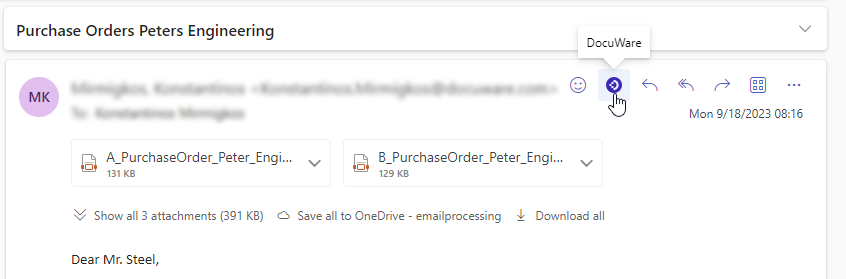
No administrator permission is required to create such a shortcut. Follow these steps:
Click on the settings icon in the main toolbar:
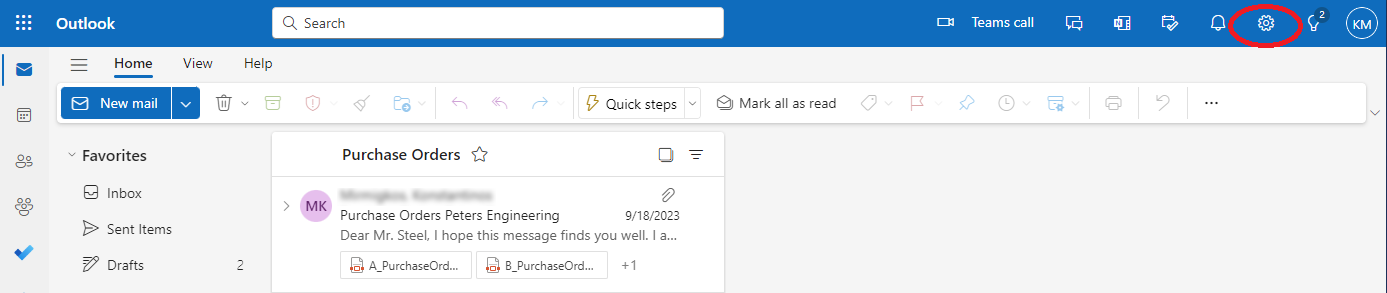
Click on View all Outlook settings at the bottom.
In the settings dialog, switch to Mail section and select Customize actions. The DocuWare icon is shown in the section Message surface.
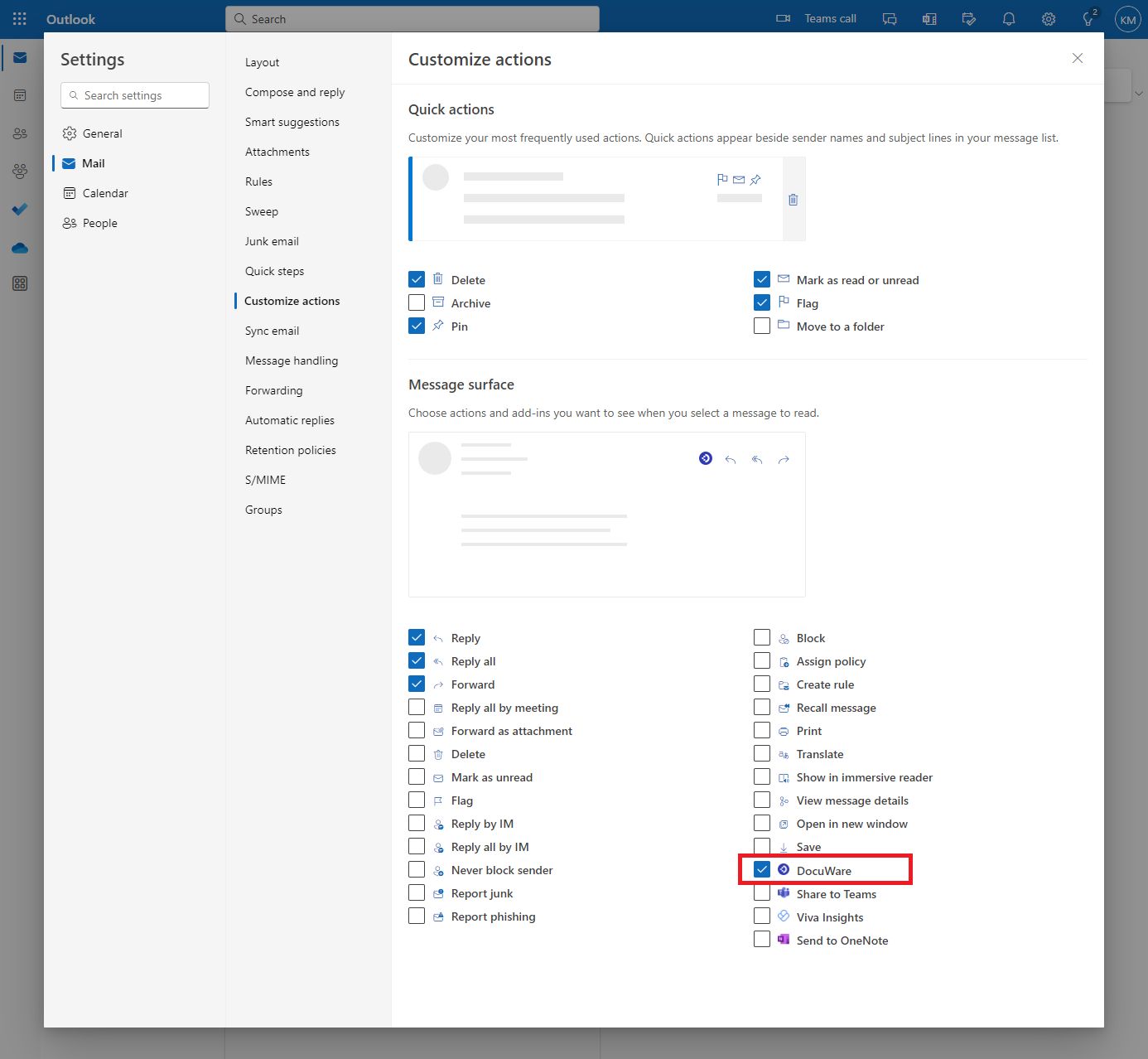
Tick the checkbox and Save.
Pinning the icon in other versions of Microsoft Outlook
Depending on the Microsoft Outlook version you are using, adding a shortcut in the email action bar may be accessible under the Microsoft Store Apps section instead of the Customize Actions settings section:
In this case follow these steps:
Click on the Microsoft Store Apps button
Locate the DocuWare for Outlook Add-in
Right-click, and select the Pin button.
Launch DocuWare for Outlook for the first time
To launch DocuWare for Outlook for the first time, access an email and click the DocuWare icon from the email action bar (read how to create a shortcut), or click on the three dots (Options), find the Applications menu, and then the DocuWare icon: 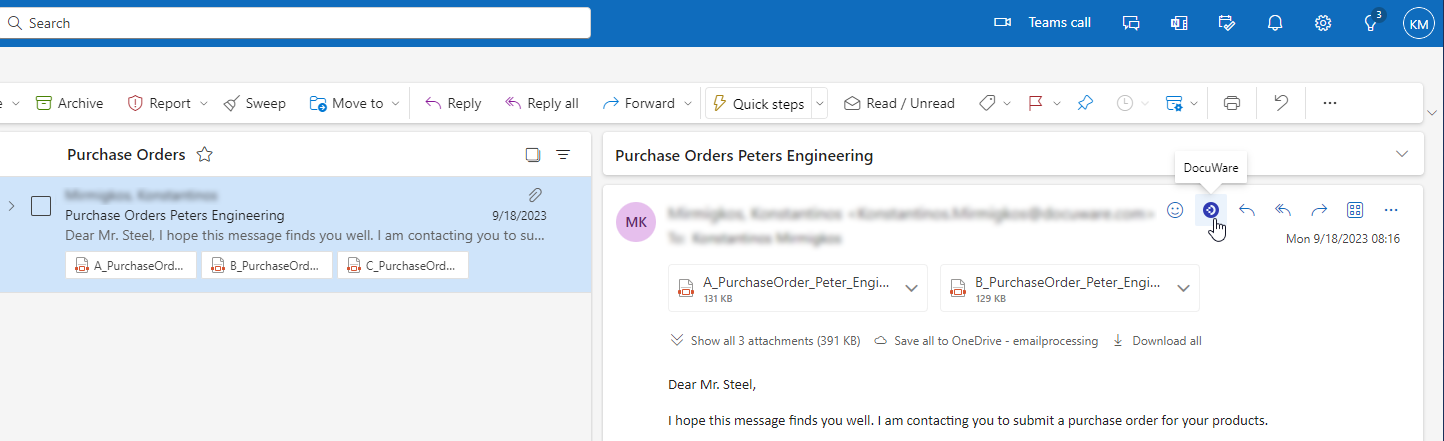
The first time you launch the application as a user, the system checks that you have the required permissions.
There are two types of permissions:
User-related: As a user, you need to approve the use of the mails by the app. Confirm with Accept the pop-up window requesting the approval.
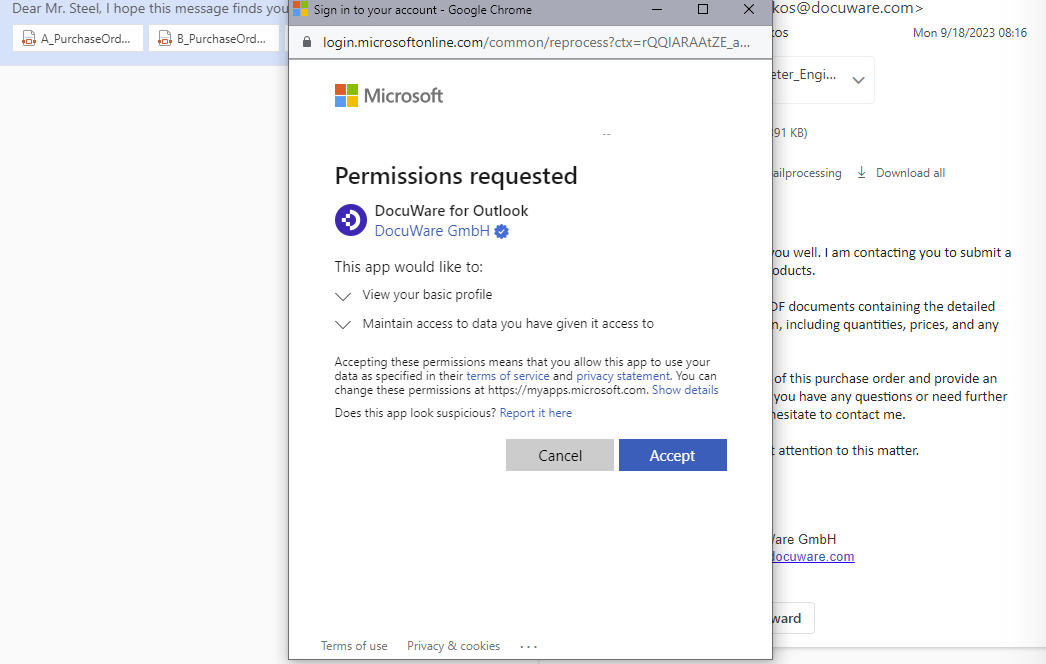
Organization-related: If the organization permission is not granted, the app can not be used yet. In this case, contact the organization administrator; see the previous chapter for more details.
Once the application is launched, a side panel is shown:
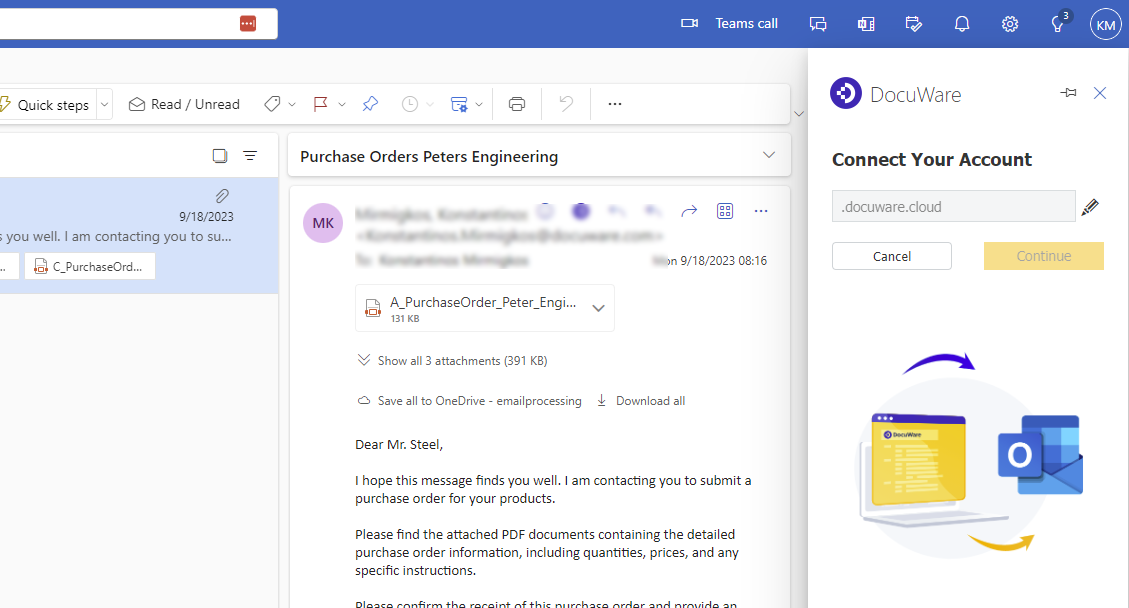
Connect to personal DocuWare account
Once DocuWare for Outlook is launched, connect to your DocuWare account before storing emails and attachments.
Define the System URL. Note: If an invalid URL is provided, you will not be allowed to proceed. If in doubt, contact your administrator.
Click Connect. The add-in will close.
Refresh the page and reopen DocuWare for Outlook.
Click on Continue and log in to your DocuWare account.
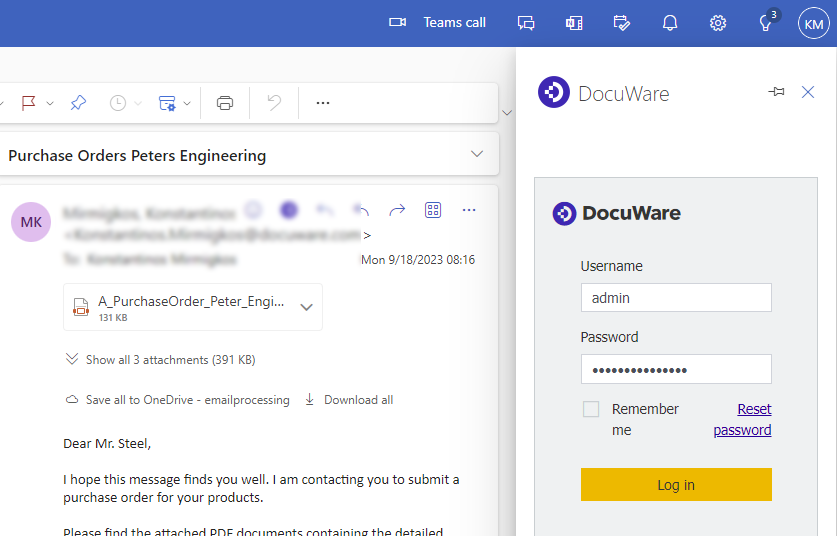
Start storing your emails and attachments.
General usage notes and settings
Language support
The default language of DocuWare for Outlook is English. If another language is selected for Microsoft Outlook, then DocuWare for Outlook switches to this language as well, provided that DocuWare Cloud supports it. Note that the user can not change the language directly in the add-in.
Examples:
The user has set Spanish as the language for Microsoft Outlook. As DocuWare Cloud supports this language, the user will see the add-in in Spanish, too.
The user has set Arabic as the language for Microsoft Outlook. As DocuWare Cloud does not support this language, the user will see the add-in in the default language, English.
Organization connection
Only one DocuWare organization can be connected per Microsoft tenant each time.
This only needs to be done one time per session of Microsoft Outlook.
If you are switching the browser, for example, from Chrome to Firefox, or to the local desktop Outlook application, a new session is started. You will need to log in again.
Single Sign-On (SSO) availability
Single sign-on is supported, allowing you to access DocuWare for Outlook seamlessly using your existing credentials.
Grant required Microsoft 365 permissions
To ensure successful integration with Microsoft 365, the DocuWare for Outlook Add-in requires permissions into two categories:
Organization permissions
A Microsoft 365 administrator must grant the required permissions at the organization level. These permissions allow the add-in to access users’ mailboxes and ensure secure, centralized management across the organization.
Read user contacts
Read user and shared contacts
Read user mail
Read and write access to user mail
Read and write user and shared mail
Read user mailbox settings
Read and write user mailbox settings
Maintain access to data you have given it access to
Sign in and read user profile
Read-only access to user files and profiles
User permissions
Each user must grant specific permissions the first time they launch the add-in. These permissions allow the add-in to access the user’s Outlook mailbox and related resources, enabling full functionality.View your basic profile
Maintain access to data you have given it access to