A form captures structured data, for example a holiday request, an expense claim, or a support request. Open Forms in the left sidebar of the DocuWare client to see the forms you have permission to use, then fill one in and submit it.
The completed form is stored as a PDF in a file cabinet, where it can be processed and shared like any other document. A form can also be part of a workflow, with fields that are left empty on purpose and filled in later, in a workflow task.
New client only
This article applies only to the new DocuWare client. For the classic client, see the classic DocuWare client help.
On this page
Coming from the classic DocuWare client?
In the classic client, open the new DocuWare client with the link Open new DocuWare. Nothing has to be set up again: Your forms and their configuration are the same as in classic DocuWare. If you know forms from there, these are the differences.
Pin the forms. The forms you use often stay at the top of the list, in their own group.
Find a form by part of its title.
The new DocuWare client is available in DocuWare Cloud only for now. On-premises systems continue to work with the classic client.
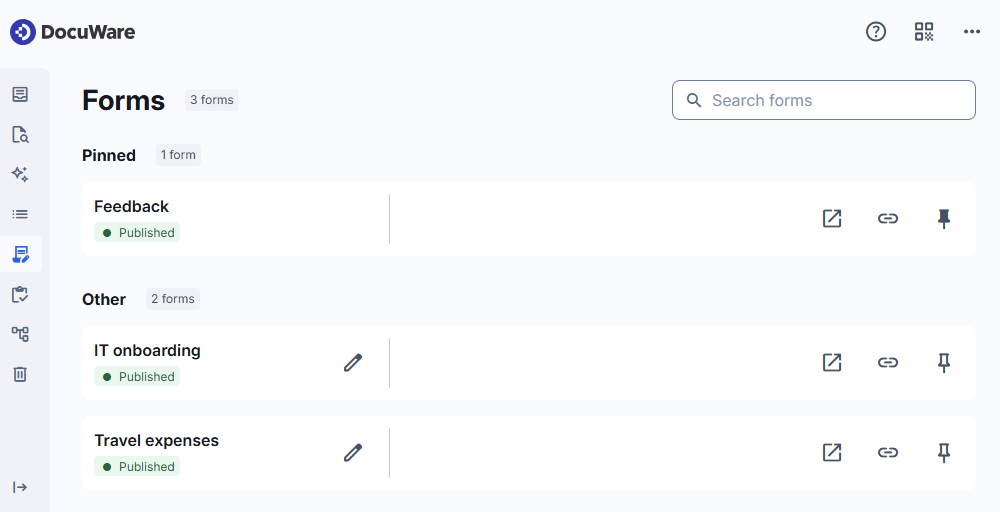
Finding a form
The list is grouped into Pinned and Other, with the number of forms in each group. Use Search forms to find a form by part of its title. The search performs a "contains match", returning results that include the specified keyword anywhere in the text.
You see every form you have access to, with its status. Published means the form is active and can be filled in. A form that is not active shows Disabled.
Keeping a form within reach
Select the pin icon of a form to move it into the Pinned group at the top of the list, so you do not search for the same form every week. Select the icon again to remove the pin.
Pinning belongs to your user account. Your pinned forms stay pinned in the next session and on any device you log in with, and other users are not affected by them.
Filling in a form
Select a form to open it in a new browser window and fill it in. Which fields it contains, and which of them are mandatory, comes from the form configuration.
Once you submit the form, it is stored as a PDF in the file cabinet defined for it, with the index entries taken from your entries. Everyone with permission for that file cabinet can work with it from then on.
Passing a form on
Select the link icon of a form to copy its link. Send the link to someone who should fill in the form, for example a colleague or an external contact. If a form is configured as Public, users without a DocuWare account can fill it out as well.
Editing a form
A pencil icon next to a form means you are allowed to change that form. Select it to open the form configuration. Forms without the icon can be used but not changed.
Note for administrators
Forms are configured in the classic DocuWare, see DocuWare Configurations > Forms. Nothing has to be set up again for the new DocuWare client.
Whether a form is active is set in the Forms Designer. An active form is listed as Published, an inactive one as Disabled.
The pencil icon appears only for users who are allowed to edit that form.