The Services and Logs page in DocuWare Server Manager gives you direct access to all DocuWare-related Windows services and IIS application pools running on this server. Use it to check service status, start or stop services, and access log files for troubleshooting. This page is available even before logging in to Server Manager, so you can manage services without full system access.
Services
The Services tab lists all DocuWare Windows services installed on this machine. The table shows the following columns:
Service: The name of the Windows service.
Status: The current state of the service, either "Running" or "Stopped". If a service is stopped, this usually indicates a problem. Click on “Open log folder” and view the service’s log file for details.
Startup: The startup type of the service, for example "Auto" for services that start automatically with Windows.
Description: A short description of the service.
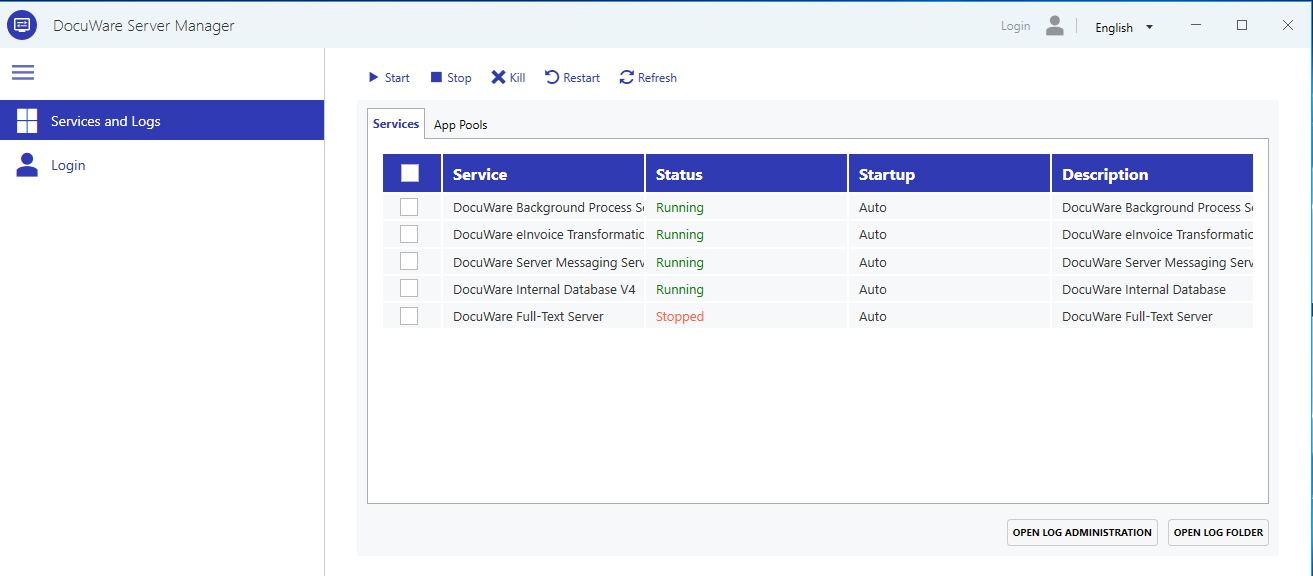 Use the toolbar at the top to manage selected services:
Start: Starts the selected service.
Stop: Stops the selected service gracefully.
Kill: Forces the selected service to stop immediately. Use this only if a normal stop does not respond.
Restart: Stops and then starts the selected service.
Refresh: Updates the status display for all services.
Select one or more services using the checkboxes before applying an action. The checkbox in the header row selects all services.
App Pools
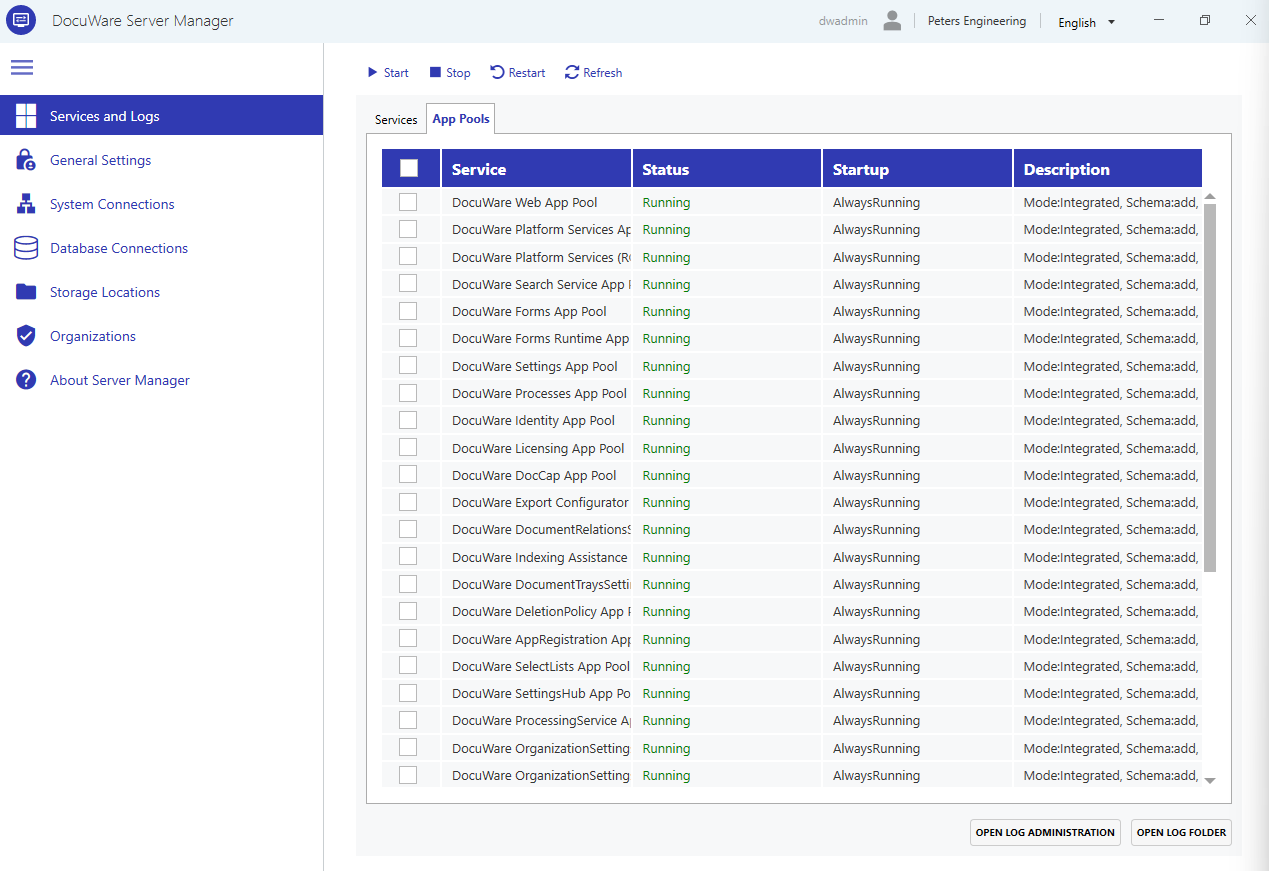
The App Pools tab lists the IIS application pools used by DocuWare web components. Application pools use the startup type "AlwaysRunning" and are managed the same way as services, using the toolbar actions described above.
Log files
At the bottom of the page, two buttons provide access to DocuWare log files:
Open Log Administration: Opens the DocuWare Log File Administration tool. This tool lists all DocuWare log configuration files and allows you to change the log level for individual components or for all components at once.
The available log levels, from least to most verbose, are: Error, Warn, Info, Debug, and Trace. Higher verbosity produces more detailed output but also increases log file size and can affect performance.
The log levels are set on their optimal value by default. It is recommended to change the log levels only in case DocuWare Support asks you to do so. Changes in log levels take effect immediately, you do not need to restart the services.
Log configuration files are stored in
C:\ProgramData\DocuWare\LoggingConfig.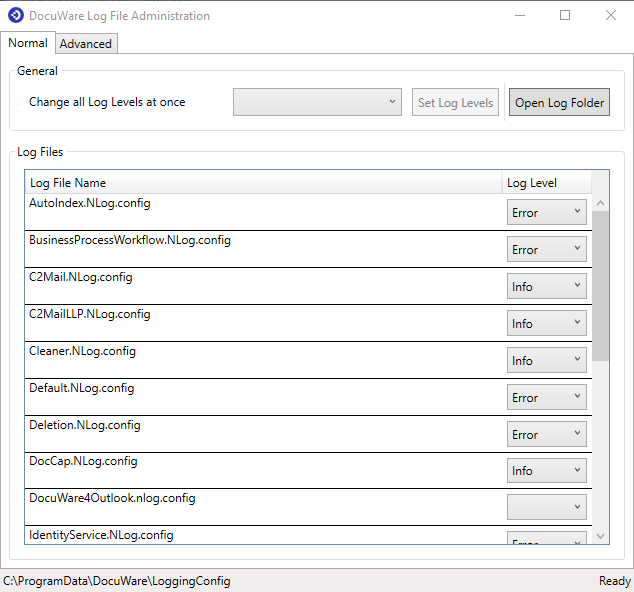
Open Log Folder: Opens the directory containing the DocuWare log files in Windows Explorer. DocuWare Support or your DocuWare partner might ask you to provide log files to troubleshoot unwanted system behavior.