DocuWare Server Manager is the tool you use to set up and maintain the infrastructure behind a DocuWare On-Premises installation. It gives you control over the core components that keep your DocuWare system running: the services on the server, the connections to databases and external services and the locations where documents are physically stored.
The DocuWare server setup installs Server Manager on every DocuWare server. It can only be started on such a machine. For tasks that are closer to the end user, such as managing users, file cabinets. workflows, or others, use DocuWare Configurations.
Read more about the DocuWare three-tier architecture.
Replaced tools
With the introduction of Server Manager, the following tools have been removed and are uninstalled during the update:
DocuWare Service Control: Use Server Manager to manage services instead.
DocuWare Administration on server systems: Use Server Manager and DocuWare Configuration instead.
DocuWare Administration on client systems: Use DocuWare Configuration to manage your organizations instead.
Prerequisites
To use Server Manager with full functionality, the following prerequisites must be met:
You must be signed in to Windows as an administrator on the server machine.
You must log in to Server Manager as a DocuWare system administrator.
Managing multiple organizations requires a “DocuWare Enterprise Server” license.
How to access Server Manager
Launch Server Manager from the Windows Start menu on the DocuWare server, or connect via Remote Desktop if you are not working directly on the machine.
Login
Before login, only the Services and Logs page is visible. This allows basic service management without full access to the system configuration.
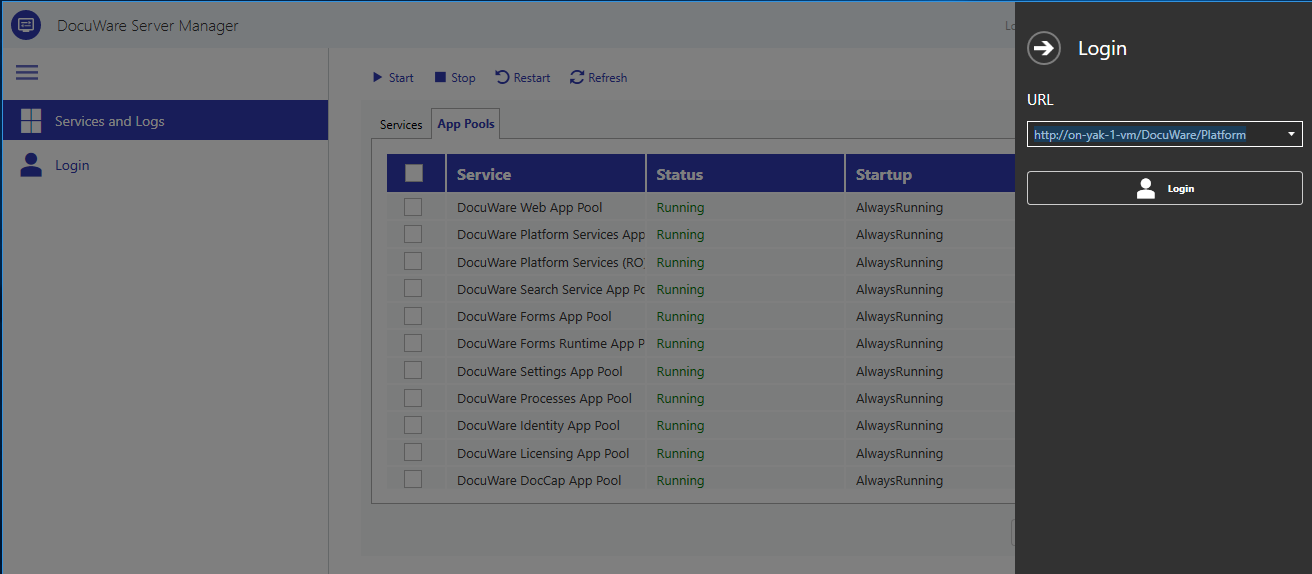
To access the full menu, click Login in the left menu pane. The login panel opens on the right side. Select the DocuWare Platform URL from the dropdown and log in with your system administrator credentials.
If you have a “DocuWare Enterprise Server” license, you might have multiple DocuWare organizations showing up in the dropdown.
Only DocuWare system administrators can log in. All system administrators have the same rights within Server Manager.
If your DocuWare installation hosts multiple organizations, you manage one organization at a time. Log in to each organization separately to configure it. The currently active organization and user name are displayed in the top-right corner.
After login, the following menu items become available:
Services and Logs: Monitor and manage DocuWare services and IIS application pools. Access log files.
General Settings: Configure system administrator rights, license, storage paths, and organization properties.
System Connections: Manage web connections and external service connections such as fulltext and Intelligent Indexing.
Database Connections: Configure connections to internal and external databases.
Storage Locations: Define where DocuWare stores document files on disk.
Organizations: View and create organizations within the DocuWare installation (only for “DocuWare Professional Server”).
About Server Manager: View version info and access the online help.
.png)