With the Connect to Outlook module, you can use two types of import configurations: Manual Storage or Watch Folder. The "Manual Storage" import configurations are available directly in the DocuWare for Outlook add-in for archiving emails.
When you select a Connect to Outlook configuration in DocuWare for Outlook, emails are imported using the settings defined in that configuration.
Prerequisites
At least one configuration of the type “Manual storage” must be created for the Connect to Outlook module to be available in DocuWare for Outlook.
The Outlook Email configurations are available for all DocuWare Cloud systems, and DocuWare on-premises will follow.
Install the latest Desktop app version here: Web Client > Desktop-Apps > Install Desktop Apps.
One or more email import configurations must be created in DocuWare Configurations > Connect to Outlook. Administrators create and provide these configurations directly in Connect to Outlook. No migration is needed.
To make a configuration visible in DocuWare for Outlook, grant users the Use permission for that configuration in the Connect to Outlook permissions tab.
Selecting and managing your storage method
After updating DocuWare for Outlook to the version that includes the “storage configuration” feature, the first time you sign in, a landing page prompts you to choose your preferred storage method:
Select from existing configurations: Import emails using a configuration created in Connect to Outlook. You select the specific configuration in the next step. Recommended.
Select location and format: Choose the storage location and format manually each time you store an email.
Both screenshots below show the DocuWare for Outlook add-in. On the left is the initial selection of the storage method. To change your storage method later, use the same option in the DocuWare for Outlook settings shown on the right:
|
|
|---|
.png)
.png)
Importing emails and attachments with a configuration
The import configurations created in Connect to Outlook are available in both the read view and the write view of Microsoft Outlook.
Importing from the read view
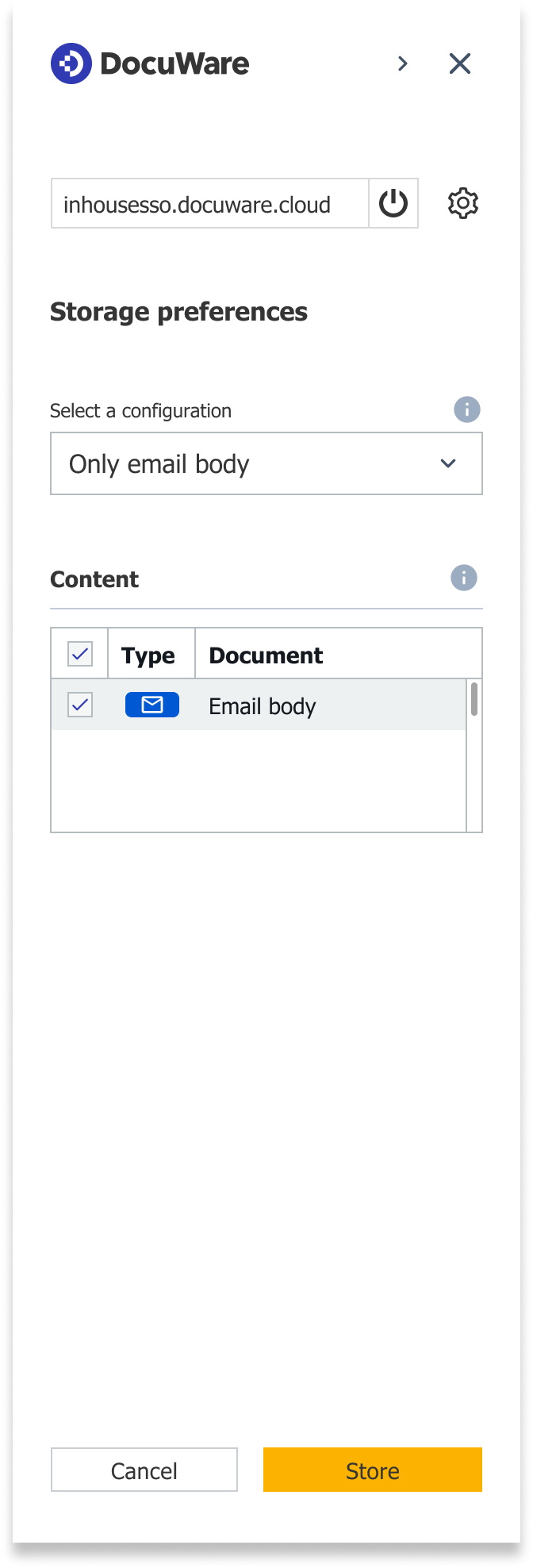
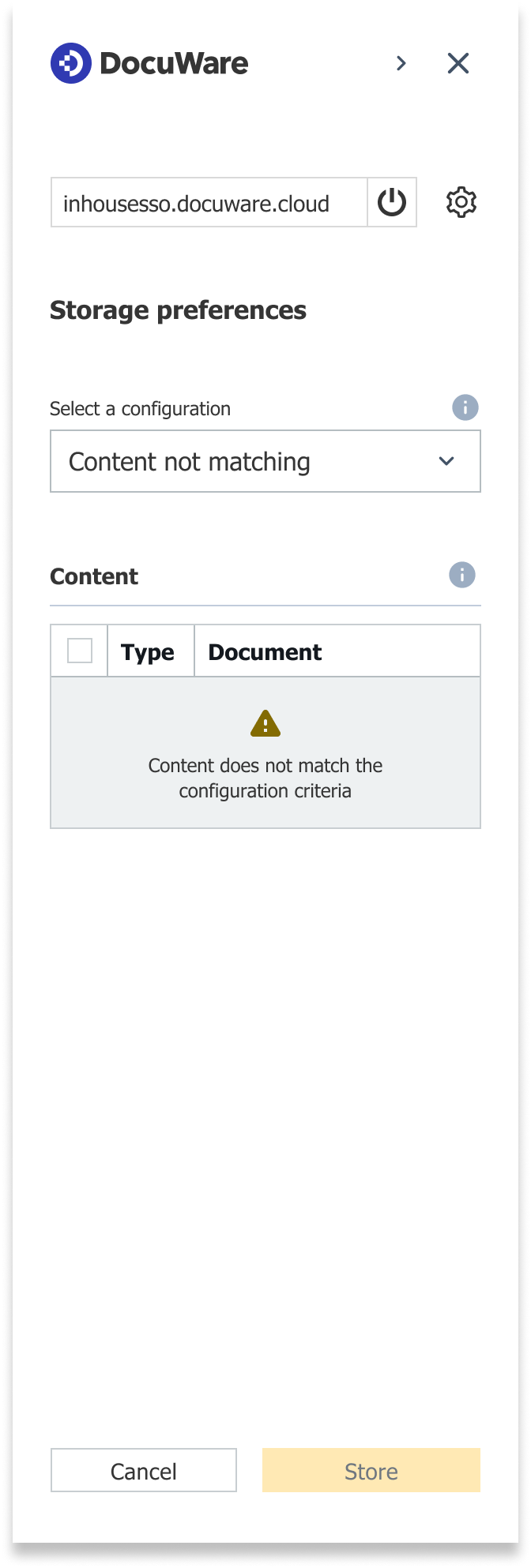
In the read view, when you want to store an email, select a predefined configuration from the Storage preferences drop-down menu. The chosen configuration automatically applies the storage location, format, and attachment handling. Unlike the compose view configuration, the read view configuration lets you select or deselect individual attachments for storage.
DocuWare for Outlook automatically detects the email body and attachments that match the selected storage configuration. Files that do not meet the predefined storage criteria - for example, file type or file size - are automatically hidden. The images below demonstrate possible configurations that allow storing all the content of an email, files of a specific format, or only the email body.
|
|
|
|
|---|
.png)
.png)
Importing from the compose view
In the write view of Microsoft Outlook, when composing a new email that you want to store, select a predefined configuration from the Storage preferences drop-down menu. The chosen configuration automatically applies the storage location, format, and attachment handling. The supported document types for each configuration are predefined and selected automatically; you cannot select or deselect individual attachments.
You can also use the Send and store option, which can be enabled or disabled for each email. When Send and store is active, all attachments that match the selected configuration are stored automatically when you send the email:
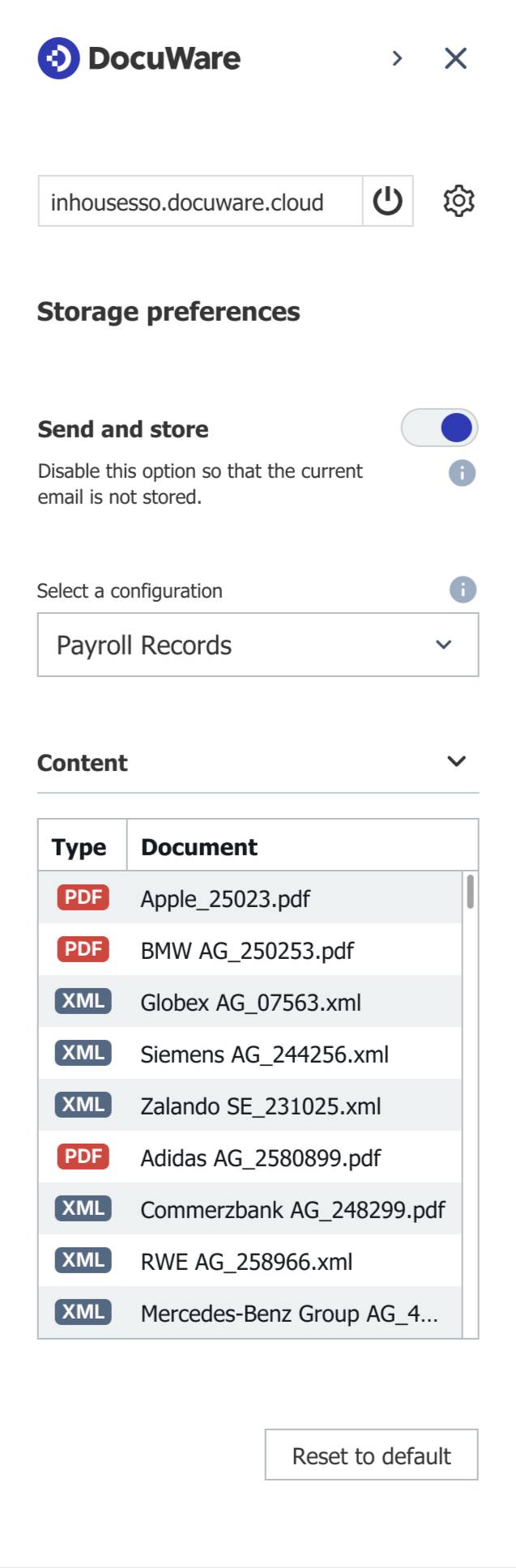
Send and store can also be activated permanently in the add-in settings. You can combine it with the Automatically store all emails setting. By doing so, you can select one Outlook Email configuration to automatically store all outgoing emails:
.png)
Notes & limitations
DocuWare for Outlook does not support configurations created in Connect to Outlook that use SQL indexing or store emails in PDF format.
When you create ot edit an import configuration in DocuWare Configurations > Connect to Outlook, a banner indicates in which apps the current configuration can be used:
DocuWare for Outlook
Connect to Outlook
both
When you select Original file format in the storage format option, Connect to Outlook stores emails as .msg files, while DocuWare for Outlook stores them as .eml files.