The Web service activity embeds a web service into a workflow, allowing the workflow to exchange data with other systems.
For example, you can use a web service within a workflow to create, update, or delete information in third-party applications. Or, the web service retrieves data from business applications such as CRM or accounting, making it available for use in a DocuWare workflow. DocuWare workflows support the integration of both REST and SOAP web services.
Note: Add a web service first
Add the web service to your DocuWare organization first. Before you can embed a web service in a workflow, you need to create a connection to this web service in DocuWare Configurations > Web services.
Here is the general overview over the configuration:
To set a web service, to the workflow, navigate to DocuWare Configurations > Collaboration > Workflow Designer.
Click the button New Workflow or Edit to open a new or an existing workflow in the canvas.
In the left sidebar, click Web service.
Choose your method - REST or SOAP. Setting up REST or SOAP web services is described in detail below.
You also have the option to create conditional outputs for a Web service action.
After configuration is finished, you need to connect the Web service activity to other workflow activities.
.png)
The web service activity dialog in the web-based Workflow Designer
REST web service
You configure data exchange via a RESTful web service in a wizard with three tabs General, Data Assignment and Status Codes.
General: Select a web service
Address
Before you can use a REST web service in a workflow, it must be registered in DocuWare Configurations > Web services. Only registered services appear in this section.
All REST web services which are installed in your DocuWare organization and you have permission to, are listed in the General > Address section.
Defined web service: Select the REST web service to call.
Web service URL: The URL of the REST web service for the selected service. This field is populated automatically based on the selection in Defined web service and is read-only.
To change the URL, update the web service registration in DocuWare Configurations > Web services.Format: Specify the format for data exchange (JSON or XML). Data assignment will differ depending on the format selected.
Endpoint
An Endpoint is a specific URL of the web server to which the request is sent. The endpoint will receive the data and define the action to be performed.
The default endpoint is the root or base url (/). This is the inital entry point to the web service.
If the web service offers an OpenAPI specification file (*.json, .txt, .yml or *.yaml), you can import it using the import button. Once imported, all available endpoints are listed in the drop down.
Information: Default DocuWare Platform API
When using endpoints from an OpenAPI specification or the default DocuWare Platform API or DocuWare E-Invoicing, all required routes and parameters are automatically pre-set based on the chosen endpoint, which simplifies the configuration of the web service HTTP request.
Parameters configuration: define the HTTP request
Click on the URL shown after the selected endpoint to open the Parameters configuration wizard. Here you specify the required information and properties needed to execute the HTTP request, for example routes, query parameters or request header and body. These information are needed to provide the web service with all necessary data.
.png)
Request
In this section, you configure the request that is sent to the endpoint. The configuration options available depend on the web service you have selected and the endpoint. A preview of the request (URL) is displayed at the top.
Method: The HTTP Method specifies what you want to do with the endpoint. DocuWare supports GET, POST, PUT, and DELETE.
In case you use an OpenAPI specification file or the default DocuWare Platform API or DocuWare E-Invocing, the HTTP Method is automatically pre-set based on the chosen endpoint.
Routes: Use Routes to specifically address individual resources at the endpoint.
In case you use an OpenAPI specification file or the default DocuWare Platform API or DocuWare E-Invocing, the Route is automatically pre-set based on the chosen endpoint..
You can pass fixed or document index values, as well as global or system variables.Query Parameters: Here you enter key/value pairs to tell the web service exactly what to query. Query parameters are often optional and used with endpoints that use the GET method to filter or narrow down a result.
In case you use an OpenAPI specification file or the default DocuWare Platform API or DocuWare E-Invocing, The Query Parameters are automatically pre-set based on the chosen endpoint..
You can pass fixed or document index values, as well as global or system variables.Document Attachment: Specify whether the document currently in the workflow should be attached to the request. It is possible to attach the document in its original format or as a PDF. If the DocuWare document contains multiple files (clipped), all files are exported and attached separately. The HTTP request then contains several file objects.
This allows you, for example, to send a document such as an invoice to an external service.Encoding: Specify the Encoding for the values passed in routes and queries. Depending on the values you pass in your request, you may or may not encode the characters in the URL. Three options are available for Encoding:
Encode special characters (recommended): All special characters are encoded, e.g., “AT&T” becomes “AT%26T” and “Rapid Transport” becomes “Rapid%20Transport”
Encode special characters (except reserved URL characters): (*&^%$#@!:
All special characters except reserved URL characters are encoded, e.g., “AT&T” remains, but “Rapid Transport” becomes “Rapid%20Transport”.
Do not encode special characters: Neither special nor space characters are encoded.
The encoding is applied to all values that are specified in routes and query parameters.
HTTP Headers
The headers are at the beginning of the request, directly after the status line of the request. HTTP headers are key-value pairs that provide metadata about the request: For example, about the sender, the data format sent, authentication or how the web service response should look – within the possibilities set by the web service itself.
HTTP body
The HTTP body is the part of the request in which you send data (e.g., with POST or PUT).
Specify the information and properties needed to execute the selected operation, for example, the GUID of the stamp to be applied. Or, if you are creating a new user, the HTTP Body contains the user data in JSON format. Validation of the HTTP body is carried out either when sending or automatically when saving the configuration. If part of the content is found to be invalid, the corresponding error is highlighted and an appropriate message is displayed. The configuration can also be saved in case of validation issues.
Structure the HTTP body content using either fixed values, indexed data, or global and system variables. It's important to note that even if there are validation issues, you still have the option to save the configuration.
Test
Test the request using the Send request button and examine the "Response" to verify the success of the operation. Keep in mind that you need to provide a test value for each variable to run the test. You may also specify a test document here, that will be included in the test web service request.
Data assignment: use request data in the workflow
Information returned from the web service response can be used within the workflow. In Data assignment, you specify where this data should be stored in the workflow. The structure of the response is defined by the web service, not by the DocuWare Workflow. In the Workflow Designer, you only decide whether and which parts of the response are used.
Assign values from the response to either global variables or index data. Choose the necessary values directly from the JSON or XML structure of the response.
Example: The web service retrieves the details of a company from the CRM or further information of an order from the ERP system.
If you aim to handle all returned entries, manually replace the index with an asterisk (*) in the array indexer. This allows for comprehensive processing of all entries within the array.
Status codes
REST web services return what is known as an HTTP response status code after execution. This code indicates whether the request was successful or if an error occurred.
Typical status codes, for example, include:
200 = OK (everything went well)
201 = Created (something was created)
400 = Bad Request (error in the data sent)
404 = Not found (resource not found)
500 = Server error
If you enable the Assign returned code a workflow variable feature, the returned status code will be saved in a workflow global variable.
The code stored in the variable can later be evaluated in the workflow, e.g., for error handling or logging.
Error handling
Switch to the Errors tab to configure how the workflow should proceed if the web service call fails, because for example the external web service is down, you can configure the workflow to direct the document to another automated action, such as sending an email notification to request to manual enter the missing information.
Choose one of the following options:
No error handling: This option is activated by default.
Restart workflow: The document is routed through the workflow steps from the beginning again automatically.
End workflow: The document is routed to the end of the workflow automatically. All changes made up to this point will remain.
Go to step: This option adds an Error output to the Assign data activity. Connect it with another activity to route the workflow document manually.
SOAP web service
SOAP (Simple Object Access Protocol) is a standardized messaging protocol that uses XML for data exchange. Unlike REST, where you manually configure HTTP methods, headers, routes, and a request body, SOAP web services are described by a WSDL (Web Services Description Language) file. The WSDL defines the available operations, their parameters, and the data format — so the Workflow Designer retrieves this information automatically and presents it as selectable options.
After selecting SOAP web service on the Method tab, click Set web service to open the configuration panel:
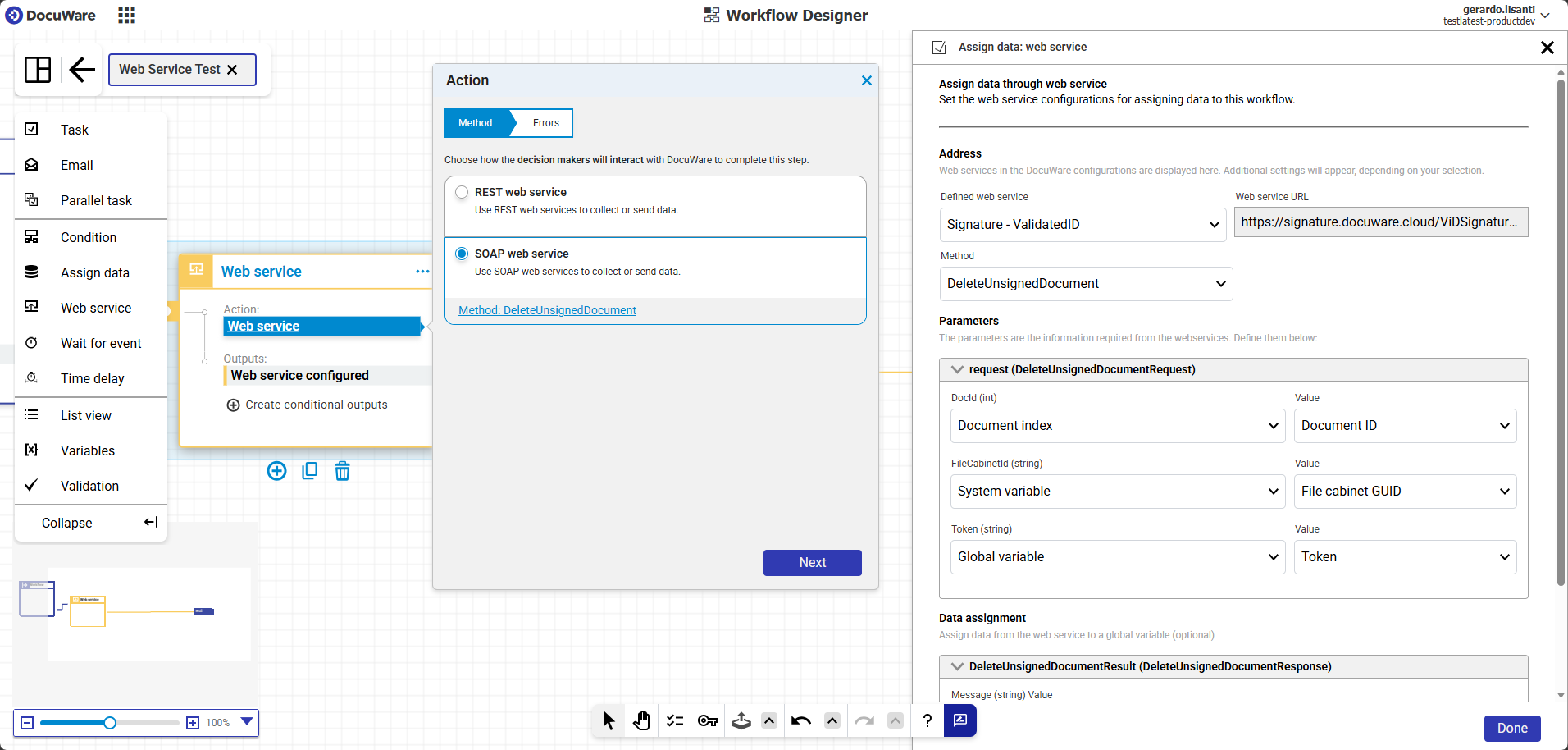
Address: select the web service
Before you can use a SOAP web service in a workflow, it must be registered in DocuWare Configurations > Web services. Only registered services appear in this section.
All SOAP web services which are installed in your DocuWare organization and you have permission to, are listed in the General > Address section.
Defined web service: Select the SOAP web service to call. Each registered service points to a specific WSDL endpoint that describes the operations and data structures the service provides.
Web service URL: The URL of the WSDL endpoint for the selected service. This field is populated automatically based on the selection in Defined web service and is read-only.
To change the URL, update the web service registration in DocuWare Configurations > Web services.
Method: choose the operation
The Method dropdown lists all operations exposed by the selected SOAP web service. These operations are retrieved automatically from the service's WSDL definition.
Select the operation the workflow should execute. In this example, the method "DeleteUnsignedDocument" is selected, an operation provided by the signature service that removes an unsigned document. Once you select a method, the Parameters section below updates automatically to show the input parameters required by that operation.
Parameters: define the HTTP request
The Parameters section shows the input data required by the selected method. These parameters are defined in the WSDL and appear automatically — you do not need to add or remove them manually. Each parameter has a name, a data type, and fields to configure:
Source type: Determines where the value comes from. The following sources are available:
Document index: An index field value from the document currently in the workflow.
Fixed value: A static value that you enter directly.
Global variable: A workflow variable that can be set and changed during workflow execution.
System variable: A predefined value provided by DocuWare, such as the file cabinet GUID or the document ID.
Value: The specific field, variable, or fixed value to pass. The available values in the dropdown depend on the selected source type.
In the screenshot example above, the method "DeleteUnsignedDocument" requires three parameters:
DocId: mapped to the document ID from the document index)
FileCabinetId: mapped to the file cabinet GUID system variable,
Token: mapped to a global variable.
Data assignment: use response data in the workflow
After execution, the SOAP web service returns a response containing result data. The Data assignment section allows you to make this data available within the workflow by mapping response fields to global variables.
The response structure is determined by the SOAP web service itself and displayed automatically as a collapsible tree. Each field shows its name and data type. You do not configure the structure, you only decide which fields to capture.
To assign a value, select a global variable for the response field you want to use. Any field left unassigned is ignored. The assignment itself happens automatically at runtime: every time the workflow executes this activity, the response values are written to the mapped global variables. These variables can then be used in subsequent workflow steps — for example, in conditions, notifications, or other activities.
Unlike REST web services, where response data can be assigned to both global variables and document index fields, SOAP data assignment supports global variables only.
In the screenshot example, the method "DeleteUnsignedDocument" returns a "DeleteUnsignedDocumentResult" containing a "Message" field of type string. This field could be mapped to a global variable to capture a confirmation or error message from the signature service.
Error handling
Switch to the Errors tab to configure how the workflow should proceed if the web service call fails: If, for example, the external web service is down, you can configure the workflow to direct the document to another automated action, such as sending an email notification to request to manual enter the missing information.
Choose one of the following options:
No error handling: This option is activated by default.
Restart workflow: The document is routed through the workflow steps from the beginning again automatically.
End workflow: The document is routed to the end of the workflow automatically. All changes made up to this point will remain.
Go to step: This option adds an Error output to the Assign data activity. Connect it with another activity to route the workflow document manually.