User Provisioning creates and updates DocuWare users and groups automatically from your identity provider, so you don't have to maintain user accounts in DocuWare manually. It uses the System for Cross-domain Identity Management (SCIM) protocol and replaces User Synchronization 1 and 2. This article describes how to connect a cloud identity provider, such as Azure Entra, Okta or PingOne, to DocuWare Cloud. You configure the connection in DocuWare Configurations > General > User Provisioning.
What User Provisioning does
Creates users: Users assigned to DocuWare in your identity provider are created as DocuWare users.
Synchronizes user attributes: Changes to the user name, email address, and active status in your identity provider are applied in DocuWare.
Disables users: Users deactivated in your identity provider are disabled in DocuWare and can no longer log in.
Creates and updates groups: Groups assigned for provisioning are created in DocuWare, and their membership is updated when it changes.
Connecting your identity provider
In DocuWare Cloud, your identity provider connects to DocuWare directly over the internet. You don't need to install an agent or select a connection method.
To connect a cloud identity provider:
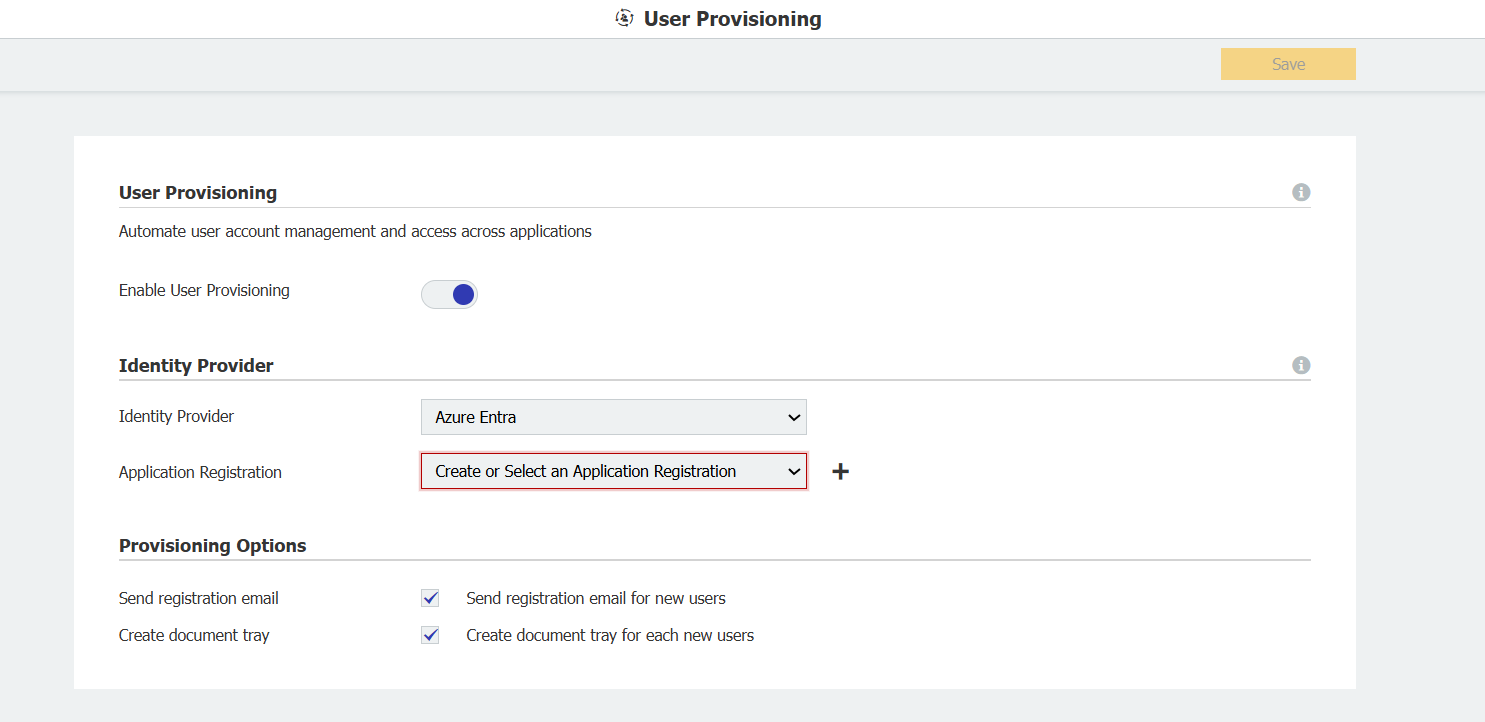
Go to DocuWare Configurations > General > User Provisioning.
Turn on Enable User Provisioning.
In the Identity Provider list, select your provider: Azure Entra, Okta, Ping or Generic Identity Provider.
For a generic identity provider, also enter an identifier. Use only letters, digits, hyphens and underscores. The identifier becomes part of the Tenant URL.
In the Application Registration list, select an existing application registration. If you want to create a new one, click Create Application Registration (+):
Enter a name for the application and click Create.
Copy the Application (Client) ID and the Client secret. The secret is shown only once, so store it in a safe place.
Click Done.
Under Provisioning Options, choose whether new users get a registration email and a document tray.
Click Save. Save is available only when the configuration is complete.
Setting up your identity provider
Under Provider Configuration, copy the values shown. The field names match the terms that your identity provider uses:
Azure Entra and generic identity provider: Tenant URL and Token Endpoint
Okta: SCIM connector base URL and Access token endpoint URI
PingOne: SCIM BASE URL and Oauth Token Request
Set up the application in your identity provider with these values. Follow the article for your identity provider:
Mapping attributes and provisioning users
For Microsoft Entra ID, the attribute mapping, the group settings and the provisioning steps are described in these sections:
For Okta, PingOne and generic identity providers, see the article for your identity provider.
After the provisioning starts, check the provisioning logs in your identity provider. Then make sure that the users and groups appear in DocuWare.
Connecting Active Directory on-premises
If you manage your users in Active Directory or another LDAP directory in your own network, you can also provision them to DocuWare Cloud. In this case, the User Provisioning Configurator application connects your directory to DocuWare. For the steps, see How to integrate Active Directory on-premises with DocuWare Cloud User Provisioning.
Supported versions: DocuWare Cloud