A document in a tray is not yet in the file cabinet. It gets there when you store it, together with the index entries you need to find it again later.
Documents also reach a file cabinet automatically, without manual entry in a dialog. This article describes storing a document yourself from a document tray, where you decide what goes into the index fields.
Supported versions: DocuWare Cloud + new DocuWare client only
On this page
Coming from the classic DocuWare client?
In the classic client, open the new DocuWare client with the link Open new DocuWare. Your store dialogs, their fields, your select lists, and your Smart Index configurations are the same as in classic DocuWare. These are the differences.
If an entry does not fit the rules of a field, the store dialog lists the problems at the top and takes you to the field concerned. The classic client has no such summary.
A select list with several columns is not filtered yet, so it can offer values that do not match your other entries.
Create data record is now Store index entries only: The function is the same, storing index entries in a file cabinet without a document.
The new DocuWare client is available in DocuWare Cloud for now. On-premises systems continue to work with the classic client.
Storing a document
Select one or more documents in the tray.
Select Store. The list shows the store dialogs assigned to you. Each store dialog belongs to one file cabinet, so choosing a dialog also decides where the document is stored.
Fill in the index fields and store the document.
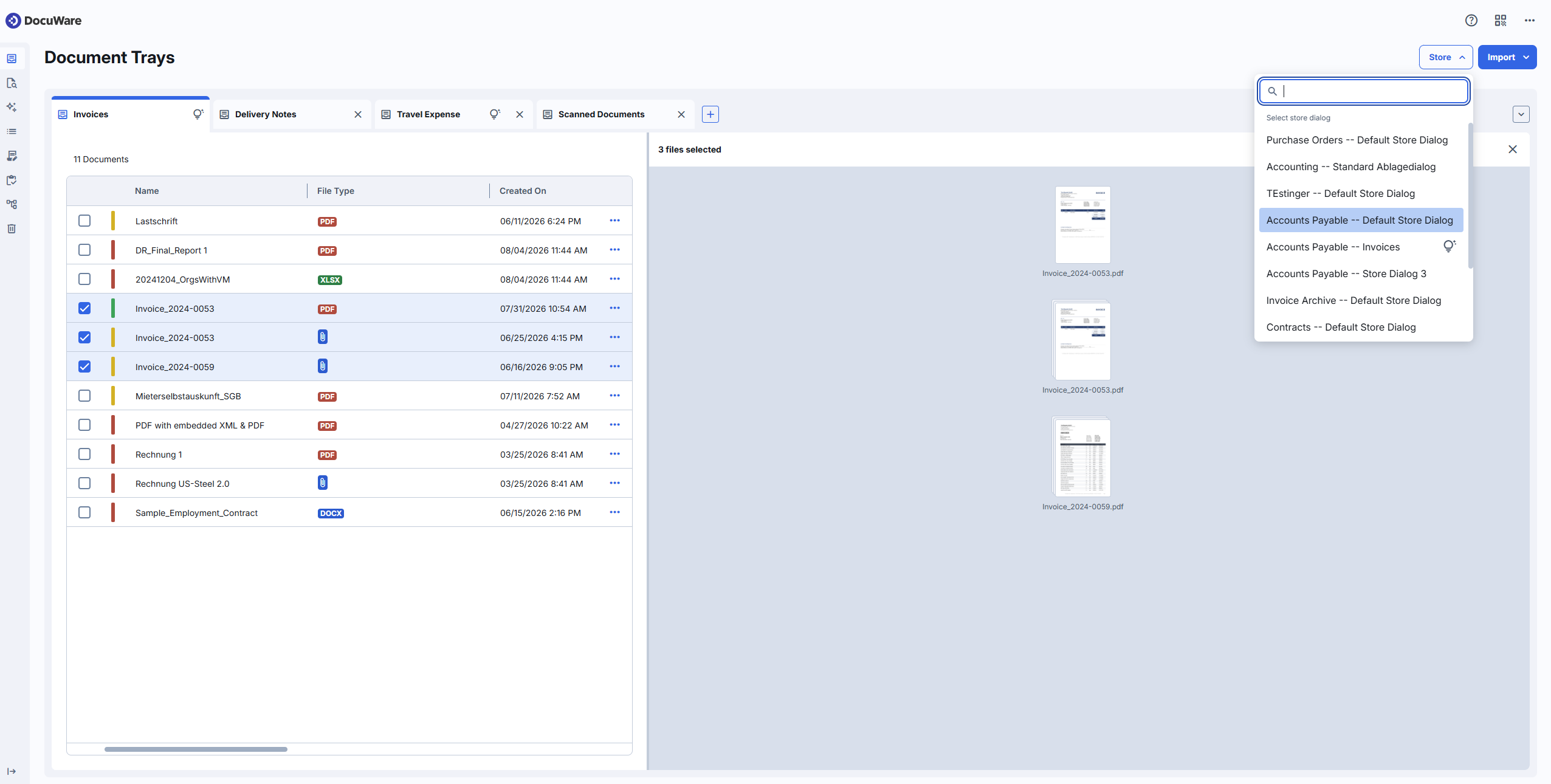
Select the file cabinet via a store dialog at the top right.
By default the document leaves the tray once it is stored. The options for changing that, and for reusing index entries across several documents, are described under Options in the store dialog.
Storing index entries without a document
Sometimes there is no document to archive, only data: a new customer, a supplier, an employee. With Store index entries only you create such an entry in a file cabinet without a document behind it. In the classic client this is called Create data record.
Entries of this kind are used as master data, and as a data source for workflows and other processes.
Open a document tray and select Store. With no document selected, Store index entries only is already set.
If a document is selected, select Store index entries only. The document is then unselected, because only the entries are stored.
Select the store dialog, fill in the values, and store.
Everything else on this page applies here too: the same store dialog, the same select lists, and the same checks on your entries.
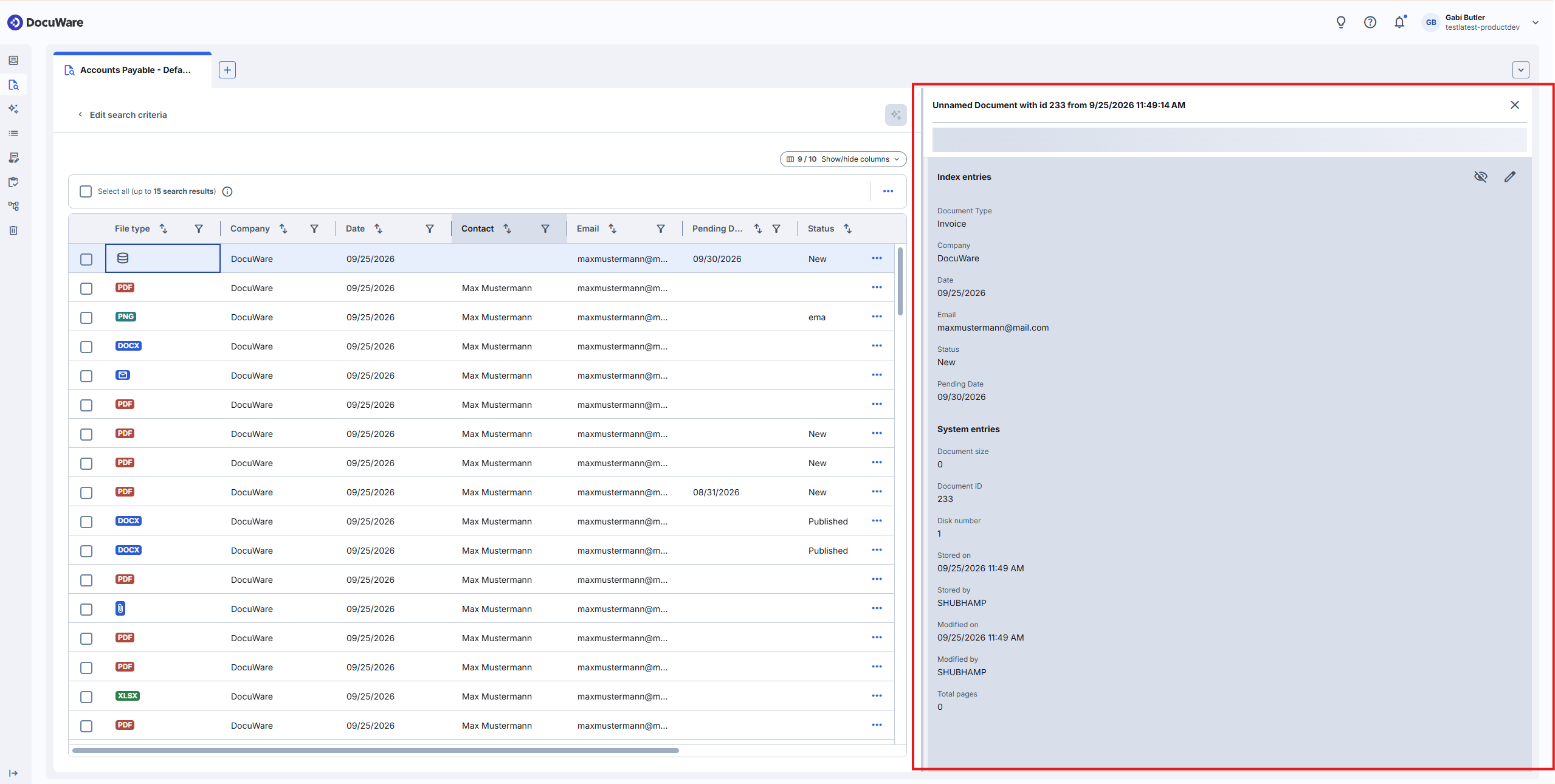
Index entries from Intelligent Indexing
In a document tray with Intelligent Indexing, the index fields are filled before you touch them. A document imported into such a tray is indexed automatically, using the Intelligent Indexing field mappings of the store dialog that belongs to the tray. You can also start the indexing yourself for a document that is already lying in the tray.
A lightbulb icon next to the name of a document tray, and next to a store dialog, shows that Intelligent Indexing applies there.
Each automatically filled field carries a color marker for how reliable its value is: red for low, yellow for medium, and green for high confidence. You see the markers in the tray and again in the store dialog, so you know which fields to look at before you store.
To check a value, select the index field. The matching text is highlighted in the document in the viewer, so you can compare the entry with the source without reading the whole page.
Filling a field from a select list
You cannot type free text into every index field. Where a select list is configured for a field, the field is a dropdown and you pick one of the predefined values, for example the supplier, the cost center, or the document type.
This is quicker than typing, and it keeps the entries consistent: every document is stored under the same spelling, so a later search finds all of them.
Your select lists come from classic DocuWare. Where a select list has several columns, one of its columns is assigned to each index field, and a select list with filter conditions is not filtered yet, so it can offer values that do not match your other entries.
Taking index entries from the document
Most of what belongs in the index fields is already printed on the document. With One Click Indexing you take it straight from the page instead of typing it again.
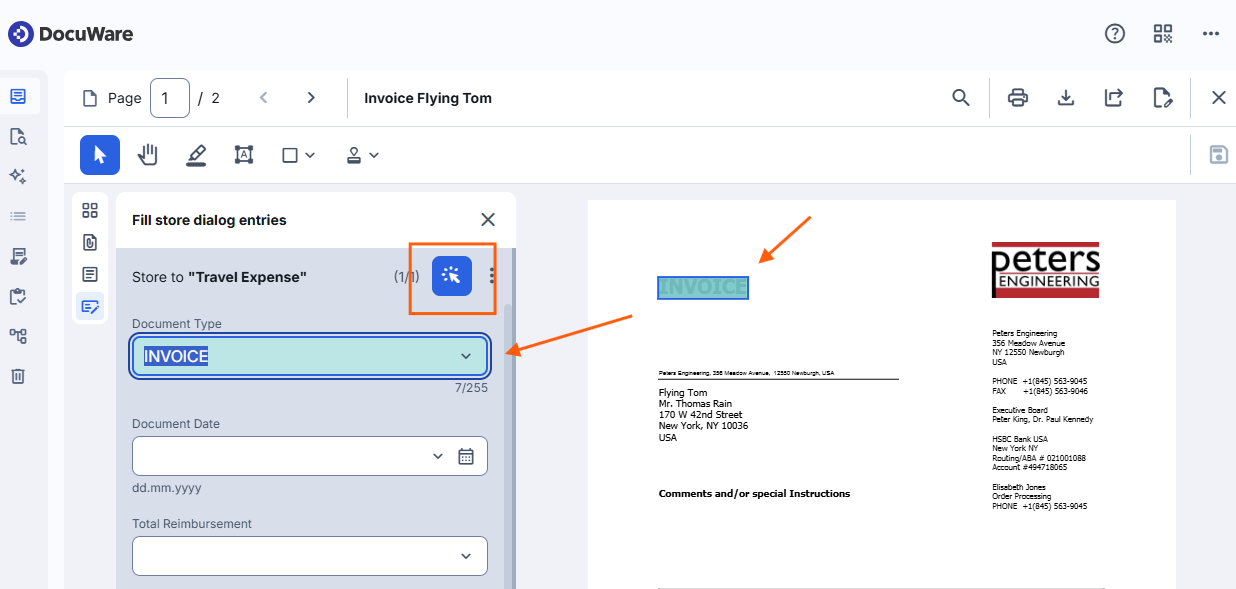
Select the One Click Indexing icon in the store dialog to switch it on.
Select the index field that should receive the value.
Select the text in the document, or drag across it to take a longer passage:
What the store dialog checks
Index fields can be mandatory, and they can expect a certain form, for example a date or a customer number of a fixed length. The store dialog checks your entries against these rules.
If something does not fit, a summary of the problems appears at the top of the dialog. Select an entry in the summary to jump to the field it belongs to, which saves searching in a long dialog.
These checks are about the form of an entry, not about its content. A value from Intelligent Indexing can fit the rules of a field and still be the wrong one, which is what the confidence markers are for.
Where a field description is too long to be shown in full, point at it to read the whole text.
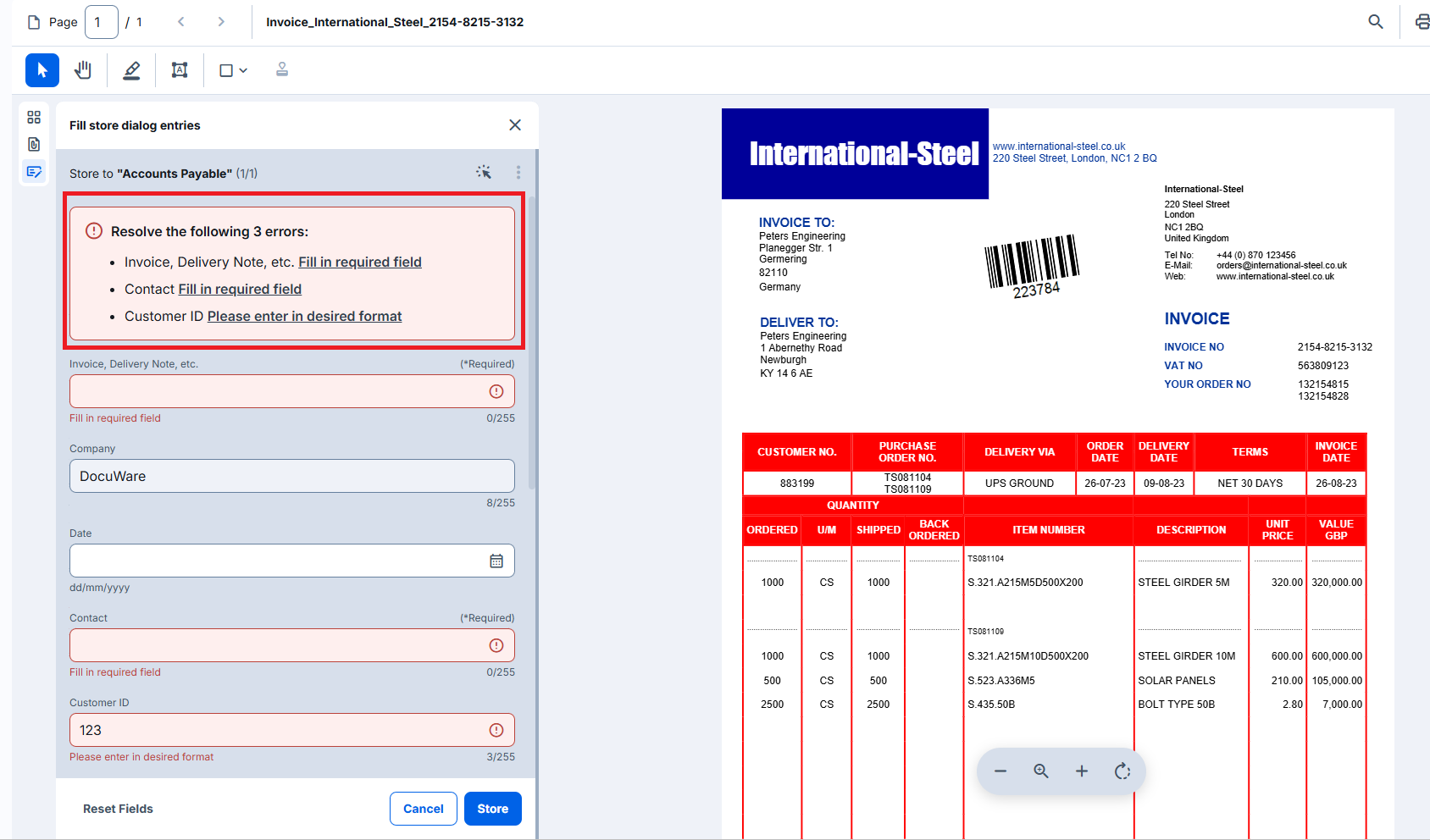
The store dialog shows what is missing for archiving the document.
Options in the store dialog
Select the three dots at the top right of the store dialog. Three options change what happens when you store, and two help you fill the fields.
Delete from document tray: Selected by default. The document leaves the tray once it is stored. Clear the option to keep it in the tray, for example when you want to store the same document in a second file cabinet as well.
Preindex: Saves the index entries without storing the document. It stays in the tray with its values, ready to be stored later. The main button changes from Store to Preindex, and Delete from document tray is switched off while you use it.
A preindexed document keeps its values even when the store dialog is changed or removed in the meantime. You see them with View index entries, and if you store the document with another store dialog, the values stay in the fields that exist there too.
Keep entries: For storing several documents together. The values you entered for one document stay in the dialog for the next document of the batch, so you only change what differs. All entries are carried over, including a date or a document number that has to be different, so check those fields before you store.
Autofill indexing: Fills the fields with the values of the document you stored last. Useful for a series of similar documents. The shortcut is [Ctrl] + [Alt] + [J].
Start Smart Index: Takes data from the application you are working in and writes it into the matching index fields. Your existing Smart Index configurations apply.
Notes for administrators
Store dialogs are configured in the same way as in classic DocuWare in DocuWare Configurations > File cabinets > Dialogs > Store. They keep their settings, and nothing has to be set up again for the new DocuWare client.
Existing select lists apply as they are. A select list with several columns and filter conditions is not filtered yet, so users see all its values.
Store index entries only: Nothing has to be configured. The entries are stored through the store dialog, so the fields and their rules are the ones of that dialog.
Permission to store and other functions: Filing a document into a file cabinet requires the store permission for that file cabinet.