In the DocuWare client you retrieve an archived document by searching for what you remember about it: an index entry, or a word from the document itself. Open Search in the left sidebar to start.
Documents are archived in file cabinets, each one stored together with its index entries, for example company, document type, or invoice date. If fulltext is activated, the text of the document is indexed as well, so you can search for any word that appears in it, not only for its index entries.
There are two ways to search, and you choose which one you want each time you start a search - the Multiple file cabinet search and the Single file cabinet search.
New client only
This article applies only to the new DocuWare client. For the classic client, see the classic DocuWare client help.
On this page
Coming from the classic DocuWare client?
In the classic client, open the new DocuWare client with the link Open new DocuWare. Your searches are the same as in classic DocuWare. If you know how searching works there, these are the differences.
In the classic client every search started from a search dialog for one file cabinet. You can still work that way. But you can now also by default enter one term and search every file cabinet you have access to.
Run several searches at the same time: Searches open in tabs, so earlier results stay available and you compare them instead of running a search again.
A search across file cabinets shows one chip per file cabinet, plus the combined Recently modified list.
Operators in fulltext search are not supported yet, coming soon.
The new DocuWare client is available in DocuWare Cloud only for now. On-premises systems continue to work with the classic client.
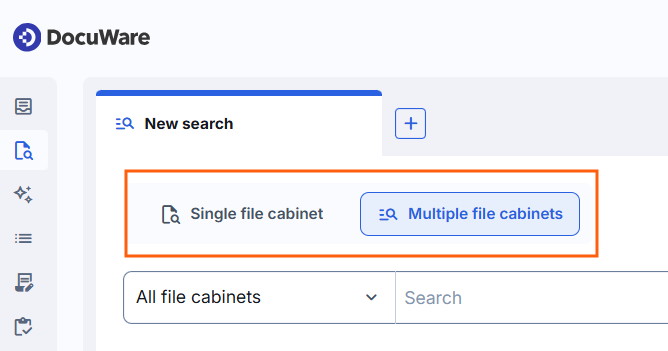
Search in multiple file cabinets, if you are not sure where a document is stored.
Search across multiple file cabinets
Use the Multiple file cabinet search when you do not know where a document is stored. You enter a search term once and DocuWare searches all file cabinets you have access to, shows the most relevant documents first, and then lets you narrow the result down to one file cabinet. There are no index fields to fill in.
In file cabinets that are enabled for full text, the search runs as a fulltext query. In all other file cabinets, it searches the document name.
The results are grouped with chips. A chip is a small, clickable label above the result list that groups the hits:
Recently modified: The aggregated result across all file cabinets, with up to 50 of the most relevant documents per file cabinet. This limit applies to this chip only.
One chip per file cabinet: All hits in that file cabinet, with the number of hits in brackets. Select a chip to get filtering and sorting.
More about Working with result lists.
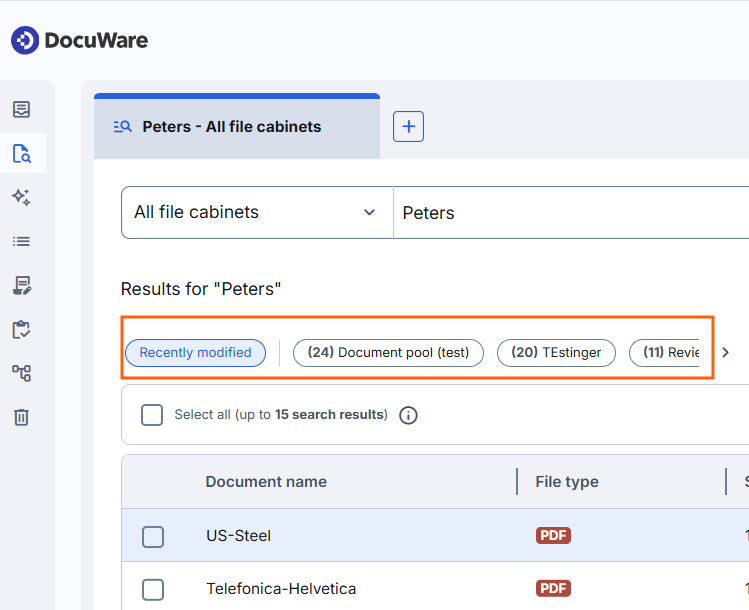
The search hits are bundled in buttons called chips. Click on it to view the results.
Documents are sorted by text relevance first and by modification date second.
The text in the user interface (up to 15 search results) is only relevant for DocuWare Aura, not for search.
You can use the asterisk as a wildcard at the beginning or the end of a search term. "Peter*" finds entries that start with "Peter", and "*Peter" finds entries that end with it.
To restrict the search to certain file cabinets from the start, open the All file cabinets list next to the search field and select the ones you need. The selection lasts for one session and one search tab only. In the next session, or in a new search across file cabinets, all file cabinets are selected again.
Search within a single file cabinet
Use the Single file cabinet search when you know where a document is stored. The single file cabinet search works like the dialog-based search in classic DocuWare, with a new interface. The fields you see come from the search dialog, so different dialogs can offer different fields for the same file cabinet.
Select Single file cabinet in a new search tab.
Select the file cabinet you want to search.
Select a search dialog.
Fill in the index fields you want to search for, and start the search.
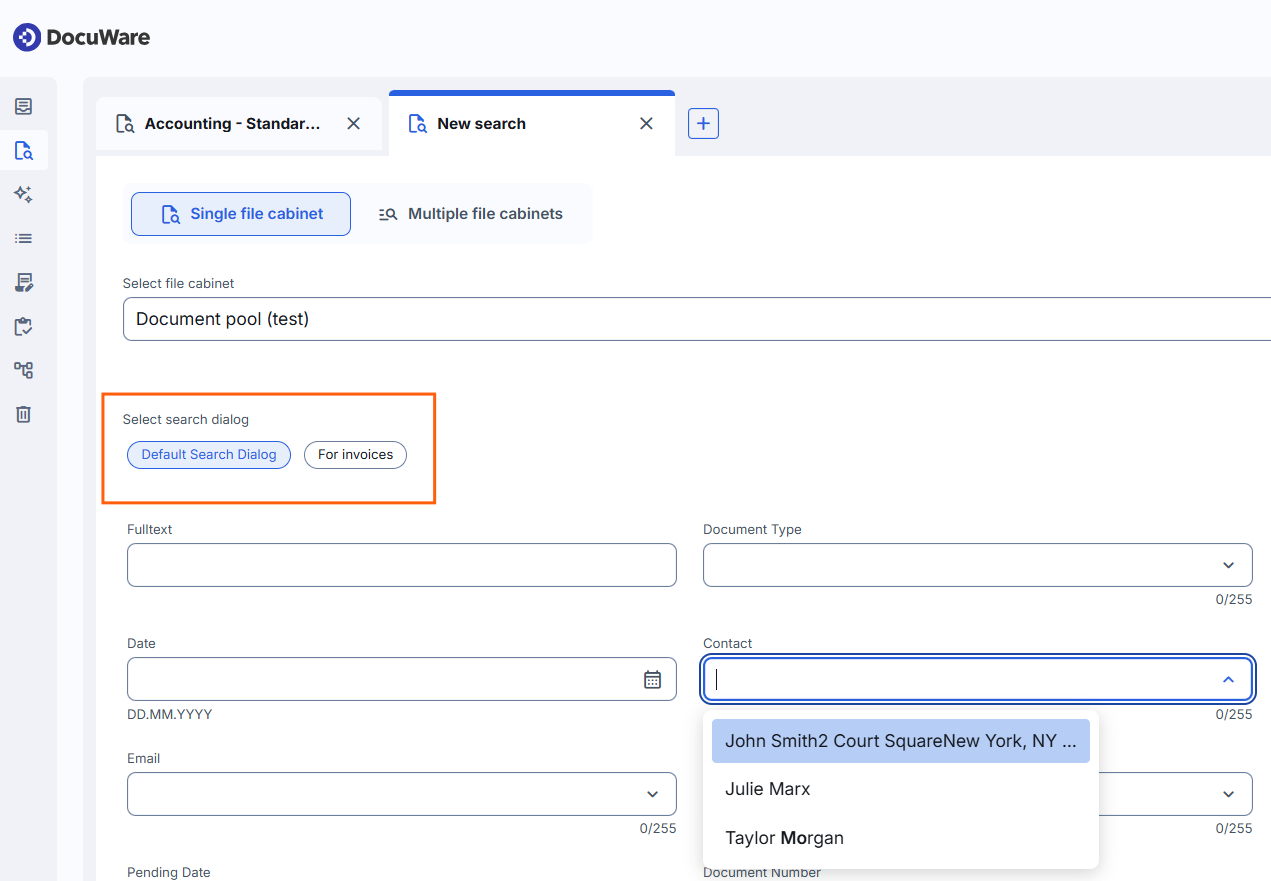
If fulltext is activated for the selected file cabinet, the search dialog has a Fulltext field. Enter a term there to include the content of the documents in the search.
This result list starts with the system fields that every file cabinet has by default. You can add the index fields of the underlying result list as columns. You can also sort, filter by several values at the same time, and return to your search terms with Edit search criteria above the list.
More about Working with result lists
Information
A system field is created automatically by DocuWare and filled by the system itself for example document name, storage date, file type, while an index field can be created by the user and is filled with content-related information when the document is stored for example company, document type, invoice date.
The text in the user interface (up to 15 search results) is only relevant for DocuWare Aura, not for search.
Comparing search results with search tabs
Searches open in tabs, similar to browser tabs, so you can keep several searches side by side and compare their results without running them again. Up to 50 tabs can be open at the same time.
Each tab holds exactly one search of one type. The type is set when you create the tab and cannot be changed afterwards, so run the other type in a new tab. A new tab uses the type you selected last, and the first tab in a session is a single file cabinet search.
You can tell the tabs apart by their icons and their labels:
A Single file cabinet tab shows the file cabinet and the selected search dialog.
A Multiple file cabinets tab shows the search term and the file cabinets included.

With many tabs open, use the arrow at the right end of the tab bar. It lists all open tabs, lets you search them by name, and close the tabs:
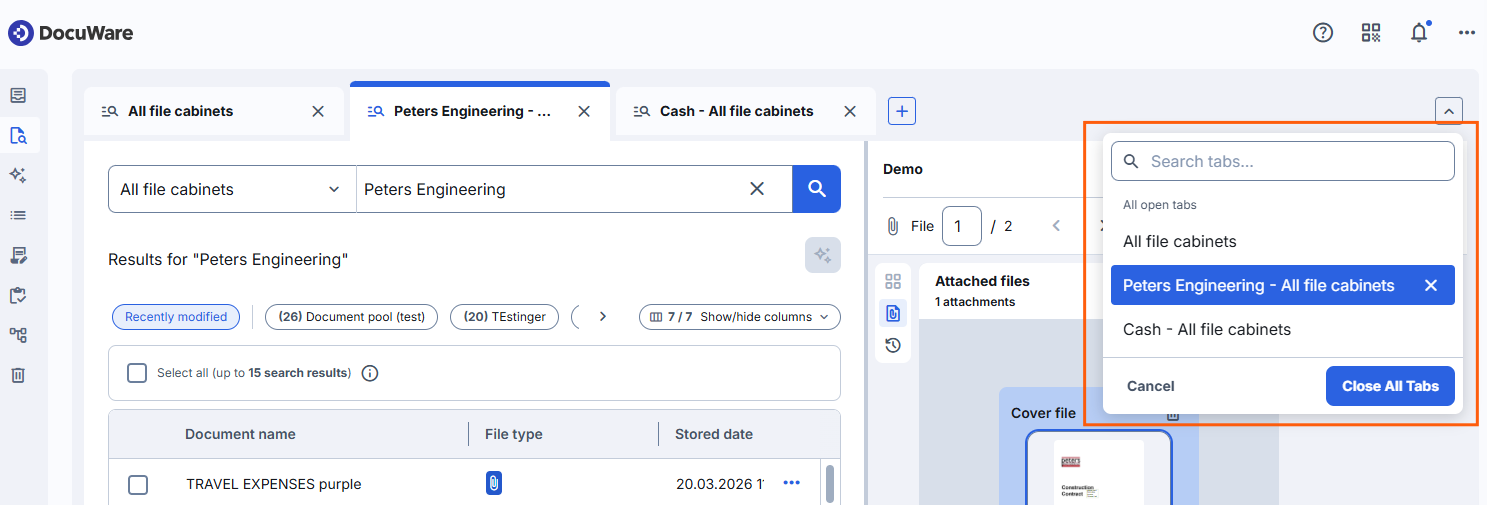
Closing the last tab leaves one empty tab open, so you can always start a new search.
The tabs are kept for the next session, after closing the browser or logging out.
Notes for administrators
Searching is configured in the same way as in classic DocuWare, see file cabinet help.
Read the article File cabinet permissions and dialogs to learn how to configure the cope of a user.
Only the file cabinet permissions decide which documents users can see. If you hide fields in a search dialog, users with access to a document can still find it by its index values. The search works directly on the file cabinet and ignores visibility settings in dialogs. In concrete terms: confidential information is protected through file cabinet and document permissions, not by hiding dialog fields.
More about permissions and dialogs in new DocuWare
The result list of a search across multiple file cabinets consists of the system fields, for example document name, storage date, and file type. Index fields of a file cabinet cannot be added to this list, because there is no specific result list dialog behind this search that defines the columns. Any user can, however, hide columns they do not need to make the list shorter.
The Result list functions that could be shown and hidden in the configurations are no longer evaluated. The actions for a document in the context menu of the result list depend solely on the permissions. Hiding such an action never restricted what a user could do, because each function has its own permission and can be used in other ways.
More about permissions and dialogs in new DocuWare
Users need a search dialog to search a single file cabinet. Without an assigned search dialog, they can use the search across multiple file cabinets instead. Of course, they only find documents that are accessible to them through a file cabinet permission.