Documents often belong together: an invoice with its delivery note, minutes of a meeting with an agenda and a list of participants, or a contract that was scanned as five separate pages. The new DocuWare client offers two functions for this: Attach and Merge. When you attach documents, they stay separate documents; when you merge them, they become a single document.
Both are meant for preparing documents before they are filed, so you mostly use them in a document tray.
Supported versions: DocuWare Cloud + new DocuWare client only
On this page
Coming from the classic DocuWare client?
In the classic client, open the new DocuWare client with the link Open new DocuWare. If you know these functions from there, these are the differences.
Clip is now Attach files.
Unclip is Detach files.
Staple is Merge.
Unstaple is Separate files.
In the classic client you can attach a file to a database record. The new DocuWare client will support this later.
Detaching needs a document tray: a set that is already stored in a file cabinet cannot be taken apart yet, because there is no way to copy a stored document into a tray.
The new DocuWare client is available in DocuWare Cloud for now. On-premises systems continue to work with the classic client.
More about all current limitations of the new DocuWare client
Attach or merge
Whether you attach or merge depends on your goal:
Attach, when the documents should stay separate documents:
The Attach files function groups documents and leaves each file unchanged, so a Word document, an Excel list, and a PDF can sit in the same set. The first document is the cover file, and the other documents are attached to it. The Detach files function breaks the set of attached files apart again and restores the original files.
Merge, when they should become one:
The Merge function turns several PDF documents into one new PDF document. You use it, for example, for pages that were scanned separately but are one document. The Separate file function is the counterpart to Merge and splits a PDF into one document per page. Note, however, that this does not restore the original documents.
Neither function limits the number of documents you can attach or merge at once.
Where you find these functions
Each function is reached by right-clicking a document, or by opening its menu with the three dots at the end of the row. Where that is possible differs:
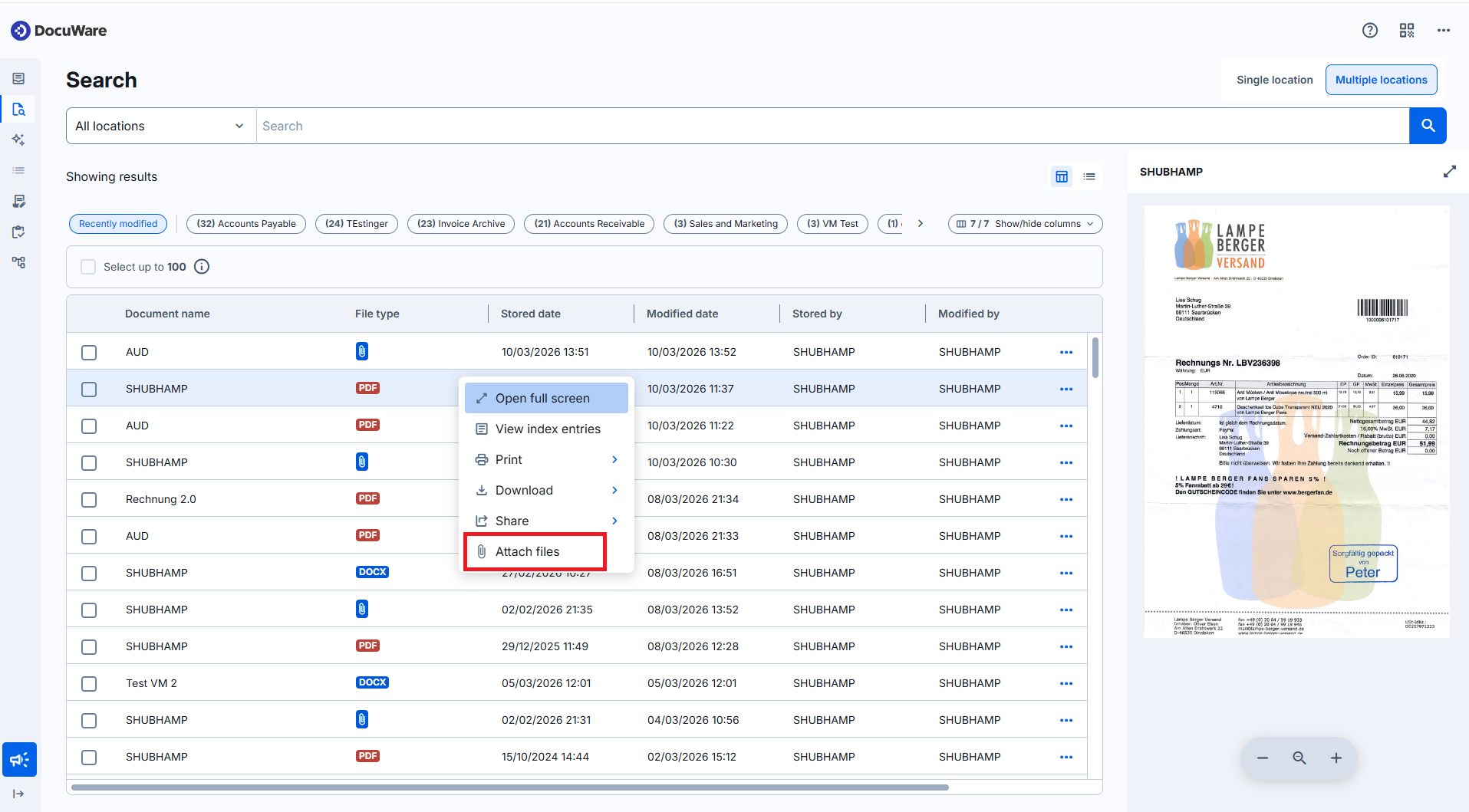
Attach files: You find this function in a document tray, in your search results, and in the viewer of an open document. The command opens the document in the full viewer with the Attach files panel. There you choose the files to add.
If the files you want in one set are already in a document tray, select them all and use the Attach files together command.
Detach files: You find this function in a document tray. An attachment set can only be taken apart in a document tray.
Merge: This function is available only in a document tray, for PDF documents. For documents in a format other than PDF, the function is greyed out; for a plain database record, it is not shown at all.
Separate file: This function is available only in a document tray, for PDF documents. For documents in a format other than PDF, the function is greyed out; for a plain database record, it is not shown at all.
Attaching documents
In a document tray or in your search results, open the menu of a document and select Attach files. If the documents are already in the tray, select them all and use Attach files together. The order in which you select them decides the order in the set, and the first one becomes the cover file.
A set is recognizable in the tray and in a result list by a clip icon in the file type.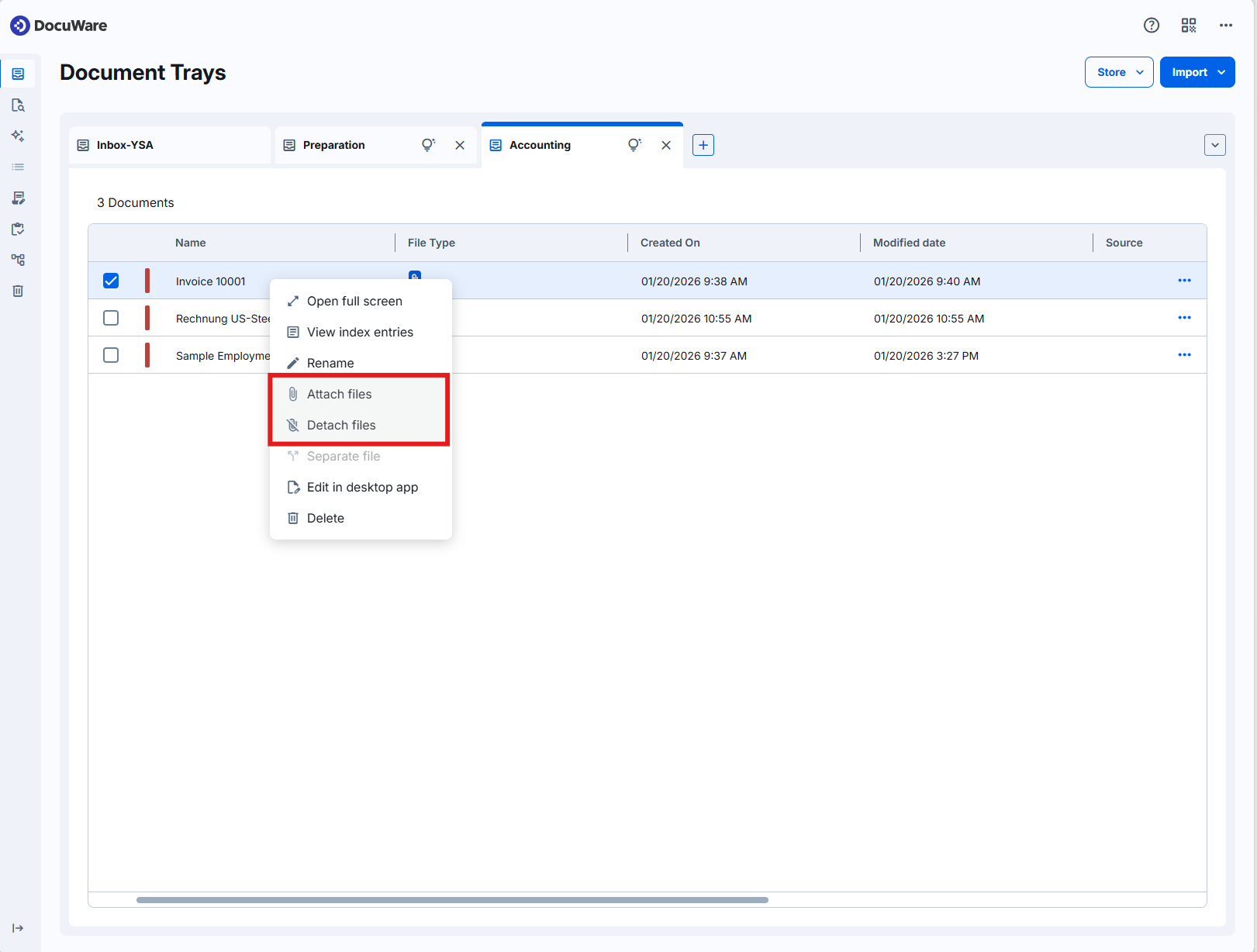
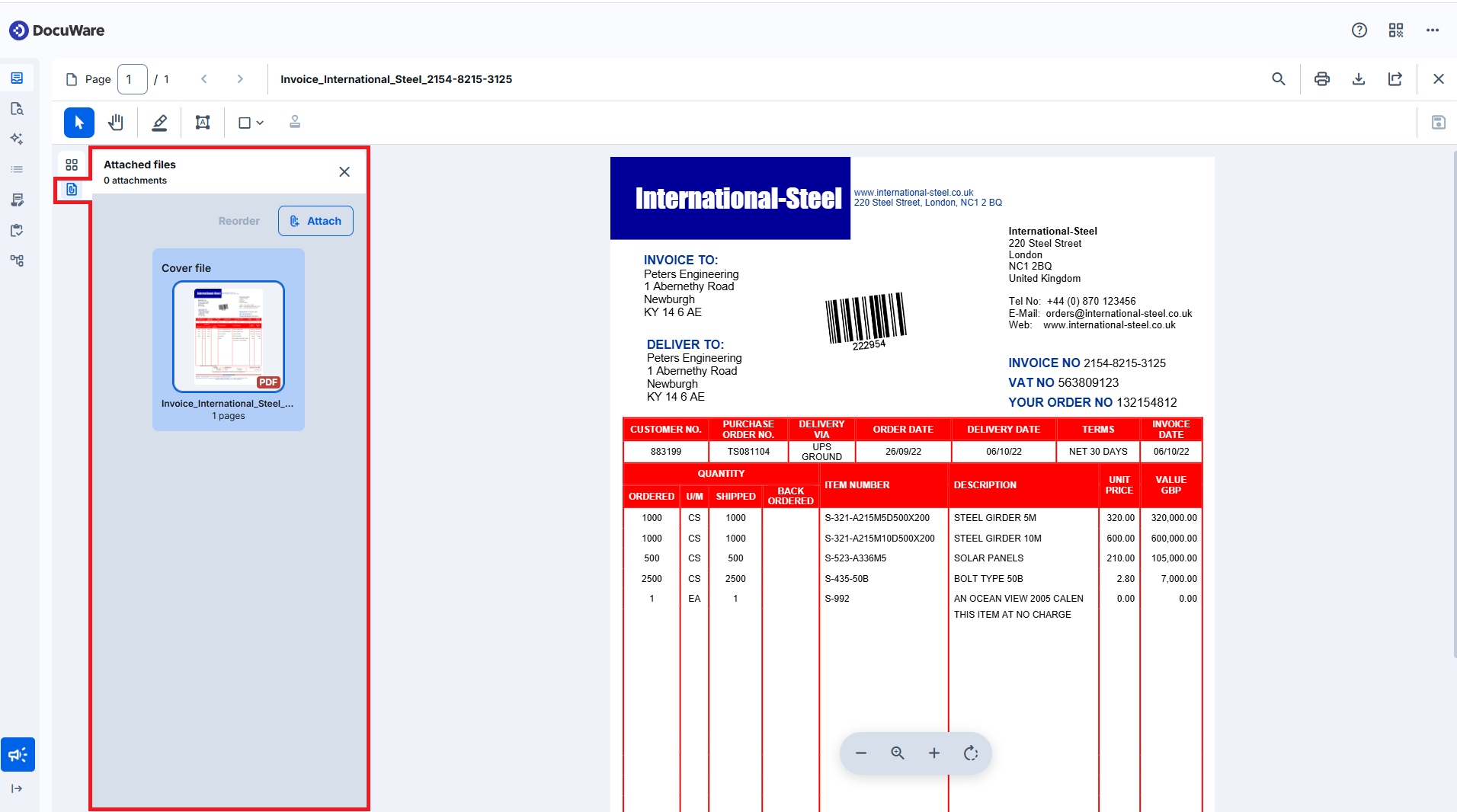
In the viewer, select Attach and choose where the document comes from:
From the file system: A file on your computer.
From DocuWare: A document from one of your document trays.
At least one of the documents involved has to be in a document tray. Two documents that are already stored in a file cabinet cannot be attached to each other. To add something to an archived document, start from that document and take the other one from a tray.
The set keeps the index entries of the document you started from. The entries of the other documents are preserved in the database, so each document has its own entries again when the set is detached.
.png)
Changing the order of attachments
Open the set in the viewer and select Reorder. Drag the documents into the order you want, or move them with the arrow buttons.
Removing a document from a set
Open the set in the viewer, select the document you no longer need, and remove it. The last remaining document of a set cannot be removed, because a set always needs its cover file.
Important
A document you remove from an attachment set is deleted permanently. It does not go to the trash bin, so it cannot be brought back. If you only want to take the set apart and keep all documents, use Detach files instead.
Detaching a set
In a document tray, open the menu of the set and select Detach files. Every document of the set becomes a separate document again, in its original format, and carries the index entries it had before, if it had any.
Detaching works in a document tray only. A set that is already stored in a file cabinet cannot be taken apart yet, because there is no way to copy a stored document back into a tray.
Merging PDFs into one document
Open the document tray.
Select the PDF documents you want to combine. The order in which you select them is the order they will have in the merged document.
Right-click the selection and select Merge.
The selected documents become one PDF document. It keeps the index entries of the first document of the selection. Annotations and stamps on the merged pages stay as they are.
Information
The Merge function combines several PDF documents that you select in a document tray, without opening them. The Add pages function in the page view of an open PDF brings the pages of another PDF into that document, and it also works for a document in a file cabinet, which Merge does not. Both functions produce a single PDF in the end.
Separate is one function reachable from two places, the menu of a document in a tray and the page view. See Managing the pages of a PDF.
Separating a PDF into single pages
Open the document tray.
Select the PDF document you want to split.
Right-click it and select Separate.
Every page becomes a document of its own. A five-page document becomes five documents. This is the usual way to deal with a stack that was scanned in one go, or scanned in the wrong order: separate it, sort the pages, and merge the ones that belong together.
Current limitations
Files cannot be attached to database records. This will be supported later.
A set that is stored in a file cabinet cannot be detached, because a stored document cannot be copied into a document tray yet.
Merging and separating work with PDF documents only, and only in a document tray.
Notes for administrators
As in the classic client, attaching (clipping) and merging (stapling) require no specific configuration.
These functions require the Edit permission. Removing an attachment from a set, or a page from a PDF document, additionally requires the Delete permission.
In a document tray no file cabinet is involved, so a user can attach, detach, merge, and separate there without a file cabinet permission. As soon as a stored document takes part, the permissions of its file cabinet apply.