This menu item only shows if the DocuWare Server is licensed with a DocuWare Enterprise Server license.
The Organizations page in DocuWare Server Manager lists and manages the organizations within your DocuWare system. In DocuWare, an organization is a logical structure that groups users, file cabinets, workflows, and permissions together. This concept enables multi-client capability: a single DocuWare installation can host multiple organizations that share the same infrastructure while keeping their data and user management separate, for example for different subsidiaries or clients.
Many installations have only one organization. The currently active organization is shown in the top-right corner of Server Manager, next to the logged-in user name.
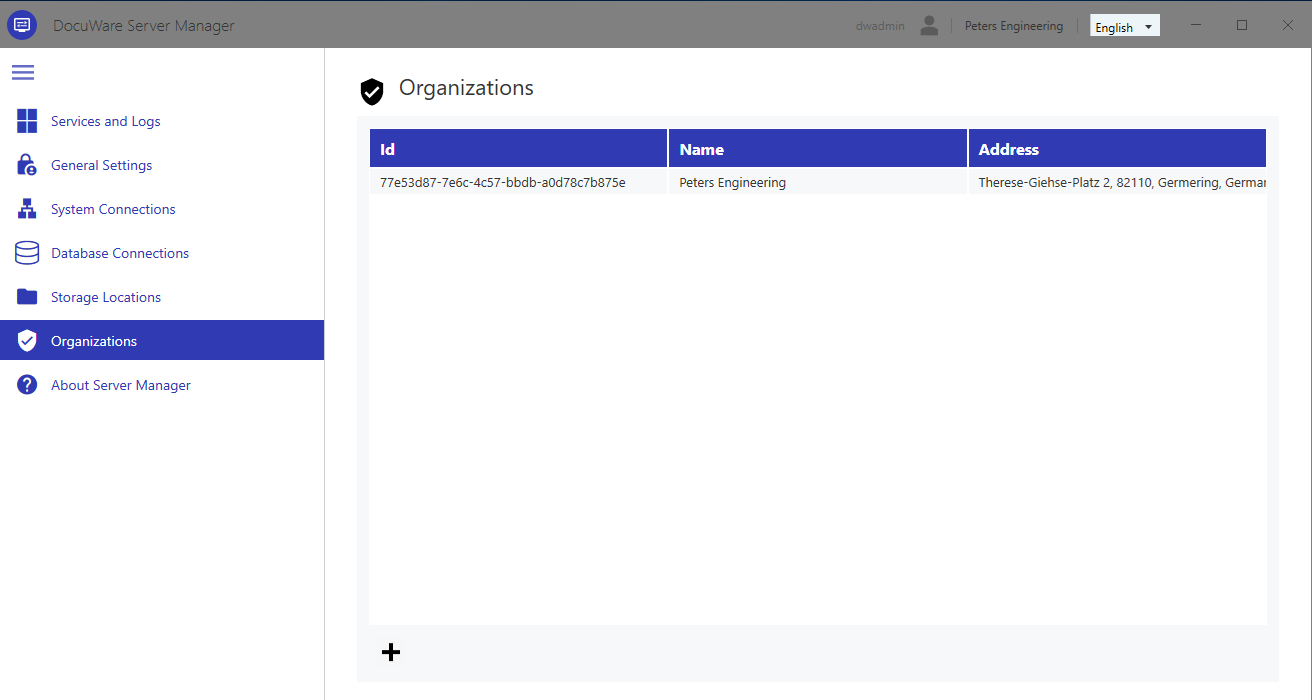
The overview table shows the following columns:
Id: A unique identifier generated automatically when the organization is created. The Id is used internally by DocuWare and cannot be changed.
Name: The display name of the organization, for example "Peters Engineering". The organization name is written in the license file and cannot be changed. Its name appears in the top-right corner of Server Manager.
Address: The physical address of the organization. It cannot be changed. If your company changes address, you need a new license file.
Create new organization
You can only create a new organization if you have a DocuWare license file that includes the new organization.
When creating a new organization, a detail page opens with the following fields:
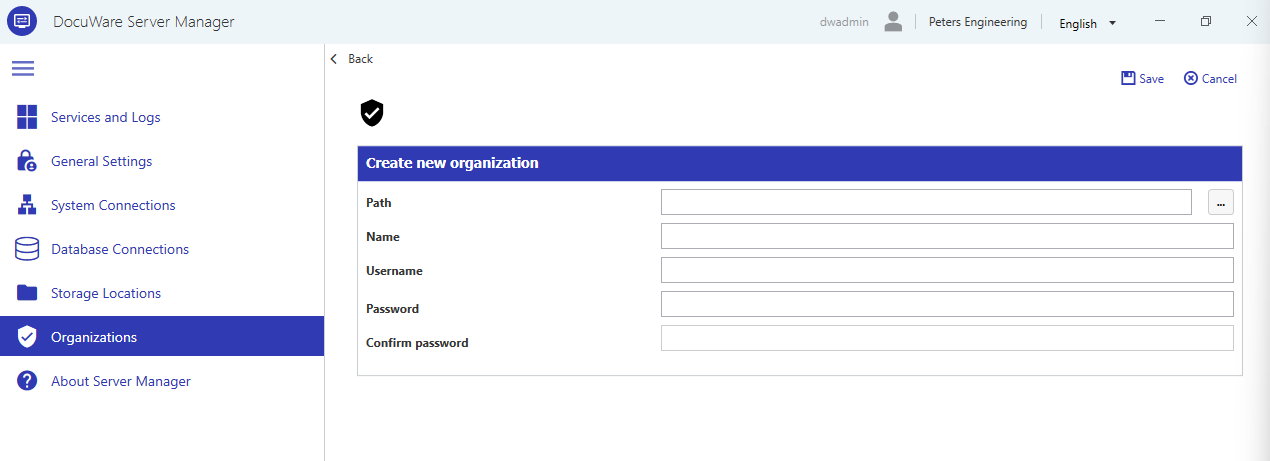
Path: The file system path where the license file is stored that includes the new organization. You need to select a valid license file to continue.
Name: The display name of the new organization. This field will be automatically populated by the organization name written in the license file.
Username: The user name for the initial system and organization administrator account. When the new organization is created, this user will also be created and becomes the first system administrator and organization administrator.
Password: The password for the account.
Confirm password: Re-enter the password to confirm.
Managing the new organization
If your DocuWare installation holds multiple organizations, you can select the organization at the login screen: there is a “Change” link next to the last organization you were logged in.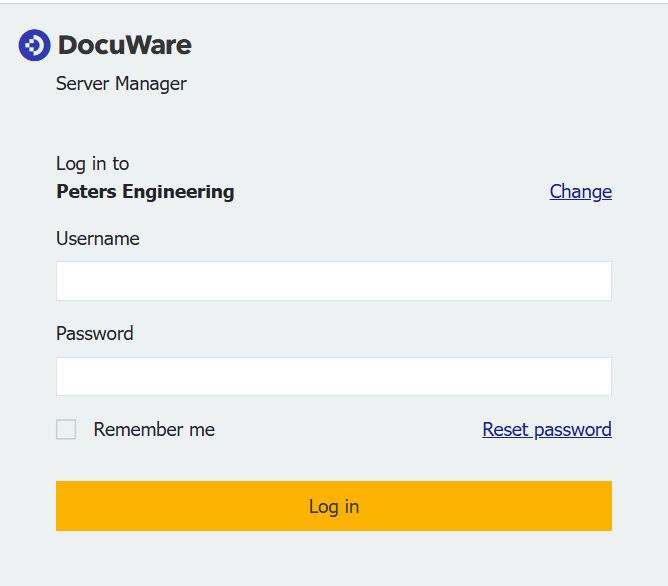
Some settings are system-wide i.e., the are already available in the new organization. If you want to use them, you need to connect to the new organization and select them as used.