Storing, finding, sharing and processing documents: everything comes together in the new DocuWare client. Regular updates refine the details of daily work and add new possibilities. These are the latest changes.
Filtered select lists in the store dialog
When you store a document from a document tray, select lists in the store dialog can now show only the index values that match your other index entries. Instead of the full select list, you see the values that are relevant for this document.
Component: new DocuWare client
Use cases
An accountant selects “Invoice” as the document type and picks the supplier from a short list of suppliers stored with invoices before.
A sales assistant selects a customer and picks the contract number from the contracts of that customer, instead of scrolling through all contracts.
An accountant selects a supplier, and the City and VAT number fields offer only the values of that supplier, so no mismatched combination is stored.
Benefits
Shorter, relevant select lists when storing
Fewer indexing errors
Here's how
In a document tray, open the store dialog and then the select list of a field. If you want to turn filtering on or off, select Filtering at the bottom of the list, next to Edit select list:
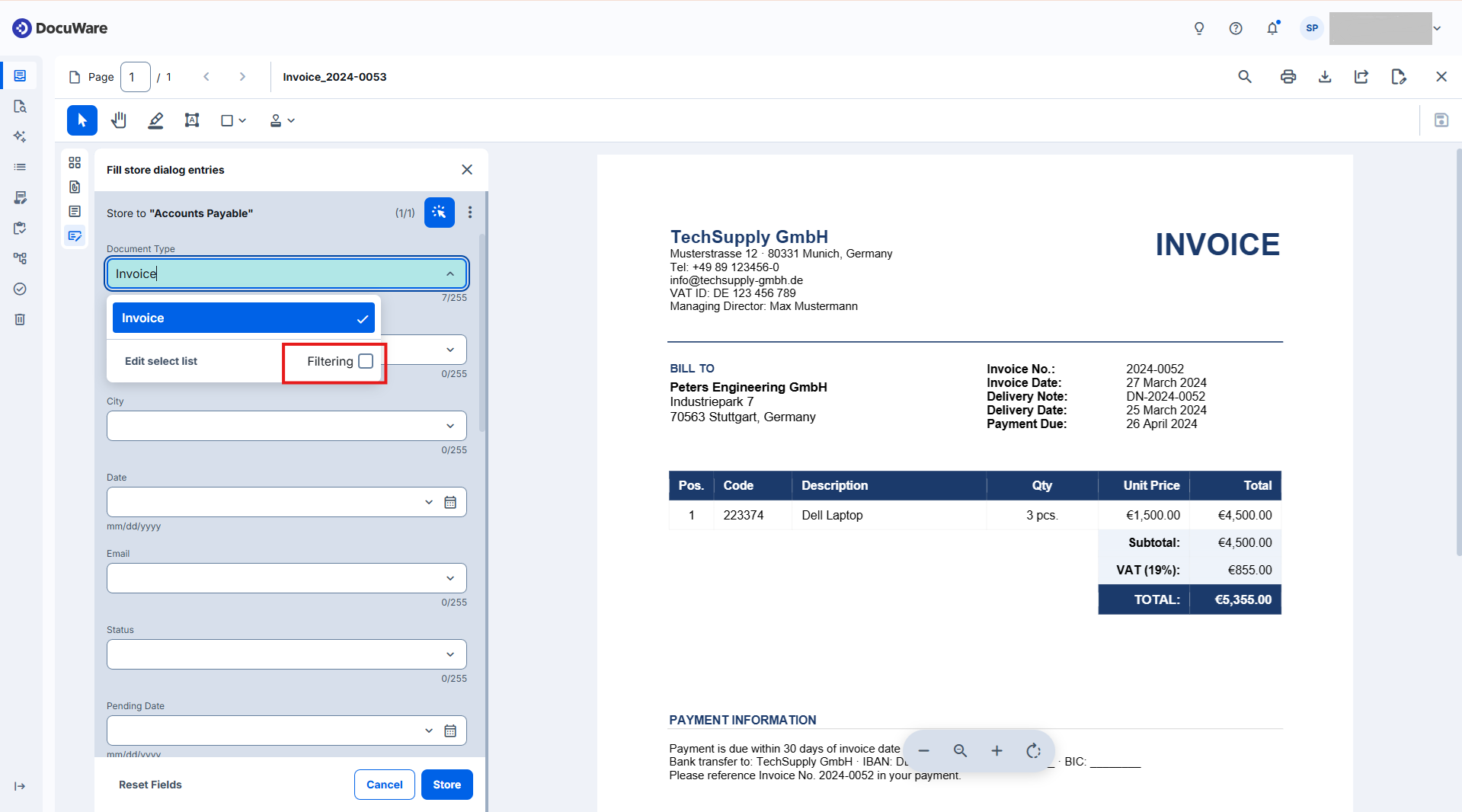
Existing filter settings from classic DocuWare still apply, so nothing has to be configured again. Administrators define the filtering in DocuWare Configurations > File cabinets > Dialogs > Store.
How filtering works depends on the select list:
Default select list: Default select lists are built automatically in DocuWare from the values users entered in an index field when storing. Filtering the default select list of an index field works only with the default select lists of other fields. If the administrator allows it, a user in the DocuWare Client turns filtering on or off in the list itself. Filtering is off by default, and the new DocuWare client remembers your choice for each store dialog.
Multi-column select list: Administrators can provide external data for select list as a table, for example with the columns “supplier name”, “city” and “VAT number”. Each column of the table serves as a select list. Fields that use these columns as select lists filter each other. After you select a supplier, the City list shows only the cities stored for that supplier. This filtering always applies.
More about storing documents from a document tray
Bulk actions in the Workflow Overview
In the Workflow Overview section of the new DocuWare client, controllers can stop or move forward up to 100 active workflow instances in one step. Until now, they had to handle each instance separately through the context menu of its row.
The bulk actions available depend on the status of the selected instances. You can stop instances with any status. You can also move instances with the status Waiting forward. If the selection contains instances with different statuses, only Stop instance is available. For input requests, Stop instance is the only bulk action.
Components: new DocuWare client, Workflow Manager
Use cases
A workflow started many instances by mistake. Instead of stopping all of these instances manually, the workflow controller filters the list to these instances, selects them with one click and stops them in one step.
Many instances have the status Error. The workflow controller filters the list by this status, selects the instances and stops them in one step.
Many instances are waiting, and the controller wants them to continue. The controller selects them and moves them forward in one step.
Benefit
Fewer steps to stop or move forward many instances
Here's how
In the new DocuWare client, open the Workflow Overview in the left sidebar, select a workflow and open the Active instances tab. If you want to select the first 100 instances, activate the Select all (up to 100 instances) option in the toolbar above the list first. Then select Stop instance or Move instance forward. Both actions ask for confirmation, and the client then shows how many instances were processed.
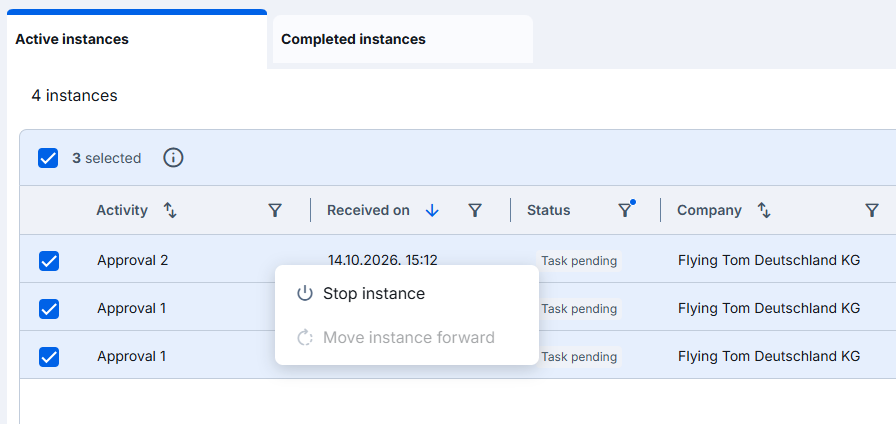
In the Workflow Overview, you can select multiple instances and stop or move them forward.
The bulk actions are available to everyone with Controller rights for the workflow. Workflow Designer rights include Controller rights.
Note that you can select up to 100 instances at a time. The Select all option always picks the first 100 instances in the current sort and filter order, even if you have scrolled further down. If you want to select other instances, filter or sort the list first.
Completed instances have no bulk actions. Reassigning tasks is not a bulk action: for a single instance with the status Task pending, the Reassign task(s) option stays in the context menu of the row.
More about the Workflow Overview
Selecting up to 100 workflow tasks at once
In the Tasks area of the new DocuWare client, the Select all (up to 100 tasks) control in the toolbar selects up to 100 tasks with one click. The bulk actions and the permissions behind it are the same as in the classic DocuWare client.
Components: new DocuWare client, Workflow Manager
Use cases
A team lead has a long list of similar approval tasks. The team lead filters the list to these tasks, selects them with one click and runs one bulk action on all of them.
After a few days away, an accountant finds 250 similar tasks. The accountant selects and processes the first 100, then repeats this for the next ones.
A user has selected all tasks and wants a different selection. One click on the control deselects all tasks, and the user can start again.
Benefits
Fewer clicks to select many tasks
Clear selection limit in the control label
Here's how
In the new DocuWare client > Tasks, activate the Select all (up to 100 tasks) option in the toolbar above the task list. The client selects the first 100 tasks in the current sort and filter order and scrolls back to the top of the list. A second click clears the selection.
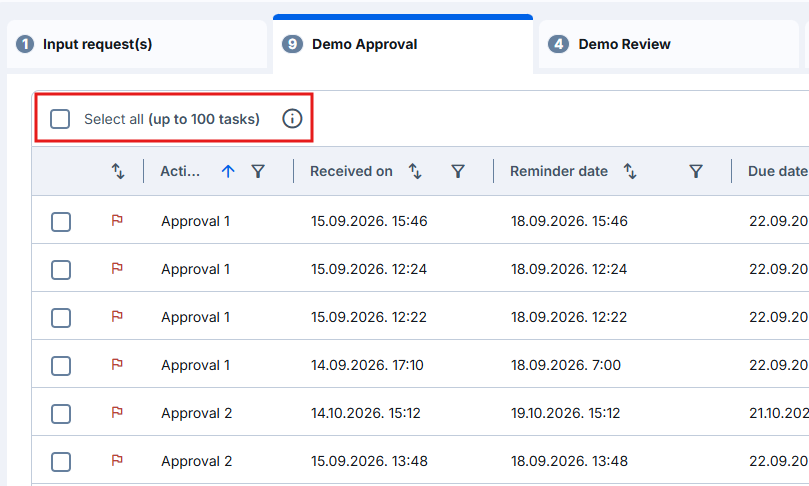
In the new DocuWare client task area you can now select up to 100 tasks at once for a bulk action.
Note that you can select up to 100 tasks at a time, also when you select tasks one by one. If you want to select other tasks, filter or sort the list first. When two or more tasks are selected, the three-dot menu of the toolbar is hidden, because its functions always apply to the whole list.
More about working with tasks
IDP validation in the new DocuWare client
Intelligent Document Processing (IDP) splits documents, classifies them and extracts their data automatically. Poor scan quality or unusual formats can still lead to unclear results. The new DocuWare client lists every document that waits for a person to check it. Each entry shows whether the splitting, the classification or the extraction needs validation.
Components: new DocuWare client, DocuWare Configurations
Use cases
Checking split points after a batch scan: IDP splits a batch scan into single documents. An accounts payable clerk confirms the split points, so no wrongly split document reaches a workflow.
Checking the document type: IDP classifies documents as delivery notes or invoices. Because the type decides how the process continues, a team member confirms the classification before the documents move on.
Checking invoice data: Most invoices pass without intervention, but a poorly scanned one can contain unreliable values. An accounts payable clerk checks the extracted data before the invoice goes to approval.
Benefits
Overview of all open validations in one place
Fewer workflows started with incorrect data
Here's how
In the new DocuWare client, open the IDP validation tab in the side navigation. Select an entry to open the validation. After you confirm the result, the document leaves the list and IDP continues processing it.
An administrator decides which documents need validation. In DocuWare Configurations > Early Access New IDP, the administrator adds a Validation step to the IDP flow.
More about validating IDP results in the new DocuWare client