In the Workflow overview of the DocuWare client, you see active workflows and their current status. This way, you can tell where a process stands without having to open the documents first.
A single run of a workflow is called an instance. When an invoice goes through an approval, for example, that is one instance.
The Workflow overview is only visible with controller permissions. It shows the workflows you hold these permissions for. If you have no controller permissions for any workflow, the area stays empty.
New client only
This article applies only to the new DocuWare client. For the classic client, see the classic DocuWare client help.
On this page
Coming from the classic DocuWare client?
In the classic client, open the new DocuWare client with the link Open new DocuWare. Your workflows are the same as in classic DocuWare. If you know workflows from there, these are the differences.
The workflow history is now called the instance history in the new client.
In the classic client, a task could be reassigned to a colleague through the controller view of a task list. In the new DocuWare client, this is done in the Workflow overview. Your own tasks you still reassign in your task list.
An instance is now stopped in the Workflow overview instead of in the controller view of a task list. What happens then remains unchanged.
Completing a task for someone else is not possible yet. Instead, a task moves automatically to a user in the workflow, who then completes it.
The new DocuWare client is available in DocuWare Cloud for now. On-premises systems continue to work with the classic client.
Workflow instances
Select the workflow you want to look at in Select workflow. Everything below belongs to that one workflow, on two tabs: Active instances and Completed instances.
Above these two tabs, the workflow instances are listed by status. Click a status to see the instances with that status.
Active instances: All instances that are still running.
Task pending instances: A task still needs to be completed.
Waiting instances: Paused until a document is stored or changed, or until a configured time interval has passed.
Error instances: An error occurred that the workflow could not resolve itself and that someone needs to fix.
Completed instances: Switches to the tab with the instances that have finished.
Selecting one of the states filters the active instances by that state:
The Completed instances tab lists the instances that finished within the last 90 days, with the instance ID, the workflow version they ran on, and their start and end date. Older instances are not listed, but their data is not deleted.
Finding where a process is blocked
A process usually stops for one of three reasons: someone has not completed their task, the workflow is waiting for a document, or it ran into an error.
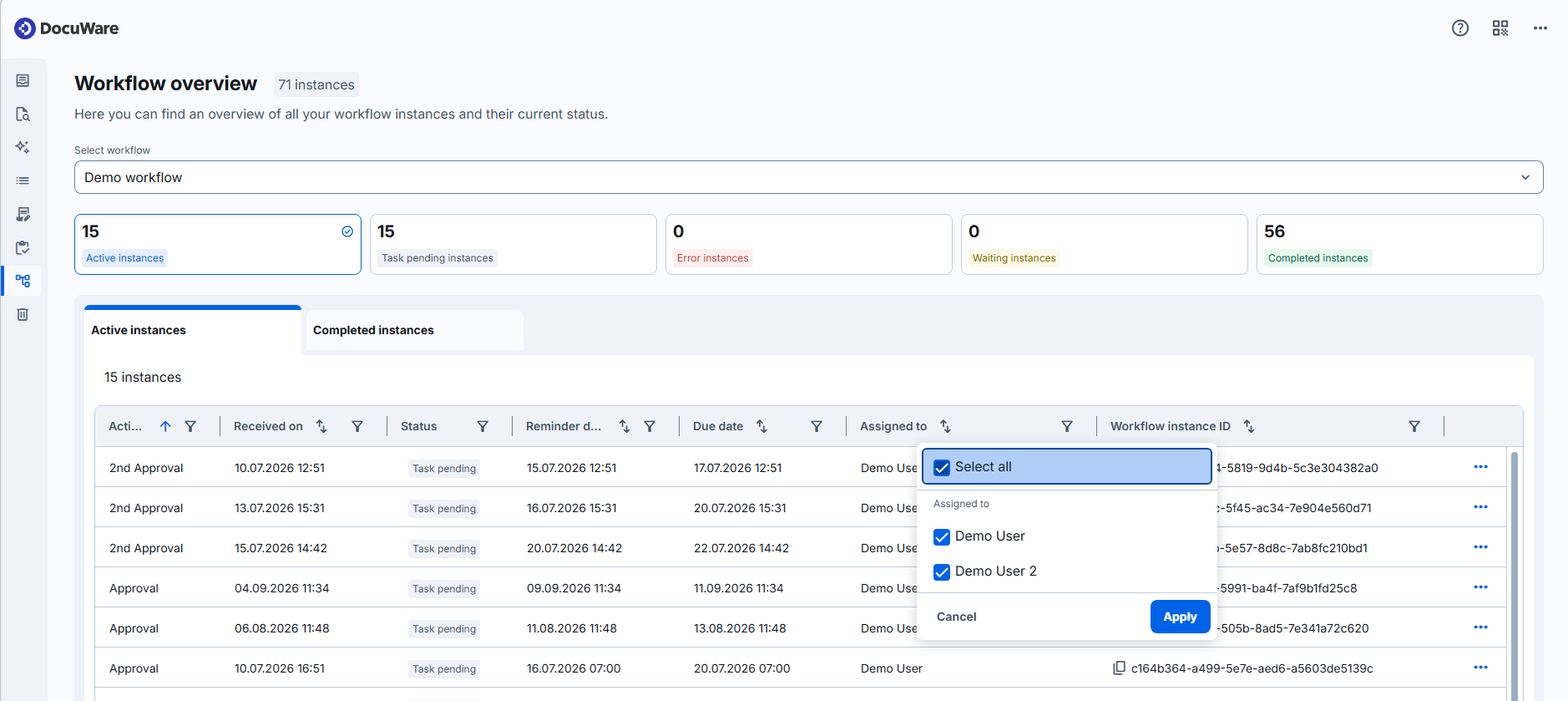
The active workflows are shown in a table, with one row per instance. The columns show:
the activity the instance is currently at
when it was received
its status
the reminder date and the due date
the user the open task is currently assigned to
the instance ID
the values defined in the task list configuration
To narrow the list further, use the filter in a column header. Filter by the assigned user, for example, to see everything that waits with one colleague, or by the due date to find what has waited longest.
Each filter offers the values that occur in that column. You can select several values, and filter several columns at the same time.
Completed instances cannot be filtered yet.
Actions for an instance
On the Active instances tab, select the three dots at the end of a row:
View workflow instance details: Opens the instance details, with the document in the viewer next to the instance history and the other data of the workflow.
Stop workflow instance: Ends the instance. The instance moves to Completed instances and the workflow does not continue. The document keeps the state it has in the file cabinet. Use it for an instance that is stuck or no longer needed.
Reassign task: availabe for the tasks with the state Pending. Moves the open task of the instance to another user, see below.
Move instance forward: Available for instances with state Waiting. In case it is known that a document which the workflow waits for, will not be stored, the instance can be continued before the configured timeout is reached.
On the Completed instances tab, each row has an icon that opens the instance history. The document of a completed instance is reachable in the same way as for an active one.
Instance history
The instance history shows the steps an instance has been through: which activity ran when, who decided what, and which data was entered. This is where you find out why an instance is in error, at which step it stopped and what had been entered before.
The instance history is available for active and for completed instances. In classic DocuWare it was called the workflow history.
The instance history covers every step of the workflow, the automatic ones such as data assignments and the manual ones such as tasks. The task history a decision maker opens from a task shows the tasks only.
Each entry is named after the kind of step it belongs to, so you can tell whether a person acted or the workflow did something on its own:
Entry in the history | What the step did |
|---|---|
Task is assigned | A task was assigned. |
User completes task | A user completed the task. |
Multiple users complete task | A task that several users had to work on was completed by them. |
Data is transferred | Information was read from a source and written to a defined destination. |
Condition is reviewed | A defined condition was checked, whether or not it was met. |
Email is sent | An email was sent from the system. |
Web service is executed | A web service was called. |
Event occurred | A defined event occurred, which the workflow was waiting for. |
Time passed | A defined amount of time has passed. |
Reassign task
A process stops when a task waits with someone who cannot complete it, because they are ill, away without a substitute, or no longer with the company. Select Reassign task in the instance menu to move that task to someone else.
In the dialog you decide who receives the task: new roles, individual users of a group, or the substitution rule of the workflow. In case the instance has tasks for more than one colleague, you are asked also whose tasks you want to reassign. The second step of the dialog is the notification for the user who receives the task.
The user who held the task until then is not notified.
To find the instances that wait with one person, filter the list by the column with the assigned user.
A task can be reassigned while the instance is waiting for a task to be completed. Instances in another state, for example error, cannot be reassigned.
The Reassign task option exists in two places, with the same dialog, and the difference is whose tasks it moves. In the task list, the decision maker hands on a task of their own. Here in Workflow overview, as a controller, you move any open task of the workflow, whoever it waits with.
Current limitations
The completed instances cannot be filtered, and they show fewer columns than the active ones.
A task is reassigned for one instance at a time. Several instances cannot be selected together.
Notes for administrators
Workflows are configured in the same way as in classic DocuWare, see webbased Workflow Designer help. Nothing has to be set up again for the new DocuWare client.
Controller permissions for a workflow are required to view instances here, and only a controller can reassign their tasks or open the completed instances. Workflow designer permissions include the controller permissions, so a designer sees them too.