In an Early Access - IDP configuration, a user can select a store dialog or the Document Tray for the extracted data. Until now, the extraction data was only automatically mapped and stored.
In the Document Tray, documents can be reviewed manually before they are archived. In a store dialog, you can assign each field of the store dialog an IDP extraction result or a fixed value. When IDP processes a document, it indexes the document with precisely these values. You can save the mapping and change it later.
You can assign values only to text, numeric and date fields in this release. Hidden fields and predefined fields will be included in a later release.
Components: DocuWare Configurations, Early Access - IDP
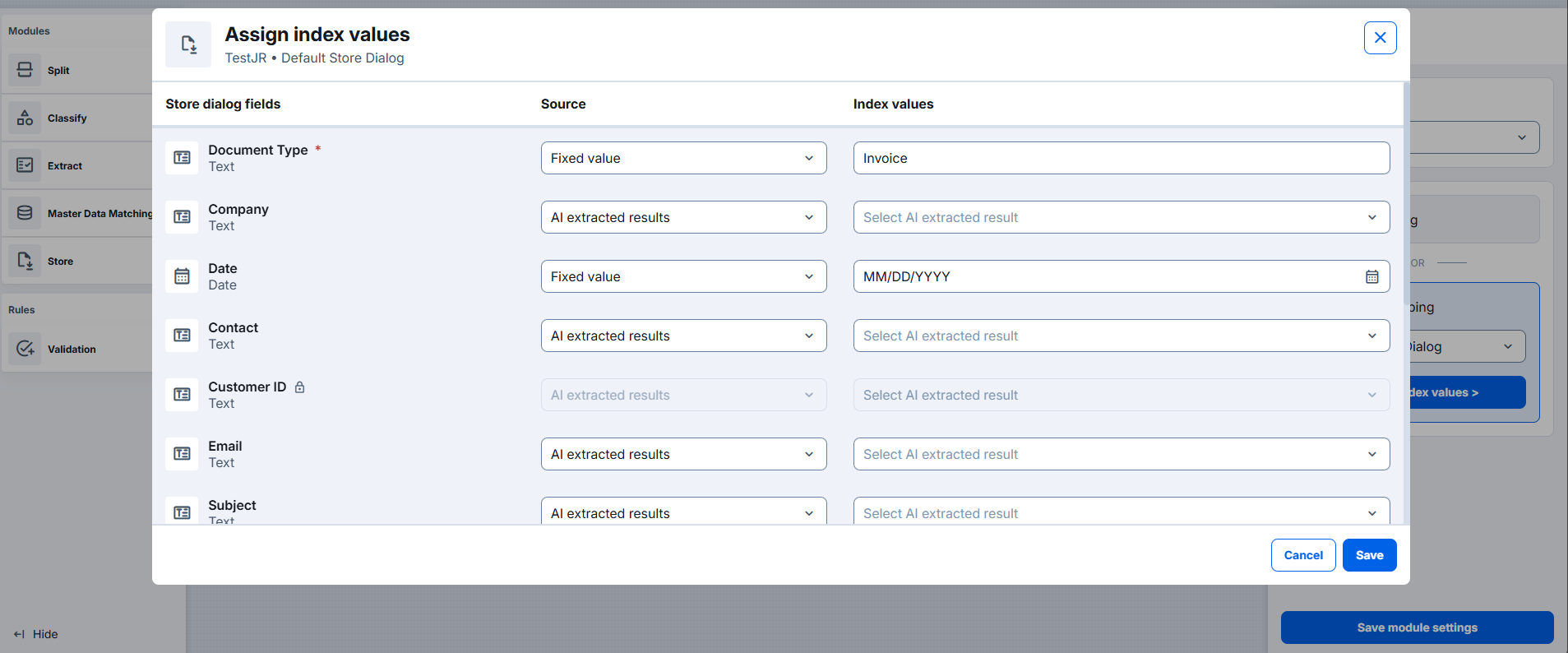
In the Assign index values dialog in Early Access - IDP, you assign extracted data to the fields of a store dialog.
Use cases
An organization stores incoming invoices with a dedicated store dialog. The process owner selects this dialog in the IDP flow, so the invoices are indexed exactly as with that dialog instead of by auto mapping.
Some documents need a manual check before filing. The process owner selects the Document Tray as the storage target, so these documents arrive without index values and are checked.
Benefit
Improved security because of the reuse of existing store dialogs and their permissions
Here's how
To select manually the storage target for extraction data, go to DocuWare Configurations:
Open Early Access - IDP and then an IDP flow.
Select the Store module. Under Storage, define where documents are stored: a file cabinet or the Document Tray. For a file cabinet, you can choose Auto mapping, which is preselected, or Manual mapping. Only one of them is active at a time. For the Document Tray, no mapping options appear, because documents are kept there without index values before archiving them.
Select a file cabinet as the storage target. The list shows only the store dialogs you have permission to use.
Select Manual mapping and then a store dialog.
Assign a value to each field and save the mapping. When IDP processes a document, it indexes the document with these values. You can save the mapping and change it later.
Note that you can assign values only to text, numeric and date fields in this release. Hidden fields and predefined fields are not included.