DocuWare IDP combines artificial intelligence and automation to understand document content, identify document types, and extract relevant information. It separates batches into single documents, classifies them, and reads index data from them, so that incoming documents are prepared with little manual effort.
Even a highly automated process can produce unclear or low-confidence results. Poor scan quality, unusual document formats, or complex documents may affect separation, classification, or extraction. In these cases, the IDP flow can include a validation step: the document pauses, and a user reviews and confirms the result before it continues. Open IDP Validation in the left sidebar of the DocuWare client to see all documents that are waiting for validation.
Supported versions: DocuWare Cloud + new DocuWare client only
On this page
What you see in the list
The list contains every document that is in the validation state. The number above the table indicates how many documents are pending for validation. Each row is one document.
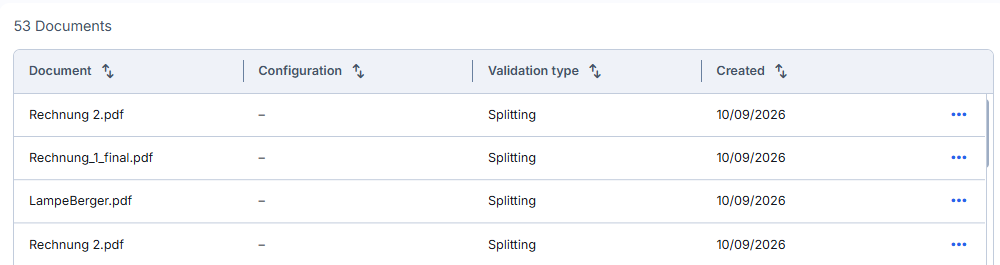
Document: The name of the file.
Configuration: The IDP flow that processed the document.
Validation type: The step that needs your review: Splitting, Classification, or Extraction.
Created: The date the document entered the IDP flow.
You can sort the list by every column. The three dots at the end of a row open the actions for the document. [VERIFY with Atiba Ashraf: which actions the menu offers.]
Validation types
Splitting: IDP separated a batch scan into individual documents. You check that the split points are correct, so that no document starts a workflow with pages that belong to another one.
Classification: IDP assigned a document type, for example delivery note or invoice. Because the type decides how the document is processed further, you confirm that it is correct.
Extraction: IDP read index data from the document, for example the invoice data accounts payable needs. You check the values and confirm them before the document is passed on, for example to an approval process.
Validating a document
Click the entry in the list. The validation view opens and shows the result that IDP suggests.
Check the suggestion and correct it where needed.
Confirm the result. The document is removed from the list and continues with the next steps of the IDP flow.
When validation is worthwhile
Validation lets you catch errors inside the IDP process instead of correcting them later in a workflow. Typical cases:
Batch scanning: A stack of mixed documents is scanned and split by IDP. A quick check of the split points avoids fixing merged or broken documents afterwards.
Mixed document types: Delivery notes and invoices arrive together. Confirming the classification makes sure each document takes the right path.
Invoice processing: Most invoices are captured without intervention. Individual documents with unclear or unreliable data, for example because of poor scan quality, are reviewed before they enter the approval workflow.
Notes for administrators
Which documents require validation is defined in the IDP flow. In DocuWare Configuration > Early Access New IDP, add a Validation step to the flow at the point where a human check is needed. For every document that reaches this step, an entry appears in IDP Validation.
The new IDP configuration is in Early Access. [VERIFY with Atiba Ashraf: which right a user needs to see IDP Validation, and whether the validation step has further settings, such as a confidence threshold.]
More information in [VERIFY: link to the Early Access New IDP configuration article once it exists].