Ensuring clear interpretation of data fields
Numeric values, date formats, and hierarchical data often require explicit configuration to ensure correct interpretation during extraction. DocuWare IDP’s Smart Field configuration provides the necessary options to define these formats and structures precisely. The following sections explain where the settings are located and how field types and extraction rules can be configured to avoid ambiguity, ensuring that the custom extraction model delivers precise and reliable results.
DocuWare IDP automatically classifies documents and extracts their content into model-defined data fields (index fields). In this context, data fields are targets you define in the extraction model (e.g., Invoice Number, Date, Net Amount) that are populated from the document.
Numeric formats, date formats, and hierarchical structures sometimes require explicit configuration so values are interpreted correctly. Each data field can be configured with specific formats and structures, allowing extraction results to align accurately with document content. Fields of the same type can be set up with different formats or special configurations when needed. This article explains where these settings are located and how to configure field types and extraction rules in a custom extraction model.
Article scope
This article covers the DocuWare IDP platform and its features. DocuWare configurations are not covered here.
Defining separator setting for numbers
The first step is creating your IDP workflow as explained in the Custom Extraction article.
To reach this step, follow the process up to adding the fields types, which comes after you have described your IDP extraction workflow. Please refer to our tutorial on Custom Extraction for more details.
In sequence, if you want to add a new extraction field configuration, select Number as the field type and then open the Optional Settings via the drop-down menu.
Numbers with separators are interpreted differently across regions—e.g., 1,234 may mean one thousand two hundred thirty four, while 1.234 may be read the same in another locale; 3,14 vs. 3.14 can indicate the decimal mark.
Use the Decimal Separator setting to define whether a comma or a dot represents the decimal separator (the other will be treated as a thousand separator).
Supported options are:
Comma (,) – Used in many European countries (e.g., 3,14)
Dot (.) – Common in English-speaking countries (e.g., 3.14)
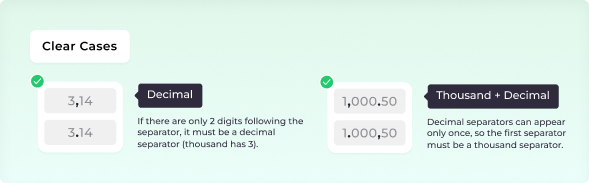

Note: If at least one number with separators is clearly formatted in the documents, the system can learn from it and correctly interpret other ambiguous numbers.

For example, if the number 1,000.50 appears on a page, the system recognizes the comma as a thousands separator based on this pattern. This learned behavior ensures that similar numbers are interpreted correctly in the future, even without additional configuration (Memory Mechanism).
Adjusting date formats
First, create your IDP workflow as explained in the Custom Extraction tutorials article.
Next, if you want to add a new extraction field configuration, select Date as the field type and then open the Optional Settings via the drop-down menu. You can also find this function after describing your Custom Extraction.
The priority rule for date interpretation determines how the model handles ambiguous dates. Since there is no universal date format worldwide, the system applies predefined rules to convert dates to a standardized format. The following formats are supported:
Day First (DD.MM.YYYY) – e.g., 25.04.2025
Month First (MM/DD/YYYY) – e.g., 04/25/2025
Year First (YYYY-MM-DD) – e.g., 2025-04-25
For instance, a date such as 25.04.2025 clearly indicates the 25th as the day, since there is no 25th month.
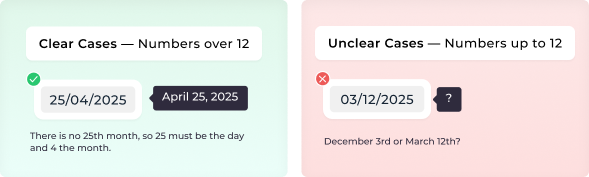
For numbers up to 12, interpretation can be ambiguous, as it may be unclear whether the value represents the day or the month. For example, 03/12/2025 could be either December 3rd or March 12th.
To handle such cases, the Fallback Date Format can be specified for documents to ensure consistent interpretation. The Fallback Date Format is the setting that determines how ambiguous date values should be interpreted.
Note: If at least one date is clearly formatted in the documents, the system can learn from it and correctly interpret other ambiguous dates.
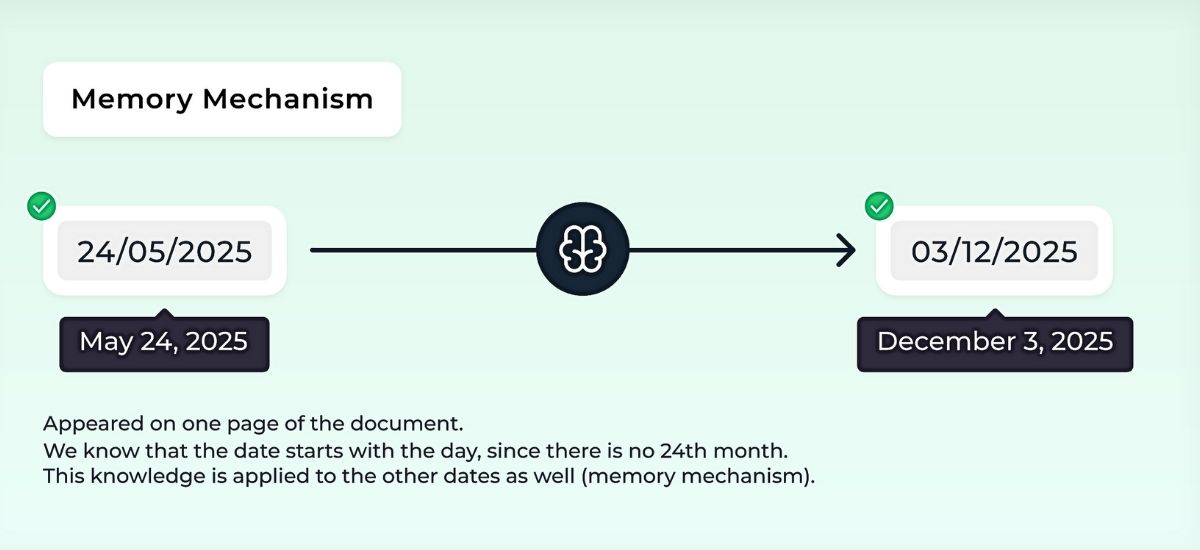
For example, if the unambiguous date 25/04/2025 appears on a document, the system recognizes that the day comes first. This pattern is then applied to other ambiguous dates, even without additional configuration (Memory Mechanism).
Defining hierarchical line items
Before you begin, create your IDP workflow as explained in the Custom Extraction article.
After that, if you want to add a new extraction field configuration, select List as the field type and then open the Expert Settings via the drop-down menu. You can also find this function after describing your Custom Extraction.
In some documents, a header such as Delivery Number 1020 is provided only once, followed by related items like Cement Bags, Sand, and Gravel.
Without explicit configuration, the model does not automatically associate these items with Delivery Number 1020, as the reference is not repeated for each line item.
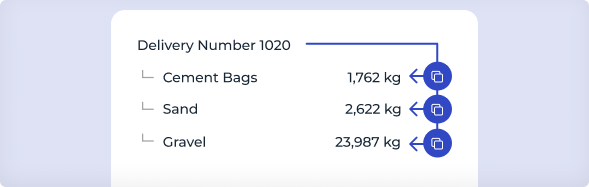
To configure this scenario using Hierarchical Items:
The Delivery Number applies to multiple related items.
It should be copied downward to each related item.
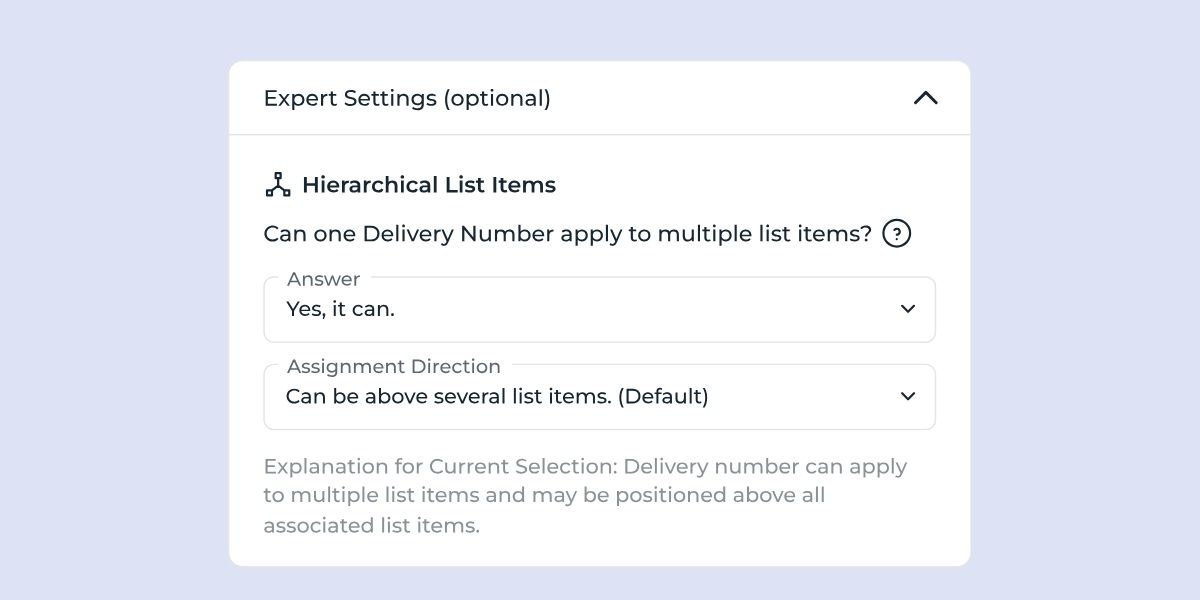
Instead of requiring the Delivery Number in every row, the model associates all items listed under Delivery 1020 with that delivery. This continues until a new delivery number appears, at which point the process repeats.
Detecting line items across pages
If an item description begins on page 1 and continues onto page 2, the model may treat it as two separate entries, since there is no automatic recognition that it is the same item.
This setting addresses the issue by using unique values—such as an article number or price—to link related items. These values are typically unique for each list item, allowing the model to correctly associate multi-page entries.
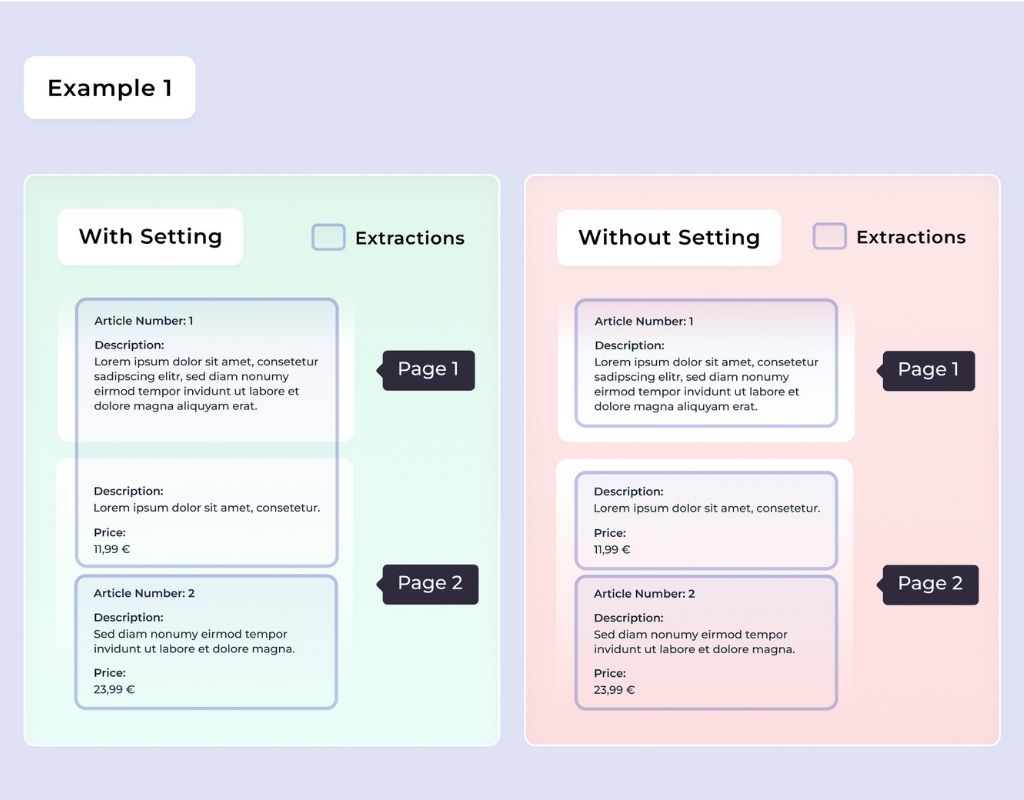
For this scenario, the configuration would be as follows:
A Description may span multiple pages.
A Price must be unique and cannot appear on multiple pages.
An Article Number must be unique and cannot appear on multiple pages.
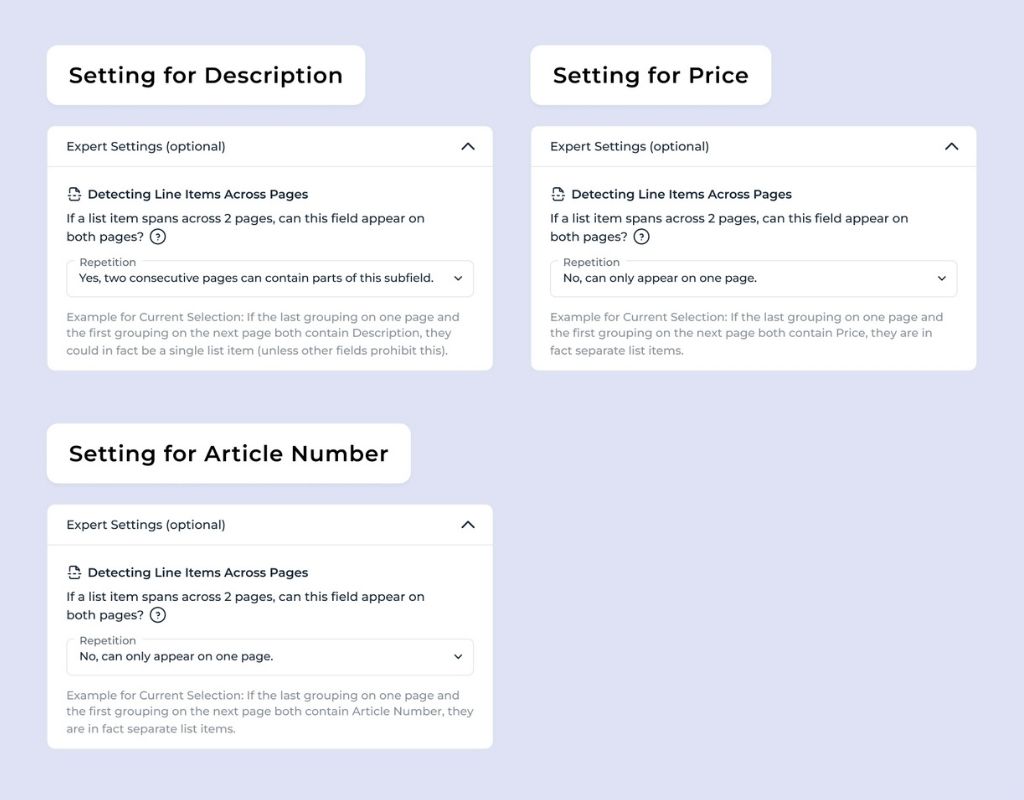
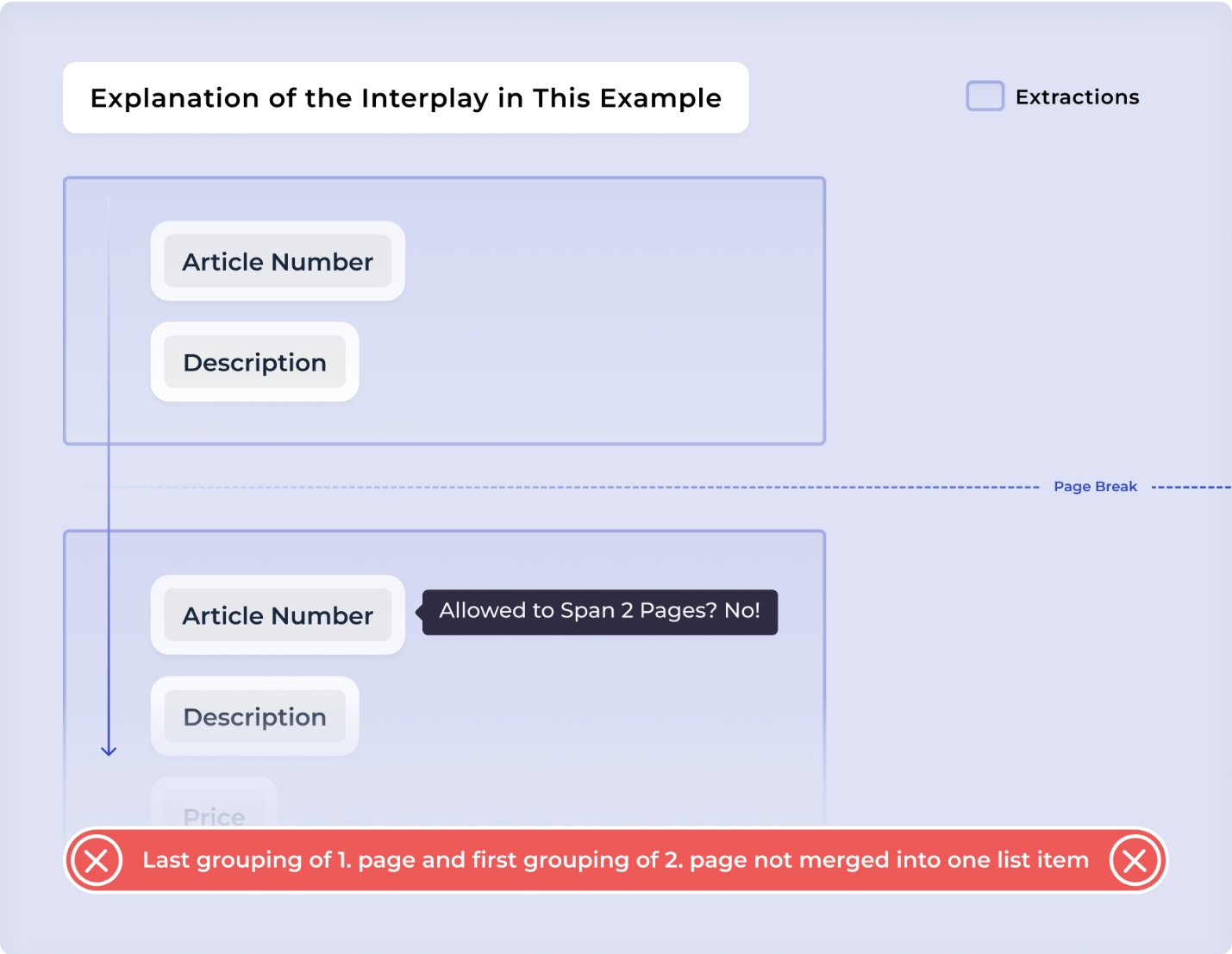
It is important to understand that multiple settings interact when detecting line items across pages. A Description can span multiple pages as long as no field prevents merging.
DocuWare IDP checks whether the first entry on the next page contains any value that would block the merge. If not, the previous list item continues. A new item begins only if both the last grouping on one page and the first grouping on the next page contain a value that must be unique to a single page.
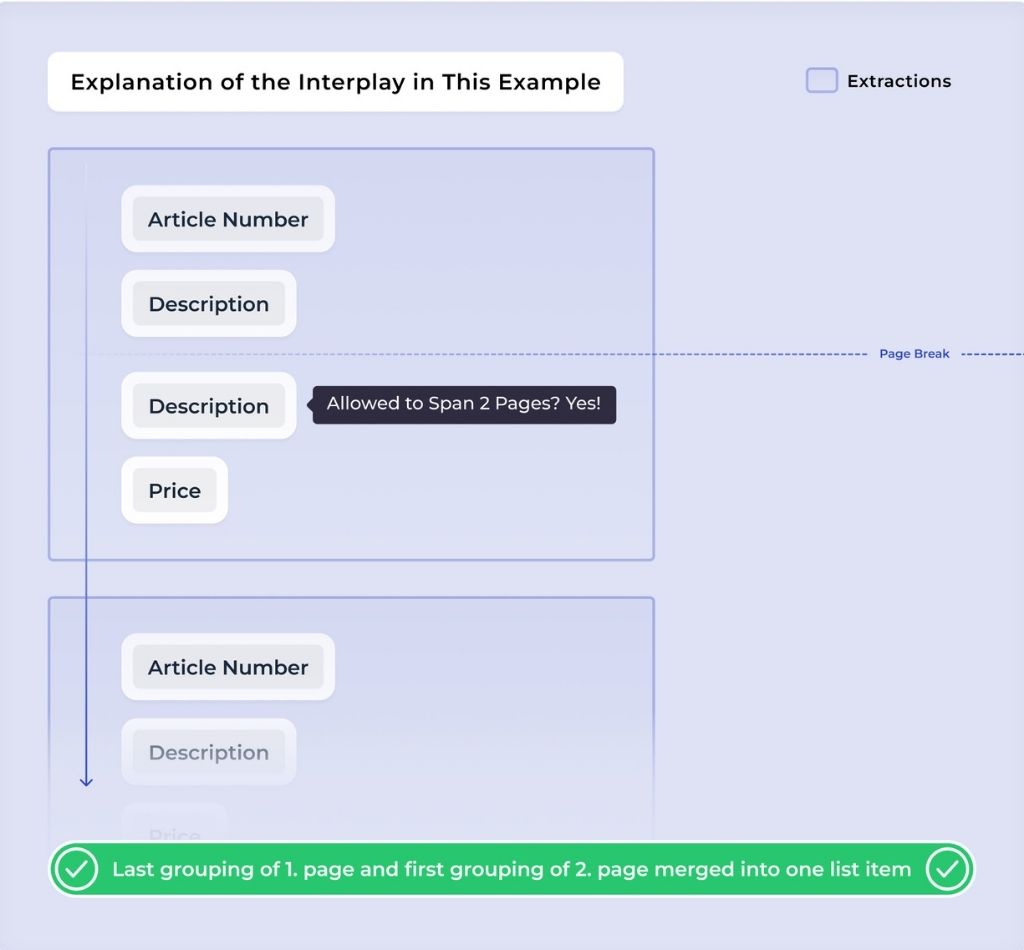
A second example demonstrates the importance of the interplay between settings. If only the Price setting (allowed once per item) is considered, the AI would merge two line items because the last item on page 1 does not have a price, assuming it is a single item.
However, the Article Number setting (also allowed once per item) acts as a blocker. It prevents the merge and enables the AI to correctly recognize the two entries as separate items.
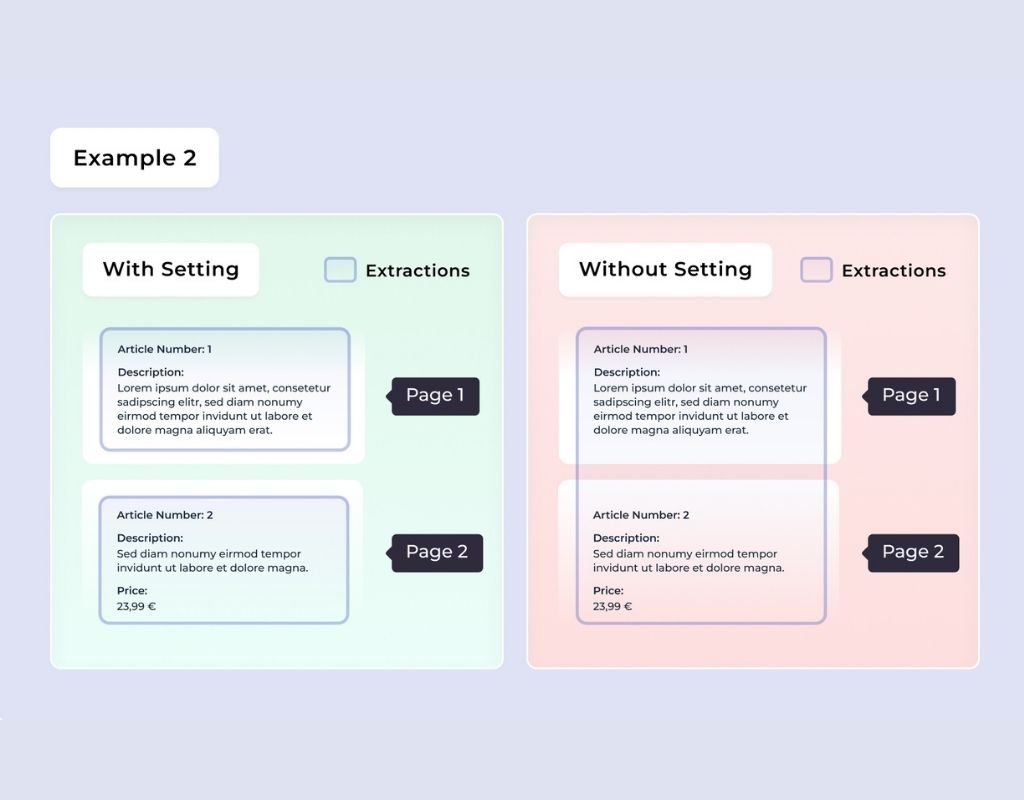
Without this setting, the portion on page 2 would be treated as a separate list item, containing only a description and no Article Number. Using a unique identifier ensures that content remains correctly grouped, even when it spans multiple pages.
Differing between pages
Another scenario arises when there are slight differences between pages. For example:
Page 1 contains Article Number and Description
Page 2 contains Article Number, Description, and Price
Although this may appear to be a continuation of the same list, the system treats it as two separate lists because the Article Number appears again and is configured as a unique identifier.
In such cases, entries are only merged if the logic allows certain fields (e.g., Price) to repeat, while Article Number remains the primary anchor.
This illustrates the importance of how different field settings interact when determining list continuity across pages.