DocuWare IDP provides a standard invoice extraction model that handles a wide range of invoice layouts. In case your IDP workflow processes deals with recurring invoices from specific issuers, you may need a more specialized extraction model.
A Fine-Tuned Invoice Extraction model is based on this standard model and is further trained using your sample documents and annotated data fields. This fine-tuning adapts the extraction behavior to frequently occurring invoice layouts and issuer-specific formats, allowing the model to recognize and extract relevant information more reliably and with greater precision, while still retaining the ability to process general invoice formats.
The following sections describe how to prepare training data, annotate invoices, start the fine-tuning process, and validate the resulting model. This enables the extraction model to handle the invoices in your environment with greater accuracy.
Article scope
This article covers the DocuWare IDP platform and its features. DocuWare configurations are not covered here.
Getting started
Log in to your account on IDP platform and go to the IDP Workflow overview section.
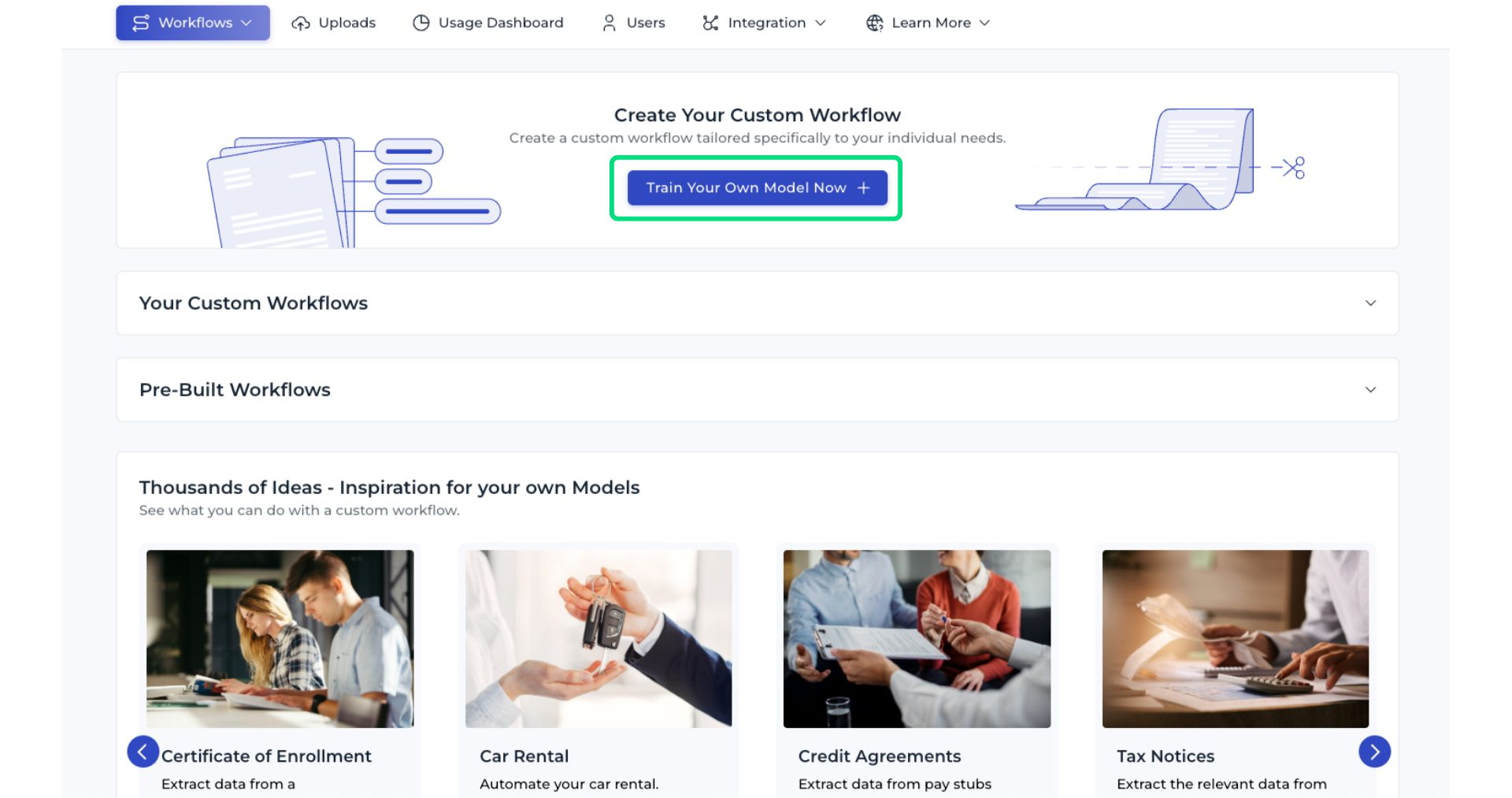
Click the Train Your Own Model Now button.
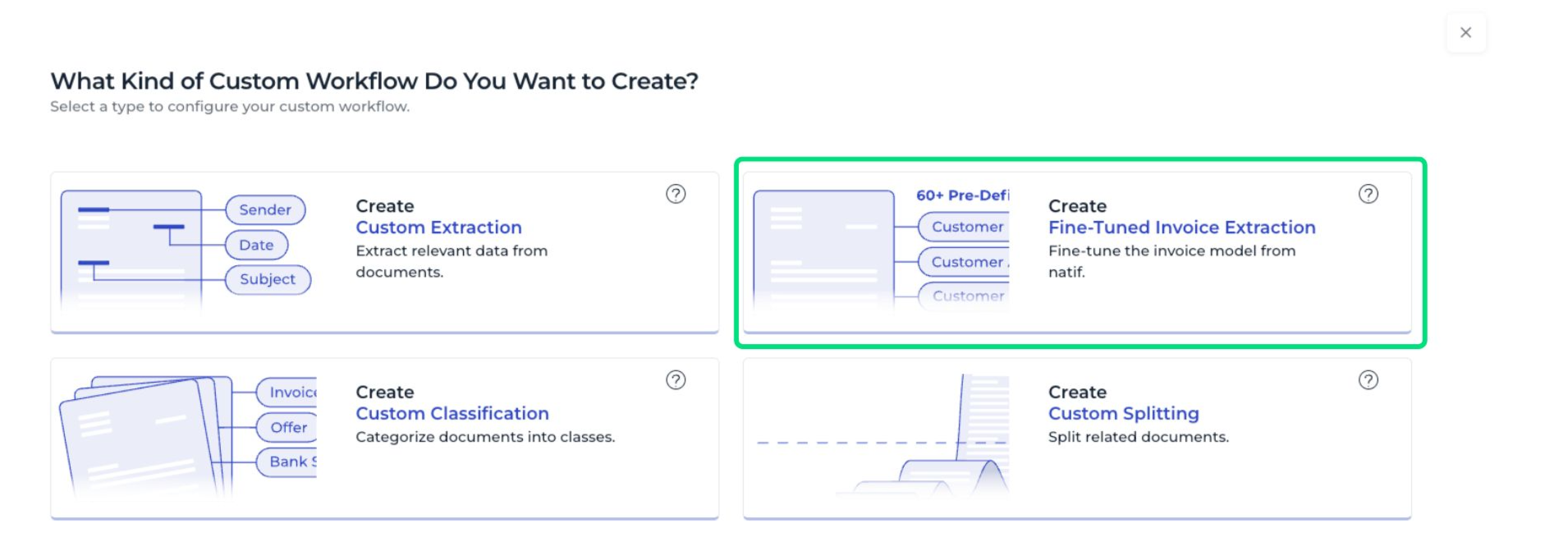
3. All available DocuWare IDP custom AI workflows are listed on this page. For creating a splitting model, select Create Fine-Tuned Invoice Extraction:
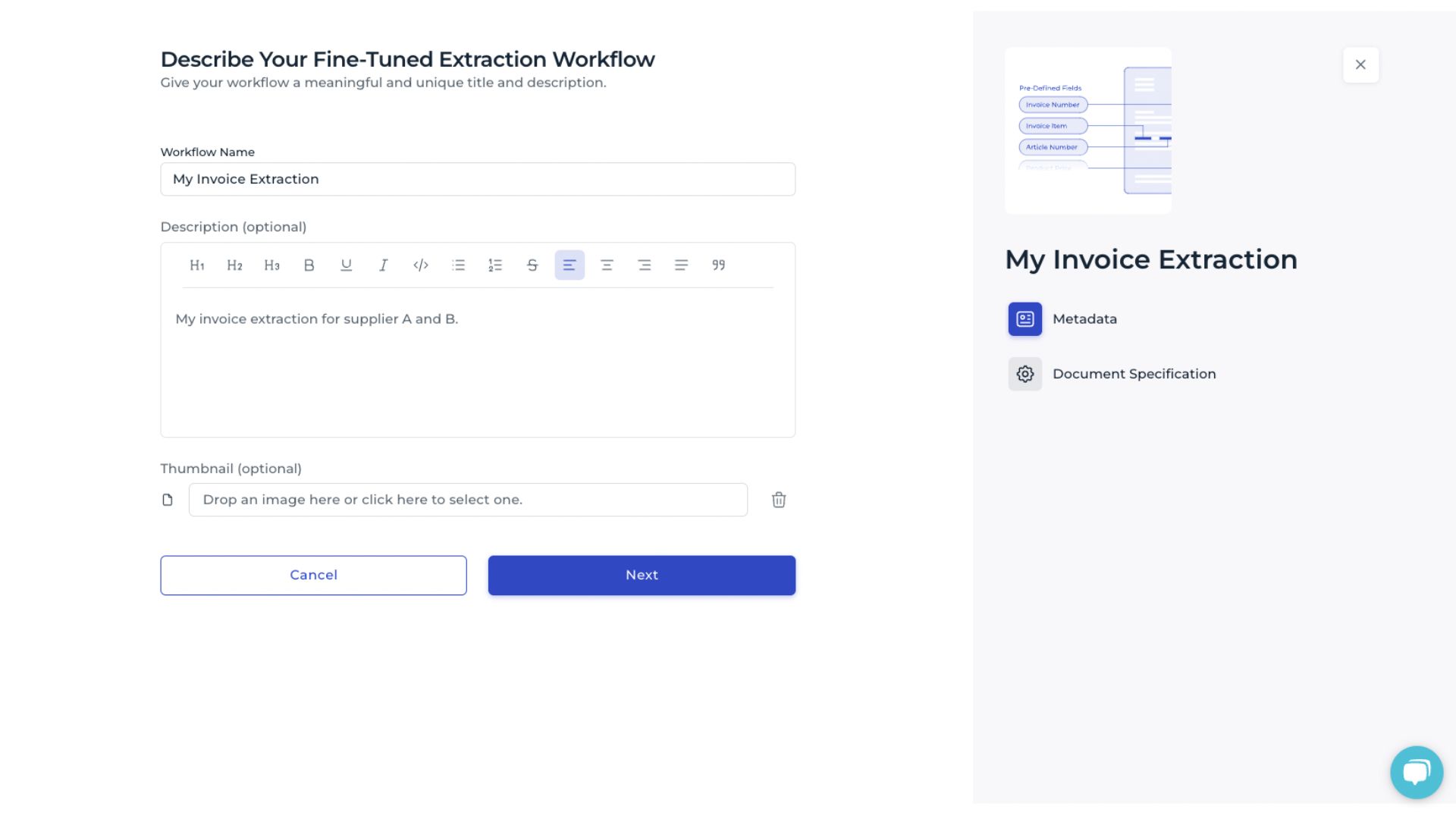
4. Provide a name and a short description of the model. An optional image can be added. These details help distinguish this classification model from others in your IDP platform account.
Specifying document characteristics
For Fine-Tuned Invoice Extraction, provide information about the documents so that DocuWare IDP can determine the required processing steps and improve extraction accuracy. In this step, the following details are required:
Whether the documents are already correctly cropped or need to be cropped during processing.
Whether the text is printed, handwritten, or a combination of both.
After you define the characteristics of the documents and select Create Workflow, the model is created.
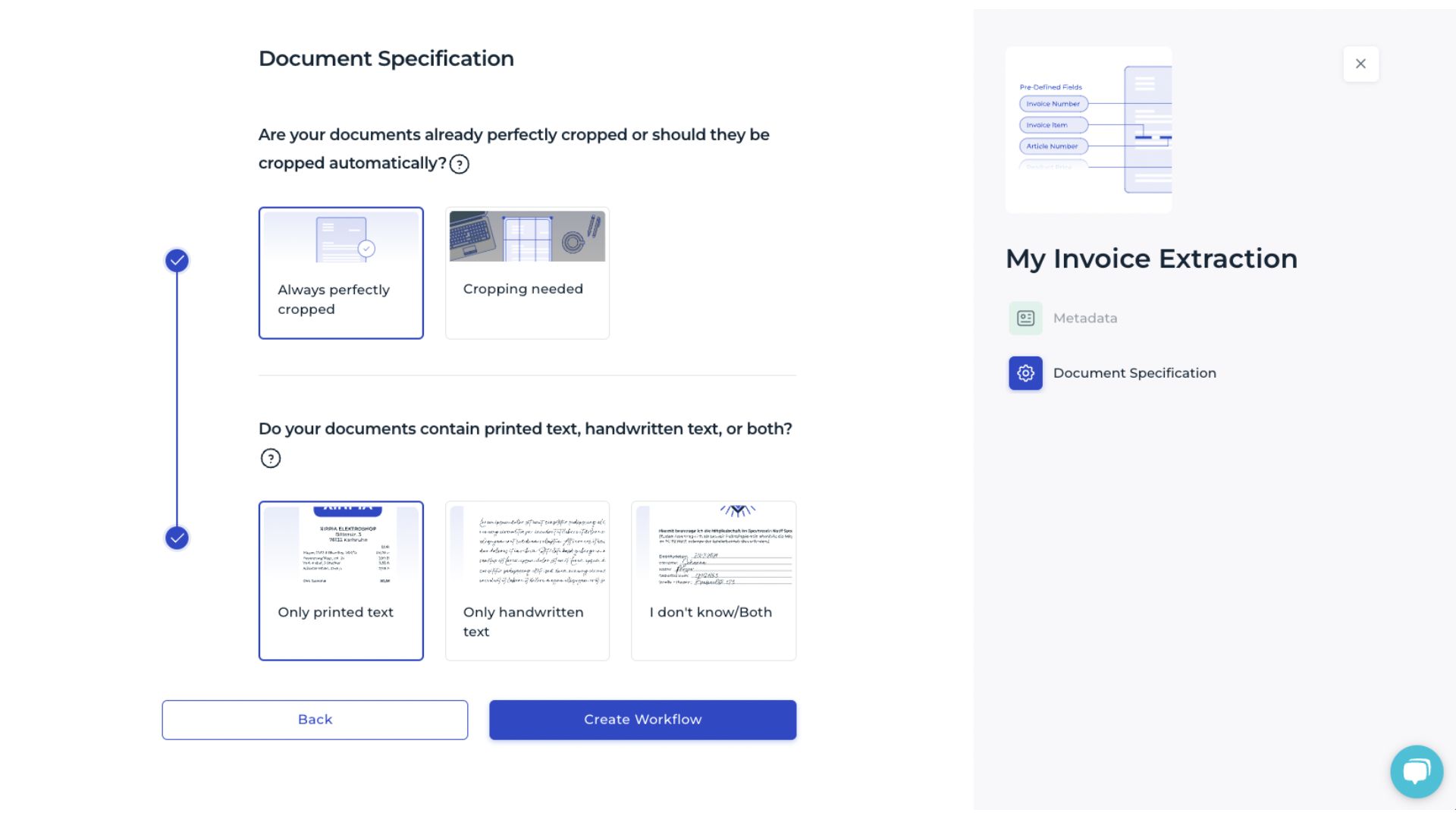
Creating an IDP fine-tuned extraction workflow
The IDP fine-tuned extraction workflow is now created and initialized with the standard invoice extraction model. At this stage, it can already be tested with sample data, but results may vary since the model has not yet been adapted to the specific invoices in your environment.
To fine-tune the model for the use case, select Upload Training Data.
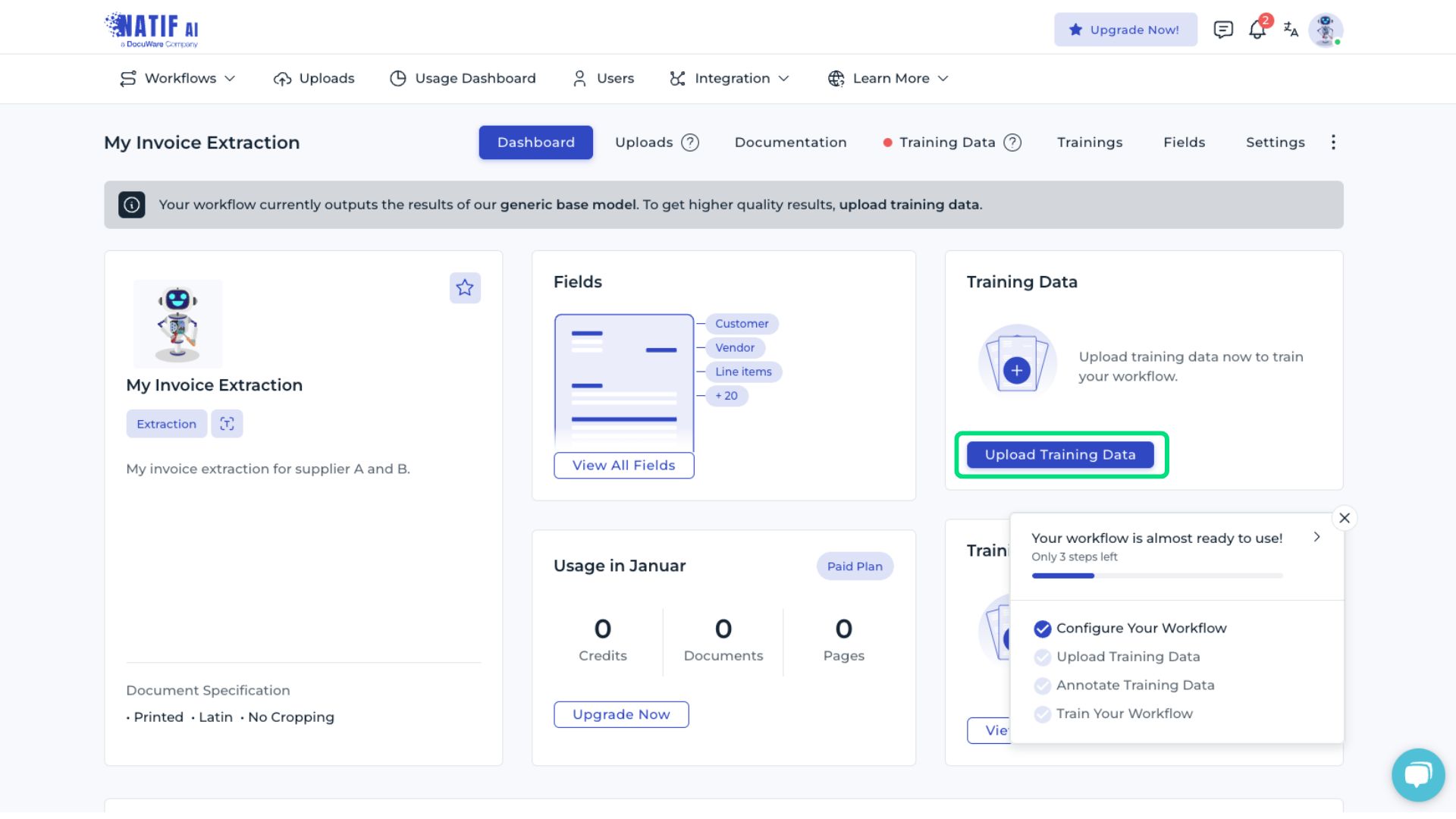
Uploading training data
At this point, the training data can now be uploaded for annotation.
In DocuWare IDP, annotation is one of the steps to train a model. Invoice content is labeled as training data and mapped to DocuWare IDP-defined data fields that specify what the model should extract.
For optimal accuracy, it is recommended to upload documents grouped by issuer that use the same templates, allowing all samples of a specific layout to be annotated consecutively. This approach also enables the system to provide issuer-specific evaluation metrics, which can be used to assess model performance and identify areas for further improvement.
Alternatively, a general issuer category (e.g., unknown) can be created to upload documents from different issuers without grouping.
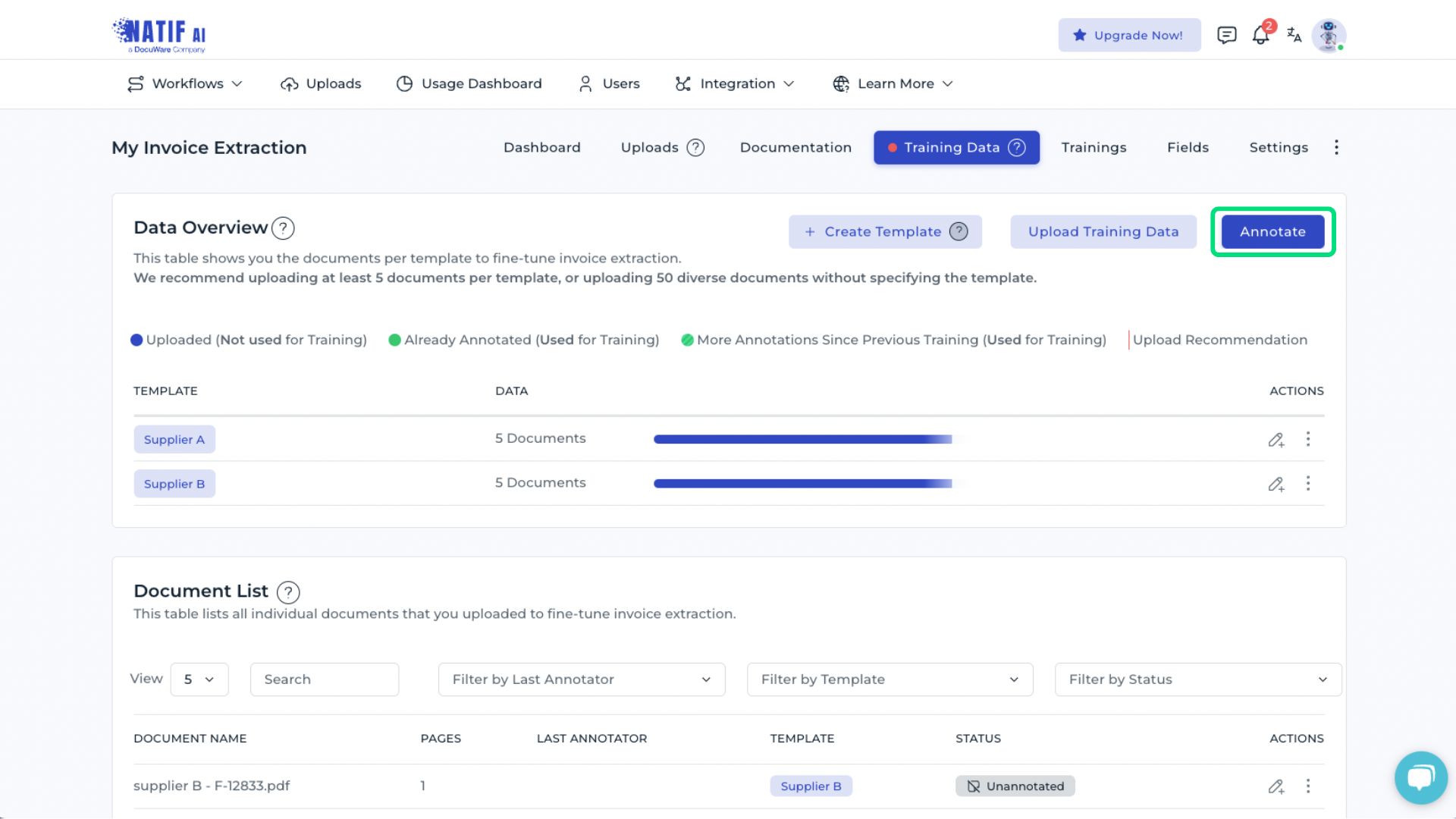
A minimum of five documents per template must be uploaded. The documents selected must closely match those that the model will process later. Providing representative samples enables the system to learn the document structure effectively, thereby improving extraction accuracy.
The quality of the documents should be sufficient to clearly recognize the content. Anything that can be read by a person can also be processed by the AI. Supported formats include PDFs and common image formats (JPEG, PNG, GIF, TIFF, WEBP). A resolution of 220 dpi is recommended, which corresponds to dimensions of 2600 × 1800 pixels for an A4 document. For documents smaller than A4, the cropping feature can be used to adjust the content.
Annotating training documents
The uploaded documents must now be annotated so the system can learn where each data field is located. By annotating documents, the AI learns to recognize and interpret each data field. All predefined data fields from the basic invoice extraction model are displayed on the left.
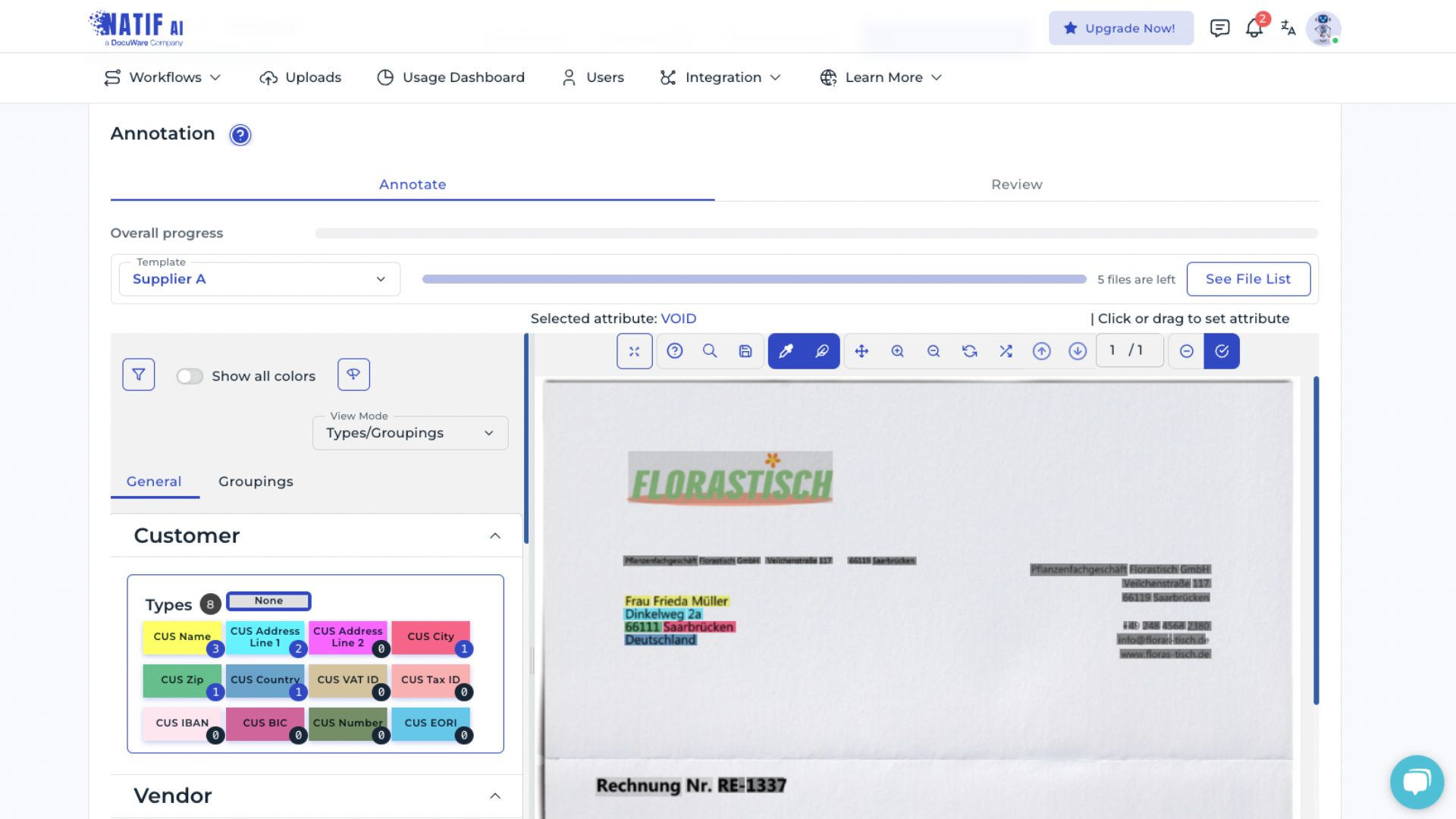
Color highlights indicate which text elements in the document correspond to which data field. Hovering over a data field highlights the associated areas in the document.
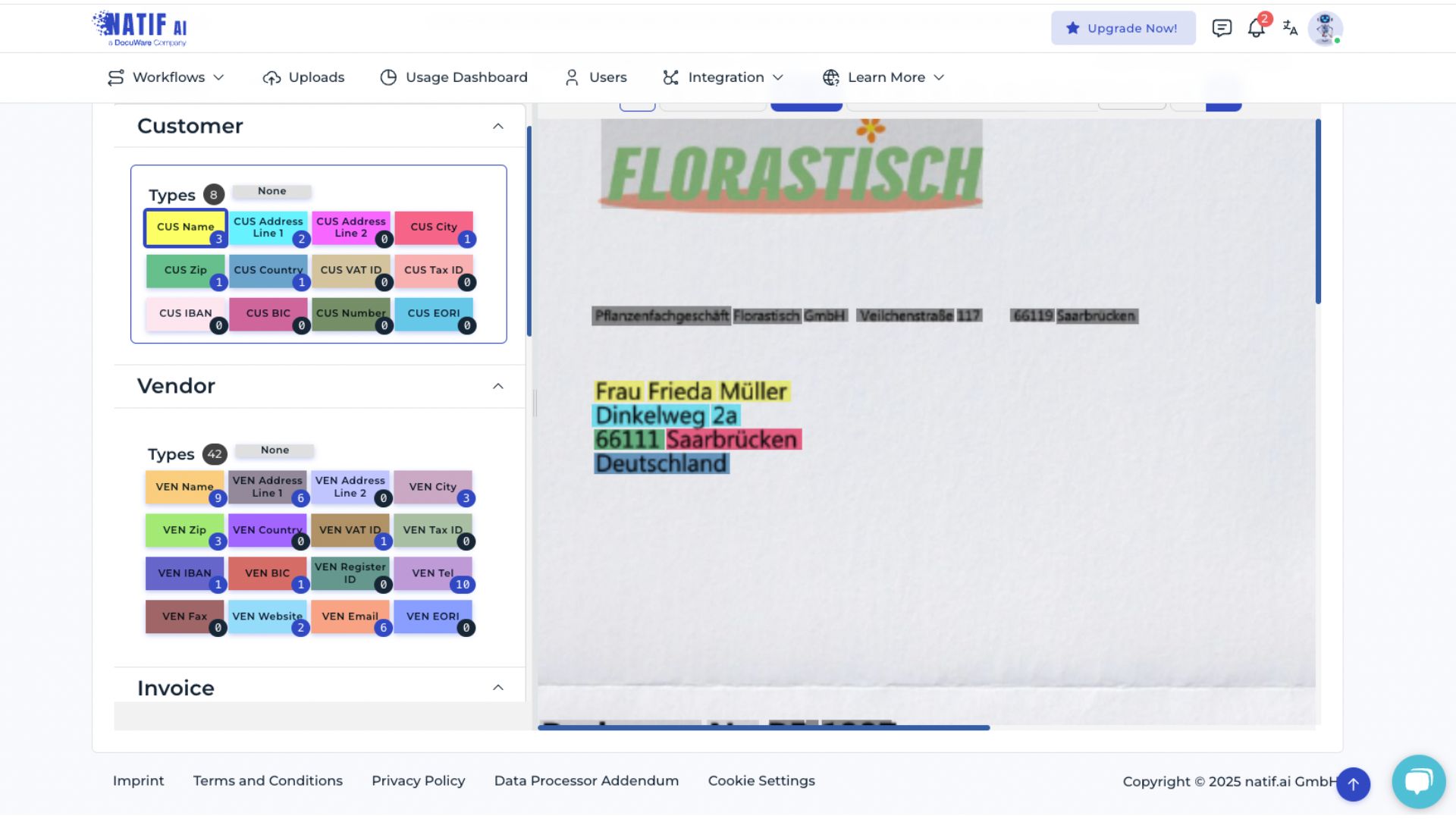
To remove an assigned text box, select None and click the respective box. To add a text box, select the appropriate data field and then click the corresponding area in the document.
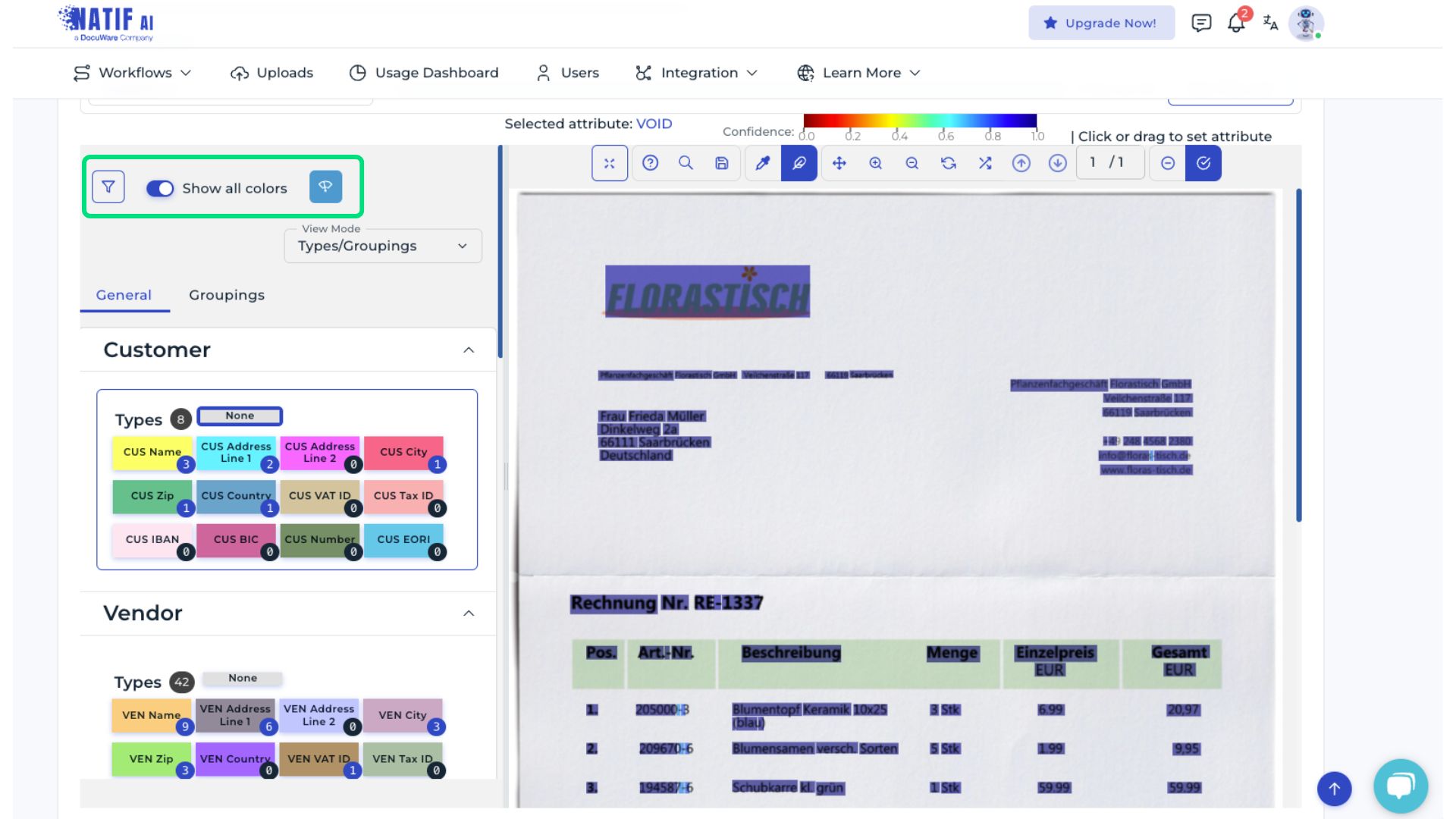
For improved visibility, the Show all colors option and the confidence level view can be enabled. Text boxes displayed in yellow or red indicate lower confidence in the current assignment.
Grouped data fields—such as line items or tax details—should also be reviewed. Text boxes belonging to the same group share the same color.
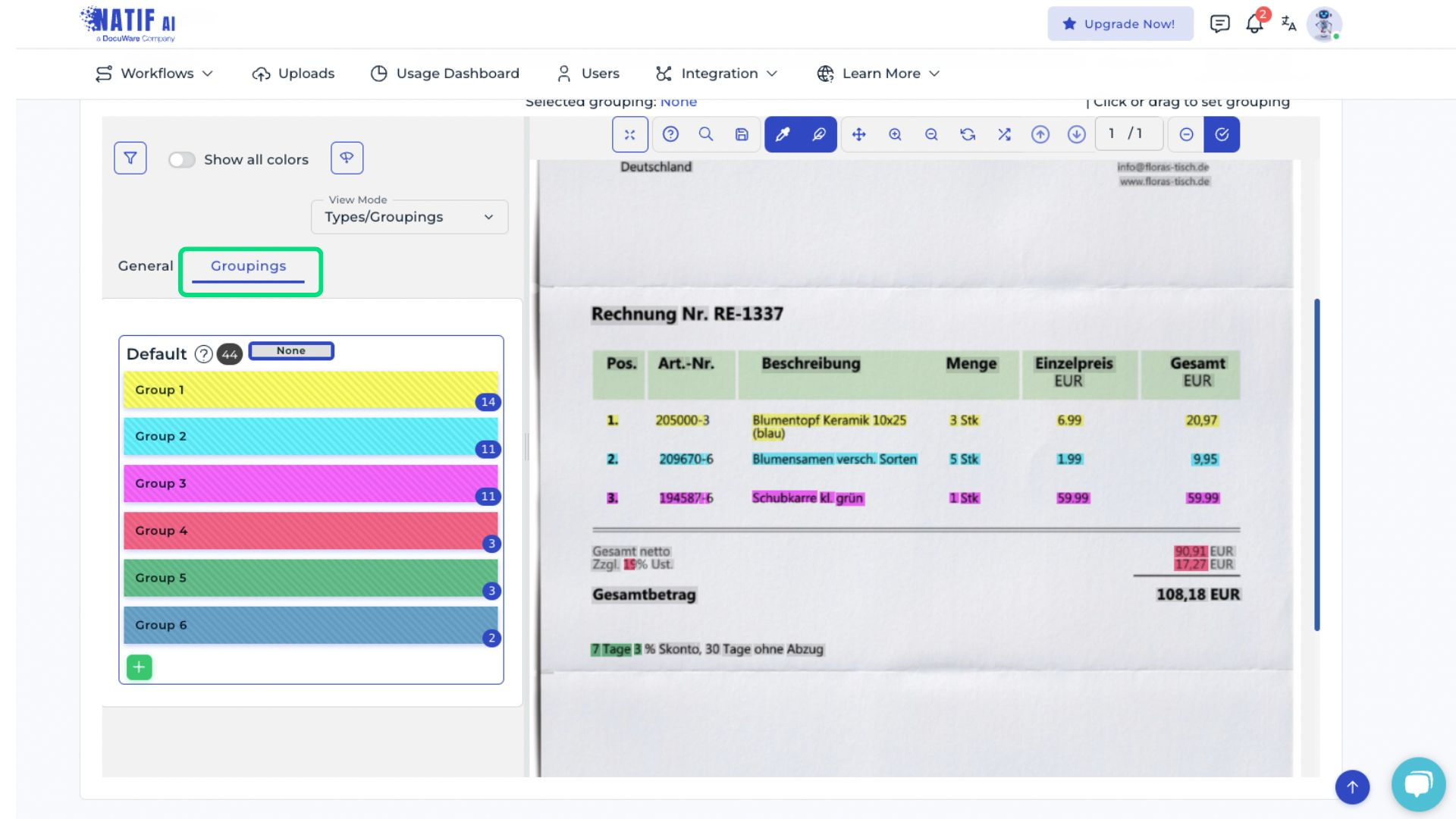
Repeat this process for all uploaded documents.
Starting the AI training
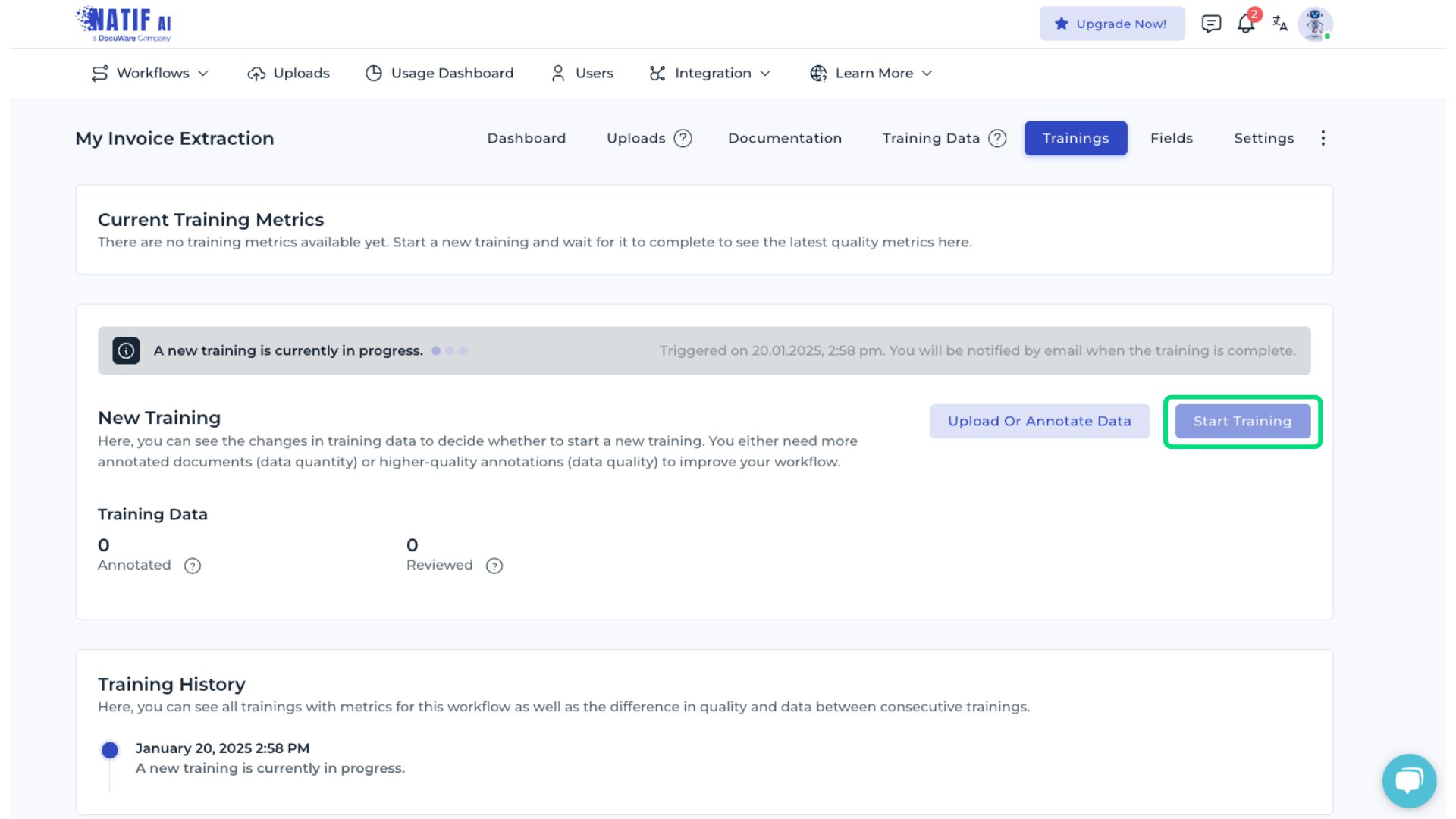
Once all documents have been annotated, the training process can begin. During training, the model learns to process the provided invoice samples based on the annotations.
A notification is sent once the training has finished, typically within 24 hours.
Integrating the DocuWare IDP classification API
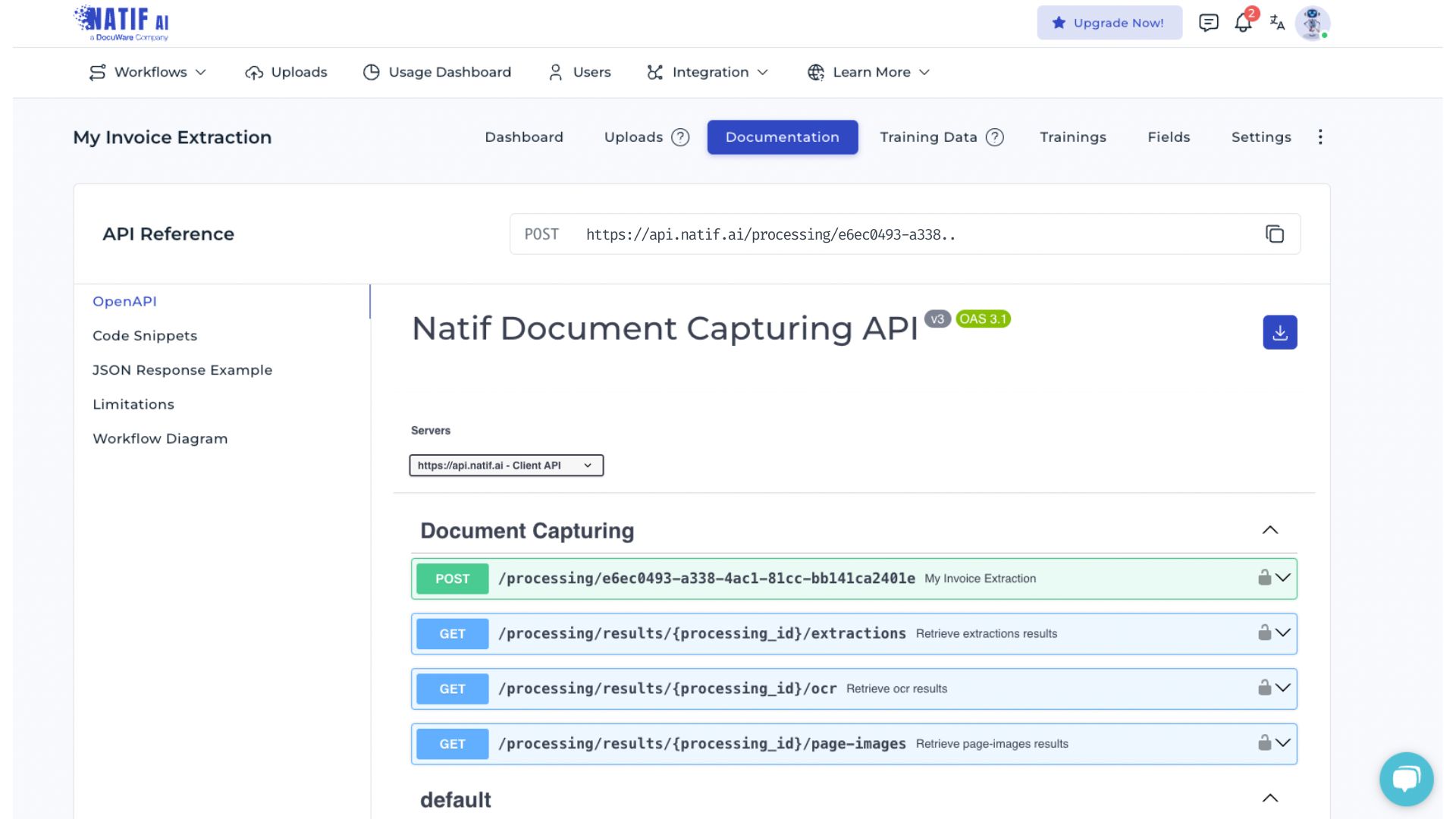
You can integrate the DocuWare DP fine-tuned invoice extraction API at any time. Detailed information, including code examples and JSON response formats, is provided in the Documentation section - see in the image below. The API is updated automatically once training is finished. Training metrics provide information about the accuracy and performance of the DocuWare IDP AI workflow.