When creating a Custom Extraction in DocuWare IDP you also have the option to set up more complex data fields that have to be calculated first. For this you can create a data fields calculation as well as date ranges. The following explains how to create these data fields and what to take care of.
Article scope
This article covers the DocuWare IDP platform and its features. DocuWare configurations are not covered here.
Data fields calculation
You will be taken to the add a Data Field step once you have named your Custom Extraction and added a description.
There are two ways to apply calculation rules when adding data fields to a Custom Extraction.
Adding a new data field
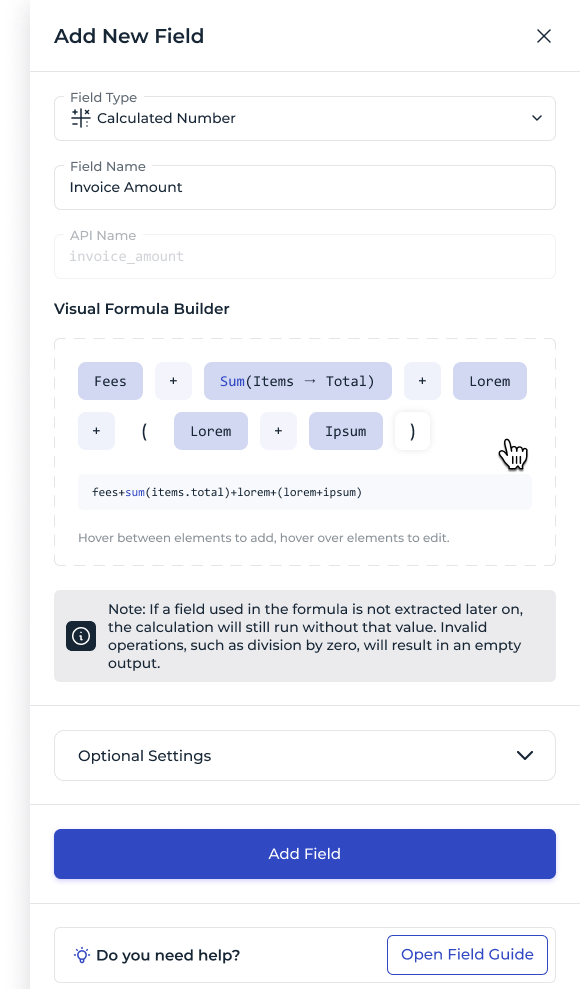
In this case you implement the data field as field type Calculated Number/ String/ Date.
Select the field type Calculated Number (or Calculated String/ Calculated Date). Name the new field and build the calculation using the formula builder. The Visual Formula Builder can be used to define the calculation by chaining terms—such as existing extraction fields or constants—with operators (+, −, *, /).
Adding a backup option
In this case you implement the data field as Fallback Calculation.
You can define fallback calculations as backup option if the AI doesn’t find the data on the document. To do so, you go to the section Expert Settings within the settings of a Number, String or Date data field. With the visual formular builder you can create the right calculation – you just have to chain terms (fields, constants) with operators (+, -, *, /).
Note that the calculation is only performed if there is no data field on the document or if the model fails to identify it.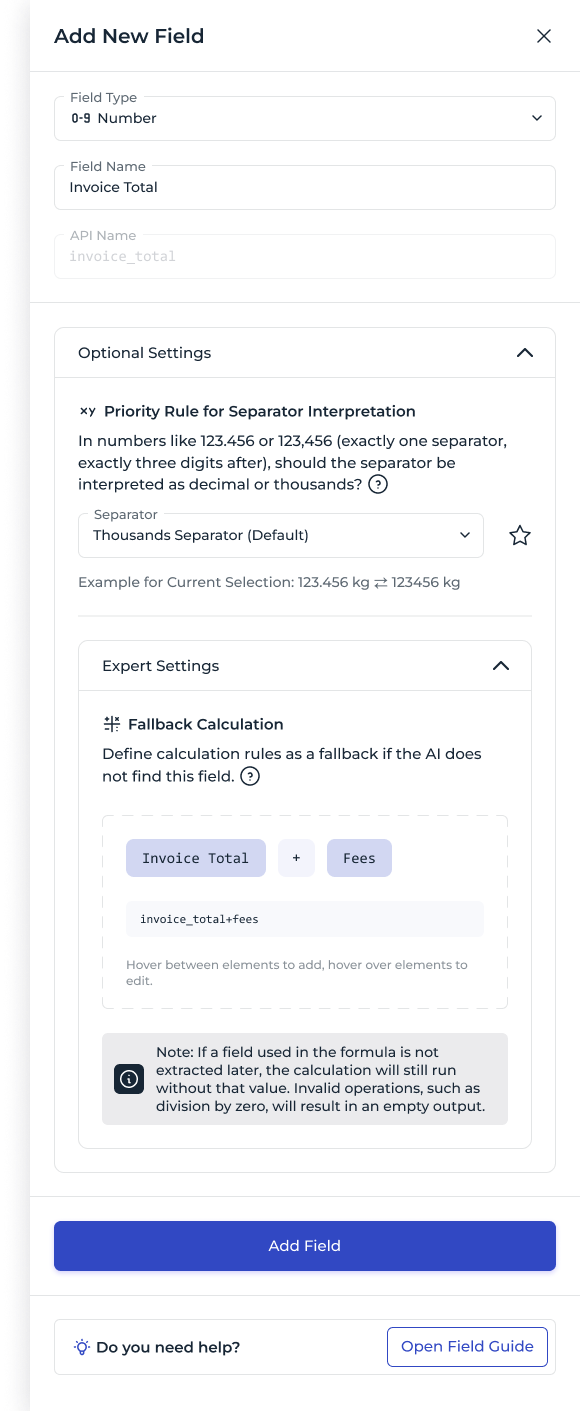
Hint: Calculated fields execute in dependency order, meaning that one calculated field can be used to feed into another – e.g., use a subtotal field within a larger formula (Dependency‑Aware Aggregation).
Practical examples
Let’s look at some practical examples of calculations you can set up. These will help you see how to turn raw data into the values you need.
Table aggregation: Sum a column of amounts in an expense report into a single Total Expenses field.
Field summation: Calculate an invoice’s TotalAmount as the sum of ItemAmount1 + ItemAmount2 + ….
Field difference: Compute NetAmount by subtracting the invoice TaxAmount from the GrossAmount.
Multiplicative rates: Derive TaxAmount by multiplying TaxRate × TaxableBase.
Division for unit prices: Calculate UnitPrice as TotalAmount ÷ Quantity.
Cross-type handling:
Strings: Concatenate fields and constants (e.g., FirstName + ” ” + LastName).
Dates: Add the due date stated in number of days (e.g. “14”) to the document date stated as an actual date to calculate the due date in date format (Date + N Days)
Floats: Standard arithmetic across monetary or measurement values, including support for constant values.
Date Ranges Extraction
Dates come in many formats. DocuWare IDP’s Custom Extraction supports fully spelled-out ranges (e.g., “20.05.2025 to 25.05.2025”) as well as more compact formats like “20.–25.05.2025”.
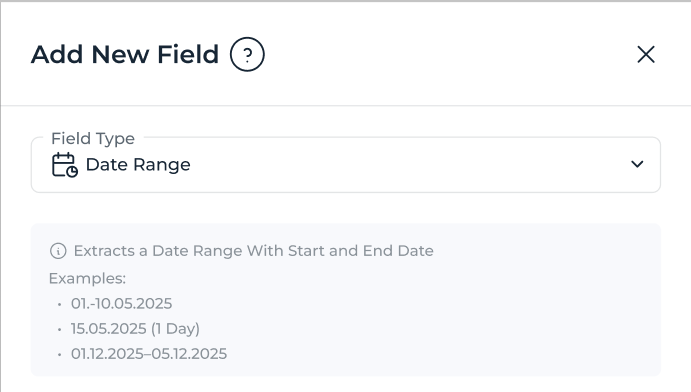
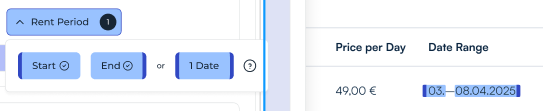
When data fields are added to a Custom Extraction, the field type Date Range can be selected. During document annotation, the start date and end date must be defined as subtypes of the date range so that the AI learns where to locate the relevant fields for the range.
Note that for single dates, so a date range of 1 day, use the type 1 Date.
A date range can also be implemented via a calculated field. All details for setting this up can be found in the Data Fields Calculation section above.
Practical examples
Service period: Sum a column of amounts in an expense report into a single Total Expenses field.
Field summation: Can sometimes be a single full day (in case my repair happened on one day, “12.05.2025”), multiple fully written-out days (“12.05.2025-14.05.2025”), and partially written-out multi-day timespans (“12.-14.05.2025”).
Hotel invoices: Extracting the stay period from a hotel.
Enrollment certificates: Defining the start and end dates of a semester