The new DocuWare mobile app gives you quick access to your documents and tasks while you are on the go. Search across your file cabinets, manage workflow tasks, share documents, and import files — all from your phone or tablet. The app is available for Android and iOS with the same feature set on both platforms.
The app works with DocuWare Cloud and on-premises systems starting with DocuWare version 7.10, provided the latest minor version is installed. Two functions need DocuWare Cloud: DocuWare Aura and push notifications for tasks. Older on-premises versions continue to use the DocuWare Mobile classic app.
Supported operating systems
The app supports the three most recent major versions of iOS and Android. In older versions, the app may still run, but it is no longer tested or supported. Older versions also stop receiving security updates, so keep your device on a supported version.
Follow the links to get the new app: App Store (iOS) | Google Play (Android)
Task management
Task list: View all tasks assigned to you, organized by workflow.
Task detail screen: Switch between three tabs - Task, Document, and History - to review the task details, the associated document, and the decision history side by side.
Push notifications: Your phone tells you when a new task arrives, so you can react without opening the app. Available with DocuWare Cloud only.
Searching for documents
You can search for documents in two ways:
1. Search across all file cabinets
Enter a search term in the search bar at the top of the screen. The app searches across all file cabinets you have access to.
To narrow the results, filter by a specific file cabinet.
Once a file cabinet is selected, you can also sort the results by different criteria.
2. Browse a specific file cabinet
Select a file cabinet from the list below the search bar. The app displays all documents in that file cabinet, sorted by store date. You can change the sort order.
To narrow the results further, enter a search term in the search bar above the results list.
To switch to a different file cabinet, use the filter at the top.
Tap any document in the results list to open it in the viewer.
Asking DocuWare Aura about your documents
With the Aura Chat, you have answers to questions about your documents. It is available for DocuWare Cloud organizations in the third tab of the app's main navigation, next to Tasks and Search.
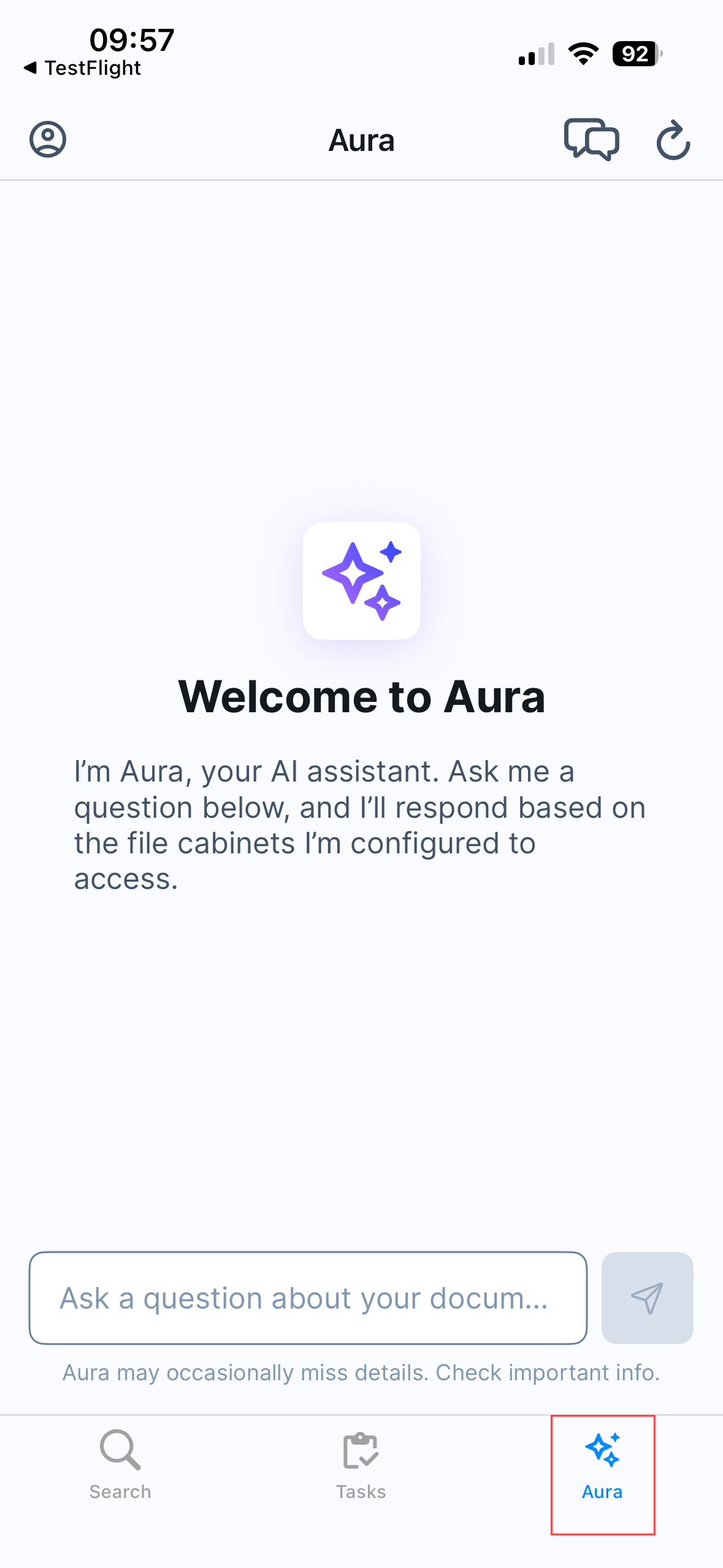
Ask in your own words, for example, "Which invoices from Peters Engineering are still open?". DocuWare Aura searches all file cabinets your administrator has enabled for it, reads the documents that match best, and answers in natural language. Every answer names the documents it is based on, so you can open them and check. You can also ask it to summarize a document, compare documents, or find a detail inside one.
Your administrator enables DocuWare Aura and selects its file cabinets in DocuWare Configurations > Aura. If the tab is missing, Aura is not enabled for your organization yet. For how DocuWare Aura works and what it can and cannot do, see DocuWare Aura.
The app holds one chat at a time. When you start a new chat, the previous one disappears from the app. It is not lost: you find it under Recent chats in DocuWare Aura of the web client.
All enabled file cabinets are searched
At the moment, Aura Chat on mobile uses all File Cabinets that are enabled for Aura. Selection and de-selection of File Cabinets is not supported yet.
Sharing documents
To share a document, open it in the viewer and tap the Share icon in the top-right corner. Choose the format you want to share the document in, then select a sharing target (for example, another app, email, or Save to Files).
Importing files into DocuWare
You can send files from your mobile device into DocuWare using import configurations. An import configuration defines where and how a file is stored in DocuWare.
Two types of import configurations may be available to you:
Default document tray: This configuration is always available. It sends the file to your personal document tray for further processing.
Custom import configurations: Your organization may provide additional configurations that store files directly in a specific file cabinet or apply predefined settings. These are set up by your DocuWare administrator. Available with DocuWare Cloud only.
Learn more about Document processing and how to create an import configuration.
How to import a file
Open the file you want to import on your mobile device.
Tap the Share icon.
Select the DocuWare mobile app from the share menu.
Choose the import configuration you want to use and tap Import.
The file is sent to DocuWare and processed according to the selected configuration.
Supported versions: DocuWare Cloud + 7.15 + 7.14 + 7.13 + 7.12 + 7.11 + 7.10