Using a General Email / Connect to Mail configuration, you can import and process e-invoices sent as email attachments in a way that supports legal and regulatory compliance. To configure this, you need two components:
Processing configuration:
Created in DocuWare Configurations > Document Processing. The configuration reads the embedded XML in the e-invoice and returns the extracted values to the import job to populate the index fields. Link this processing configuration to the General email import.Import configuration:
Set up in DocuWare Configurations > General email. The configuration connects DocuWare to the mailbox, defines index fields, and sets the target file cabinet and storage options. Emails with attached e-invoices stored by this configuration are passed to the linked processing configuration.
In DocuWare Cloud and DocuWare on‑premises 7.13 and later, a single General E-Mail / Connect to Mail import configuration can be linked to multiple Document Processing configurations using the Import options > Automatic Document Processing > Automatic Selection feature. A single import configuration is sufficient, even when you maintain multiple Document Processing configurations to handle invoices from different vendors.
In DocuWare on‑premises 7.12 and 7.11, you need to create one General E-Mail / Connect to Mail configuration per processing configuration and select the processing configuration manually in the import configuration.
Note: General email and Connect to Mail referring to the same plug-in
Connect to Mail is the license name that enables the General email area in DocuWare on‑premises. Regardless of the DocuWare version, the following terms all refer to the same thing: a configuration for automatic email import created in the General email section of DocuWare Configurations:
Connect to Mail configuration
General email configuration
General email / Connect to Mail configuration
Email import configuration
Supported XML formats
This article focuses on machine-readable, XML-based e-invoices, including XML-only formats and PDFs with embedded XML. It does not cover invoices sent as ordinary email attachments (e.g., standalone PDFs or JPEGs).
The combined configurations of Document Processing and General email / Connect to Mail support multiple common e-invoice formats, for example:
ZUGFeRD: PDF/A-3 with embedded XML (CII), used mainly in Germany
Factur-X: PDF/A-3 with embedded XML (CII and UBL), used mainly in France
XRechnung: XML (CII and UBL)
E-invoices structured with PEPPOL: XML (UBL)
What are CII and UBL?
Cross Industry Invoice (CII) and Universal Business Language (UBL) are official standards used for e-invoices. For example, ZUGFeRD uses CII. XRechnung supports both CII and UBL, though UBL is more common. The PEPPOL network also uses the UBL syntax.
Information: Transformation Service
The DocuWare Transformation Service converts the incoming eInvoices from a regional XML-format such as XRechnung-UBL (Universal Business Language), XRechnung-CII and PEPPOL-XML into a common UBL format. The Transformation Service is a Java Service displayed in DocuWare Service Control panel (port 5050).
The XML format alignment simplifies the extraction of index data within Connect to Mail, as different eInvoice formats can all be processed in one configuration.
DocuWare Cloud: configuring import and indexing for invoices
1. Create the processing configuration
This article covers only settings specific to e-invoicing. For general guidance on creating a processing configuration, see the Document Processing help.
Go to DocuWare Configurations > Capture > Document Processing.
Create a configuration using a sample e-invoice.
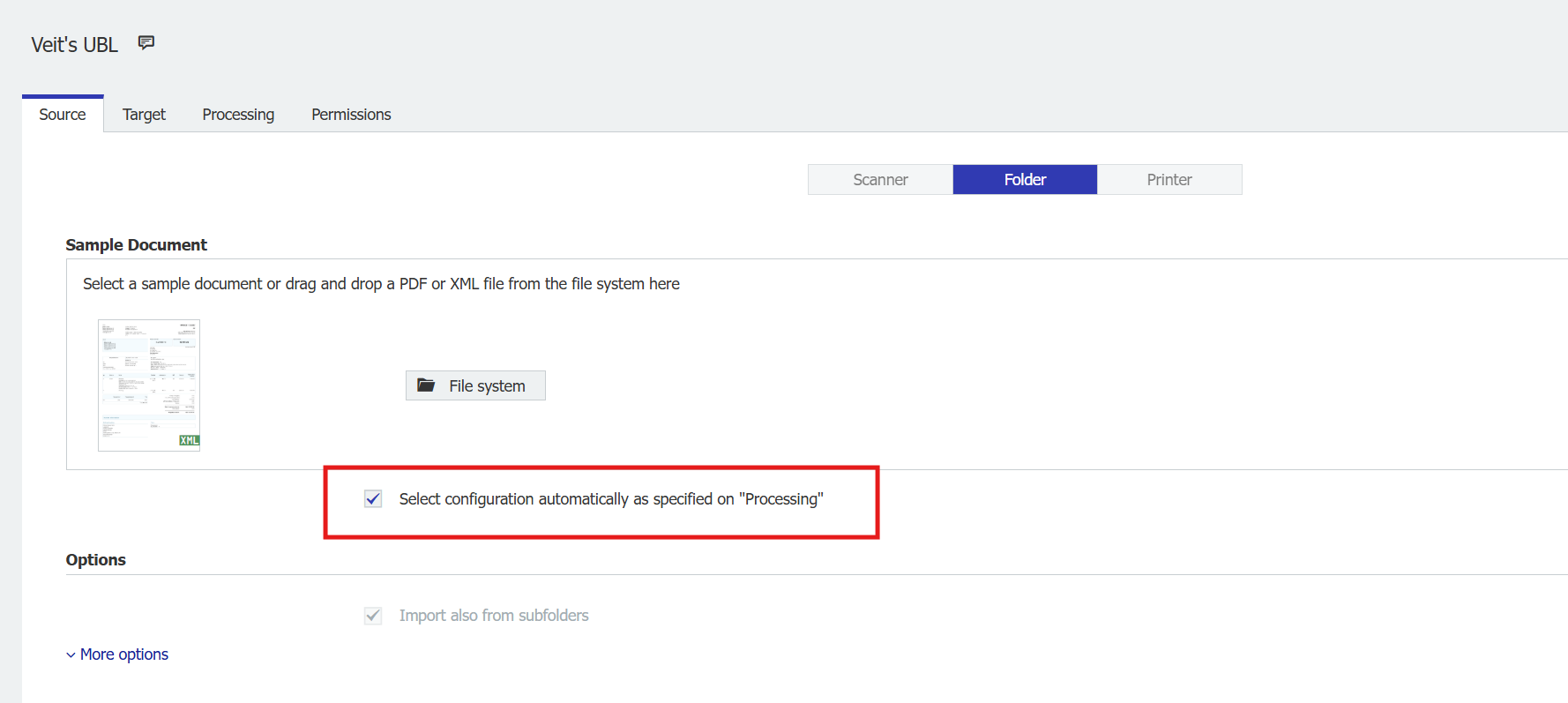
In the Source tab activate the option Select configuration automatically as specified on “Processing”.
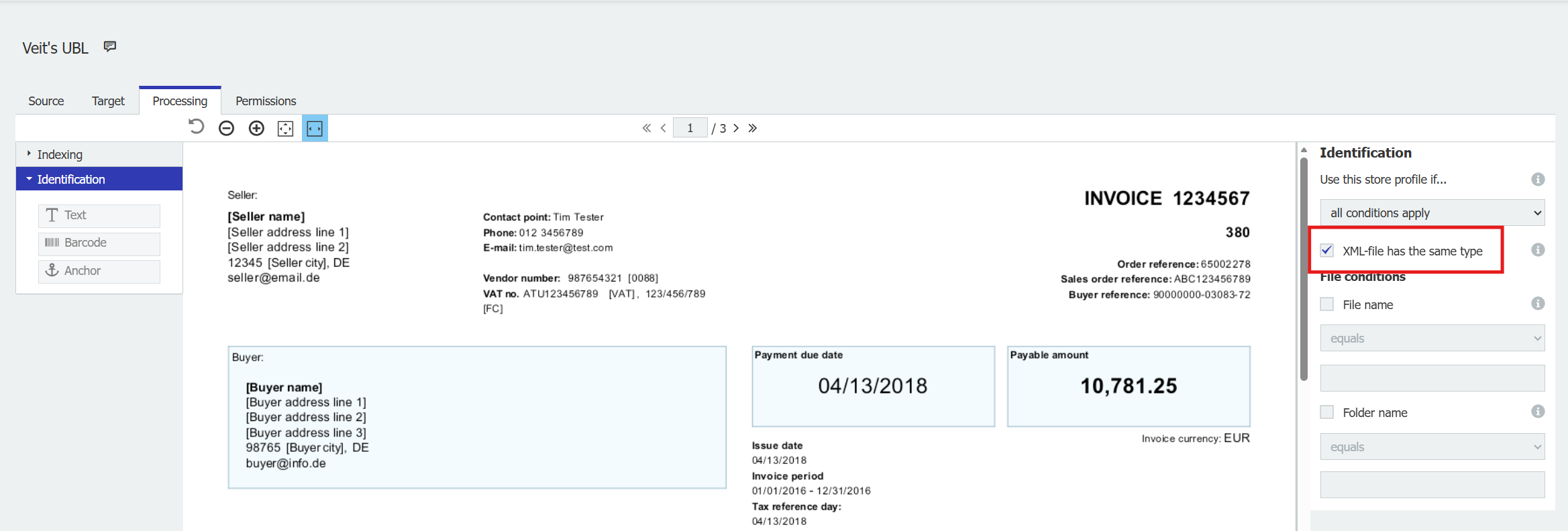
In the Processing tab activate the option XML-file has the same type.
2. Link the processing and import configurations
This article covers settings specific to e-invoicing. For general guidance on creating a General email / Connect to Mail configuration, see the email import article.
Go to DocuWare Configurations > Capture > General Email.
Select an existing email import configuration or create a new one.
Click the More options link, then enable the checkbox Automatic processing of documents (for indexing only).
Link one or more Document Processing configurations by choosing an option in the drop-down list - see below. When emails with e-invoice attachments are stored by this import, the attachments are processed according to the linked processing configuration. If no processing configuration is available, you are prompted to create one.
Select one of these options:Specific configuration: All attachments are processed with the selected configuration.
Automatic selection (Document Processing configuration): Incoming attachments are matched to and processed with the most suitable Document Processing configuration automatically. Keep in mind, to allow a Document Processing configuration to be selected automatically from other modules, the identification option must be enabled at the Document Processing configuration level.
Automatic selection (Combination of all configurations): All available Document Processing and IDP configurations are evaluated; the best match is selected for each attachment.
DocuWare on-premises: configuring import and indexing for invoices
1. Create the processing configuration
This article covers settings specific for e-invoicing. For general guidance on creating a processing configuration, see the Document Processing help.
Go to DocuWare Configurations > Capture > Document Processing.
Create a configuration using a sample e-invoice.
In the Source tab activate the option Select configuration automatically as specified on “Processing”.
In the Processing tab activate the option XML-file has the same type.
2. Link the processing and import configurations
This article covers settings specific for e-invoicing. For general guidance on creating a General Mail / Connect to Mail configuration, see theemail import article.
Go to DocuWare Configurations > Capture > General Email.
Select an existing email import configuration or create a new one.
Click the More options link. The available options differ by your DocuWare version:
DocuWare on-premises 7.11+7.12:
Enable the checkbox Automatic Document Processing and select the document processing configuration created in step 1.
Incoming attachments are matched to and processed with this configuration.DocuWare on-premises 7.13 and later:
Enable the checkbox Automatic processing of documents (for indexing only). Incoming attachments are matched to and processed with the most suitable Document Processing configuration.
Specific configuration: All attachments are processed with the selected configuration.
Automatic selection (Document Processing configurations): Incoming attachments are matched to and processed with the most suitable Document Processing configuration. Keep in mind, to allow a Document Processing configuration to be selected automatically from other modules, the identification option must be enabled at the Document Processing configuration level.
DocuWare Cloud + on-premises: troubleshooting
Importing emails with multiple e-invoice attachments
General Email / Connect to Mail can process only one e‑invoice attachment at a time. If an email includes multiple attachments, the storage behavior depends on the option selected in the Separation section:
Store email and all attachments as one clipped document: With this option, the attachments are sent to processing configuration.
Store email and attachments individually: With this option, each attachment is sent individually to the processing configuration. The extracted index values are returned to the General Email / Connect to Mail import configuration, and each attachment is stored as a separate document in the selected file cabinet or document tray.
Importing PDFs without embedded XML
PDFs that do not include an XML-based e-invoice cannot be processed with a Document Processing configuration created for e-invoicing. There are two options to handle those emails:
Create another Document Processing configuration to store non-XML PDFs.
For DocuWare Cloud or DocuWare on-premises 7.13 you can select the option Automatic Document Processing > Automatic selection (all Document Processing configurations) in the General email configuration. The appropriate configuration is selected automatically.
For DocuWare on-premises 7.11 + 7.12: Set up a dedicated General email configuration for the PDF without XML and link the processing configuration to it.
In the General Mail / Connect to Mail configuration, enable the checkbox When automatic processing is not possible, apply the general email indexing settings. In this case, the default indexing settings from the email import configuration will be applied automatically to the PDF - the file cabinet storage location and index settings. The attached PDF is not sent to the processing configuration.
Attachments that cannot be processed with either option will be stored in the default document tray.
When Document Processing cannot process an attachment
Document processing can’t detect a configuration for an e-invoice, if
no Document Processing configuration matches the e-invoice
ormultiple configurations match the e-invoice
What happens next depends on the option When automatic processing is not possible, apply the General Email indexing settings in the Connect to Mail import configuration:
If enabled: The e-invoice is stored in the file cabinet or document tray defined by the General Email configuration, and that configuration’s index values are applied instead of the Document Processing configuration.
If disabled: The e-invoice is routed to the default document tray.
In both cases, a message is written to the document’s Status field indicating the reason, such as “Retrieving indexing fields failed: Identification failed. No matching configuration is found.” or “Retrieving indexing fields failed: Identification failed. Multiple matching configurations are found.”
Current limitations
There are some limitations for importing and processing invoice attachments via the General Email configurations.
Email import:
Processing works for one e-invoice per email attachment. If multiple invoices are attached to one email, they must be stored individually.
It is not possible to apply both - automatic document processing and a general email configuration - to one document, which means you cannot index, for example, one part of the index fields of a document with automatic document processing and the other part - like the mail body - with general email configuration.
The General email / Connect to mail configurations always consider the following priority for the handling of the index values:
Predefined read-only index entries of the storage location.
Index values returned from the Document Processing configuration.
Index values as defined in the General email configuration.
Processing Service: Maximum document size is 10MB; XML complexity limits apply.
Transformation Service: Maximum document size is 10MB.
DocuWare: Table fields can only store up to 1000 rows (invoice line items). Large invoices exceeding this limit require special handling.
Field types of e-invoices: DocuWare supports all valid EN 16931 fields in both CII and UBL, with two exceptions for CII format:
SupplyChainTradeTransaction.ApplicableHeaderTradeAgreement.SellerTradeParty.ID
SupplyChainTradeTransaction.ApplicableHeaderTradeAgreement.AdditionalReferencedDocument.TypeCode
It is generally recommended not to index these particular field types in a file cabinet. Even if they are indexed, the e-invoice would be processed normally, but those specific fields would be empty.
XML properties: When processing e-invoices, the following XML properties have the specified maximum values:
Processing-XmlComplexity-MaxNestingDepth: 60
Processing-XmlComplexity-MaxElementCount: 100.000
Processing-XmlComplexity-MaxCharacterCount: 20.000.000