E-Invoicing Validation is a Connect to Mail feature that checks incoming e-invoice attachments against the required XML schema and content rules. The validation result is stored with the archived document. The validation feature is available for both DocuWare Cloud and DocuWare on-premises. The feature itself requires no extra license for cloud systems; for on-premises systems, the licenses listed under the prerequisites section must be in place. The validation applies to any e-invoice in one of the supported formats, regardless of where the invoice originates. Support depends on the format, not on a specific country
Important: Validation does not replace compliance check
A positive validation result does not constitute a legal guarantee of invoice compliance. Compliance of your invoicing process remains your organization's responsibility.
How does the validation of e-invoices work?
When DocuWare detects an XML or hybrid PDF in a mailbox that is connected to DocuWare via Connect to Mail, each invoice is checked on two levels:
Format and structure (XSD): Verifies that the XML matches the required schema.
Business rules and logic (Schematron): Applies content rules, such as mandatory fields, valid value ranges, and consistency between related fields.
The combined outcome is stored with the invoice as Valid, Valid with Warnings, or Invalid. Validation never delays or prevents archiving, as a automatic processing configuration required for validation is always applied. The original document is always stored, whether it passes, fails, or cannot be checked. This means archiving and validation are independent.
The feature identifies the file format and checks it against the matching standard. It recognizes XRechnung 3.0.x, Peppol BIS 3.0, and ZUGFeRD / Factur-X, and it is available to DocuWare organizations in countries that support these formats. All three formats are all based on the European e-invoicing standard EN 16931.
For PDF files, only the embedded XML component is validated, not the visual PDF layer. Files that do not match any supported standard are archived without a validation result, and no error is shown.
An e-invoice is validated only once, when the email is imported. Archived documents cannot be revalidated manually.
Whether an e-invoice attachment is validated depends on the separation settings defined in the General Email configuration:
Store email and all attachments as one clipped document: the email can contain one or more e-invoice files (PDF or XML). Each e-invoice file is validated.
Clipped storage: the email must contain exactly one e-invoice file type (PDF or XML).
If neither condition is met, the mail is archived with the settings of the Connect to Mail configuration, and the e-invoice attachment is not validated. For example, this happens when several PDF files and one e-invoice are imported into DocuWare through a configuration with clipped storage mode enabled.
Where and when to validate e-invoices
Here is what a typical validation of an e-invoice attachment looks like:
A vendor sends an e-invoice to a mailbox configured in Connect to Mail.
Connect to Mail detects the e-invoicing attachment, processes it with the Document Processing configuration, and passes it to the validation feature.
The validation feature checks the file against the matching standard.
DocuWare archives the document and records the result as an annotation, a validation report, and index field values.
Users review the result in the DocuWare Viewer or through file cabinet searches based on the index fields — for example, when you need to filter or report on invalid invoices instead of reviewing every one by hand.
Validation records a status — whether an invoice is Valid, Valid with Warnings, or Invalid — and stores it with the document. You can put that status to work in a workflow: use it as a condition to route invoices, trigger approvals, or start any follow-up action you need.
Note: E-Invoice validation is only available in Connect to Mail
E-invoices received in DocuWare for Outlook or other modules different from Connect Mail cannot be validated with Connect to Mail.
For the complete e-invoicing lifecycle, use the DocuWare E-Invoicing Service.
Validation is not expected to act based on its results; it records whether an invoice is valid, but it does not start a workflow or any follow-up action based on the validation outcome. Automatic processing must be handled separately.
Configuring Connect to Mail for validating e-invoices
You activate and configure E-Invoicing Validation in DocuWare Configurations > Capture > General email and select your configuration. Then choose Import Options.
Prerequisites
For DocuWare on-premises, you need a Connect to Mail license and an Import license. For the cloud, it is not necessary.
At least one General Email Configuration is set up and operational.
You have administrator permissions in DocuWare Configurations.
Existing Processing Configuration, either DocuWare IDP configuration or Document Processing configuration.
Activate e-invoicing validation
The settings take effect for emails imported after you save the configuration.
Open DocuWare Configurations > General Email.
Select an existing General Email Configuration, or create one.
Open the Import Options tab.
Enable Automatic Document Processing and select one of the available configurations.
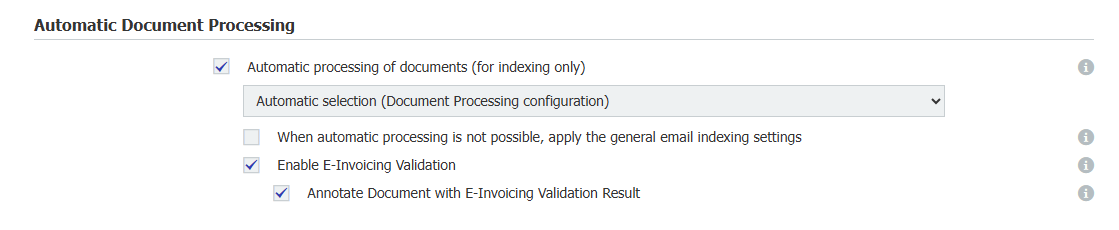
Select Enable E-Invoicing Validation.
Optionally, select Annotate Document with E-Invoicing Validation Result to add a color-coded annotation to each imported e-invoice. The annotation makes the validation outcome visible directly in the document and is placed automatically in the area with the most blank space.
Click Save.
Map validation data to index fields
If you map index fields to E-Invoicing Validation sources, the outcome and error details are written to those fields automatically at import time. Use them to search, filter, or build list views, for example, to surface every invoice with the status Invalid for follow-up.
Set index fields mapped to validation sources as read-only. This prevents users from manually overwriting validation data.
Open DocuWare Configurations > Connect to Mail.
Select an existing General Email Configuration.
Open the Indexing tab.
For each index field you want to populate, open the Source dropdown.
Under E-Invoicing Validation, select one of:
E-Invoicing Validation Result: the overall outcome, either Valid, Invalid, or Valid with Warnings.
E-Invoicing Validation Error, Format & Structure (XSD): schema errors.
E-Invoicing Validation Error, Business Rules & Logic (Schematron): business rule errors.
Click Save.
Note: deactivation removes index field mapping
If you deactivate Enable E-Invoicing Validation while index fields are mapped to validation sources, the E-Invoicing Validation source category is removed from the Indexing tab. You will need to remap those fields if you re-enable the option later.
Compatible field types
The E-Invoicing Validation source appears only in the Source dropdown for field types compatible with each validation property. If the source is not visible for a field, check that the field type matches what is expected:
Validation property | Compatible field types |
|---|---|
E-Invoicing Validation Result | Text, Memo |
E-Invoicing Validation Error — Format & Structure (XSD) | Keyword, Memo |
E-Invoicing Validation Error — Business Rules & Logic (Schematron) | Keyword, Memo |
The source does not appear at all for DateTime, Numeric, Date, Decimal, or Table fields.
The Value dropdown is filtered automatically based on the field type you selected:
A Text field offers only the Validation Result.
A Keyword field offers the Format & Structure (XSD) and Business Rules & Logic (Schematron) error properties.
A Memo field offers the Validation Result, Format & Structure (XSD), and Business Rules & Logic (Schematron) error properties
To capture the full validation output, you need three index fields: one Text or Memo field for the overall result and two separate fields for the XSD and Schematron error details. Each error field can be either a Keyword or a Memo field.
Choosing between Keyword and Memo fields:
Keyword fields are recommended by default and store each validation error as a separate entry. It works better for filtering, searching, list views, and workflow conditions. Notice that the single Keyword entry holds up to 255 characters.
A Memo field is the best approach for longer error messages, as the Keyword field is cropped. Choose this option when the complete error text must be preserved, for example, when the error is forwarded to the invoice sender.
In both cases, the validation report remains the complete record of all errors. Index fields are intended for search and workflow use, not as the audit source.
Changing the field type later
If you switch an error property from a Keyword field to a Memo field or back, the change applies to documents imported after you save the configuration. Index data already stored is not changed.
View validation results
Validation results are available in three ways, depending on what you enabled in the configuration:
Validation report: The full validation report is stored as an HTML/XML entry on every validated document. It contains the complete list of XSD and Schematron findings and is generated automatically once E-Invoicing Validation is enabled. To open it, open the e-invoicing (PDF or XML) document in the DocuWare Viewer and click the “Show Validation Report” in the viewer navigation bar.
Index fields: If you mapped index fields to validation sources, they show the validation data (outcome and error details) and can be used to search and filter your imported documents.
Annotation: When the annotation option is enabled, a color-coded annotation is added directly to the document, giving a quick visual overview:
Status: Valid, Valid with Warnings, or Invalid.
Format: The detected e-invoice standard (for example, XRechnung).
Errors or warnings found: Total count across both validation layers.
A reference to the validation report for the full details.
Timestamp: When validation ran.
The annotation is intentionally compact and does not list individual errors. For the complete findings, open the validation report.
Troubleshooting
If an imported file has no annotation or report, it is probably not an e-invoice, or its format is not supported.
If several e-invoice attachments are archived without a result, the email most likely contained more than one of the supported file types (PDF or XML). In such a case, you can either ask the sender to send one attachment per email or change the General Email configuration to store each attachment individually.
Validation applies only to documents imported after the E-Invoicing Validation feature was enabled; there is no retroactive option. If documents were archived before the validation feature in General Email was activated, no validation result will be shown.
To check the validation of documents that were already archived, there are two options:
re-import the relevant emails through a General Email configuration that has the validation feature enabled, or
use the DocuWare E-Invoicing Service, which validates documents through a workflow-based approach, independent of how they were imported. Keep in mind that the E-Invoicing Service is a separate, licensed product currently available for DocuWare Cloud only.
If validation fails repeatedly due to a network error or another issue, DocuWare automatically retries up to three times to validate your document. If the failure continues, the document is expected to be archived without a result.
Supported versions: DocuWare Cloud + 7.15 + 7.14 + 7.13