In DocuWare Forms, a dropdown item can now supply a number to a calculation. This applies to the Dropdown field and to a Dropdown column inside a Table field. The option and the rules are the same in both places.
Until now, a figure in a Dropdown was lost to any calculation. Only Number fields and Number columns could be part of a formula, so the person filling in the form had to copy the displayed value into a second field, or the calculation had to happen later in the workflow. This affected values from a select list in particular: a select list can be connected to a dropdown only, never to a Number field, so figures kept in a database could be shown on the form but never calculated with.
Now a dropdown becomes available for formulas as soon as you enable the new option Numeric value only in the Dropdown field or column settings. In the formula editor it then appears under Dropdown fields, Dropdown columns, and Dropdown column sums, and it can be combined with Number fields in the same formula. The people filling in the form see no new setting. For them, fields they used to fill in by hand are simply calculated.
Component: DocuWare Forms
Applications
Purchase order with prices from the catalogue (Dropdown column in a table form field): Peters Engineering keeps its product catalogue in a DocuWare select list with several columns, one for the product, one for its price, one for its tax rate. Picking the product in the order table therefore also brings its price into the form.
Until now that price could only be displayed: to get a line total, the buyer had to retype it into a number column. With the price column set to the new numeric option, the line total is price times quantity. A Dropdown field for the discount rate, offering only the approved rates, is then applied to the sum of all lines.Shift sheet with agreed pay rates (Dropdown field added manually by the person who configures the form): staff paid by the hour report their hours on a form. The hourly rate is a dropdown holding the standard rate and the overtime rate, so no one can enter a rate that was never agreed. Rate times hours now gives the pay for the shift, which previously had to be worked out after the form was submitted.
Approval with the current budget on the form (Dropdown field from a select list): a select list pulls the remaining budget per cost centre from a database. Only a dropdown reaches that data, so the figure could be shown on the form but not used. Elizabeth Cash, approving a purchase request in a procure-to-pay process, now sees the remaining budget and what the request would leave of it before she decides.
Benefits
Figures maintained elsewhere, catalogue prices, tax rates, pay rates, budgets, reach the calculation without anyone retyping them
Live data from a database can be calculated with and indexed
Here’s how
In DocuWare Forms access the Designer tab and open a Dropdown field or the Dropdown column inside a Table field. The settings for the dropdown are the same.
Set the dropdown to numeric by selecting Numeric value only.
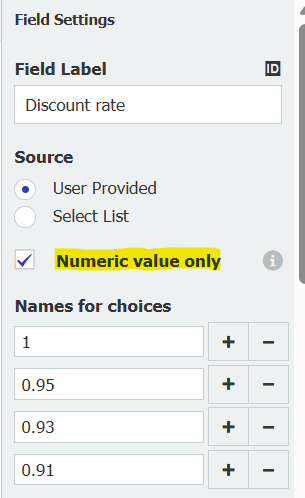
With Numeric value only, the figures can be used in a calculation.
2. Make sure the choices are numbers. What you have to check depends on where the list comes from:
User Provided: you, as the person configuring the form, enter the choices directly in the field settings. Forms restricts your input to the required numeric format.
Select List: the choices come from a DocuWare select list, either a fixed list or one filled dynamically from a database or another source. Forms does not adjust these values. Check that every entry in the assigned select-list column is a number in the required format.
Select-list values that do not match the required numeric format are excluded from the dropdown. The person filling in the form neither sees those choices nor can search for them. Check the select list again whenever its content changes.
3. Use the dropdown in a formula. A numeric dropdown behaves like a Number component, with one exception: it can only be an input. A calculation cannot write its result back into a dropdown, so choose a Number field or column under Display the result in.
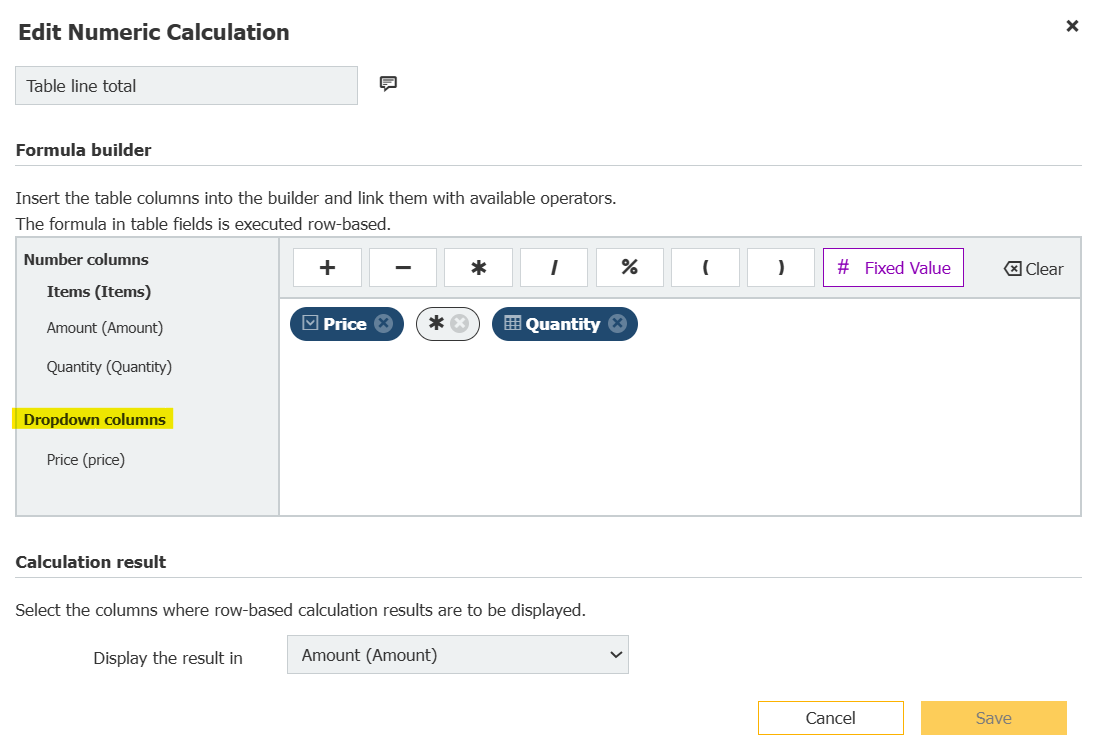
In a table, a dropdown column works like a number column, here “Price” times “Quantity.”
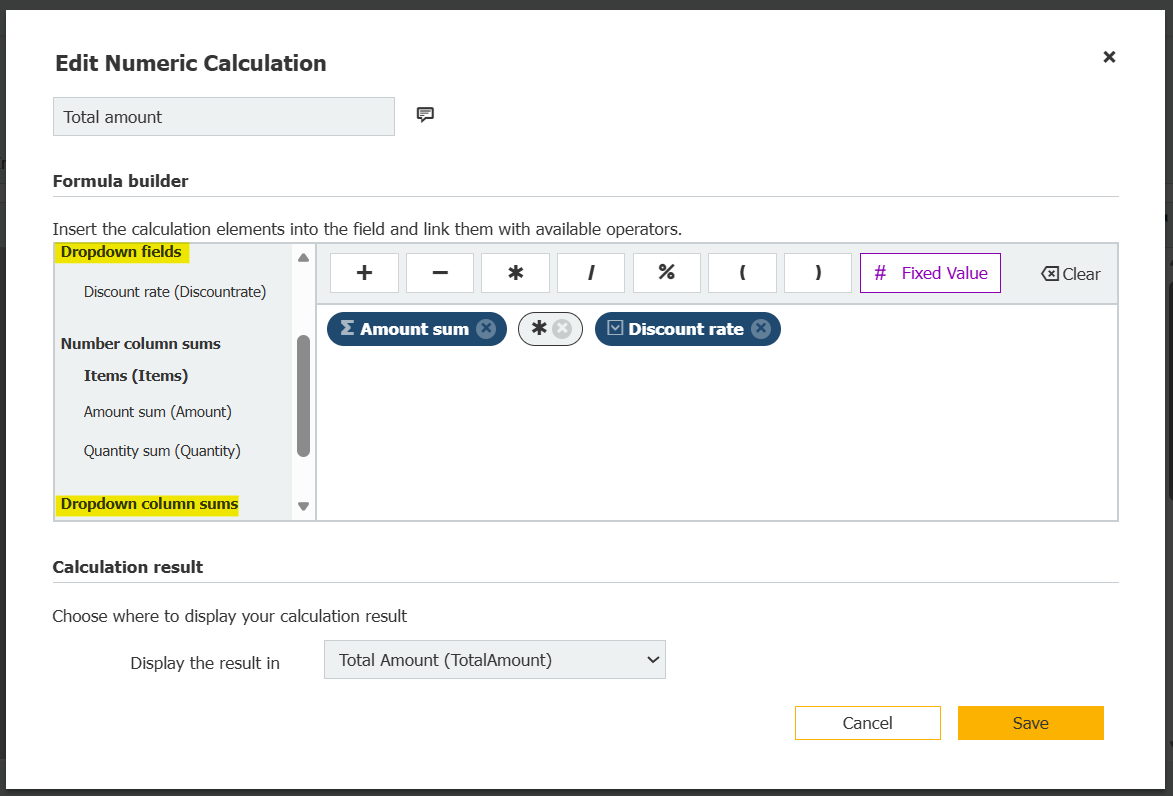
A dropdown field in a formula, here the sum of a table multiplied by a discount rate
4. Publish the form so the change reaches the people filling it in.