The Workflow Designer now arranges all activities of a workflow in a clean horizontal layout. Until now, activities in migrated or complex workflows could appear scattered or overlapping and had to be repositioned by hand.
Component: Web-based Workflow Designer
Applications
You open a migrated workflow for the first time and its activities overlap. The arrangement runs by itself, so you can read the process before you edit it.
You have been dragging boxes around a large workflow and want it tidy again before handing it to a colleague.
Benefit
Large and migrated workflows are readable without manual cleanup
Here's how
A migrated workflow is arranged the first time you open it. You can arrange any workflow yourself with the Arrange automatically icon in the toolbar below the canvas.
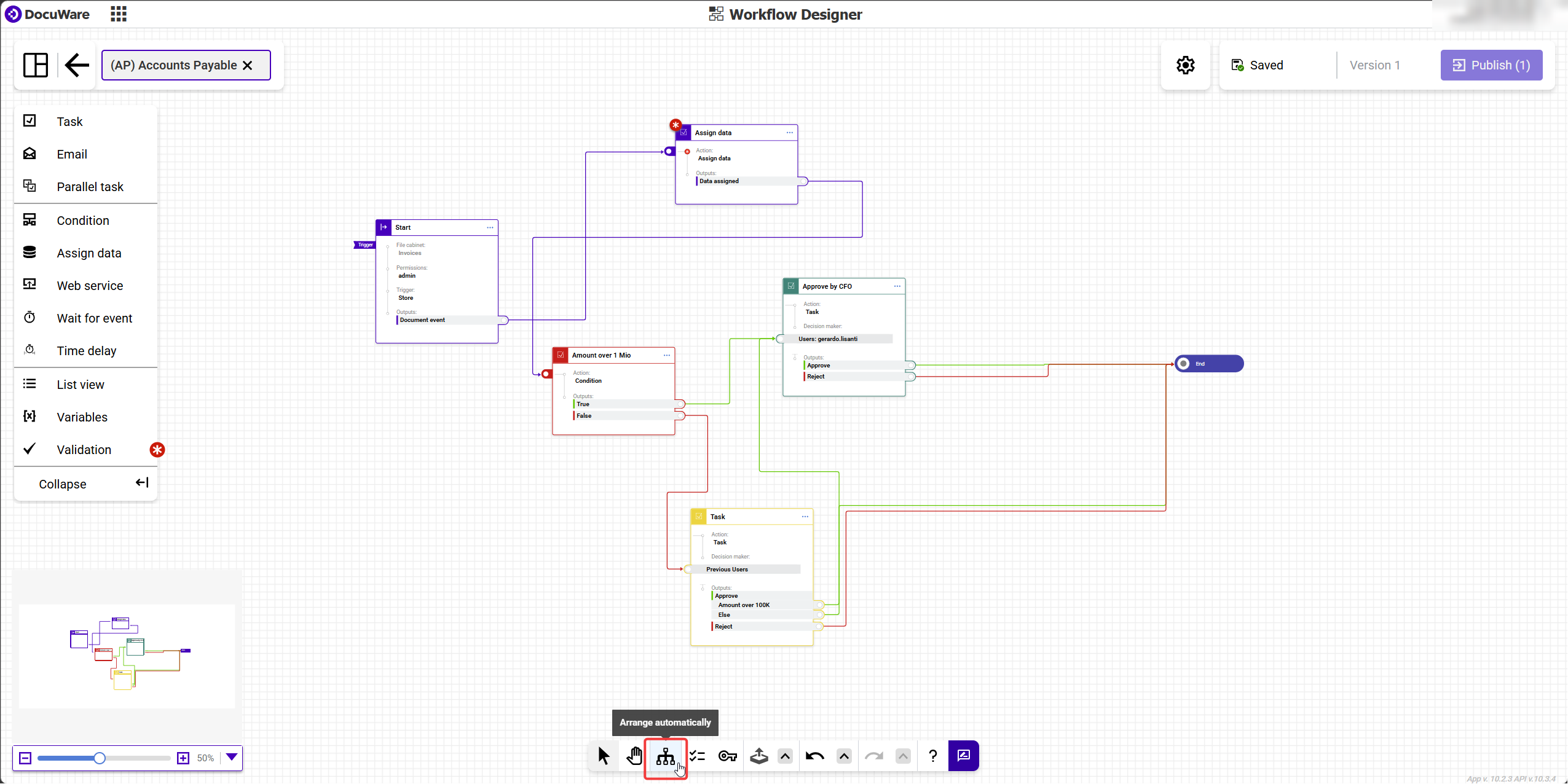
Auto Arrange sits in the toolbar below the canvas, next to the pan tool.
The arrangement changes only the position of the activities on the canvas. Logic, connections, and data stay unchanged, and undo brings back your previous layout.
More about working with the workflow canvas.