The Store module is the last step of an IDP flow. Configure it in DocuWare Configurations > Capture > Early Access - IDP to set where the document goes and how the extracted values fill the index fields. The earlier steps of the flow are described in Early Access IDP: build IDP flows.
Information: Early Access
The new IDP configuration and Manual mapping are in Early Access. Manual mapping is being delivered in parts, so not every field type can be mapped yet. The field types are listed under Current limitations.
Prerequisites
To store IDP results with a store dialog, the following prerequisites must be met:
The IDP flow contains an extraction step. Both mapping options work with extracted values, so the Store module becomes available only once the flow extracts data. A flow that stores the documents in the Document Tray is the exception: there an extraction step is allowed, but not required.
For a file cabinet as target: at least one store dialog of the target file cabinet can be used. IDP has no permissions of its own. The Store module lists the same store dialogs that are available when storing a document by hand, so the file cabinet permissions also apply to the IDP flow. The same is true for the fields: the store dialog decides which index fields the flow can fill. Organization administrators see all store dialogs of a file cabinet.
Choosing where documents are stored
The extraction step of the IDP flow only reads the document. It returns values such as an invoice number, a date or an amount. These values are not attached to any index field yet. The Store module is where the person who builds the IDP flow decides which extracted value maps to which index field in the file cabinet.
In a file cabinet, the document is stored with the mapped index fields filled, so it can be found and processed right away. Auto mapping or Manual mapping decides which extracted value fills which index field.
In the Document Tray, the document waits for someone to check it and store it by hand. It is not indexed, so no mapping options are shown for it. The Document Tray is the right target when the documents still need a person, for example, to add information that IDP cannot extract.
To set up the Store module, follow these steps:
In DocuWare Configurations > Capture > Early Access - IDP, open the IDP flow and select the Store module.
Under Storage, select the target: a file cabinet or the Document Tray.
The Document Tray is the default document tray. It is listed together with the file cabinets.
For a file cabinet, choose how the extracted values are written to the index fields:
Auto mapping: If an extraction was trained on this file cabinet, it can automatically map all extractions to each field.
Manual mapping: Uses a store dialog, and each of its fields receives a chosen extraction result or a fixed value.
Only one of the two applies.
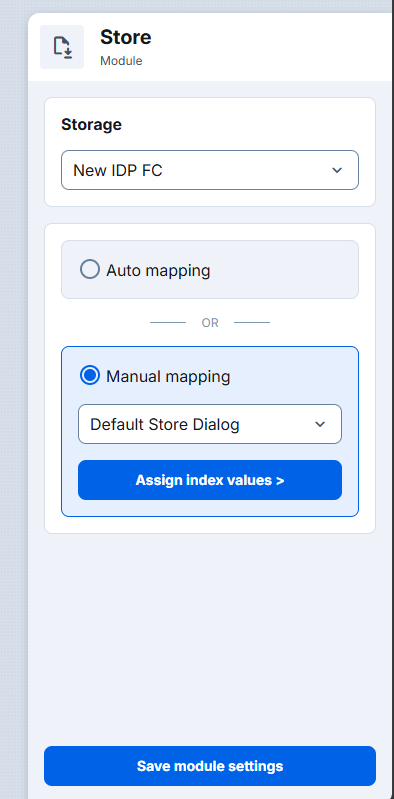
Choosing between Auto mapping and Manual mapping
The choice between Auto mapping and Manual mapping does not depend on precision. It depends on whether the field names already agree, and on how much control is needed over each index field.
Choose Auto mapping when one of the following applies:
The extraction was trained on the same index fields that the selected file cabinet offers.
IDP is being set up for the first time or tested, or a working flow is needed within minutes.
The configuration is simple: few index fields, one document type and no fixed values.
Choose Manual mapping when one of the following applies:
The names of the extracted fields and of the index fields differ.
Fields could be confused with each other, for example several dates or several amounts.
An index field always needs the same value, for example a document type, a department or a status.
The file cabinet has several store dialogs and the flow has to use a specific one.
The index fields have to be correct for compliance, finance or audit purposes.
Mapping extracted values to index fields
Manual mapping works through a store dialog. The store dialog decides which index fields the flow can fill, just as it does when someone stores a document by hand. The right store dialog is the one whose fields fit the documents of this flow. Each of its fields then receives a value from the extraction.
Select Manual mapping.
Select the store dialog of the file cabinet.
If no store dialog of this file cabinet can be used, DocuWare shows a warning. Store dialog permissions are set in the file cabinet configuration, in DocuWare Configurations.
Select Assign index values. Assign each field of the store dialog either an extraction result or a fixed value.
Fields of the types text, numeric and date can be mapped.
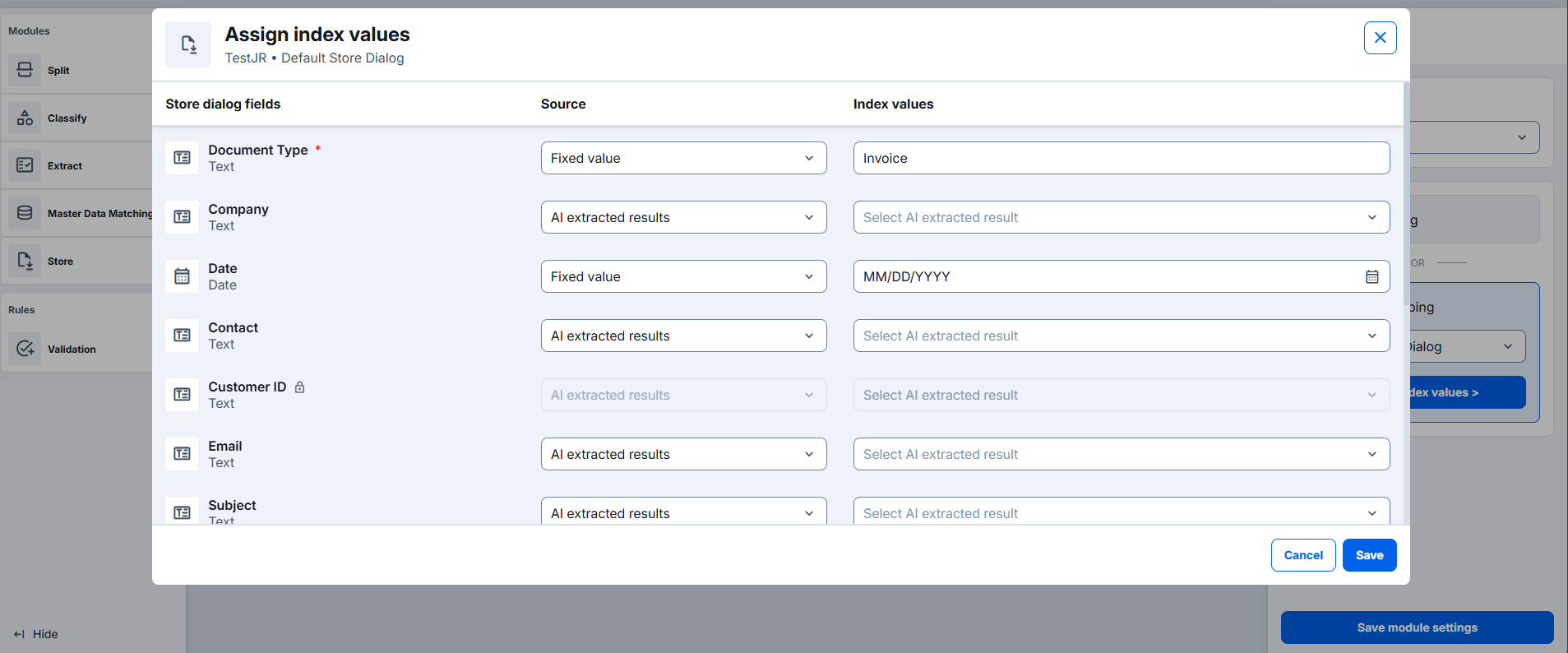
Select Save module settings. The mapping can be reopened and changed later.
At runtime, DocuWare stores each document with the mapped values, so the index fields are filled without anyone retyping them.
Current limitations
Only text, numeric and date fields can be mapped. Identifier, currency and country fields cannot be mapped yet, and neither can the advanced field types table, list and combined.
Hidden fields and predefined fields of the IDP plug-in are not included.
Storing in a document tray other than the default document tray is not possible yet.