With DocuWare version 7.15 a new way to define an IDP flow is available for testing. All settings for Intelligent Document Processing (IDP) are now in one place at DocuWare Configurations > Capture > Early Access New IDP: athe processing flow of your incoming documents, the AI agents that you can define to process documents and the overview of your IDP contracts and consumption.
Overview
You can access DocuWare Configurations > Capture > Early Access New IDP. Access is possible for organization administrators or with the Configure IDP right.
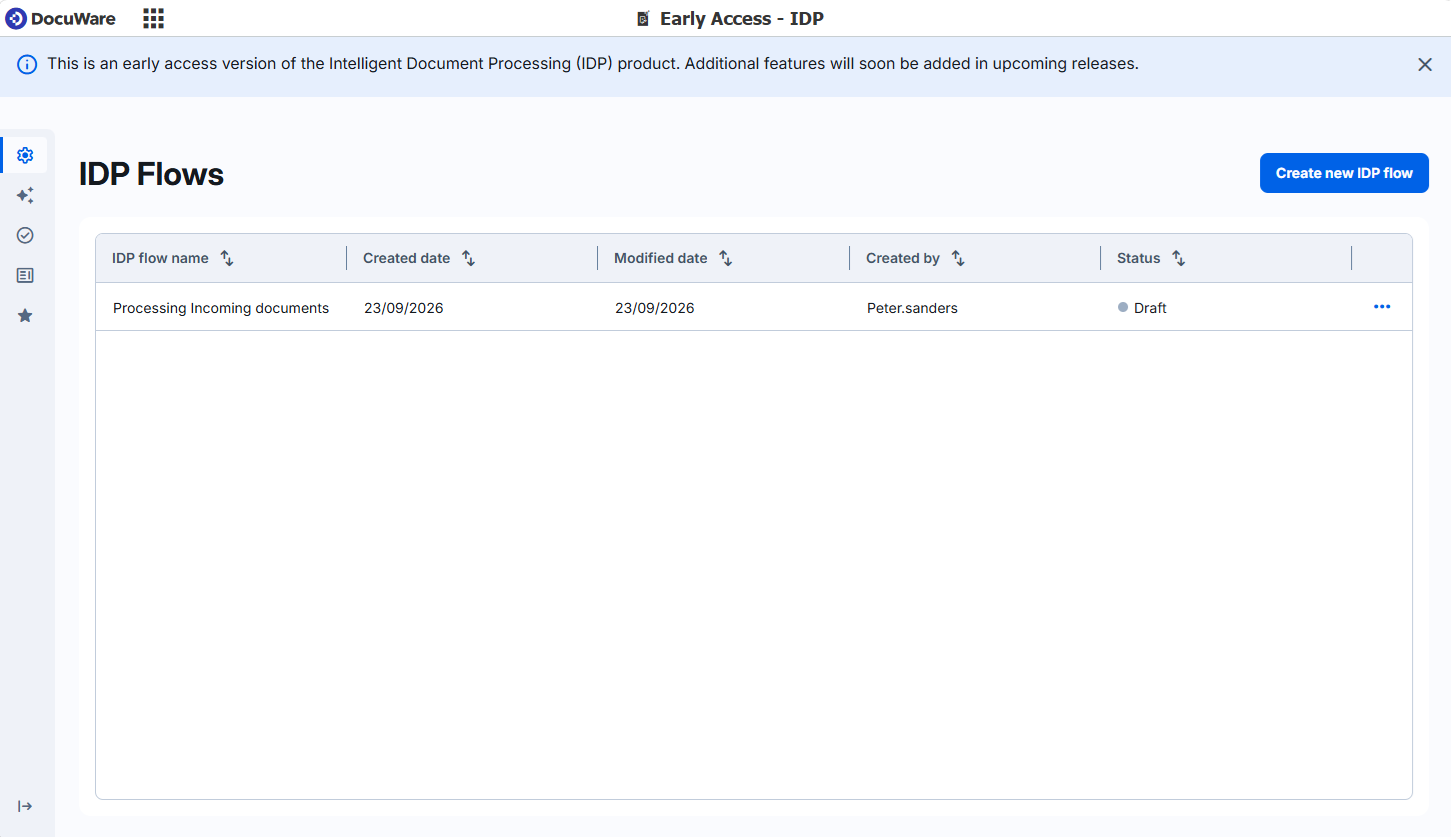
The new IDP configuration contains multiple sections:
IDP Flows: Creating IDP Flows to define how documents should be processed from intake to storage. A flow consists of multiple processing steps: e.g. splitting, storing, validating.
AI Agents: AI agent overview to see all your existing AI agents and create and train new Splitting, Classification and Extraction agents. An agent is an AI algorithm that defines how a document is processed.
Document Validation: Document Validation Overview that shows all documents that have to be validated (also visible in the classic DocuWare client)
Currently classic DocuWare client only
Intelligent Document Processing is not yet available in the new DocuWare client, introduced with Docuware 7.15.
Usage & Contracts Overview: See all your contract data of IDP.
How to create an IDP flow
An IDP configuration is generally provided by your DocuWare contact. However, if you want to test the configuration by yourself, here are the steps in detail:
Go to DocuWare Configurations > Capture > Early Access - IDP. Your organization is connected to DocuWare IDP automatically.
Under IDP Flows you can now build an IDP flow that defines how incoming documents should be processed.
Define which document formats you want to process. Curently, the options PDF and other are possible. More options will be included with upcoming updates:
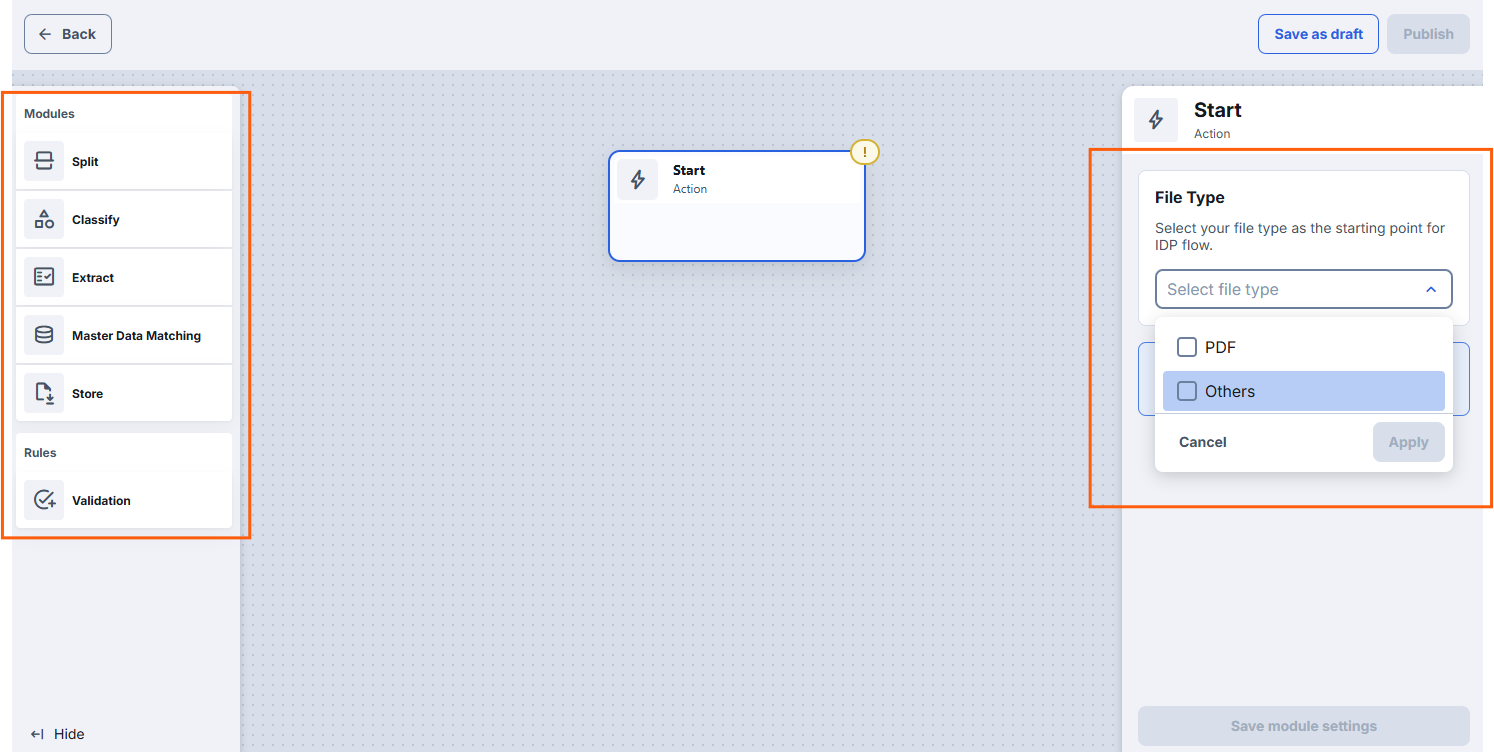
Add different processing steps from the left to the canvas. Available AI processing steps are Splitting, Classification and Extraction. In these steps you can define which AI agent you want to use for your documents:
Use Splitting to ensure that merged documents are separated and each single document is processed independently.
Classify is able to distinguish different document types - for example invoice and delivery note - based on the classification results you can define different next steps
The Extraction agent defines how the incoming documents are to be read outexactly.
Create new AI agents either based on DocuWare file cabinet data. Or create and train your models from scratch. You can either do this while selecting the Splitting, Classification or Extraction step in the canvas or in the AI agents overview.
in the Master Data Matching section you can connect external master data like CSV files or DocuWare lelect lists to the IDP flow and retrieve data to correct AI extractions
The Validation node lets you define if a manual validation step is needed and when this should be triggered. Once validation is activated and a document has to be validated you will see it in a Validation list in your classic DocuWare client.
Finally, decide where to store your documents in DocuWare. If you created your AI extraction based on a DocuWare file cabinet you can simply select Automapping to automatically connect the extracted data to the corresponding fields in DocuWare.
Embedding IDP configuration in a DocuWare Desktop App
After your IDP flow is completed or after your DocuWare contact has provided the IDP flow you select it in your Import or Scan configuration. Open the DocuWare Desktop Apps.
Using IDP for scanned documents
For using IDP through the Scan plugin, click the DocuWare Desktop Apps > Scan tab.
In the Processing configuration dropdown list, select your IDP flow to send your documents to DocuWare using the flow you created.
Using IDP for documents imported via a monitored folder
For using IDP through the Import plugin, click the Import tab.
Click Create new import job
Select the Source folder that should be monitored.
In the Processing configuration dropdown list, select your IDP flow to send your documents to DocuWare using the Flow you created
Monitoring IDP jobs triggered by DocuWare Desktop Apps
Documents imported with Intelligent Document Processing (IDP) are split, classified and indexed by AI services running on DocuWare servers.
To monitor these processes, open DocuWare Configurations and select IDP Monitoring. The list displays each job's status, file name, timestamp, and other details.
Occasionally, an IDP job may fail for technical or operational reasons. Failed jobs appear with a warning or error status. Click Details to see the specific cause, make any necessary corrections, and then click Retry to restart the job.
A job can fail, for example, if more than one IDP configuration matches the same document, such as when two configurations are assigned to the same document class and use the same sample file. Then DocuWare cannot determine which extractor to apply and stops the job.
Supported functionality in Early Access State
The IDP configuration is currently in "Early Access" state. It only offers limited functionality for testing and simple flows. Here is an overview of currently supported functionality and functionaly to be added in the future:
Functionality | Status | What it does |
Start | Available | The default entry point |
Automated intake | Not implemented | A monitored entry point that gets documents from a document source like email folders |
OCR / Preprocessing as part of the AI agents | Available | Using OCR/Preprocessing as part of the AI agents |
Define OCR and Preprocessing once for your flow | Not implemented | Customer defines Cropping, rotation, language handling, handwriting recognition once in an IDP process for all steps |
Splitting | Available | AI detects boundaries inside a single scanned batch and separates it into individual documents |
Classification | Available | AI decides what each document is, and the flow branches on that answer |
Extraction | Available | AI pulls out header fields, complex values and table/line-item data |
Creating of agents based on DocuWare File Cabinets | Available | Customer can create AI agents with existing DocuWare data which allows training the model and automapping it to DocuWare when using it |
e-Invoice Extraction | Not implemented | Parses structured e-invoices (XRechnung / ZUGFeRD) and automatically decides that XML are processed differently from PDF |
Master Data Matching | Available | Reconciles extracted values against the customer's own master data, including fuzzy matching |
Validation | Available | Human-in-the-loop where confidence is below the customer's threshold |
Validation UI in "New DocuWare" | Not implemented | See above (no complex Validation settings available) |
Storage | With restrictions | Maps fields to File Cabinet index fields and files the document |
AI Agent management | Available | Create, train, annotate and manage the AI models - including training directly from documents already in a File Cabinet |
Contract Management | Available | See all Contracts and Usage rates |