A folder structure shows the documents of a file cabinet in a hierarchy of folders, similar to a paper file or the folders of a file system. The folders are not separate storage locations. They are built from index fields: each level of the hierarchy corresponds to an index field, and each folder is named after an entry in this field.
A document is stored only once and appears in the folders that match its index entries. This lets different departments look at the same documents in different ways. For example, accounting can view invoices as Year > Status > Company, while sales finds the same invoices under Company > Year > Project.
Folders also work in the other direction. When users drag a document into a folder, DocuWare uses the folder names as index entries for the document. The document is then sorted in with the other documents, whether users access them through folders or through a search and result list.
Currently classic DocuWare client only
Folders are not yet available in the new DocuWare client, introduced with DocuWare 7.15.
Setting up a folder structure
To set up a folder structure, select the text fields and arrange them hierarchically. The first field is the top level of the folder structure, the second field the level below, and so on. You can create any number of subfolders, just like in a paper file.
By default, a folder is named after the field entry with which a document was stored. For example, if a user stores a document with "Peters Engineering GmbH" in the "Company" field, the folder "Peters Engineering GmbH" is displayed in the DocuWare client.
Folder names can also be predefined. This is important, for example, if an authority stores its documents with the same structure for several files according to a uniform file plan. To create such an empty folder structure, click Advanced.
The following example shows how a paper file structure can be recreated in DocuWare. For every employee, a folder collects their personal documents, as in a personnel file:
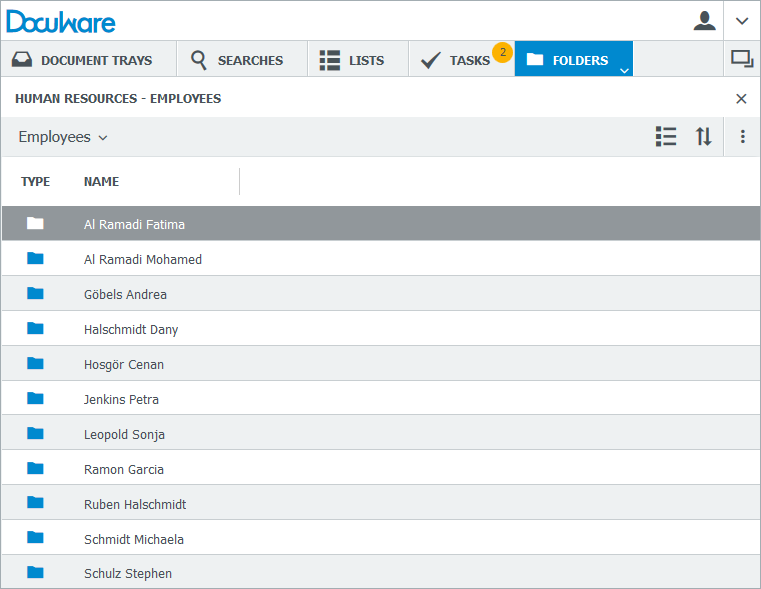
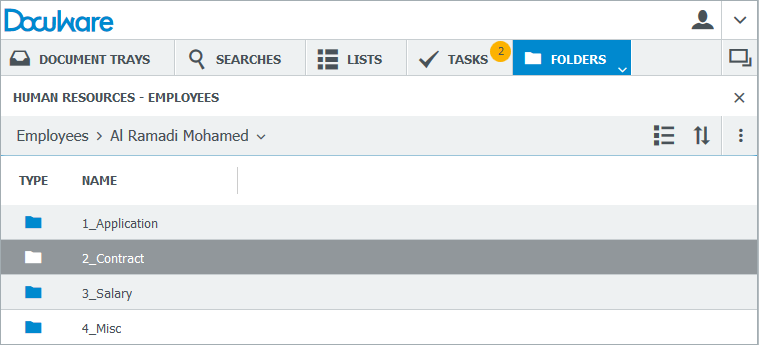
With empty folder structures, you can also predefine the names of the subfolders, so that every personnel file has the same structure. Numbered folders and documents stored with unique numbers make it easier to identify the documents in the file cabinet:
Folder structures can be used in the classic DocuWare client and in the Windows Explorer Client.
Setting up a filter
If you set up a filter, the folder structure only shows documents that match the rules defined here.
Empty folder structure
Folders are created from index entries. An index field must therefore have been filled when a document was stored before its entry appears as a folder.
Indexing is much easier if folders are available from the start, before any document is stored. Use select lists for this: the entries of the select list are inserted as empty folders into the folder structure.
Assigning a select list here does not assign it to the field. To offer the select list in the store dialog as usual, also assign it to the field at dialog level.
Index dialog field properties
The following field properties can be configured in an index dialog.
Field name in the dialog
Change the label if a description other than the field name should be displayed in the dialog. For example, the "Document Number" field can be labeled "Invoice number" or "Delivery note number" for different departments. For columns of table fields, this property is called Column name in dialog.
Required
Mandatory fields ensure that all important index information is entered. Store, search, and index dialogs can each have their own mandatory fields, so an index field can be mandatory in one dialog and optional in another within the same file cabinet. If a field is hidden in the dialog, the Required option is disabled automatically.
Field mask
A field mask makes it easier to enter long telephone numbers or date formats. New field masks are created in DocuWare Configurations > Indexing Assistance > Field Masks.
Create ... select lists
The select lists of your organization can be enabled for this field. New select lists are created with the plus symbol.
Assign select lists to a field
Select lists offer terms for search words or index entries in the DocuWare client. New select lists are created in DocuWare Configuration > Indexing Assistance > Select Lists.
Select lists are assigned to the fields of search dialogs, store dialogs, and index dialogs in DocuWare Configuration > File Cabinets.
Single-column and multi-column select lists
A select list is a single-column or a multi-column table. The table type decides whether the select list can be filtered.
Single-column select lists cannot be filtered. The default select list is an exception.
Multi-column select lists can be filtered. Only entries that match the entries in other dialog fields are then shown in the select list.
If you enable a multi-column select list, only this select list can be used for the field. Other select lists are disabled automatically.
Internal, fixed, and external select lists
Internal select lists are generated by the system. Each field automatically has its own default select list, which contains all entries made in this field so far.
Fixed select lists are based on data from outside DocuWare, such as a database or a text file. They are imported into DocuWare once and stored, so they can be accessed quickly.
External select lists are also based on data from outside DocuWare. They are retrieved each time the field is filled in, so they always match the current state of the source.
For date fields and number fields, always select an external select list.
Select list only
Enable Select list only if the field may only be filled with entries from the select list. This avoids different spellings and typing errors.
Configuring the filter
A filtered select list offers index entries depending on the entries in other fields. The filter is configured differently for the default select list and for a multi-column select list.
Default select list: all other fields of the current store dialog are available for the filter. Enable one or more fields so that the default select list matches the entries in these fields.
Multi-column select list: a fixed or external select list can only be filtered if it exists as a multi-column table. Configure the filter as follows:
Under Column to be used, select the column of the table that is used as the select list for the current field.
On the right, select a field of the current store dialog.
On the left, select the column of the external table that contains the entries for this dialog field.
For an example, see Importing and filtering a multi-column select list.
The user can enable or disable filtering in the DocuWare client
Filtering of index dialog fields is disabled by default in the DocuWare client, so the complete select lists are available for the fields. With this option, users can enable filtering. The select list of the field then depends on the entries in other fields.