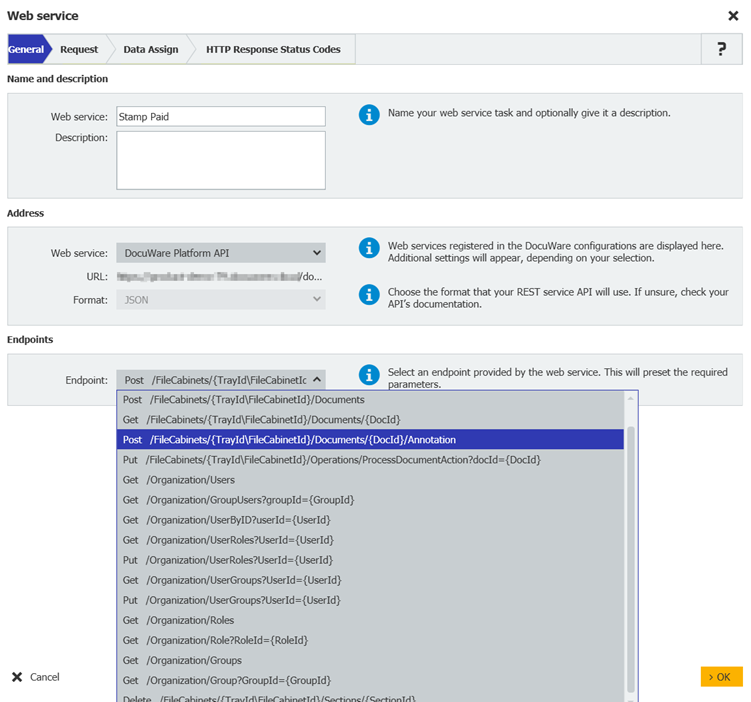
This activity allows you to integrate REST or SOAP web services in your workflow. Web services can be used to automatically exchange data between systems or to create, update, or delete information in other applications via workflow.
Conversely, you can use data from other programs in your workflows. For example, connect your financial accounting system or CRM to DocuWare. To use web services with Workflow Manager, first register them in DocuWare Configuration under Web Services.
The Web Services activity in Workflow Designer provides you with an assisted structure with a workflow type for creating the web service call. The most important steps are illustrated here using the example of a REST web service.
1. General
First select the REST web service and specify the format for data exchange (JSON or XML). The services that were previously set up under Web services in DocuWare Configuration are available for selection. Any further required information will differ depending on the web service type selected.
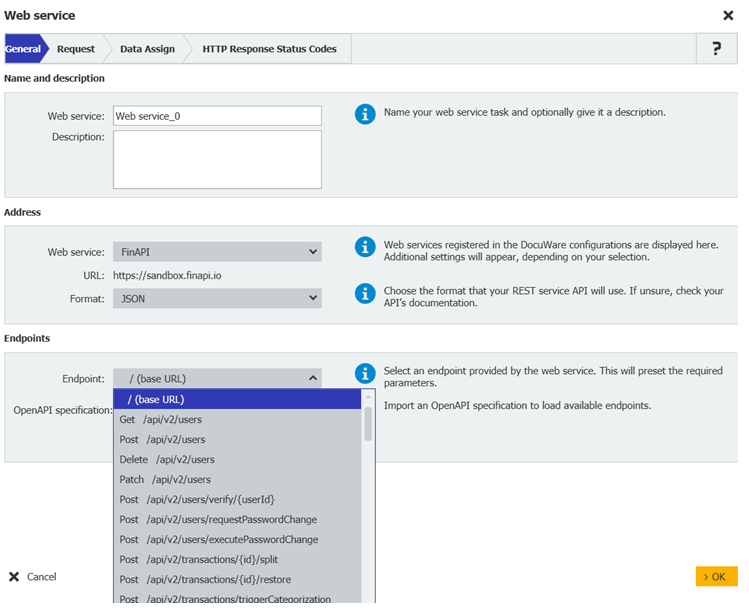
If your web service offers an OpenAPI specification file (*.json, *.txt, *.yml or *.yaml), you have the option to import it. Once imported, all available endpoints are listed in the dropdown:
2. Request
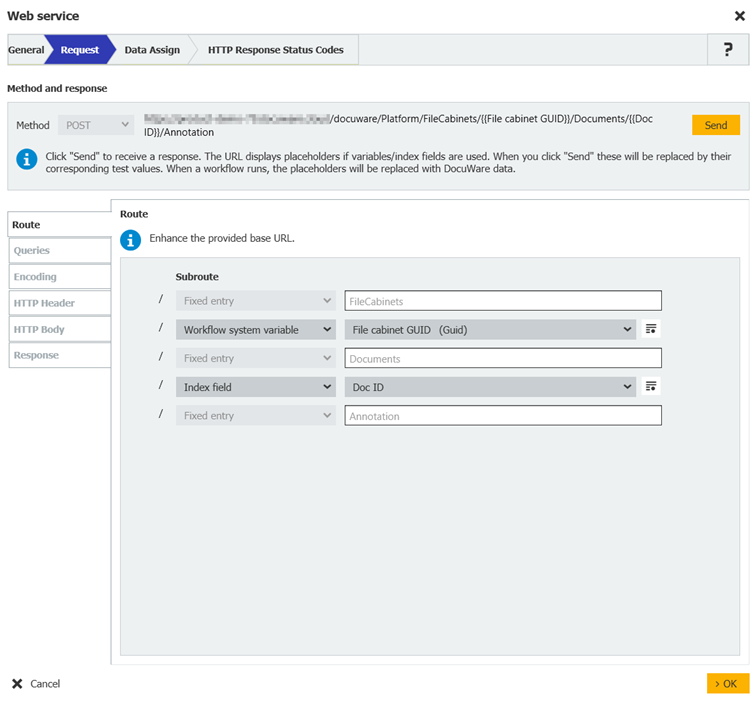
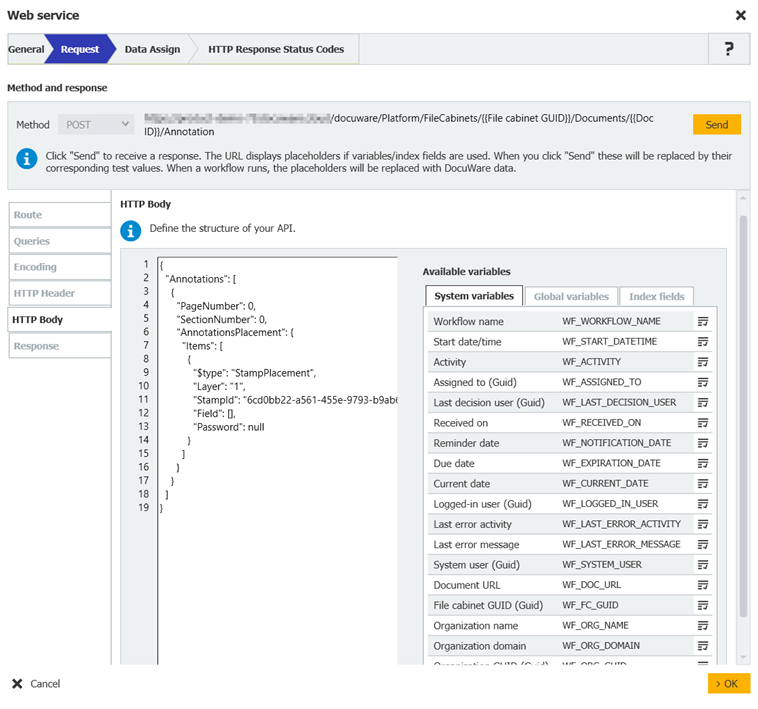
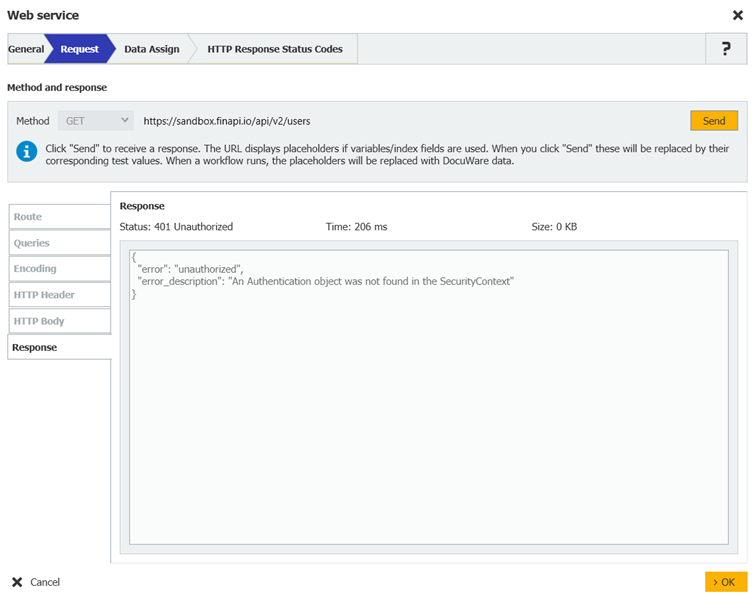
Select the method and configure the HTTP request. A preview of the request (URL) is displayed at the top. You have the flexibility to design the URL path, define query parameters, and structure HTTP body content using either fixed values, indexed data, or global and system variables.
Finally, test the request using the "Send" button and examine the "Response" to verify the success of the operation. Keep in mind that you need to provide a test value for each variable to run the test.
HTTP body
On the HTTP body tab, you have the option of attaching the current document to the HTTP request to an external RESTful web service. This allows you, for example, to send a saved document such as an invoice to an external AI capture service to capture the document and assign the captured information to index fields or global variables.
The document can be exported as a pdf with (DocuWare version 7.14 or later) or without annotations or as original document. If the DocuWare document contains multiple files (clipped), all files are exported and attached separately. The HTTP request then contains several file objects.
With DocuWare version 7.12 you may also specify a test document here, that will be included in the test web service request.
Validation of HTTP Body
Validation of the HTTP body is performed either with Send or automatically when saving the configuration. If any part of the content is found to be invalid, the specific error is highlighted, and a corresponding message is displayed.
It's important to note that even if there are validation issues, you still have the option to save the configuration.
Encoding HTTP requests
There are three options to choose from when encoding HTTP requests:
Encode special characters (recommended): All special characters are encoded, e.g. "AT&T" becomes "AT%26T" and "Rapid Transport" becomes "Rapid%20Transport"
Encode special characters except reserved URL characters: ?#[]@!$&/*+,;='() Except for the reserved URL characters, all special characters are encoded, e.g. "AT&T" remains, but "Rapid Transport" becomes "Rapid%20Transport."
Do not encode special characters: Neither special characters nor spaces are encoded.
The encoding is applied to all values whose transfer is specified on the Route and Queries tabs, but not to the values of the HTTP Header and HTTP Body tabs.
Configuring endpoints
In case you use an OpenAPI specification file or the default REST web service "DocuWare Platform API", configure the endpoint selected in the previous step. To simplify the configuration all required parameters are automatically pre-set based on the chosen endpoint.
For the DocuWare Platform API, specifically, within the Route and Queries sections you define missing values, for example the file cabinet or document to be accessed.
In the HTTP Body section specify the required information and properties needed to execute the selected operation, for example the GUID of the stamp to be placed.
3. Data Assign
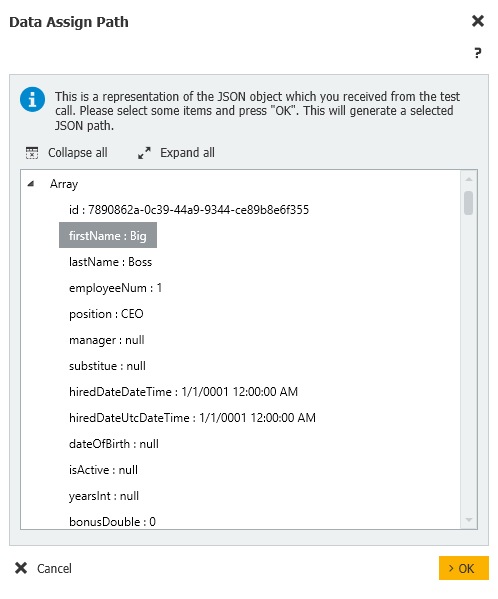
In this step, assign values from the response to either global variables or index data. Choose the necessary values directly from the JSON or XML using a tree view interface (see below).
This enables you to extract and store specific information from the response for further utilization within your workflow.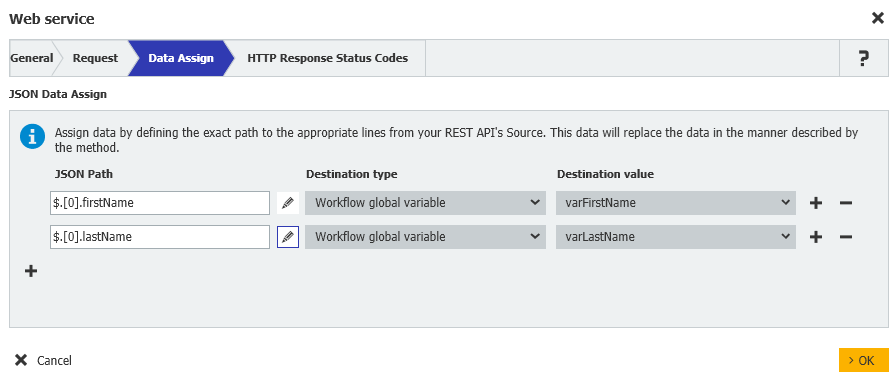
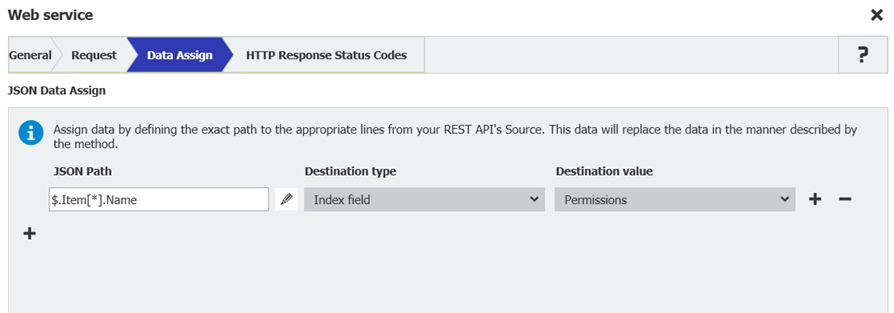
If you aim to handle all returned entries, manually replace the index with an asterisk (*) in the array indexer. This allows for comprehensive processing of all entries within the array.
Default web service DocuWare Platform API
Find the preconfigured endpoints in the article Default web service DocuWare Platform API.
Sample use case for setting a stamp with endpoint "documentAnnotations"
After an invoice has been processed in the accounting software, you want to automatically set a "Paid" stamp on the invoice in DocuWare.
To do this, create an Autoindex job which changes the index entry of the invoice to "paid". The change of the index entry of the invoice triggers a workflow, whose web service activity automatically puts the "Paid" stamp on the invoice document.
Note that the "Paid" stamp must be configured and assigned to the user which is specified for the workflow to run automatic activities.
The configuration of the "documentAnnotations" endpoint looks like this: