Every file cabinet in DocuWare stores its documents on one or more disk units. The File Cabinet Disk plugin lets you see in Docuware on-premises, which disks are assigned to each file cabinet, add new disks, remove existing ones, and control storage properties such as capacity limits and write protection. Use this plugin when you need to extend storage, migrate documents to a different location, or switch a disk to read-only or WORM mode for archival compliance.
To open the plugin, go to DocuWare Configurations > File cabinet disks. The main page lists all file cabinets that are configured in the system. Select a file cabinet to open its disk configuration.
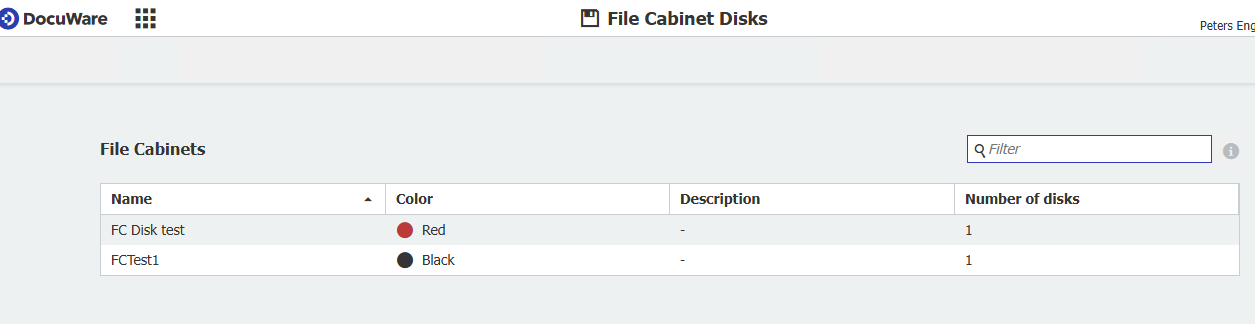
File cabinet list
The table shows the following columns. Use the filter field in the upper-right corner to search by cabinet name.
Column | Description |
Name | The name of the file cabinet. |
Color | The color assigned to the file cabinet during setup. |
Description | Optional text provided by the administrator when the file cabinet was created. |
Number of disks | The number of disk units currently assigned to this file cabinet. |
Disk details
When you select a file cabinet, the disk details page opens. It lists all disks assigned to the selected cabinet and provides controls for adding or removing disks.
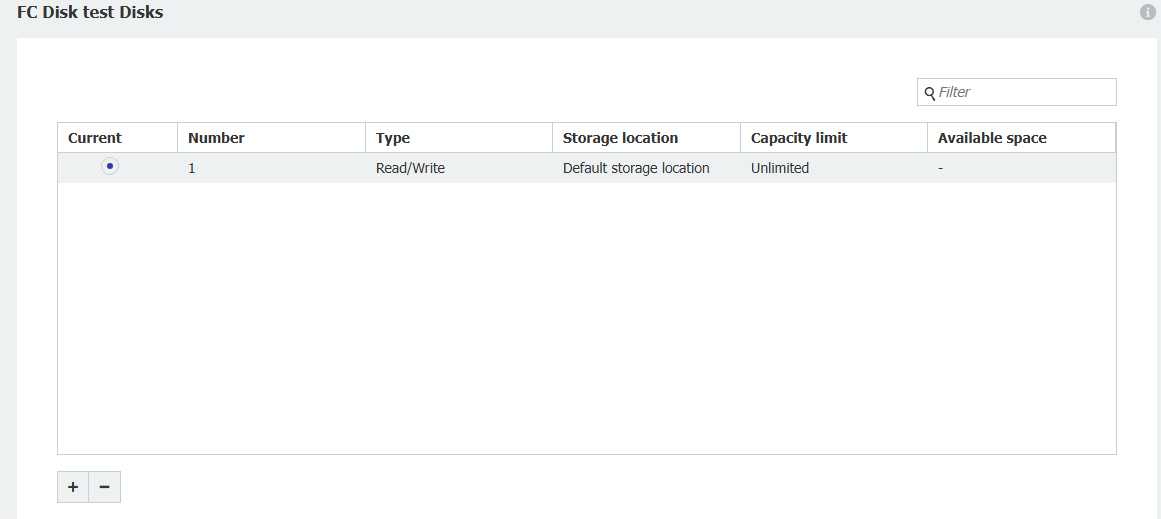
Column | Description |
Current | Indicates which disk is the active disk. New documents are stored on the current disk. |
Number | Sequential disk number within the file cabinet, assigned automatically. |
Type | The operational mode of the disk: Read/Write, Read Only, or WORM. See the disk settings section below for details on each type. |
Storage location | The storage location assigned to this disk, as defined in the DocuWare storage configuration. |
Capacity limit | The maximum storage size allowed for this disk. Displays "Unlimited" if no limit is set. |
Available space | Remaining storage available on this disk. Displays "–" if the storage type does not report available space. |
Use the + button to add a new disk or the – button to remove the selected disk. Both controls are located at the bottom left of the page.
A disk that is marked as the current active disk cannot be removed. The same applies to disks that are still in use, for example because they contain stored documents. Before removing a disk, make sure it is neither active nor referenced by existing documents.
Disk settings
When you add a new disk or edit an existing one, the Edit disk settings dialog opens.
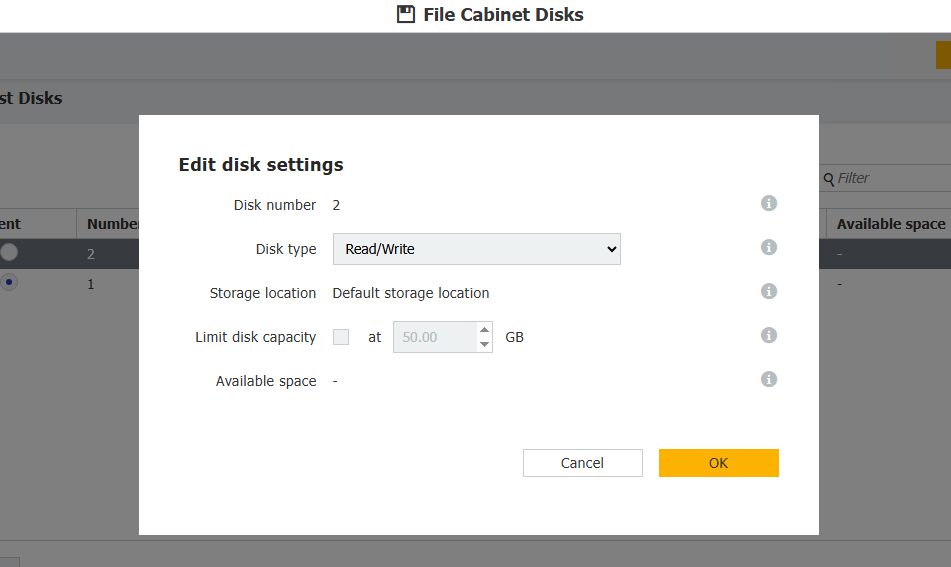
Field | Description |
Disk number | Assigned automatically. This number identifies the disk within the file cabinet and cannot be changed. |
Disk type | Defines the operational mode of the disk. Read/Write: Standard mode. Documents can be stored and retrieved. Read Only: No new documents can be written to the disk. Use this mode to freeze a disk after migrating its storage or when decommissioning older storage media. WORM (Write Once Read Many): Each document can be written exactly once and cannot be modified or deleted afterward. WORM is typically required for regulatory or legal compliance scenarios. |
Storage location | The physical or network path where the disk stores its data. Select from the storage locations configured in DocuWare. |
Limit disk capacity | When enabled, you can set a maximum size in GB. Once the limit is reached, new documents are no longer stored on this disk. |
Available space | Shows the remaining free space on the disk. Displays "–" if the storage type does not support space reporting. |