User Provisioning synchronizes users and groups from an on-premises Active Directory into DocuWare. Instead of creating and maintaining user accounts manually, you configure a connection between your directory service and DocuWare so that user accounts, group memberships, and status changes are transferred automatically on a schedule.
The setup consists of three parts: configuring the User Provisioning plugin and an app registration in DocuWare, setting up the connection to your Active Directory in the User Provisioning Configurator application, and scheduling the synchronization through Windows Task Scheduler.
You configure the DocuWare side in DocuWare Configurations > General > User Provisioning and DocuWare Configurations > Integrations > App Registration. The User Provisioning Configurator is available as a separate download from the User Provisioning plugin page.
This article is for DocuWare on-premises 7.14 and later.
Register the User Provisioning desktop application
Go to DocuWare Configurations > Integrations > App Registration.
In the App Registration plugin, select New app registration.
In the Create Application Registration pop-up, choose the option Web application and click Continue.
.png)
If you created a new app registration, enter a name for the application.
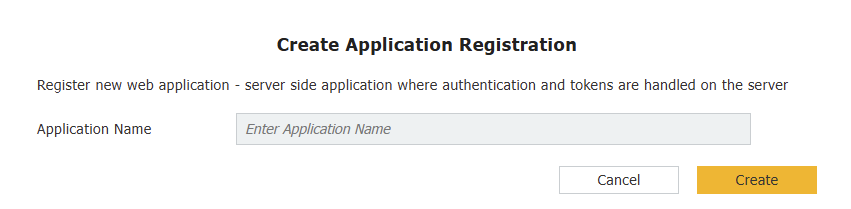
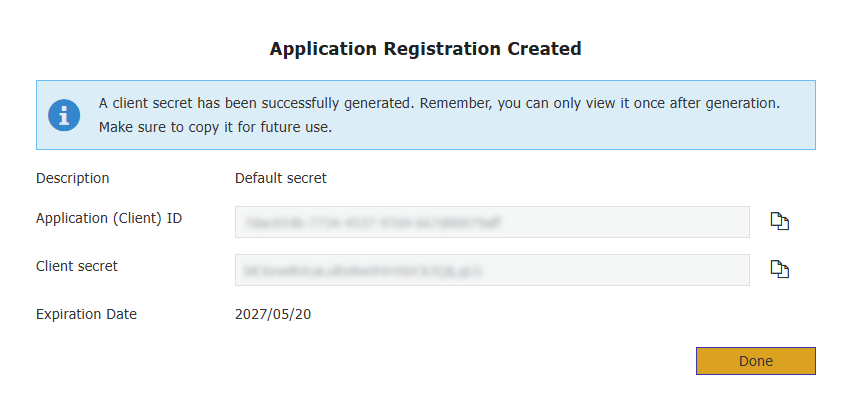
From the just created app registration, copy the Application (Client) ID and the Client Secret. Click the Done button.
Copy the User Provisioning tenant URL and the Token endpoint URL.
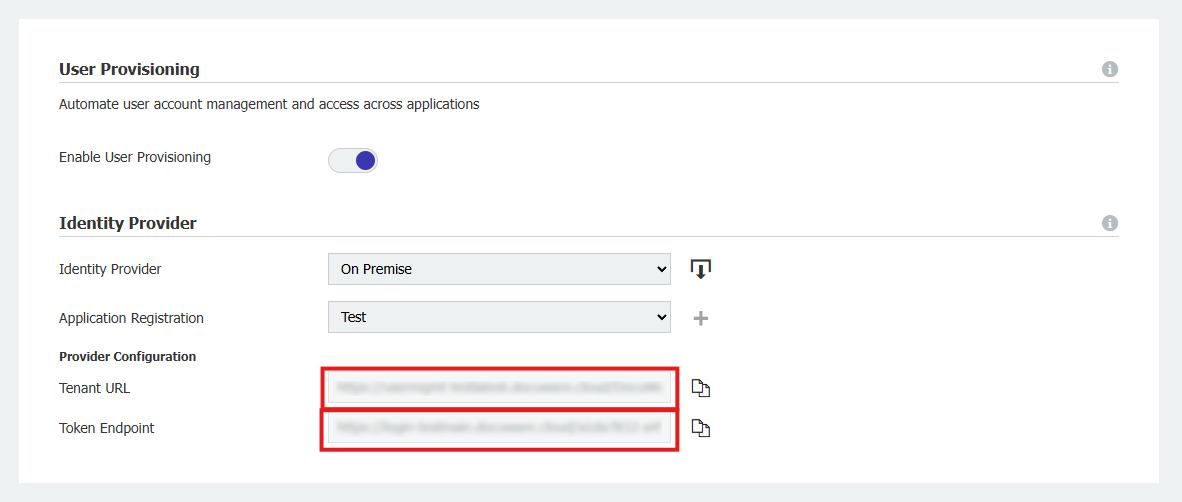
You now have the four values required to connect the User Provisioning Configurator to DocuWare:
Application (Client) ID
Client Secret
User Provisioning tenant URL
and Token endpoint URL
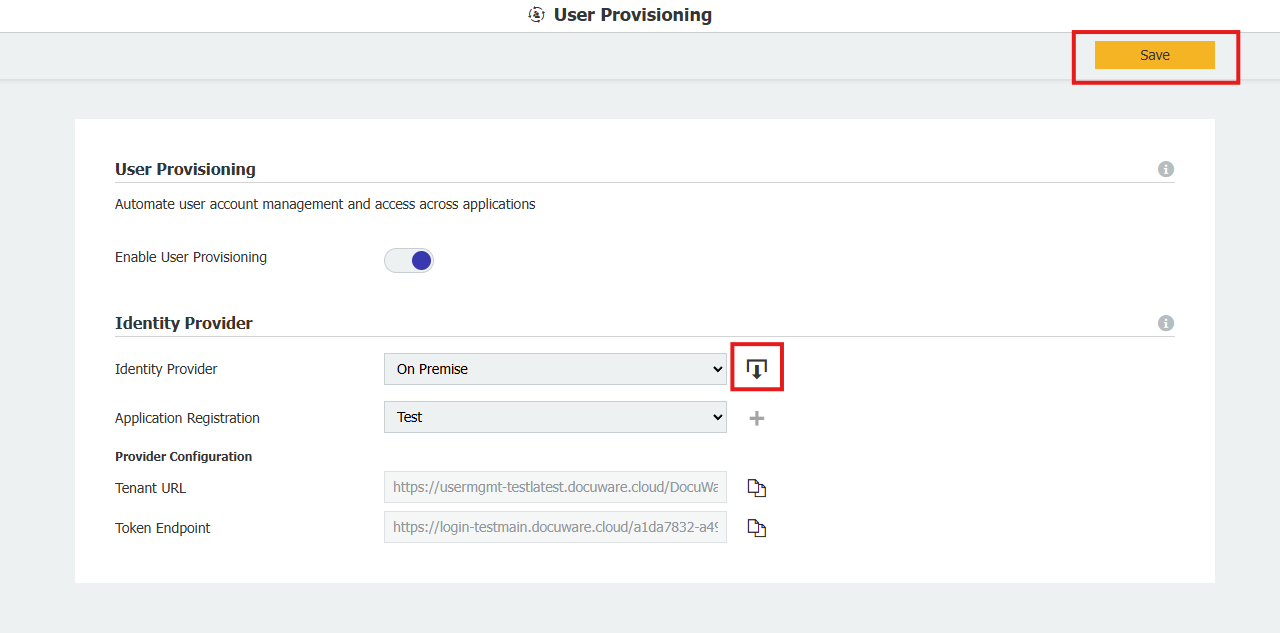
Download the User Provisioning connector tool from the plugin page and click the Save button.
Set up the User Provisioning Configurator
The User Provisioning Configurator is a desktop application that stores connection settings for both DocuWare and your Active Directory. You can create multiple configurations if you need to synchronize from several directory servers.
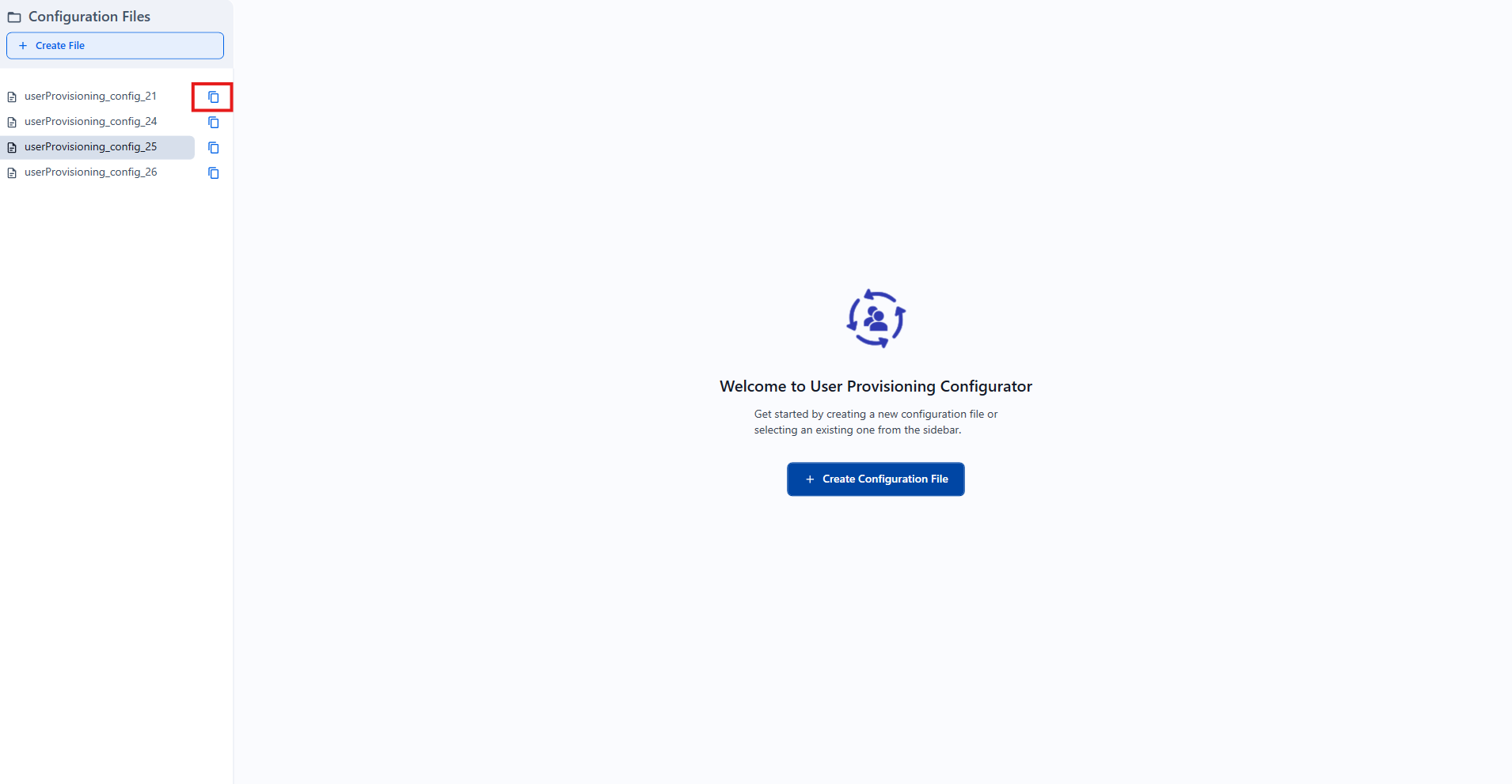
The User Provisioning on-premises application is located in the DocuWare installation folder. To access it, navigate to the UserProvisioning subfolder at the following path: C:\Program Files(x86)\DocuWare\Power Tools\UserProvisioningConfigurator and click on:
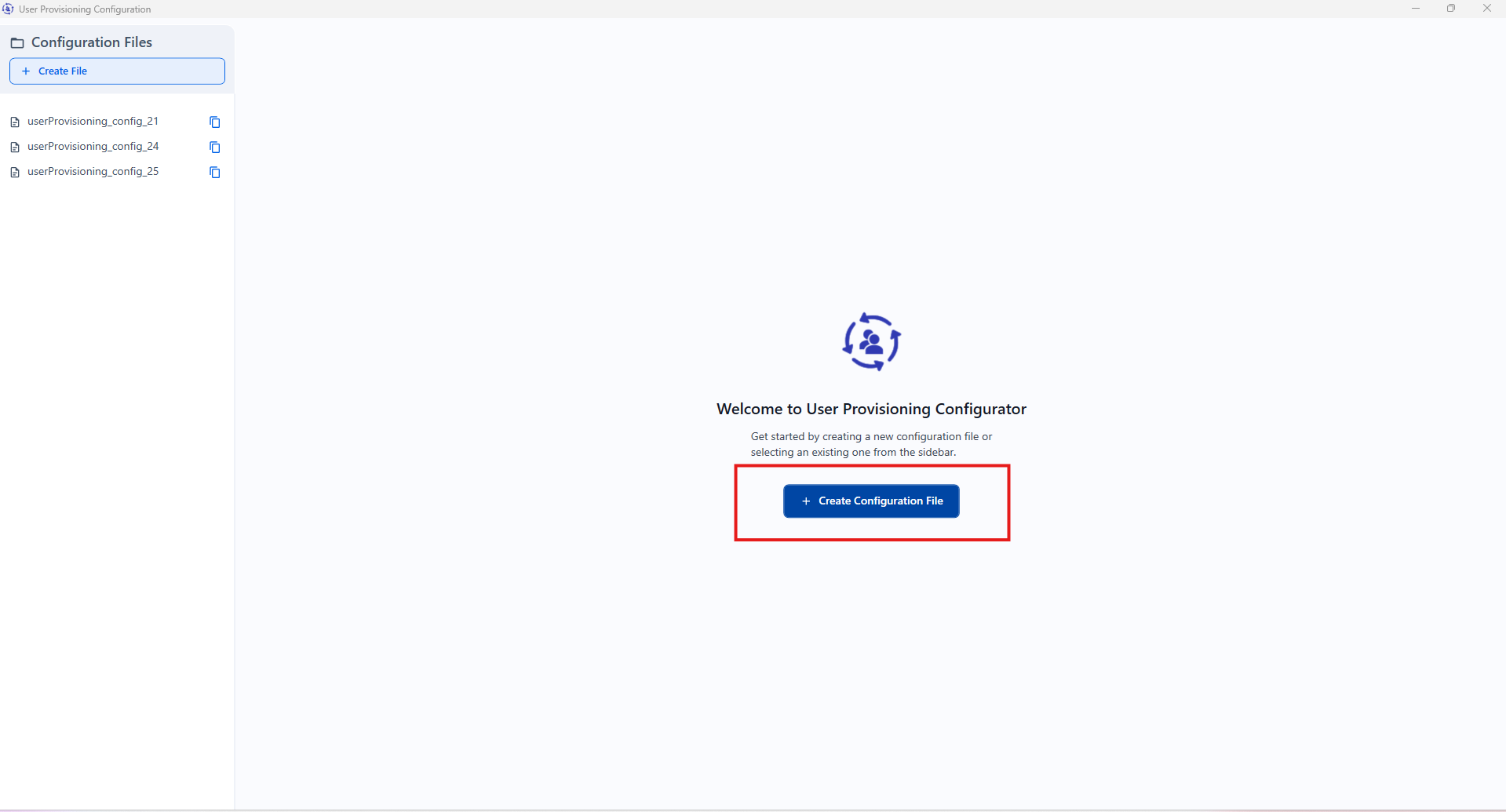
UserProvisioningConfigurator.exe.Select Create Configuration File.
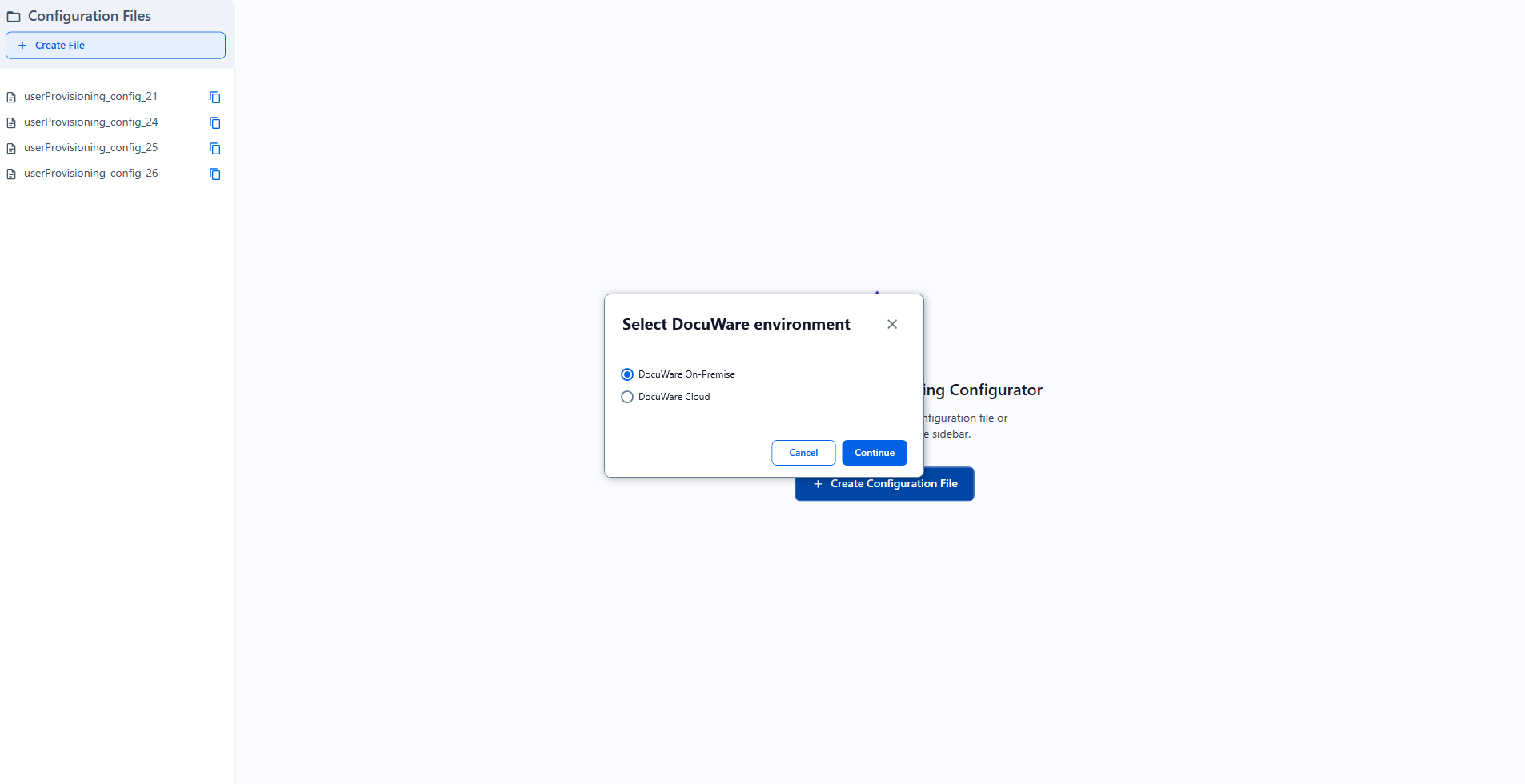
Select DocuWare On-Premise as the environment and click the Continue button.
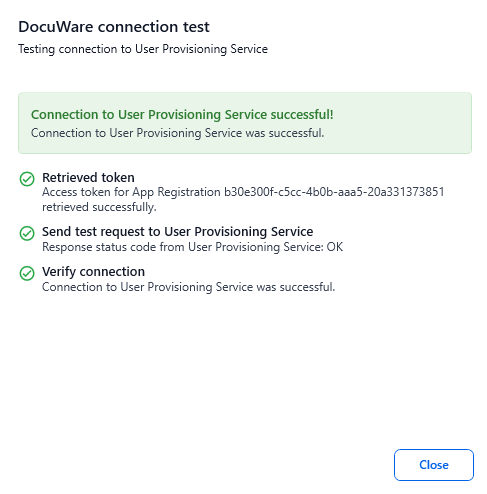
Enter the four credential values from the previous section - see step 7 (Application (Client) ID, Client Secret, User Provisioning tenant URL, Token endpoint URL). Optionally use Test Connection to verify.
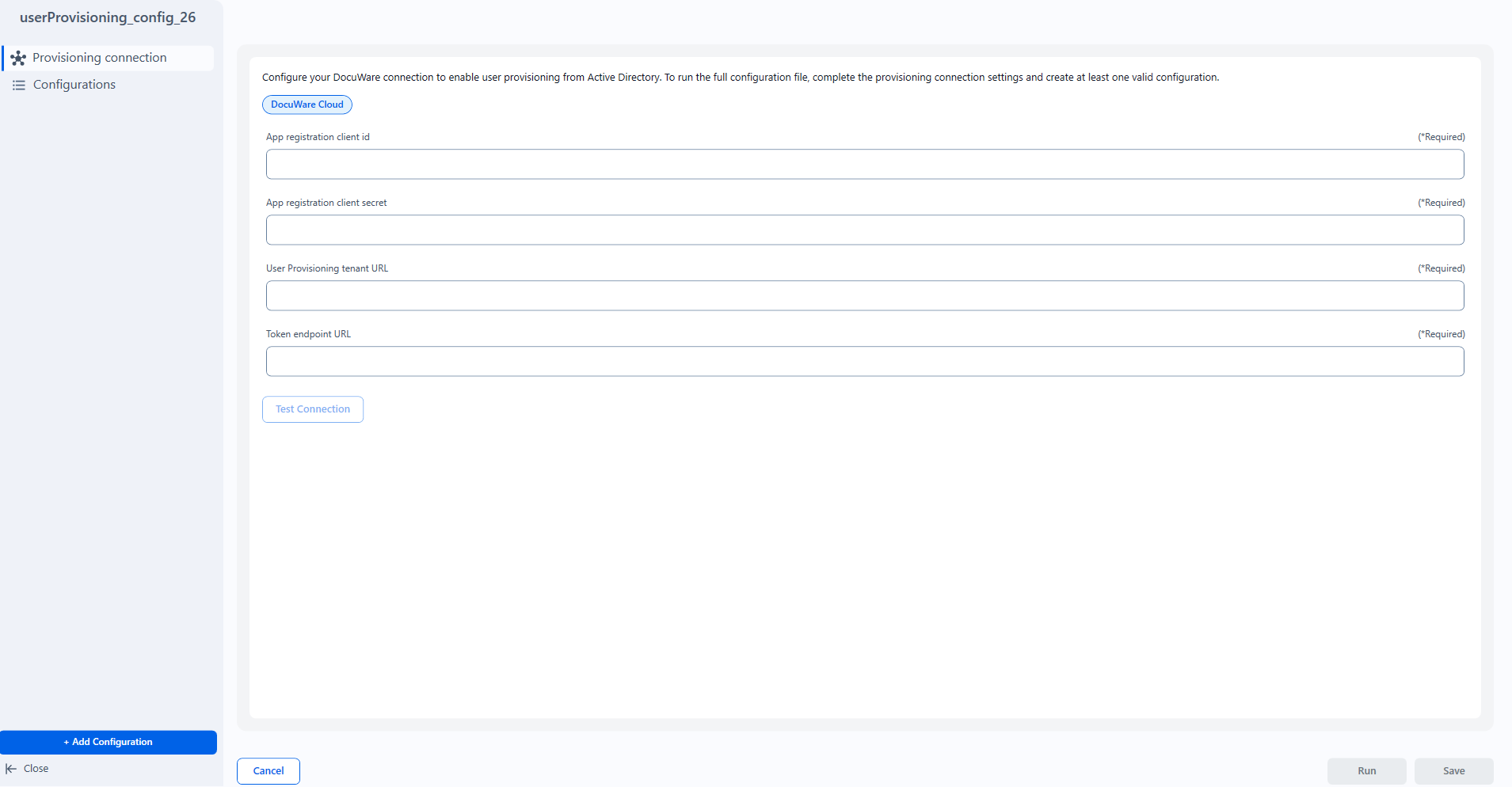
Select Add Configuration to start configuring the directory connections.
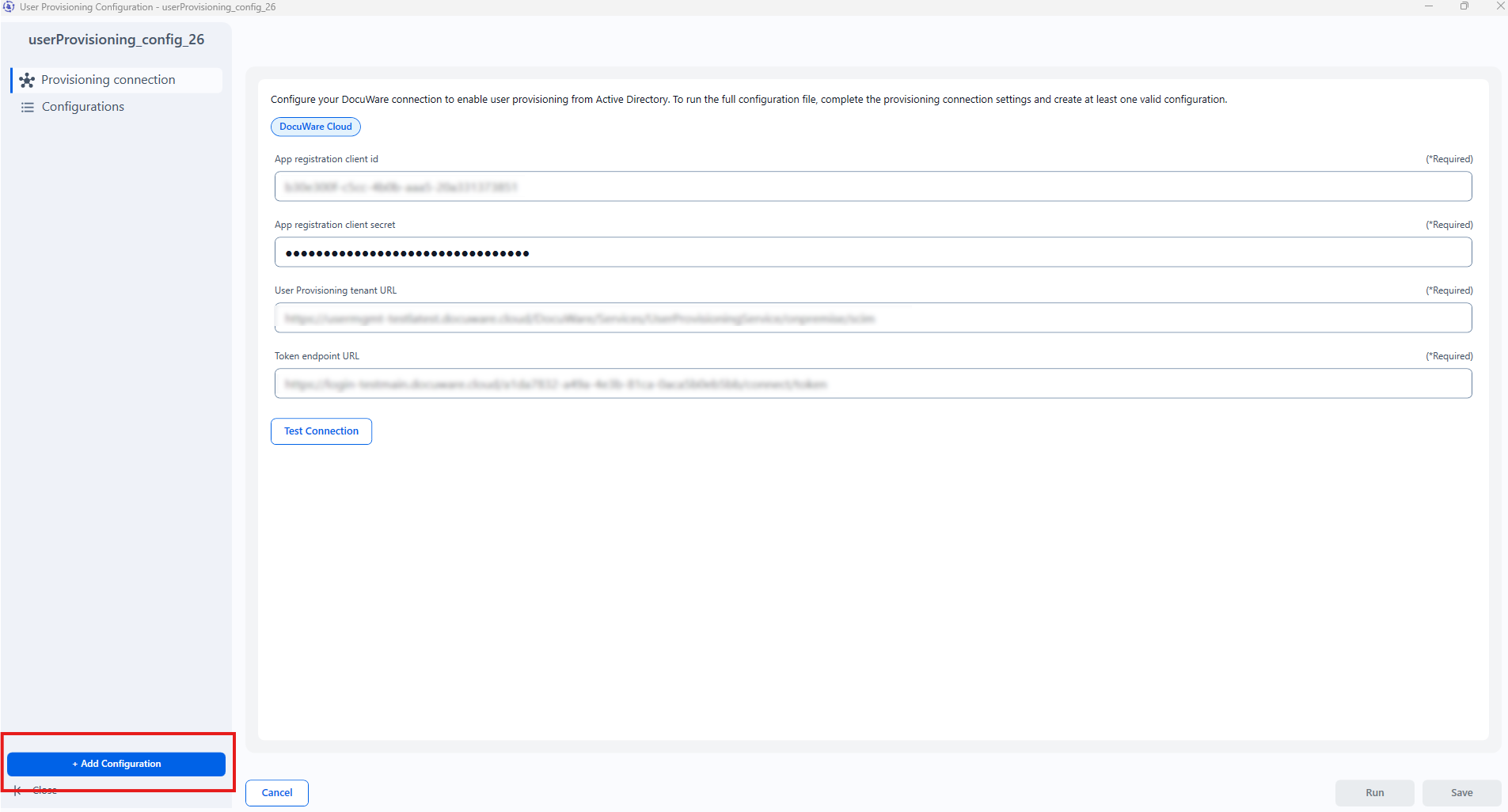
When you start editing the configuration you will see a tab menu with different settings. By default all options in the General tab are set to true.
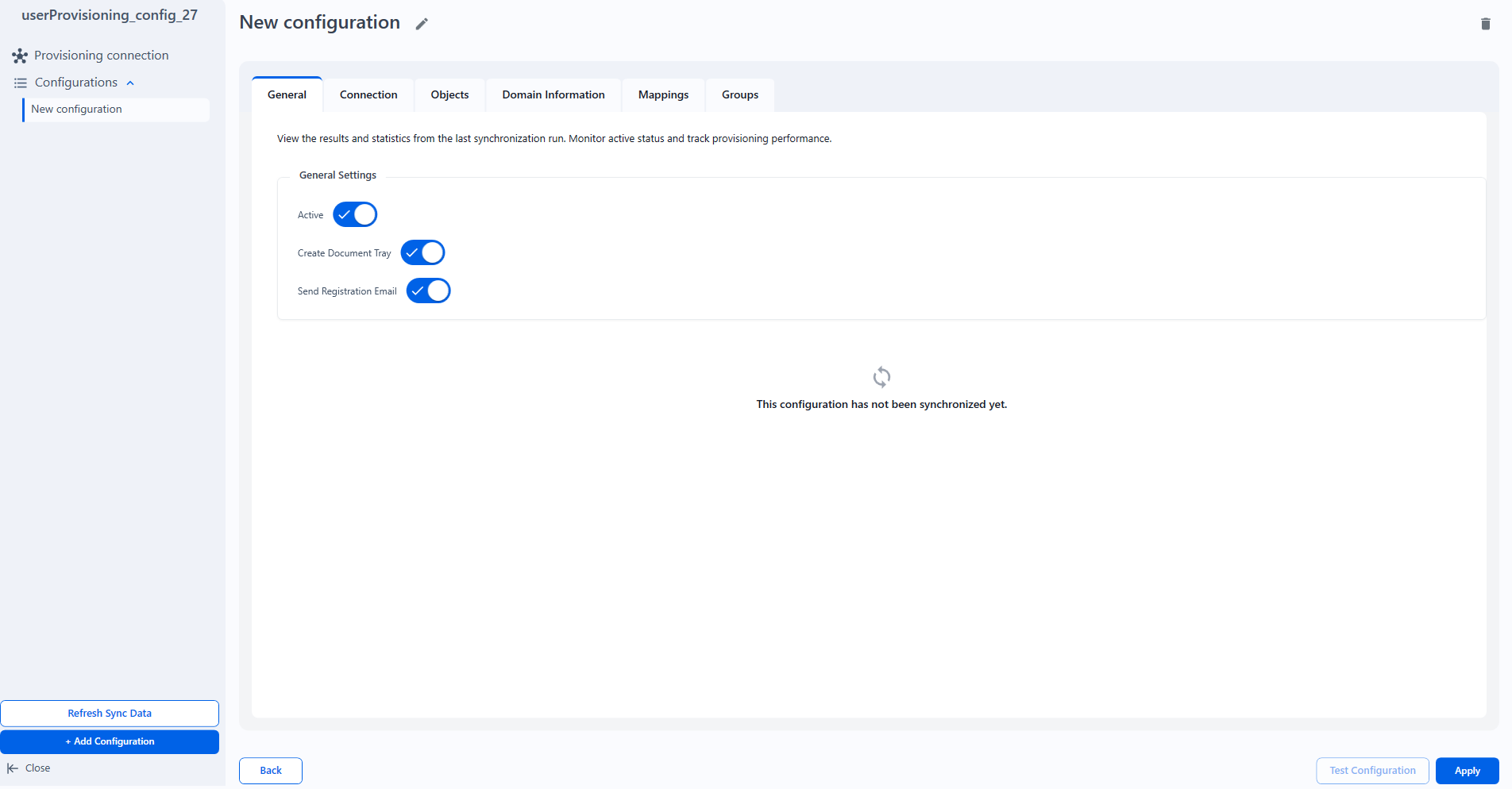
Click Connection tab and choose - LDAP or Microsoft.
Add needed information.
BaseDN and Groups DN should follow the syntax:
Groups DN examples:
cn=Admins,dc=example,dc=comorcn=Developers,ou=IT,dc=company,dc=orgBaseDN examples:
dc=example,dc=comorou=IT,dc=company,dc=org
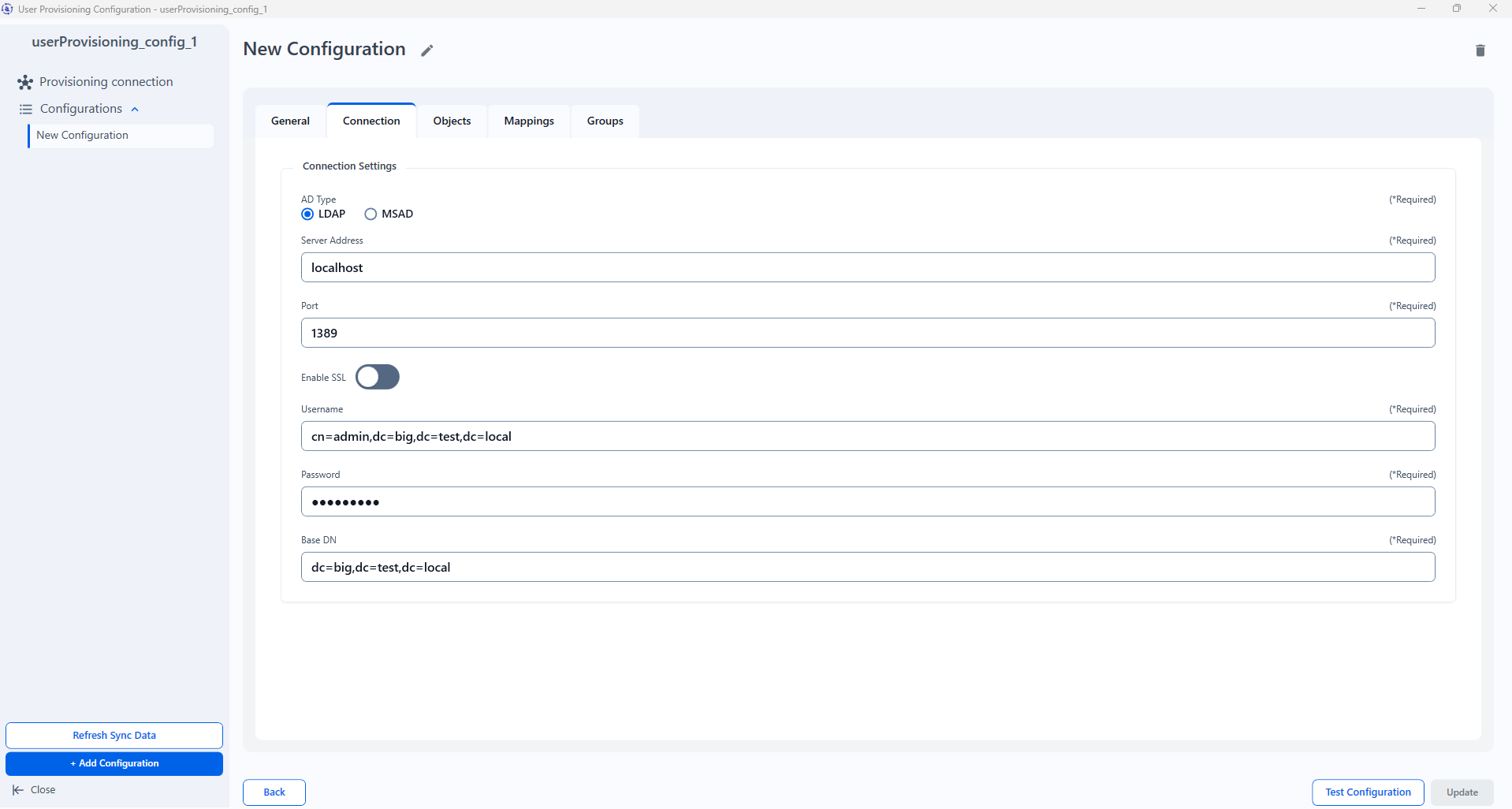
Objects and Mappings tabs are pre-filled with required data based on the selected AD type.
Optionally, activate the Create Network ID option on the Domain Information tab - This option is supported only for DocuWare on-premises environment.
Provide a Domain name
Set a proper NetworkIdAttribute - example:
userPrincipalNameNote: These attributes will be added only to newly created users. Once they are already provisioned, these attributes won't be updated afterwards.
You can test the configuration clicking on Test Configuration button.
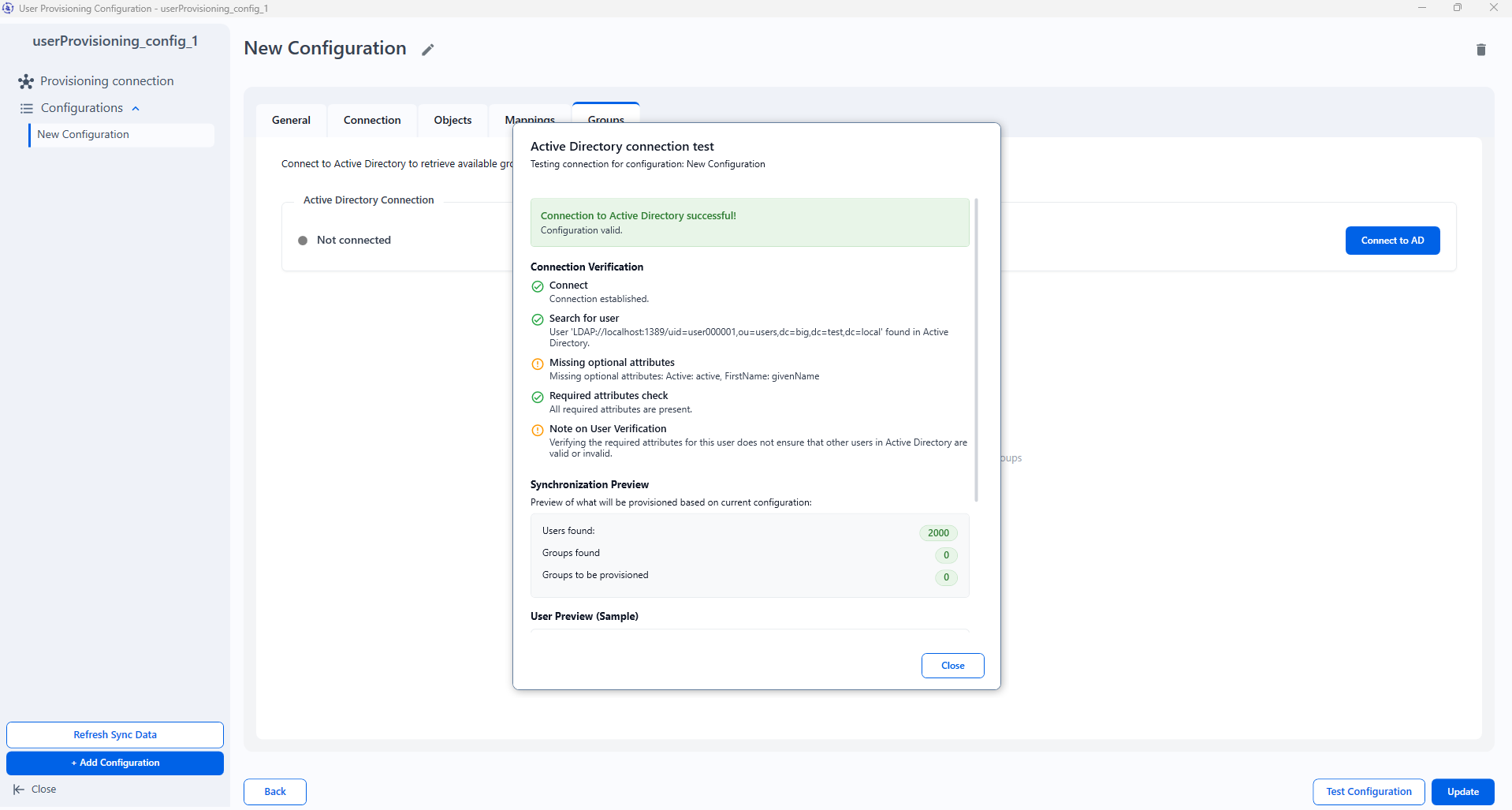
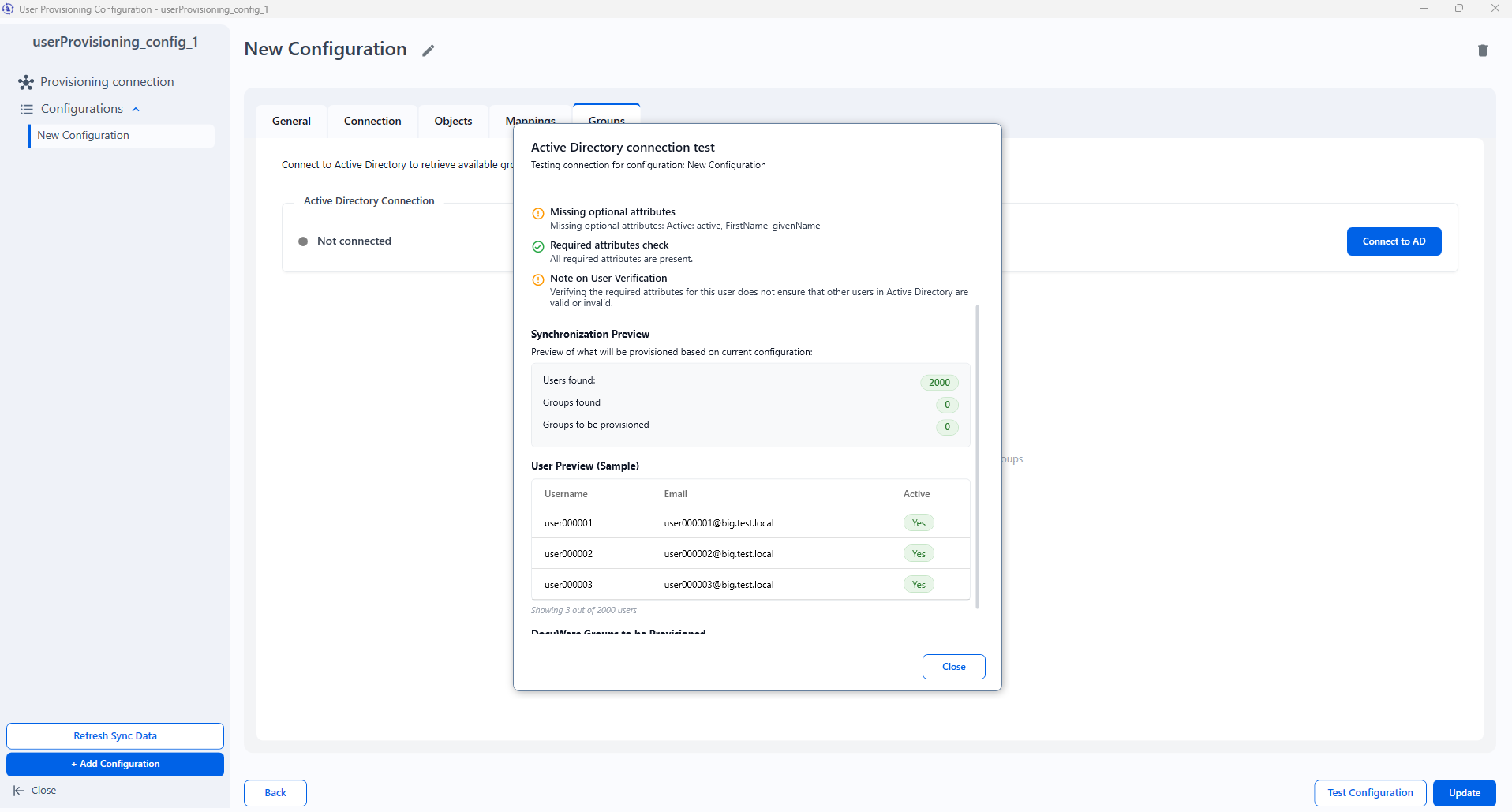
Click on Groups tab and then on Connect to AD button.
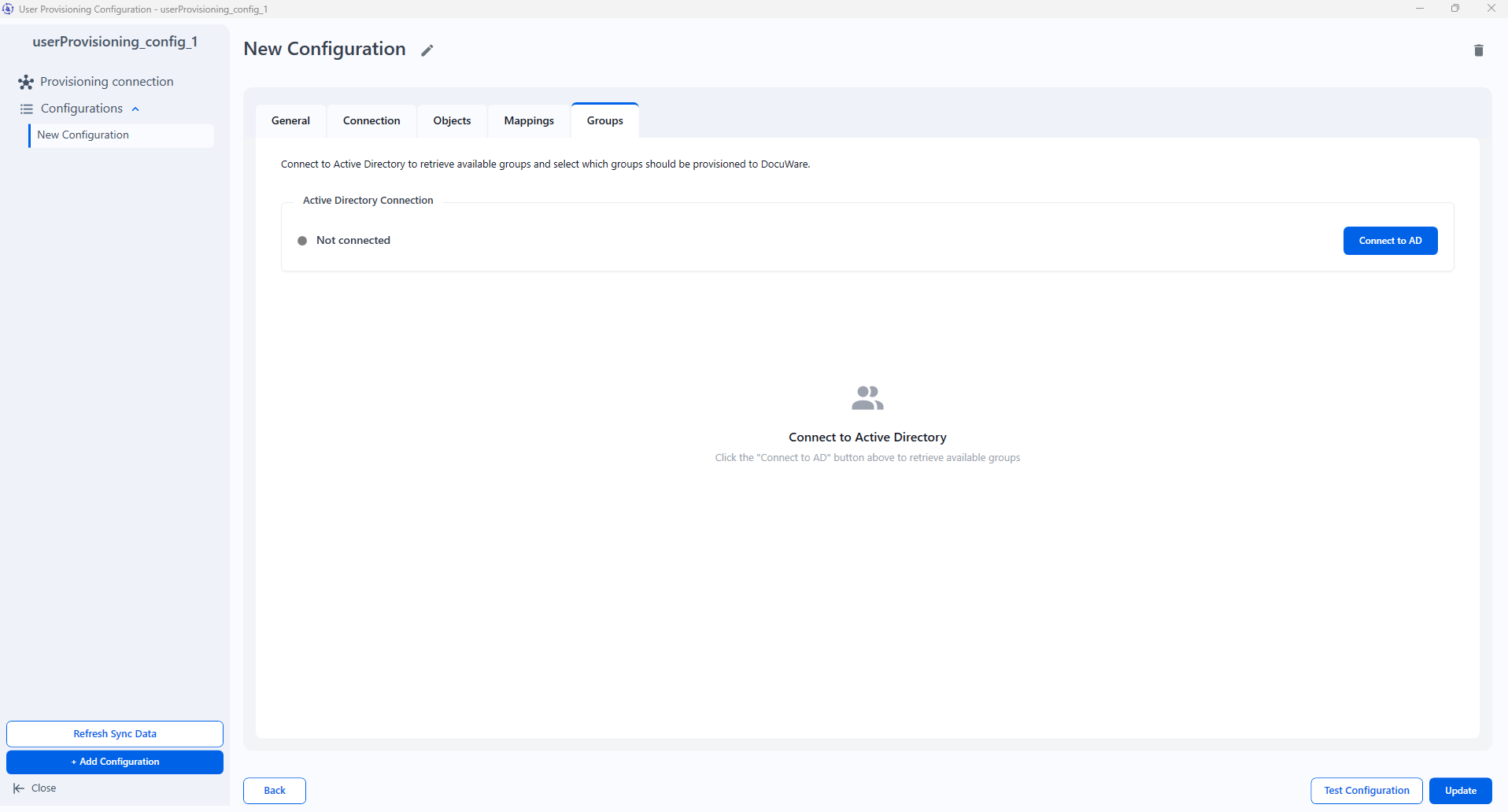
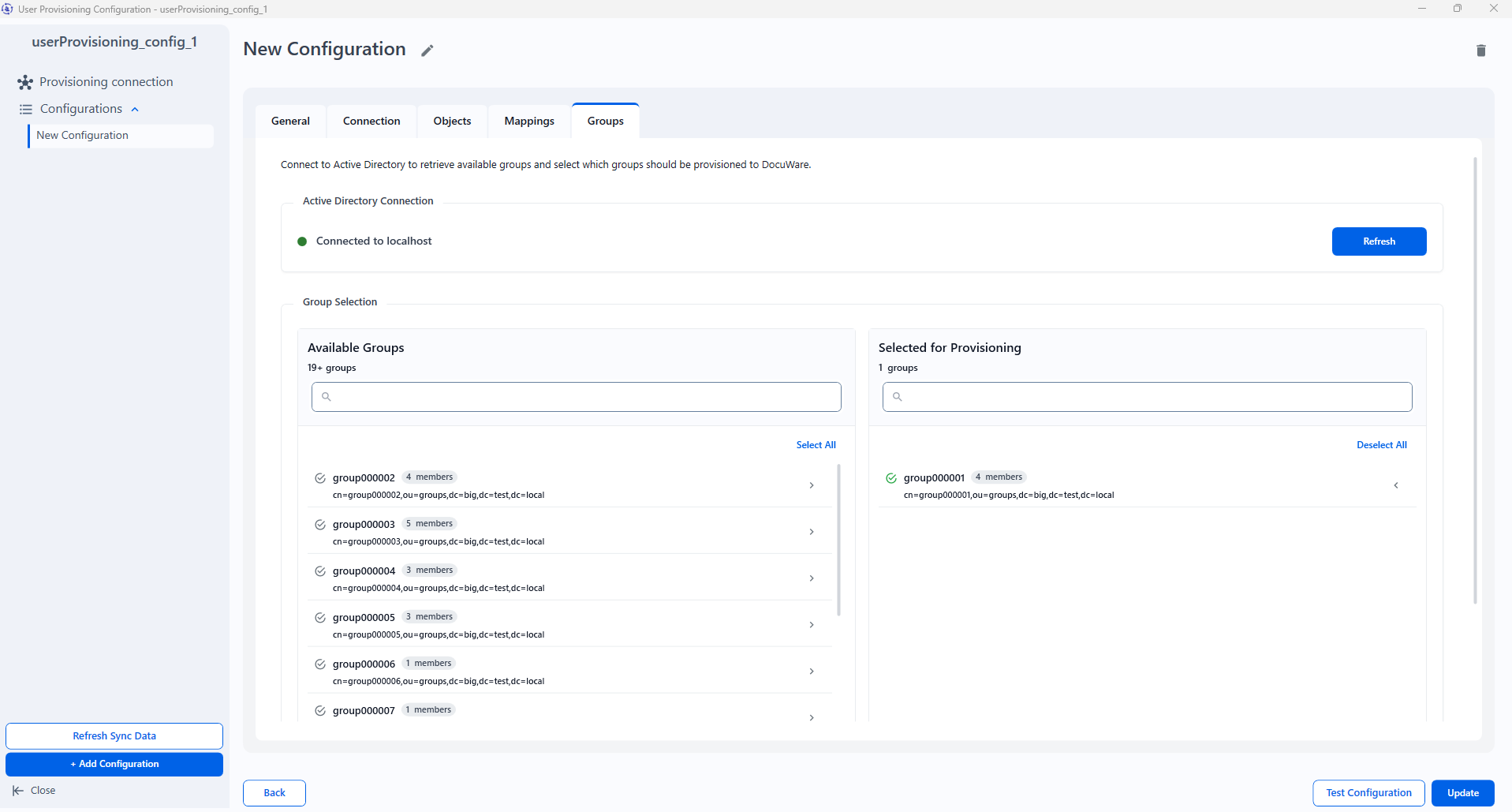
You will see a list of available groups, from which you can select the ones that need to be provisioned.
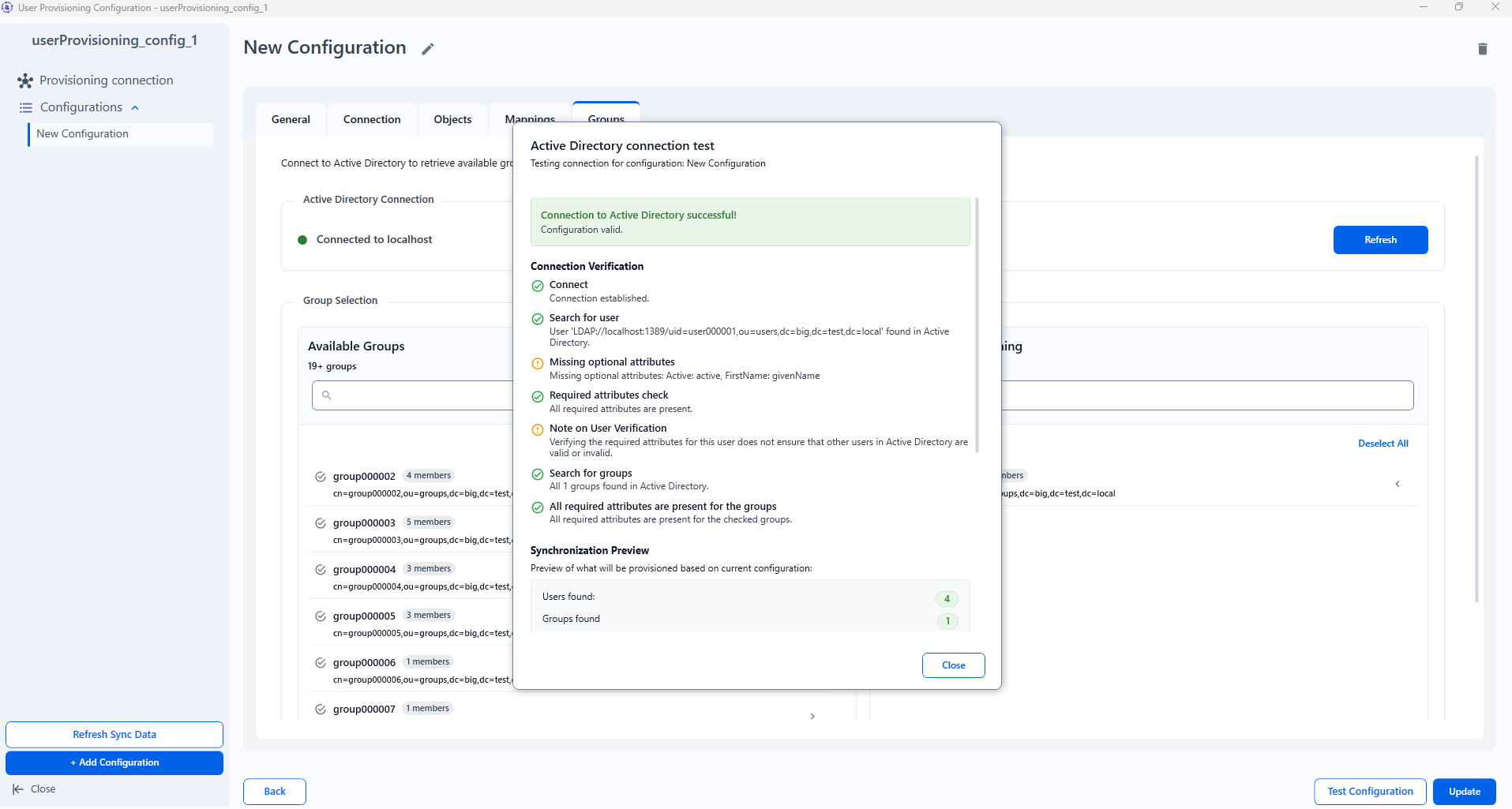
You can test the configuration once again when the groups are selected.
Once the configuration is saved it will appear in the Provisioning connection view. Each configuration can be updated or deleted.
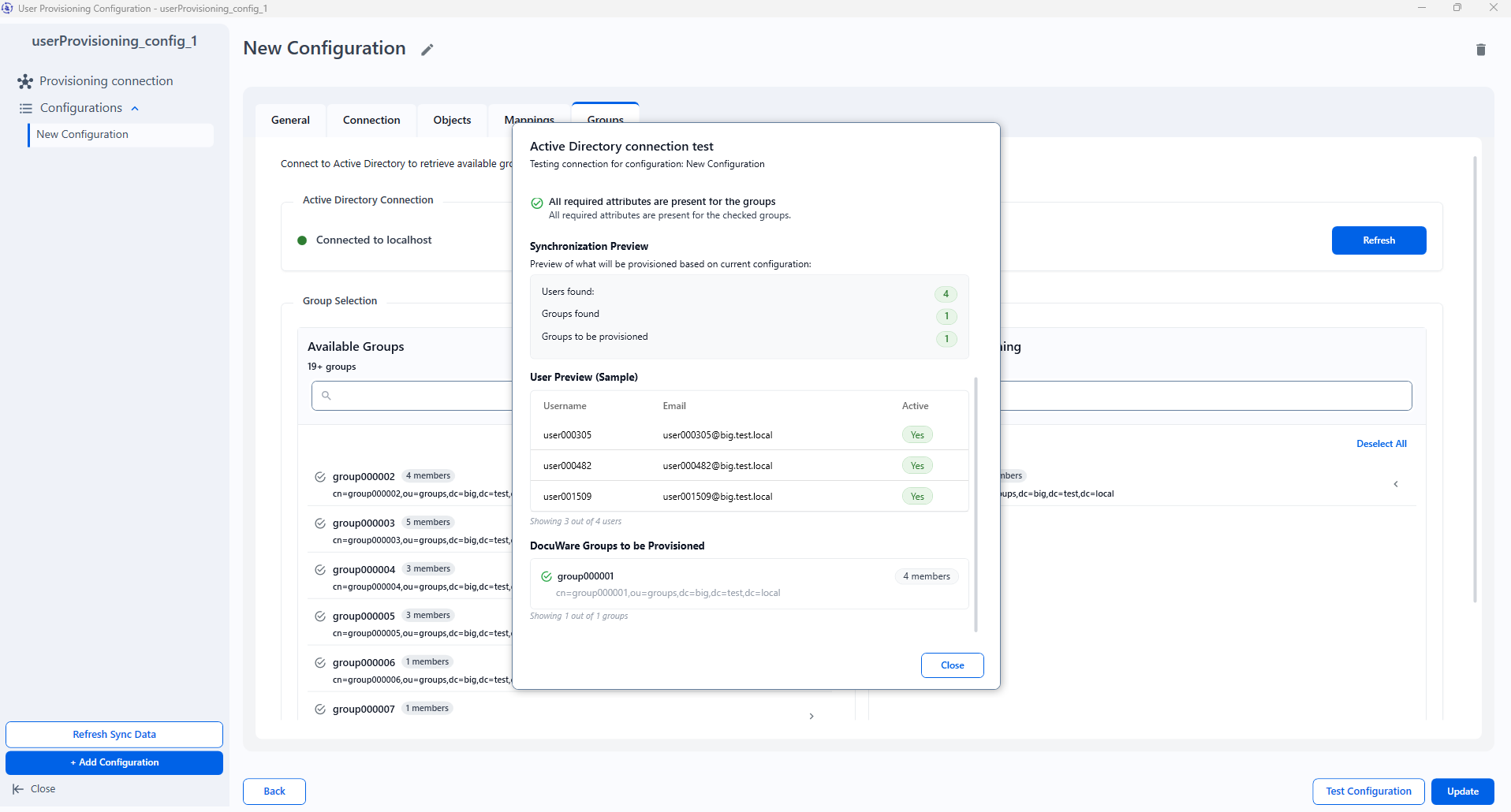
To create multiple connections to various servers and active directories, a separate configuration should be created for each one.
Once you have filled in the provisioning connection data and created at least one valid configuration, you can save the provisioning file by clicking Save.
Close the User Provisioning Configurator application. Your configuration is already saved and can be found in the following folder:
C:\ProgramData\DocuWare\UserProvisioningConfigNow create and schedule a Windows task for executing the User and Groups Synchronization.
Open Windows Task Scheduler and click Create Basic Task.
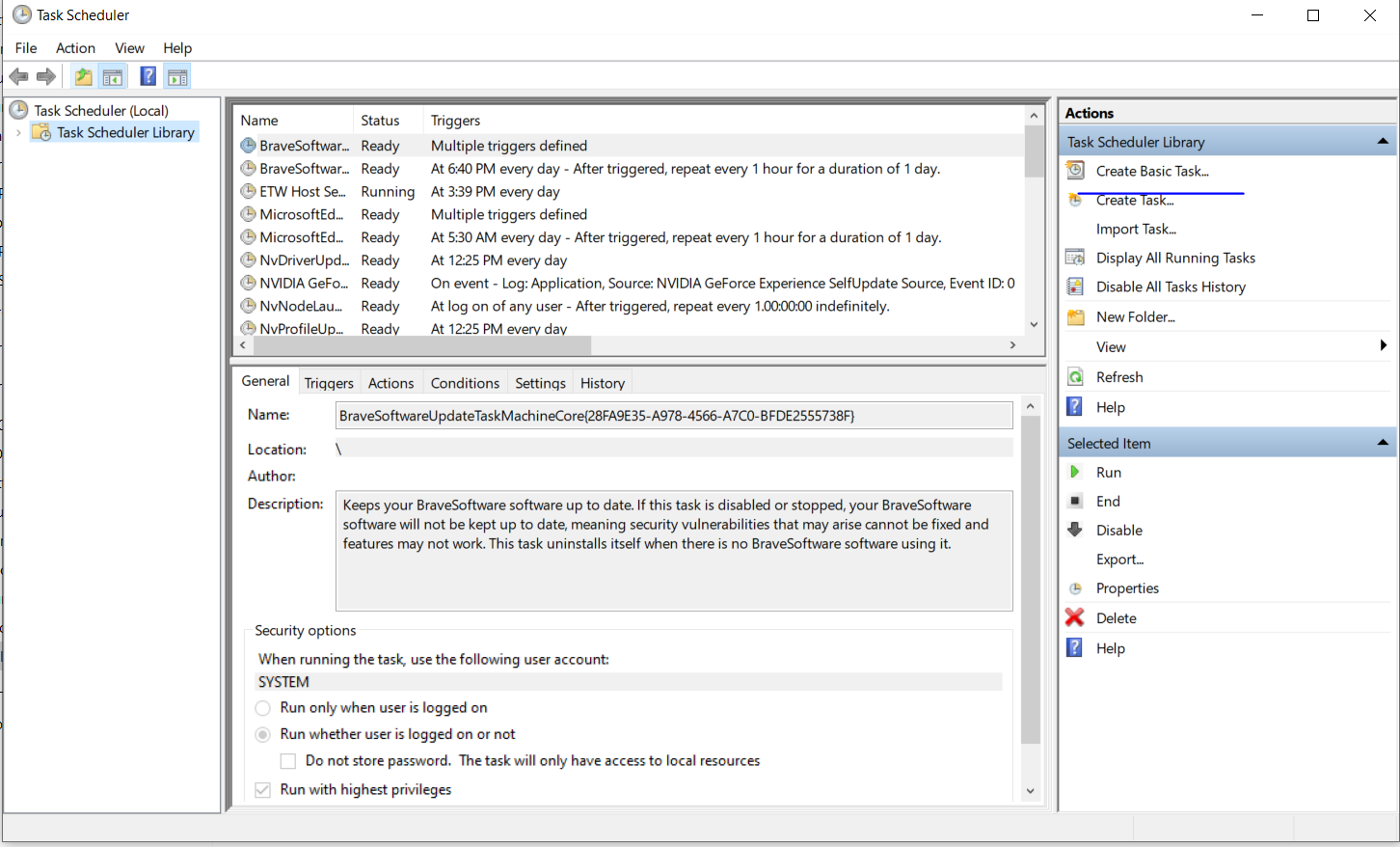
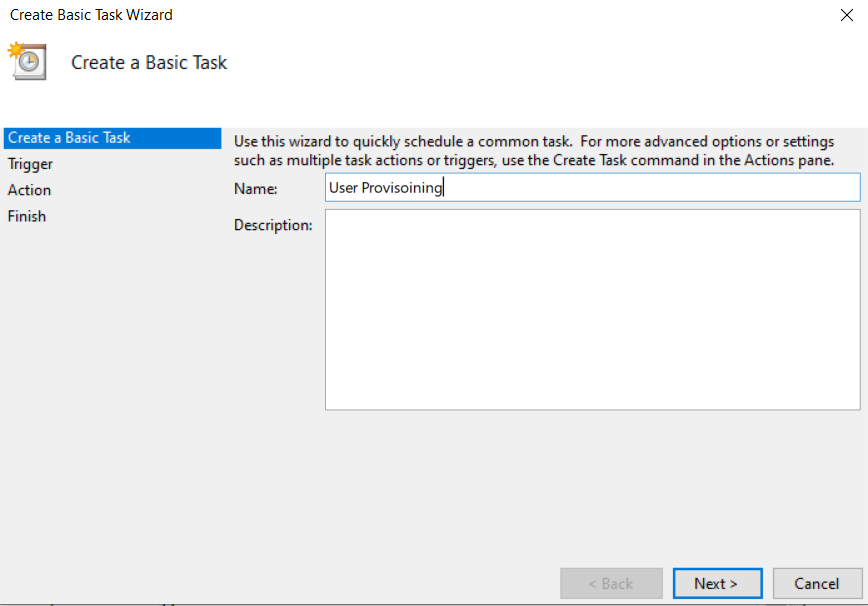
Follow the steps shown in the wizard. Enter a name for the task.
Choose when the synchronization should be triggered.
Select an Action.
Now select the task you'd like to be executed and the arguments (configurations) which have to be used.
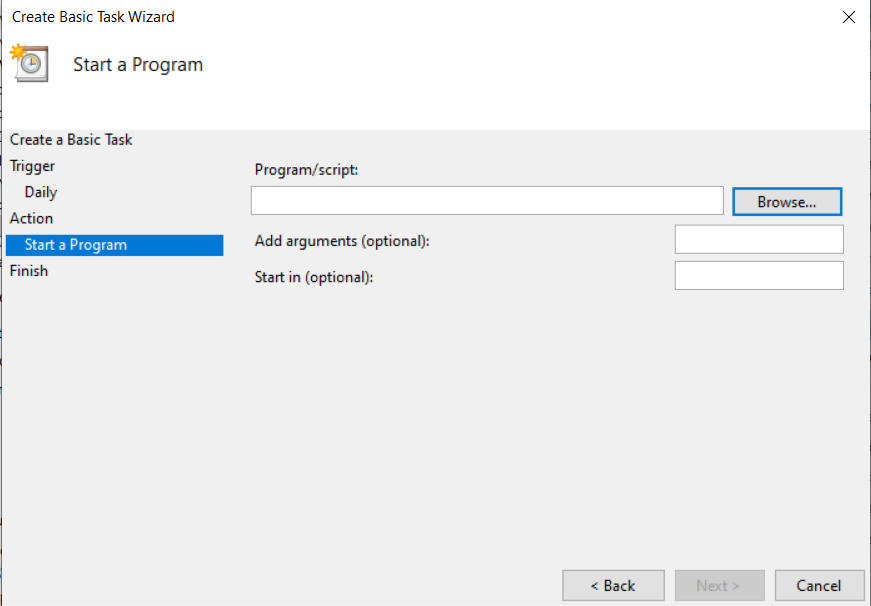
For Program/Script - browse again to DocuWare\PowerTools\UserProvisioning\UserSyncExe and select UserProvisioning.exe.
For Argument write the name of the file copied from the Windows Application (
userProvisioning_config_1.json).
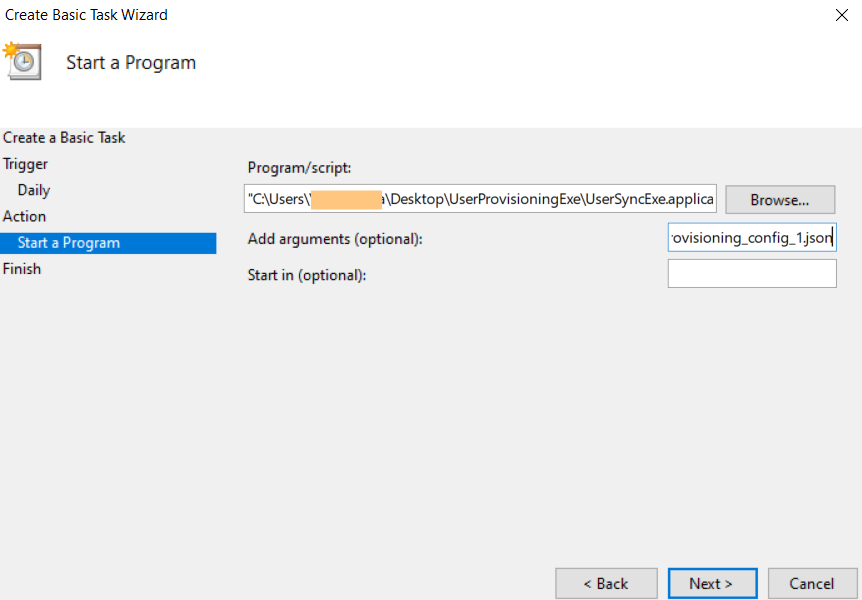
Click Finish and wait for synchronization.
Once the synchronization is finished the following information will appear in the User Provisioning Configurator:
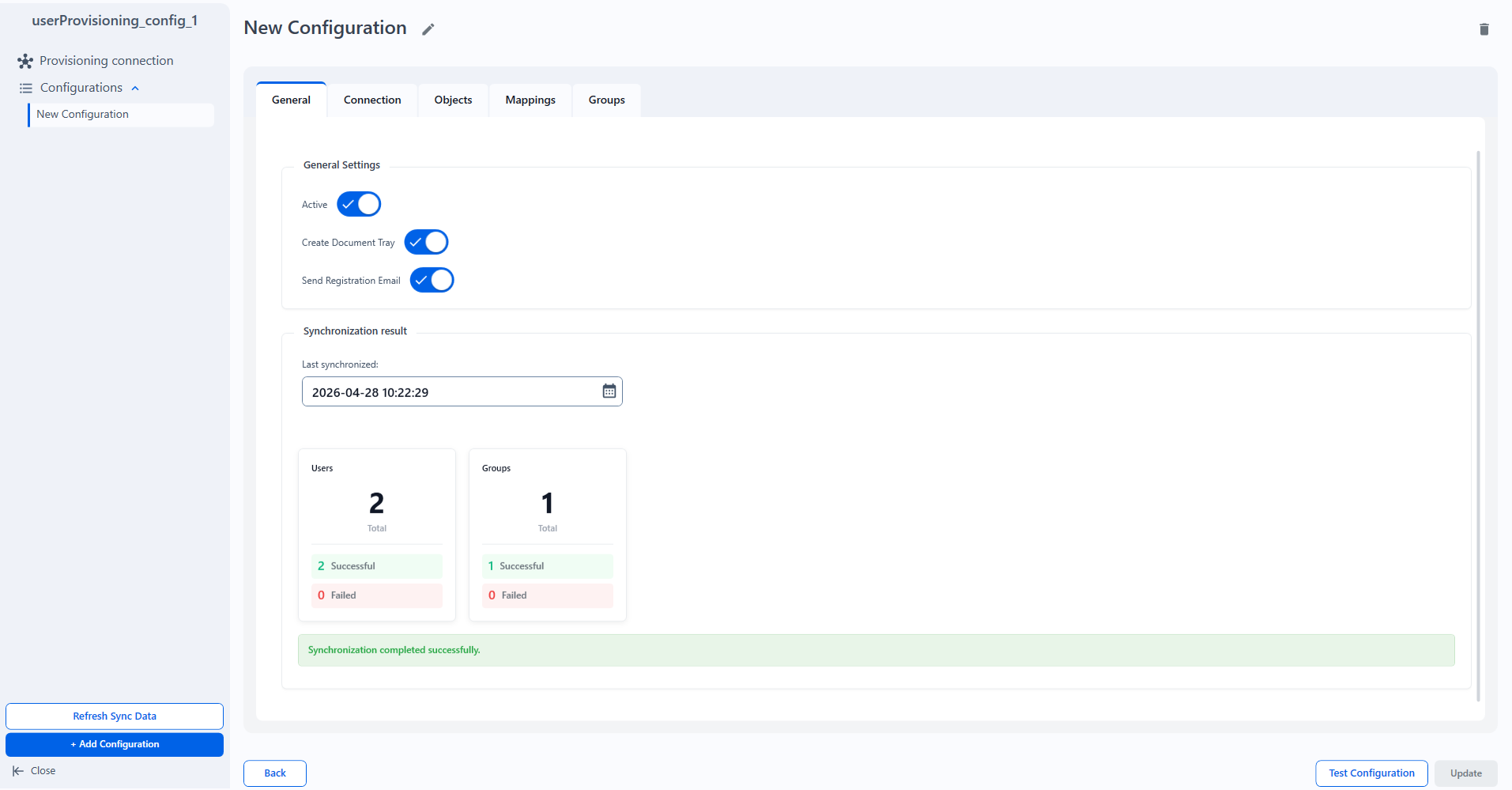
If there are failed users or groups the Timestamp field can be edited with previous date so the Synchronization task can run again.
Logs can be found here:
C:\ProgramData\DocuWare\UserProvisioningConfig
Notes:
New users created via User Provisioning receive a welcome email with a 3-hour password reset link. Configuring an SMTP server is recommended, as lacking one can negatively impact system performance.
Ensure that the user account running the sync has permission to read all relevant user properties in Active Directory, as this is required for proper synchronization.
To properly configure SSO using ADFS as the Identity Provider with your DocuWare Cloud system, setting
userPrincipalNameas the mapping attribute for usernames is strongly recommended.Removing a user from the synchronization group does not deactivate the user; it simply removes them from the group. In order for a user to be properly deactivated in DocuWare, their account must be deactivated in Active Directory.
A user completely removed from the external directory is not automatically updated in DocuWare. The User Provisioning app only syncs changes for defined, existing users. If a user is deleted from the external directory, the app does not detect the change unless the provisioned group is also modified, for example, by a membership or timestamp reset. In that case, the user is removed from the group in DocuWare but remains active.
The table below explains how user changes in an external directory (such as Active Directory) affect user synchronization in DocuWare via User Provisioning:
Status in the external directory | DocuWare app User synchronization | DocuWare |
User is deactivated | Transfers the status | User is deactivated |
User is moved in the external directory | Detects that the user no longer belongs to the synchronizing group | User remains activated |
User is removed from directory | Does not transfer a change, unless other group changes or timestamp reset - then user is removed from group | User remains activated |